1
Do This
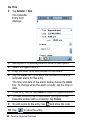
2 Open Control Panel application (
)
3 Tap Connections tab > A925 Desktop Suite > Bluetooth.
4 To complete the connection, tap
(Desktop Suite) in
the Application Launcher and tap Connect.
Using A925 Desktop Suite
After you have connected your handset to the computer, start the
A925 Desktop Suite program on your computer. Refer to the A925
Desktop Suite online help for more information about setting up and
using this program.
Using Remote Synchronisation
The handset enables you to synchronise Calendar, To Do, and
Contract entries over the air with a synchronisation server.
Setting Up Your Account
To use remote synchronisation, you need to set up an account with
your service provider. Your provider will supply you with a server
address, server databases, user name, and a password. To
synchronise over the Web, you also need an Internet account.
Configuring the Settings
When you have your account information, you can configure the
handset for remote synchronisation.
Do This
1 Tap ( ).
2 Tap Edit > Settings.
Getting More Out of Your Handset - 83