1
Installing & Setting Up the Driver (Windows)
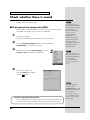
■ Enabling background services
1
2
3
4
5
6
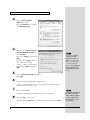
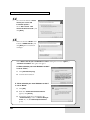
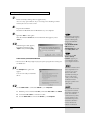
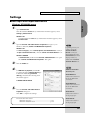
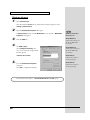
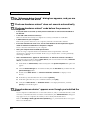
Click the Windows start button, and from the menu that appears, select
Control Panel.
In “Pick a category”, click “Performance and Maintenance”.
In “or pick a Control Panel icon”, click the System icon.
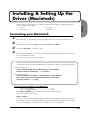
Click the Advanced tab.
Depending on how your
system is set up, the
System icon may be
displayed directly in the
Control Panel (the Classic
display). In this case,
double-click the System
icon.
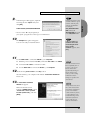
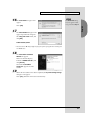
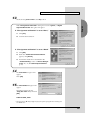
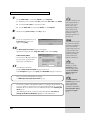
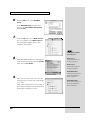
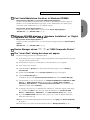
At the right of the Performance field, click [Settings]. The Performance
Options dialog box will appear.
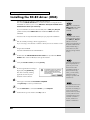
Click the Advanced tab.
fig.2-30
7
8
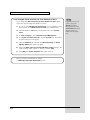
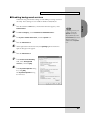
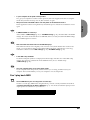
In the Processor Scheduling
field, select “Background
services”, and click [OK].
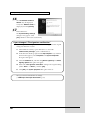
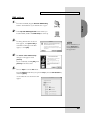
In the System Properties dialog
box, click [OK].
The System Properties dialog
box will close.
21
English
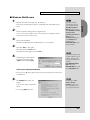
In Windows XP, perform these settings to make MIDI processing occur more
smoothly. These settings are unavailable in Windows 2000/Me/98.