1
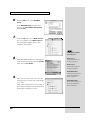
Getting Started
Thank you, and congratulations on your choice of the STUDIO Canvas SD-80.
Before using this unit, carefully read the sections entitled:
“IMPORTANT SAFETY INSTRUCTIONS” (Owner’s manual p. 2),
“USING THE UNIT SAFELY” (Owner’s manual pp. 3--4), and
“IMPORTANT NOTES” (Owner’s manual p. 5). These sections provide
important information concerning the proper operation of the unit.
Additionally, in order to feel assured that you have gained a good
grasp of every feature provided by your new unit, Getting started and
Owner’s manual should be read in its entirety. The manual should be
saved and kept on hand as a convenient reference.
Copyright © 2002 ROLAND CORPORATION
All rights reserved. No part of this publication may be reproduced in any form
without the written permission of ROLAND CORPORATION.
For 230 V
(English)
This box contains continental and British power cables. Please select the correct
type for your country.
Für 230 V
(Deutsch)
Diese Packung beinhaltet europäische und britische Netzkabel. Bitte suchen Sie
sich die richtige Variante für Ihr Land aus.
Pour 230 V
(Français)
Cette boite contient des alimentations anglaises ou continentales. Merci de choisir
l'alimentation appropriée de votre pays.
Per 230 V
(Italiano)
La confezione contiene alimentatori con spina europea e Inglese. Scegliete quella
adatta alla Vostra nazione.
Para 230 V
(Español)
Esta caja contiene cables de corriente continentales y británicos. Por favor
seleccione el tipo correcto para su país.
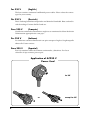
Application of AC230 V
Power Cord
for UK
or
2
except for UK
Contents
Contents ................................................................................... 3
Contents of the Package ......................................................... 4
Connections with audio equipment ....................................... 6
Installing & Setting Up the Driver (Windows)........................ 7
Driver Installation ................................................................................................................ 7
Settings ................................................................................................................................ 19
Check whether there is sound.......................................................................................... 22
Installing & Setting Up the Driver (Macintosh).................... 23
Connecting your Macintosh ............................................................................................. 23
Installing the SD-80 driver (OMS) ................................................................................... 24
Installing the SD-80 driver (FreeMIDI)........................................................................... 28
Troubleshooting..................................................................... 30
Problems related to the USB driver................................................................................. 30
Problems when using the SD-80 ...................................................................................... 34
Deleting the driver............................................................................................................. 37
204
* Microsoft and Windows are registered trademarks of Microsoft Corporation.
206e
* Screen shots in this documents are reprinted with permission from Microsoft Corporation.
ADD
* Windows® XP is known officially as: “Microsoft® Windows® XP operating system.”
206f
* Windows® 2000 is known officially as: “Microsoft® Windows® 2000 operating system.”
206g
* Windows® Me is known officially as: “Microsoft® Windows® Millennium Edition operating system.”
206c
* Windows® 98 is known officially as: “Microsoft® Windows® 98 operating system.”
207
* Apple and Macintosh are registered trademark of Apple Computer, Inc.
209
* MacOS is a trademark of Apple Computer, Inc.
203
* GS (
) is a registered trademark of Roland Corporation.
ADD
* XG (
) and XGlite (
) are trademarks of YAMAHA Corporation.
231
* OMS is a registered trademark of Opcode Systems, Inc.
232
* FreeMIDI is a trademark of Mark of the Unicorn, Inc.
220
* All product names mentioned in this document are trademarks or registered trademarks of their respective
owners.
3
Contents of the Package
The box in which the SD-80 was shipped should contain the following items. After opening the box,
first check to make sure that all the items are included. If any items are missing, please contact the
store where you purchased the SD-80.
●SD-80
●AC cable
This is the only AC cable you should use with the SD-80.
Do not use any AC cable other than the supplied one, since doing so may cause malfunction.
●USB Cable
●CD-ROM
This contains drivers used by the SD-80, and demo songs.
* Avoid touching or scratching the shiny underside (encoded surface) of the disc. Damaged or dirty CD-ROM
discs may not be read properly. Keep your discs clean using a commercially available CD cleaner.
DO NOT play a CD-ROM disc on a conventional audio CD player.
The resulting sound may be of a level that could cause permanent
hearing loss. Damage to speakers or other system components may
result.
●Getting Started
This is the manual you are holding. Please read this first.
This manual explains how to install the drivers and make the settings required in order to use the
SD-80. Starting at the beginning, please read the sections that are relevant to your system.
●Owner’s Manual
This is the owner’s manual for the SD-80.
Read this to gain in-depth information concerning the use of the SD-80, and the numerous
functions it offers.
4
Contents of the Package
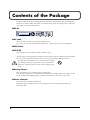
●Rack-mount adaptor
Use this when you want to install the SD-80 in an audio rack. Two rack ears are included.
Attaching the rack-mount adaptor
English
fig.um550
1. Remove three screws (on each side)
from the right and left panels of the
SD-80.
2. Using the screws you removed in
step 1, attach the rack-mount brackets
to the SD-80.
* You must use the screws that you removed.
Do not use any other screws.
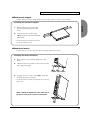
●Desk-stand mount
Use this when you want to place the SD-80 vertically. (with Cushion sets)
Attaching the desk-stand mount
fig.cushion
1. Remove three screws from the right panel of the
SD-80.
2. Affix the cushion set (stickers) to the locations shown
in the diagram at right.
Cushion set (stickers)
3. Using the screws you removed in step 1, attach the
desk-stand mount to the SD-80.
* You must use the screws that you removed. Do not use any
other screws.
When standing the SD-80 on its side, make sure to
position it so the power switch is at the bottom.
5
Connections with audio
equipment
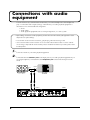
You will not hear any sound from the SD-80 unless you connect headphones to the Headphones
jack, or connect the audio outputs (analog) of the SD-80 to your audio playback equipment as
shown below. You will need the following items.
• SD-80
• Audio cables
• Audio playback equipment such as an amp and speakers, or a stereo system
* Before making connections to other equipment, you must turn down the volume of all equipment to avoid
malfunctions or speaker damage.
* To avoid short circuits or broken connections, grasp the plug when disconnecting a cable.
* Some connection cables contain a resistor. Do not use a cable with a built-in resistor to connect with the
SD-80. Doing so may make the sound extremely weak, or inaudible. For details on your cable, please contact
its manufacturer.
1
2
Lower the volume of your audio playback equipment.
Connect the SD-80’s OUTPUT1 jacks to the input jacks of your audio playback equipment. If you
are using headphones, connect them to the Headphone jack located on the front panel of the
SD-80.
fig.8-1e
INPUT
LINE IN
OUTPUT
6
SD-80
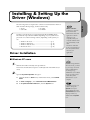
The following items are required for connections and installation. Remove
them from the SD-80 package, and have them ready.
• SD-80
• AC cable
• USB cable
• CD-ROM
In order to use the SD-80, you must first install the USB MIDI driver.
The installation procedure will differ depending on your system. Please
proceed to one of the following sections, depending on the system you
use.
• Windows XP users ..................................................... (p. 7)
• Windows 2000 users................................................... (p. 13)
• Windows Me/98 users .............................................. (p. 17)
• Macintosh users .......................................................... (p. 23)
Driver Installation
What is a driver?
A “driver” is software
that transfers data
between the SD-80 and
application software
running on your
computer, when your
computer and the SD-80
are connected by a USB
cable.
The driver sends data
from your application to
the SD-80, and from the
SD-80 to your
application.
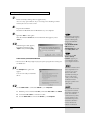
■ Windows XP users
1
With the SD-80 disconnected, start up Windows.
Disconnect all USB cables except for a USB keyboard and USB mouse (if
used).
2
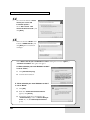
Open the System Properties dialog box.
1. Click the Windows Start menu, and from the menu, select Control
Panel.
If you are using Windows
XP Professional, you must
log on using a user name
with an administrative
account type (e.g.,
Administrator). For details
on user accounts, please
consult the system
administrator of your
computer.
2. In “Pick a category”, click “Performance and Maintenance”.
3. In “or pick a Control Panel icon”, click the System icon.
Depending on how your
system is set up, the
System icon may be
displayed directly in the
Control Panel (the Classic
display). In this case,
double-click the System
icon.
7
English
Installing & Setting Up the
Driver (Windows)
Installing & Setting Up the Driver (Windows)
fig.2-1
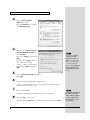
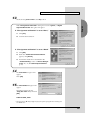
3
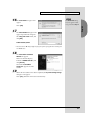
Open the Driver Signing
Options dialog box.
Click the Hardware tab, and then
click [Driver Signing].
fig.2-2
4
Make sure that “What action do
you want Windows to take?” is
set to “Ignore”.
If it is set to “Ignore”, simply click
[OK].
If it is not set to “Ignore”, make a
note of the current setting
(“Warn” or “Block”). Then change
the setting to “Ignore” and click
[OK].
5
If you changed “What
action do you want
Windows to take?” in
step 4, you must restore
the previous setting after
you have installed the
driver. (->If you changed
“What action do you
want Windows to take?”
(p. 12))
Close the System Properties dialog box.
Click [OK].
6
Exit all currently running software (applications).
Also close any open windows. If you are using virus checking or similar
software, be sure to exit it as well.
7
Prepare the CD-ROM.
Insert the CD-ROM into the CD-ROM drive of your computer.
8
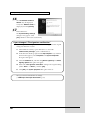
Open the “Run...” dialog box.
Click the Windows start button. From the menu that appears, select “Run...”.
8
If “Windows can perform
the same action each
time you insert a disk or
connect a device with
this kind of file” appears,
click [Cancel].
Installing & Setting Up the Driver (Windows)
9
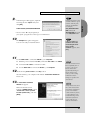
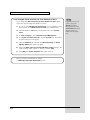
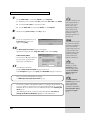
In the dialog box that appears, input the
following into the “Open” field, and
click [OK].
D:\Driver\USB_XP2K\SETUPINF.EXE
* The drive name “D:” may be different for
your system. Specify the drive name of your CD-ROM drive.
In this manual, the location
of folders and files is given
in terms of the file path,
using \ as the delimiter.
For example,
USB_XP2K\SETUPINF.
EXE indicates the
SETUPINF.EXE file found
in the USB_XP2K folder.
fig.2-4_30
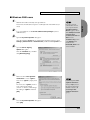
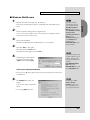
10 The SetupInf dialog box will appear.
You are now ready to install the driver.
If “Do you want to reinstall the driver after
uninstalling the driver
that is already
installed?” appears, click
[Yes].
11 Use the USB cable to connect the SD-80 to your computer.
1. With the power switch turned OFF, connect the AC cable to the SD-80.
2. Connect the AC cable to an electrical outlet.
3. Use the USB cable to connect the SD-80 to your computer.
12 Set the SD-80’s power switch to the ON position.
Near the task bar, your computer will indicate “Found New Hardware”.
Please wait.
fig.2-6
Once the connections have
been completed, turn on
power to your various
devices in the order
specified. By turning on
devices in the wrong
order, you risk causing
malfunction and/or
damage to speakers and
other devices.
13 The Found New Hardware
Wizard will appear.
Make sure that the screen
indicates “EDIROL SD-80”, select
“Install from a list or specific
location (Advanced)”, and click
[Next].
Always make sure to have
the volume level turned
down before switching on
power. Even with the
volume all the way down,
you may still hear some
sound when the power is
switched on, but this is
normal, and does not
indicate a malfunction.
9
English
fig.2-3_30
Installing & Setting Up the Driver (Windows)
fig.2-7
14 The screen will indicate “Please
choose your search and
installation options”.
Select “Don’t search. I will
choose the driver to install”, and
click [Next].
fig.2-8_20
15 Make sure that the “Model” field
indicates “EDIROL SD-80”, and
click [Next]. Driver installation
will begin.
If the “What action do you want Windows to take?” setting was not set to “Ignore”, a
“Hardware Installation” dialog box will appear.
If “What action do you want Windows to take?”
is set to “Warn,”
1. Click [Continue Anyway].
2. Continue the installation.
If “What action do you want Windows to take?”
is set to “Block”
1. Click [OK].
2. When the “Found New Hardware Wizard”
appears, click [Finish].
3. Perform the installation as described in the
“Troubleshooting” section on Device Manager
shows “?”, “!”, or “USB Composite Device”
(p. 33).
10
Installing & Setting Up the Driver (Windows)
fig.2-9_30
appear.
Click [OK].
The Insert Disk dialog
may not appear. In that
case, proceed to step 17.
English
16 The Insert Disk dialog box will
fig.2-10_30
17 The Files Needed dialog box will
appear. Input the following into
the “Copy files from” field, and
click [OK].
D:\Driver\USB_XP2K
* The drive name “D:” may be different for your system. Specify the drive name of your
CD-ROM drive.
fig.2-11_20
18 The Found New Hardware
Wizard will appear.
Make sure that the display
indicates “EDIROL SD-80”, and
click [Finish].
Wait until “Found New
Hardware” appears near the
taskbar.
19 When driver installation has been completed, the System Setting Change
dialog box will appear.
Click [Yes]. Windows will restart automatically.
11
Installing & Setting Up the Driver (Windows)
If you changed “What action do you want Windows to take?”
If you changed the What action do you want Windows to take? setting,
restore the original setting after Windows restarts.
1.
If you are using Windows XP Professional, log on to Windows using
the user name of an administrative account (e.g., Administrator).
2. Click the Windows start menu, and from the menu, select Control
Panel.
3. In “Pick a category”, click “Performance and Maintenance”.
4.
In “or pick a Control Panel icon”, click the System icon. The System
Properties dialog box will appear.
5. Click the Hardware tab, and then click [Driver Signing]. The Driver
Signing Options dialog box will appear.
6. Return the What action do you want Windows to take? setting to the
original setting (either “Warn” or “Block”), and click [OK].
7. Click [OK]. The System properties dialog box will close.
Next, you need to make the driver settings.
(-> MIDI input and output destinations (p. 19))
12
Depending on how your
system is set up, the
System icon may be
displayed directly in the
Control Panel (the Classic
display). In this case,
double-click the System
icon.
Installing & Setting Up the Driver (Windows)
■ Windows 2000 users
With the SD-80 disconnected, start up Windows.
Disconnect all USB cables except for a USB keyboard and USB mouse (if
used).
2
3
Log on to Windows as a user with administrative privileges (such as
Administrator).
Open the System Properties dialog box.
Click the Windows Start button, and from the menu that appears, select
Settings | Control Panel. In Control Panel, double-click the System icon.
fig.2-12
4
If you have already
connected the SD-80 to
your computer but the
“Add New Hardware
Wizard” appears, refer to
“You attempted to install
using the above
procedure, but were not
able to” in the
Troubleshooting section
of the Readme_e file
included in the
Driver\USB_XP2K folder
on the CD-ROM.
Open the Driver Signing
Options dialog box.
Click the Hardware tab, and then
click [Driver Signing].
fig.2-13_50
5
Make sure that “File signature
verification” is set to “Ignore”.
If it is set to “Ignore”, simply click
[OK].
If it is not set to “Ignore”, make a
note of the current setting
(“Warn” or “Block”). Then change
the setting to “Ignore” and click
[OK].
6
If you changed the “File
signature verification”
setting in step 5, restore
the original setting after
Windows restarts. (->If
you changed “File
signature verification”
(p. 16))
Close the System Properties dialog box.
Click [OK].
13
English
1
Installing & Setting Up the Driver (Windows)
7
Exit all currently running software (applications).
Also close any open windows. If you are using virus checking or similar
software, be sure to exit it as well.
8
Prepare the CD-ROM.
Insert the CD-ROM into the CD-ROM drive of your computer.
9
Open the “Run...” dialog box.
Click the Windows Start button. From the menu that appears, select
“Run...”.
fig.2-14_40
10 In the dialog box that appears,
input the following into the
“Open” field, and click [OK].
D:\Driver\USB_XP2K\SETUPINF.EXE
* The drive name “D:” may be different for your system. Specify the drive name of your
CD-ROM drive.
In this manual, the location
of folders and files is given
in terms of the file path,
using \ as the delimiter.
For example,
USB_XP2K\SETUPINF.
EXE indicates the
SETUPINF.EXE file found
in the USB_XP2K folder.
If a message of “The
driver is already
installed” appears, you
can connect the SD-80 to
your computer and use it.
fig.2-15_40
11 The SetupInf dialog box will
appear.
You are now ready to install the
driver.
Once the connections have
been completed, turn on
power to your various
devices in the order
specified. By turning on
devices in the wrong
order, you risk causing
malfunction and/or
damage to speakers and
other devices.
12 Use the USB cable to connect the SD-80 to your computer.
1. With the power switch turned OFF, connect the AC cable to the SD-80.
2. Connect the AC cable to an electrical outlet.
3. Use the USB cable to connect the SD-80 to your computer.
14
Always make sure to have
the volume level turned
down before switching on
power. Even with the
volume all the way down,
you may still hear some
sound when the power is
switched on, but this is
normal, and does not
indicate a malfunction.
Installing & Setting Up the Driver (Windows)
13 Set the SD-80’s power switch to the ON position.
English
If the “File signature verification” setting was not set to “Ignore”, a “Digital
Signature Not Found” dialog box will appear.
fig.2-16_30
If “File signature verification” is set to “Warn,”
1. Click [Yes].
2. Continue the installation.
If “File signature verification” is set to “Block”
1. Click [OK].
2. When the “Found New Hardware Wizard”
appears, click [Finish].
3. Perform the installation as described in the
“Troubleshooting” section on Device Manager
shows “?”, “!”, or “USB Composite Device”
(p. 33).
fig.2-17_30
14 The Insert Disk dialog box will
appear.
Click [OK].
fig.2-18_30
15 The Files Needed dialog box will
appear.
Input the following into the
“Copy files from” field, and click
[OK].
D:\Drivers\USB_XP2K
* The drive name “D:” may be different for your system. Specify the drive name of your
CD-ROM drive.
15
Installing & Setting Up the Driver (Windows)
fig.2-17b_30
16 The “Found New Hardware
Wizard” may be displayed.
Verify that “EDIROL SD-80” is
displayed, and click [Finish].
17 Restart Windows.
The System Settings Change
dialog box may appear. Click
[Yes]. Windows will restart automatically.
If you changed “File signature verification”
If you changed the “File signature verification” setting, restore the original
setting after Windows restarts.
1. After Windows restarts, log in to Windows as a user with
administrative privileges, (such as Administrator).
2. In the Windows desktop, right-click the My Computer icon, and from
the menu that appears, select Properties. The System Properties
dialog box will appear.
3. Click the Hardware tab, and then click [Driver signature]. The Driver
Signing Options dialog box will appear.
4. Return the “File signature verification” setting to the original setting
(either “Warn” or “Block”), and click [OK].
5. Click [OK]. The System properties dialog box will close.
Next, you need to make the driver settings.
(-> MIDI input and output destinations (p. 19)
16
Installing & Setting Up the Driver (Windows)
1
With the SD-80 disconnected, start up Windows.
Disconnect all USB cables except for a USB keyboard and USB mouse (if
used).
2
Exit all currently running software (applications).
Also close any open windows. If you are using virus checking or similar
software, be sure to exit it as well.
3
Prepare the CD-ROM.
Insert the CD-ROM into the CD-ROM drive of your computer.
4
If you have already
connected the SD-80 to
your computer but the
“Add New Hardware
Wizard” appears, refer to
“You attempted to install
using the above
procedure, but were not
able to” in the
Troubleshooting section
of the Readme_e file
included in the
Driver\USB_ME98 folder
on the CD-ROM.
Open the “Run...” dialog box.
Click the Windows Start button.
From the menu that appears, select “Run...”.
fig.2-19a_30
5
In the dialog box that appears,
input the following into the
“Open” field, and click [OK].
D:\Driver\USB_ME98\SETUPINF.EXE
In this manual, the location
of folders and files is given
in terms of the file path,
using \ as the delimiter. For
example,
USB_ME98\SETUPINF.
EXE indicates the
SETUPINF.EXE file found
in the USB_ME98 folder.
* The drive name “D:” may be different for your system. Specify the drive name of your
CD-ROM drive.
fig.2-19_30
6
The SetupInf dialog box will
appear.
You are now ready to install the
driver.
If a message of “The
driver is already
installed” appears, you
can connect the SD-80 to
your computer and use it.
* Do not click [OK] at this time.
17
English
■ Windows Me/98 users
Installing & Setting Up the Driver (Windows)
7
Use the USB cable to connect the SD-80 to your computer.
1. With the power switch turned OFF, connect the AC cable to the SD-80.
2. Connect the AC cable to an electrical outlet.
3. Use the USB cable to connect the SD-80 to your computer.
8
Set the SD-80’s power switch to the ON position.
fig.2-20_30
9
If you are using Windows 98, an
Insert Disk dialog box will
appear. Click [OK].
10 The New Hardware Found dialog box will appear.
Input the following into the “Copy files from” field, and click [OK].
fig.2-21a_40
D:\Driver\USB_ME98
* The drive name “D:” may be different
for your system. Specify the drive
name of your CD-ROM drive.
11 Once the driver has been
installed, New Hardware Found dialog box will close.
In the SetupInf dialog box, click [OK]. The SETUPINF dialog box will close.
Once the connections have
been completed, turn on
power to your various
devices in the order
specified. By turning on
devices in the wrong
order, you risk causing
malfunction and/or
damage to speakers and
other devices.
Always make sure to have
the volume level turned
down before switching on
power. Even with the
volume all the way down,
you may still hear some
sound when the power is
switched on, but this is
normal, and does not
indicate a malfunction.
If you are using
Windows 98 and the
Insert Disk dialog box
dose not appear, please
read The “Insert Disk”
dialog box does not
appear (p. 33).
Next, you need to make the driver settings.
(-> MIDI input and output destinations (p. 19)
If you were not able to install the SD-80 driver according to the procedure, or
if you are unable to use the SD-80 even after installing the driver, you must
delete the driver. For details on how to delete the driver, refer to Deleting the
driver (p. 37).
After deleting the driver, use the procedure described in “Installing &
Setting Up the Driver (Windows)” (p. 7) to re-install the driver.
18
If the New Hardware
Found dialog box does not
appear, re-install the
driver using the same
procedure as described in
The “Insert Disk” dialog
box does not appear
(p. 33).
Installing & Setting Up the Driver (Windows)
Settings
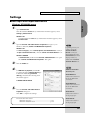
■ MIDI input and output destinations
1
English
Windows XP/2000/Me users
Open Control Panel.
Click the Windows Start button, and from the menu that appears, select
Settings | Control Panel.
Windows XP
Click the Windows start button, and from the menu that appears, select
Control Panel.
2
Open the Sounds and Audio Devices Properties dialog box (or in
Windows 2000/Me, Sounds and Multimedia Properties).
Windows XP
In “Pick a category”, click “Sound, Speech, and Audio Devices”. Next, in
“or pick a Control Panel icon”, click the sounds and Audio Devices icon.
Windows 2000/Me
In Control Panel, double-click the Sounds and Multimedia icon to open
the “Sounds and Multimedia Properties” dialog box.
3
Depending on how your
system is set up, the
Sounds and Audio
Devices icon may be
displayed directly in the
Control Panel (the Classic
display). In this case,
double-click the Sounds
and Audio Devices icon.
Click the Audio tab.
fig.2-28_30
4
For MIDI music playback, click the ▼
located at the right of [Default device] (or
in Windows 2000/Me, [Preferred
device]), and select the following from
the list that appears.
1:EDIROL SD-80 PARTA
5
Additional information
about the ports
SD-80 MIDI OUT1:
Sends/receives data from
the SD-80’s MIDI OUT
1 connectors
SD-80 MIDI OUT2:
Sends/receives data from
the SD-80’s MIDI OUT
2 connectors
Close the Sounds and Audio Devices
Properties dialog box.
Click OK to complete the settings.
Proceed to the next section.
•Windows XP users ....................................................... p. 21
•Windows 2000/Me users ............................................. p. 22
SD-80 PART A:
Sends/receives data for
SD-80 part group A
SD-80 PART B:
Sends/receives data for
SD-80 part group B
19
Installing & Setting Up the Driver (Windows)
Windows 98 users
1
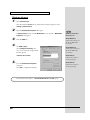
Open Control Panel.
Click the Windows Start button, and from the menu that appears, select
Settings | Control Panel.
2
Open the Multimedia Properties dialog box.
In Control Panel, double-click the Multimedia icon to open the “Multimedia
Properties” dialog box.
3
Click the MIDI tab.
fig.2-29_30
4
Set “MIDI output”.
Select [Single instrument], and
choose one of the following from the
list that appears.
1:EDIROL SD-80 PARTA
5
Close the Multimedia Properties
dialog box.
Click OK to complete the settings.
Proceed to the next section. -> Check whether there is sound (p. 22)
20
Additional information
about the ports
SD-80 MIDI OUT1:
Sends/receives data from
the SD-80’s MIDI OUT
1 connectors
SD-80 MIDI OUT2:
Sends/receives data from
the SD-80’s MIDI OUT
2 connectors
SD-80 PART A:
Sends/receives data for
SD-80 part group A
SD-80 PART B:
Sends/receives data for
SD-80 part group B
Installing & Setting Up the Driver (Windows)
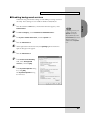
■ Enabling background services
1
2
3
4
5
6
Click the Windows start button, and from the menu that appears, select
Control Panel.
In “Pick a category”, click “Performance and Maintenance”.
In “or pick a Control Panel icon”, click the System icon.
Click the Advanced tab.
Depending on how your
system is set up, the
System icon may be
displayed directly in the
Control Panel (the Classic
display). In this case,
double-click the System
icon.
At the right of the Performance field, click [Settings]. The Performance
Options dialog box will appear.
Click the Advanced tab.
fig.2-30
7
8
In the Processor Scheduling
field, select “Background
services”, and click [OK].
In the System Properties dialog
box, click [OK].
The System Properties dialog
box will close.
21
English
In Windows XP, perform these settings to make MIDI processing occur more
smoothly. These settings are unavailable in Windows 2000/Me/98.
Installing & Setting Up the Driver (Windows)
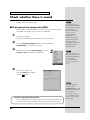
Check whether there is sound
Next, play back the sample data to verify that the driver installation and
settings were performed correctly.
■ Playing back the sample data (MIDI)
Here we will use standard Windows functionality to play back the sample
data (MIDI). The sample data is found on the CD-ROM.
1
Prepare the CD-ROM.
Insert the CD-ROM into the CD-ROM drive of your computer.
2
From the DemoSong\Additional folder of the CD-ROM, drag
01ORCH(.MID) to your desktop to copy it.
Use of the demo song
supplied with this product
for any purpose other than
private, personal
enjoyment without the
permission of the
copyright holder is
prohibited by law.
Additionally, this data
must not be copied, nor
used in a secondary
copyrighted work without
the permission of the
copyright holder.
fig.listen98-1m_50
3
Right-click the copied file 01ORCH(.MID), and select
Properties (Play for Windows XP/2000/Me).
What you actually see on
your computer screen may
be different, depending on
your computing
environment and the
operating system you're
using.
fig.listen98-2m_30
4
Play back the sample data.
Click the Preview tab, and then
click the
button.
Was the sample data played back?
If it was played back correctly, this means that the computer and the SD-80
are connected correctly, and that the drivers have been installed correctly.
22
If it did not play back
correctly, refer to
Troubleshooting (p. 34) to
determine the reason. This
section contains
information on how to
solve problems such as no
sound, or failure to play
back correctly.
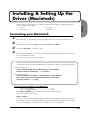
Installing & Setting Up the
Driver (Macintosh)
English
The following items are required for connections and installation. Remove them from the SD-80
package, and have them ready.
• SD-80
• AC cable
• USB cable
• CD-ROM
Connecting your Macintosh
1
2
3
4
Turn off the power of the Macintosh and all peripheral devices connected to the Macintosh.
With the power switch turned OFF, connect the AC cable to the SD-80.
Connect the AC cable to an electrical outlet.
Turn on the peripheral devices connected to the Macintosh, except for the SD-80. Then turn on the
power of the Macintosh itself.
* Do not turn on the power of the SD-80 at this time.
If the power of the SD-80 is turned on, a message like the following will appear when the Macintosh
is started up. Perform the steps described below as appropriate for the message that is displayed.
If the screen indicates:
“Driver required for USB device ‘unknown device’ is not available.
Search for driver on the Internet?” -> click [Cancel].
If the screen indicates:
“Software required for using device ‘unknown device’ cannot be found.
Please refer to the manual included with the device, and install the
necessary software.” -> click [OK].
Use either OMS or FreeMIDI as the MIDI driver.
• If you are using OMS..................................................(p. 24)
• If you are using FreeMIDI .........................................(p. 28)
* Either OMS or FreeMIDI must be installed in your Macintosh, as appropriate for
the sequencer software you are using.
What is a driver?
A “driver” is software that transfers data between the SD-80 and application software running on
your computer, when your computer and the SD-80 are connected by a USB cable. The driver sends
data from your application to the SD-80, and from the SD-80 to your application.
23
Installing & Setting Up the Driver (Macintosh)
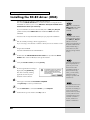
Installing the SD-80 driver (OMS)
Use the following procedure to install the SD-80 driver.
The included SD-80 OMS driver is an add-on module for using the SD-80
with OMS. In order for you to use it, OMS must already be installed on the
hard disk from which you started up.
If you would like to learn more about OMS, refer to OMS_2.3_Mac.pdf
(online manual) in the OMS2.3.8E folder within the OMS folder of the
CD-ROM.
* Disconnect the SD-80 from the Macintosh before you perform the installation.
1
Exit all currently running software (applications).
If you are using a virus checker or similar software, be sure to exit this as well.
2
Prepare the CD-ROM.
Insert the CD-ROM into the CD-ROM drive.
3
4
Verify the Install Location, and click [Install].
If a message like the following is
displayed, click [Continue].
The other currently running
applications will exit, and
installation will continue.
6
You will need the Adobe
Acrobat Reader in order to
view OMS_2.3_Mac.pdf.
The latest version of
Adobe Acrobat Reader can
be downloaded from the
Adobe website. http://
www.adobe.com (This
URL may change without
notice.)
Double-click the SD-80 OMS Driver-E Installer icon (found in the Driver
E-OMS folder of the CD-ROM) to start up the installer.
fig.3-2_40
5
OMS can be found in the
OMS 2.3.8 E folder within
the OMS folder of the
CD-ROM.
Once the connections have
been completed, turn on
power to your various
devices in the order
specified. By turning on
devices in the wrong
order, you risk causing
malfunction and/or
damage to speakers and
other devices.
A dialog box will indicate Installation completed.
Click [Restart] to restart your Macintosh.
7
8
Use the USB cable to connect the SD-80 to your computer.
Set the SD-80’s power switch to the ON position.
Always make sure to have
the volume level turned
down before switching on
power. Even with the
volume all the way down,
you may still hear some
sound when the power is
switched on, but this is
normal, and does not
indicate a malfunction.
24
Installing & Setting Up the Driver (Macintosh)
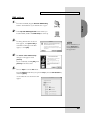
OMS settings
fig.3-3
From the CD-ROM, drag the Driver E-OMS-Setting
folder to the hard disk of your Macintosh to copy it.
English
1
fig.3-4
2
In the Opcode-OMS Application folder where you
installed OMS, double-click OMS Setup to start it up.
fig.3-5_35
3
If a dialog box like the one shown
here appears, click [Turn It Off]. A
confirmation dialog box will then
appear, so click [OK].
We recommend that you
turn off AppleTalk, by
selecting Chooser from
the Apple menu.
fig.3-6_35
4
The Create a New Studio Setup
dialog box will appear. Click
[Cancel].
If you accidentally clicked [OK], click
[Cancel] in the next screen.
fig.3-7
5
Choose “Open” from the File menu.
From the Setting folder that you copied in step 1, select the SD-80 USB file,
and click [Open].
fig.3-8_35
A screen like the one shown here will
appear.
25
Installing & Setting Up the Driver (Macintosh)
fig.3-9_35
6
From the Edit menu, select OMS MIDI
Setup.
In the OMS MIDI Setup dialog box that
appears, check Run MIDI in background,
and click [OK].
fig.3-10
7
From the File menu, choose Make Current.
If you are unable to select Make Current, it
has already been applied, and you may
continue to the next step.
Additional information
about the ports
fig.3-11_50
8
Verify that MIDI transmission and reception
can be performed correctly. From the Studio
menu, choose Test Studio.
SD-80 Port A:
Sends/receives data for
SD-80 part group A
SD-80 Port B:
Sends/receives data for
SD-80 part group B
SD-80 MIDI InOut1:
Sends/receives data from
the SD-80’s MIDI IN 1/
OUT 1 connectors
fig.3-22_50
9
When you move the mouse cursor near the
sound generator icon, the cursor will change
to a shape.
Click on the sound generator icon of each port
in the diagram at right. If sound is heard from
the SD-80, the settings are correct.
26
SD-80 MIDI InOut2:
Sends/receives data from
the SD-80’s MIDI IN 2/
OUT 2 connectors
Installing & Setting Up the Driver (Macintosh)
If the PART level meter in the SD-80’s display is moving but you do not hear
sound, check whether the volume of the SD-80 or your speaker system has
been lowered. If the PART level meter does not move, check the connections
and OMS settings once again.
If the SD-80 does not
produce sound, refer to No
sound (p. 34).
English
Does the SD-80’s PART level meter move?
10 Exit OMS Setup.
From the File menu, choose [Exit]. If the AppleTalk confirmation dialog box
appears, click [OK] to close the dialog box.
This completes the series of steps needed to connect the SD-80 to the
Macintosh, install the MIDI driver, and make the driver settings.
27
Installing & Setting Up the Driver (Macintosh)
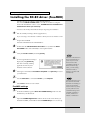
Installing the SD-80 driver (FreeMIDI)
Use the following procedure to install the SD-80 driver.
The included SD-80 FreeMIDI driver is an add-on module for using the
SD-80 with FreeMIDI. In order to use it, FreeMIDI must be installed on the
hard disk from which you started up.
* Disconnect the SD-80 from the Macintosh before beginning the installation.
1
Exit all currently running software (applications).
If you are using a virus checker or similar software, be sure to exit this as well.
2
3
4
Prepare the CD-ROM.
Insert the CD-ROM into the CD-ROM drive.
Double-click the SD-80 FM Driver-E Installer icon (found in the Driver
E-FreeMIDI folder of the CD-ROM) to start up the installer.
Verify the Install Location, and click [Install].
fig.3-2_40
5
If a message like the following is
displayed, click [Continue].
The other currently running
applications will exit, and
installation will continue.
6
7
8
A dialog box will indicate Installation completed. Click [Restart] to restart
your Macintosh.
Use the USB cable to connect the SD-80 to your computer.
Switch ON the SD-80’s Power switch.
FreeMIDI settings
1
2
28
Once the connections have
been completed, turn on
power to your various
devices in the order
specified. By turning on
devices in the wrong
order, you risk causing
malfunction and/or
damage to speakers and
other devices.
From the CD-ROM, copy the Driver E–FreeMIDI–Setting folder onto the
hard disk of your Macintosh.
Always make sure to have
the volume level turned
down before switching on
power. Even with the
volume all the way down,
you may still hear some
sound when the power is
switched on, but this is
normal, and does not
indicate a malfunction.
Open the FreeMIDI Applications folder from the location into which you
installed FreeMIDI, and double-click the FreeMIDI Setup icon to start it up.
Installing & Setting Up the Driver (Macintosh)
5
6
7
8
9
When “OMS is installed on this computer...” appears, click [FreeMIDI].
Additional information
about the ports
The first time the software is started up, a dialog box saying “Welcome to
FreeMIDI!” will appear. Click [Continue].
When the FreeMIDI Preferences dialog box appears, click [Cancel].
When the About Quick Setup dialog box appears, click [Cancel].
From the File menu, choose Open.
Select SD-80 from the FreeMIDI Setting folder you copied in step 1, and
click [Open].
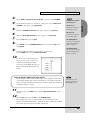
Verify that MIDI transmission and reception occur correctly.
From the MIDI menu, choose Check Connections.
SD-80 Port A:
Sends/receives data for
SD-80 part group A
SD-80 Port B:
Sends/receives data for
SD-80 part group B
SD-80 MIDI InOut1:
Sends/receives data from
the SD-80’s MIDI IN 1/
OUT 1 connectors
SD-80 MIDI InOut2:
Sends/receives data from
the SD-80’s MIDI IN 2/
OUT 2 connectors
fig.3-13_40
10 The mouse cursor will change to the
shape of a note. Click on the icon of
each port in the diagram at right.
If you hear sound, MIDI messages are
being sent from the Macintosh to the
SD-80.
Does the SD-80’s PART level meter move?
If the PART level meter in the SD-80’s display is moving but you do not hear
sound, check whether the volume of the SD-80 or your speaker system has
been lowered. If the PART level meter does not move, check the connections
and OMS settings once again.
If the SD-80 does not
produce sound, refer to
“No sound (p. 34)”.
11 Once again choose the MIDI menu command Check Connections to end
the test.
12 From the File menu, choose Quit to exit FreeMIDI Setup.
This completes the series of steps needed to connect the SD-80 to the
Macintosh, install the MIDI driver, and make the driver settings. Now, MIDI
data can be input and output (recorded and played).
29
English
3
4
Troubleshooting
If an unexpected problem occurs while using the SD-80, read this chapter first. It contains
numerous tips for resolving problems.
If you are using Windows or Macintosh for the first time, and as a result find it difficult to follow
the procedural explanations, please refer to the manuals that came with your computer or
operating system.
Troubleshooting is organized according to different operating systems. Refer to the icon(s) at the
left of the title to find the items you need.
Problems common to Windows and Macintosh
Problems occurring only in Windows
Problems occurring only in Macintosh
Problems related to the USB driver
Cannot install the driver correctly
30
•
Is the CD-ROM correctly inserted into your CD-ROM drive?
Installation is not possible unless the CD-ROM included with the SD-80 is inserted in your
CD-ROM drive. Make sure that the CD-ROM is correctly inserted into your CD-ROM drive.
•
Is the CD-ROM or the lens of the CD-ROM dirty?
If the CD-ROM or the lens of the CD-ROM drive is dirty, the installer may not work correctly. Clean
the disc and/or lens using a commercially-available CD cleaner or lens cleaner.
•
Are you installing the software from a networked CD-ROM drive?
The software cannot be installed from a networked CD-ROM drive.
•
Is there sufficient free space on your hard disk?
Delete unneeded files to increase the amount of free space. After deleting the unneeded files, empty
the recycling bin.
•
Is the SD-80 connected correctly?
Make sure that the USB connector of your computer is connected to the SD-80 by a USB cable.
Check this, and if you are using Windows, close the Sound and Multimedia Properties dialog box
(Sounds and Audio Devices Properties in Windows XP, and Multimedia Properties in
Windows 98), re-open the same dialog box once again, and specify the audio and MIDI input/
output destinations. “MIDI input and output destinations”(p. 19).
•
Is the power of the SD-80 turned on?
Make sure that the SD-80’s POWER switch has been pressed inward. Check this, and if you are
using Windows, close the Sound and Multimedia Properties dialog box (Sounds and Audio
Devices Properties in Windows XP, and Multimedia Properties in Windows 98), re-open the
same dialog box once again, and specify the audio and MIDI input/output destinations.
Troubleshooting
•
English
• Using the procedure for “Deleting the driver”(p. 37), delete the USB audio device driver installed
in your computer, and then re-install the SD-80 driver as described in “Installing & Setting Up
the Driver (Windows)”(p. 7). Also check whether there is any “Other devices” in “Device
Manager” or “Unknown device” in “Universal Serial Bus Controllers”. If you find any, delete
them.
Is OMS or FreeMIDI installed?
The SD-80 driver cannot be installed unless OMS or FreeMIDI are installed. Please install OMS or
FreeMIDI. (OMS -> p. 25, FreeMIDI -> p. 28)
SD-80 is not detected when making OMS or FreeMIDI settings
•
Is the SD-80 detected?
Turn the power of the SD-80 off, then on again.
Reconnect the USB cable.
If other USB devices are connected, connect only the SD-80.
It is possible that the Macintosh did not correctly detect and initialize the SD-80. Leave the SD-80’s
USB cable connected, and restart your Macintosh. If it is still not detected, shut down your
Macintosh, and then restart it.
The SD-80 will not be detected if it is connected to the USB connector on the Macintosh keyboard.
Please connect the SD-80 to a USB connector on the Macintosh itself.
•
Are you using only OMS?
OMS will not work properly if FreeMIDI is installed in the same system. Delete FreeMIDI-related
files from the Extensions folder.
31
Troubleshooting
An “Unknown driver found” dialog box appears, and you are
unable to install the driver
“Find new hardware wizard” does not execute automatically
“Find new hardware wizard” ends before the process is
completed
•
It may take about 15 seconds (or more) after the USB cable is connected for the SD-80 to
be detected.
•
Is the USB cable connected correctly?
Make sure that the SD-80 and your computer are correctly connected via a USB cable.
•
Is USB enabled on your computer?
Refer to the operation manual for your computer, and make sure that USB is enabled.
•
It has been found that in some cases, not all of the Windows 98 files required to support
audio via USB are installed when a computer is shipped.
Please contact the manufacturer of your computer.
•
Does your computer meet the USB specifications?
If you are using a computer that does not fulfill the electrical requirements of the USB
specifications, operation may be unstable. In this case, you may be able to solve the problem by
connecting a USB hub.
•
Does “Unknown device” appear for “Other device” or “Universal serial bus controller”?
Use the following procedure to delete “Other device” (Universal Serial Bus Controller) “Unknown
device”, and then restart your computer.
1. In the Windows Control Panel, double-click System. The System Properties dialog box will
appear.
2. Click the Device Manager tab. For Windows 2000, click the Hardware tab, and then click the
[Device Manager] button.
3. Double-click “Other device” or “Universal Serial Bus Controller” to display a list of
devices.
4. From the list, select the unknown device and click [Delete].
5. In the dialog box that asks you to confirm the deletion, click [OK].
6. Verify that “Other device” or “Unknown device” is not displayed in the list, and click
[Close] to close the dialog box.
“Found unknown device” appears even though you installed the
driver
If your computer or USB hub has two or more USB connectors, and you connect the SD-80 to a USB
connector to which the SD-80 has never been connected before, the “Unknown device” dialog box
may appear even on a computer onto which you have already installed the driver.
Refer to “Installing & Setting Up the Driver (Windows)”(p. 7), and install the driver once again.
This is not a malfunction.
32
Troubleshooting
•
Did you log on to Windows as a user with administrative privileges?
In order to install/delete/re-install the driver in Windows XP/2000, you must be logged into
Windows as a user with administrative privileges, such as Administrator. For details, please
contact the system administrator for your computer system.
•
Did you make “Driver Signing Options”?
In order to install/re-install the driver, you must make “Driver Signing Options”.
(Windows XP -> p. 8, Windows 2000 -> p. 13)
English
Can’t install/delete/use the driver in Windows XP/2000
Windows XP/2000 displays a “Hardware Installation” or “Digital
Signature Not Found” dialog box
•
Did you make “Driver Signing Options”?
In order to install/re-install the driver, you must make the settings described in “Driver Signing
Options”.
(Windows XP -> p. 8, Windows 2000 -> p. 13)
Device Manager shows “?”, “!”, or “USB Composite Device”
The “Insert Disk” dialog box does not appear
Use the following procedure to re-install the driver.
1. Turn off the power of your computer, and start up Windows with all USB cables disconnected
(except for keyboard and mouse).
2. After Windows restarts, use a USB cable to connect the SD-80 to your computer.
3. Turn on the power of SD-80.
4. Click the Windows [Start] button, and from the menu that appears, choose Settings |
Control Panel.
5. Double-click the System icon. The System Properties dialog box will appear.
6. Click the Device Manager tab.
In Windows XP, select the System Properties Hardware tab, and click Device Manager.
7. Check whether you can see an indication of “?Composite USB Device, ?USB Device, !USB
Device”, or “USB composite device” displayed below “Sound, Video, and Game
Controllers, Other Devices”, or “Universal Serial Bus Controller”. If you find any such
indication, select it and click [Delete].
8. A dialog box will ask you to confirm deletion of the device. Verify the contents of the dialog
box, and then click [OK]. In the same way, delete all indications of “?Composite USB
Device”, “?USB Device”, “USB Device”, and “USB composite device” that you find.
9. If you find EDIROL SD-80 USB Driver with a yellow “!” or a red “?” displayed beside it,
delete this in the same way.
10. When you have finished deleting the unwanted devices, click [OK] in the System Properties
dialog box.
11. Turn off the power of the SD-80, then delete the driver. “Deleting the driver”(p. 37).
33
Troubleshooting
12. Restart Windows. Then install the driver once again.
(->“Installing & Setting Up the Driver (Windows)”(p. 7))
* If the problem still occurs after you have taken the above measures, please refer also to the Readme file for
the USB driver. The Readme file is on the CD-ROM.
Problems when using the SD-80
Operating system becomes unstable
•
Operation becomes unstable when the computer is started up with the SD-80 already
connected
Please start up your computer with the SD-80 disconnected, and then connect the SD-80. On a
computer that uses a USB keyboard, starting up the computer with the SD-80 already connected
may cause operation to become unstable. In this case, start up the computer with the SD-80
disconnected, and then connect the SD-80.
No sound
34
•
Have you specified the MIDI data output destination for your operating system?
You must specify the SD-80 as the audio data output destination for your computer.For details on
how to make this setting, refer to Settings and checking.
(Windows,“MIDI input and output destinations”(p. 19)/
Macintosh, “OMS settings”(p. 25), “FreeMIDI settings”(p. 28))
•
Are you running multiple applications?
If multiple applications are running simultaneously, an error message may appear. If this occurs,
click [OK] and exit the other applications.
Even if an application window is closed, it is still running if it appears in the taskbar. Be sure to exit
unneeded applications displayed in the taskbar.
•
Was the driver installed correctly?
In order for you to play back audio data via the SD-80, the driver must be installed. For installation
and settings, refer to ”Installing & Setting Up the Driver” (Windows, p. 7 / Macintosh, p. 23).
•
Is your audio playback equipment (e.g., stereo system) connected correctly?
On its own, the SD-80 is not capable of producing sound that you can hear. Make sure that the USB
connector of your computer is connected to the SD-80 by a USB cable. Make sure that the SD-80’s
OUTPUT 1 (audio output 1) jacks are connected by audio cables to the input jacks of your audio
playback equipment. For details on connections, refer to “Connections with audio
equipment”(p. 6).
•
Is the power of your audio equipment turned on?
Make sure that the power is turned on for your audio equipment (e.g., stereo) and the SD-80.
•
Are the various volume settings of the SD-80 set appropriately?
The front panel of the SD-80 has separate knobs that adjust the MIDI volumes. Use the Volume
knob located on the front panel of the SD-80 to adjust the volume.
•
Is your computer in Suspend or Sleep mode?
If so, get your computer to resume normal operation, then exit all applications that are using the
SD-80. Next, turn the SD-80’s power off, then switch it on again.
•
Did you reconnect the USB cable or turn the power of the SD-80 off and on?
Exit all applications that are using the SD-80, and turn the power of the SD-80 off and then on once
again.
•
Is OMS/FreeMIDI set correctly?
As described in “OMS settings”(p. 25) or “FreeMIDI settings”(p. 28), check the OMS or FreeMIDI
settings. Also make sure that the device for MIDI IN/OUT is correctly selected in the MIDI settings
of your MIDI sequencer software.
•
Does the PART level meter move in the SD-80 display?
If the PART level meter is moving but you do not hear sound, check whether the volume of the
SD-80 or your speakers has been lowered. If the PART level meter of the SD-80 is not moving,
recheck the connections and “OMS settings”(p. 25)/“FreeMIDI settings”(p. 28).
•
Is the OMS setup enabled?
If a diamond-shaped symbol is not displayed at the left edge of the title area in the OMS setup
window, the setup is not enabled. From the OMS File menu, choose “Enable setup”.
(“OMS settings”(p. 25))
•
Has your computer been set to enter Sleep mode?
If your computer enters Sleep mode, exit the software you are using, and then restart your
computer. We recommend that you set your computer to not use Sleep mode.
English
Troubleshooting
Can’t play back MIDI
•
Has the MIDI device you are using been set correctly?
In order to record/play MIDI tracks using the SD-80, you must correctly install the SD-80 driver
(“Installing & Setting Up the Driver (Windows)”(p. 7)). Also make sure that the input port and
output port are set as follows in your software.
INPUT port
EDIROL SD-80 MIDI IN 1
EDIROL SD-80 MIDI IN 2
OUTPUT port
EDIROL SD-80 PART A
EDIROL SD-80 PART B
35
Troubleshooting
•
Has the MIDI device you are using been selected correctly?
Select either [SD-80 Port A] or [SD-80 Port B] as the MIDI output device.
•
Are the track outputs set correctly?
MIDI tracks to which no MIDI playback device is assigned will not be heard. If you want to play
back a MIDI track, you must make sure that the MIDI device you want to use is displayed in your
software as the MIDI output port. For details, refer to the owner’s manual for your software.
Can’t record MIDI
•
36
Has the MIDI input device you are using been selected correctly?
Select either [SD-80 MIDI InOut 1] or [SD-80 MIDI InOut 2] as the MIDI input device.
Troubleshooting
Deleting the driver
English
If you were unable to install the driver according to the procedure given, the SD-80 may not be
recognized correctly by the computer. In this case, use the following procedure to delete the driver,
and then follow the procedure in “Installing & Setting Up the Driver” (Windows, p. 7; Macintosh,
p. 23) to install the driver once again.
Windows XP/2000 users
In order to delete (uninstall) the driver, a user with administrative privileges such as
Administrator must be logged onto Windows. For details, contact the system administrator of
your computer.
1. With all USB cables disconnected, start Windows. (USB keyboard and USB mouse excepted)
2. Log on to Windows as a user with administrative privileges (such as Administrator).
3. After connecting the SD-80 to your computer via a USB cable, turn on the power of the SD-80.
4. Exit all applications before deleting the driver.
5. Open the Control Panel, and double-click System.
6. Click the Hardware tab, and in the “Device Manager” area, click [Device Manager].
7. Double-click “Sound, Video, and Game Controllers” to view the list of devices.
8. From the list, click “EDIROL SD-80” to select it. Then right-click, and from the menu that
appears, select “Delete”.
* If “EDIROL SD-80” does not appear in the list, refer to the “Can’t install/delete/use the driver
in Windows XP/2000”(p. 33) in “Troubleshooting”.
9. A dialog box will ask you to confirm that you want to delete the device. Verify the contents of
the dialog box, and click [OK].
10. Close the Device Manager window, and click [OK] in System Properties.
11. Disconnect the USB cable from the SD-80.
12. Restart Windows.
37
Troubleshooting
Windows Me/98 users
1. With all USB cables disconnected, start up Windows. (USB keyboard and USB mouse
excepted)
2. After connecting the SD-80 to your computer via a USB cable, turn on the power of the SD-80.
3. Exit all applications before deleting the driver.
4. Open the Control Panel, and double-click System.
* Depending on the state of your computer, System may not appear in the Control Panel. In this
case, click “Show all control panel options”.
5. Click the Device Manager tab.
6. Double-click “Sound, video, and game controllers” to see a list of devices.
7. From the list, click “EDIROL SD-80” to select it, and click [Delete].
8. A dialog box will appear, asking you to confirm that you want to delete the driver. Verify the
contents, and click [OK].
9. Click [Close] to close System Properties.
10. Disconnect the USB cable from the SD-80.
11. In Control Panel, click Folder Options and then click the Display tab. (In Windows 98, click
Start | Settings | Folder Options.1.)
12. In Detailed Settings of the Display tab, remove the check mark for “Don’t display
extensions of associated files”, click “Show all files and folders”, and then click [OK]. (In
Windows 98, this will be “Show all files”.)
13. Click Start | Find | Files or folders.
14. In “Search location”, select “Local hard drive”. Then in “Name of file or folder”, type
“*0023.*” and click [Begin search].
15. Of the files that are found, delete the five files Rddp0023.dat, Rddv0023.drv, Rdvx0023.vxd,
and Rdwm0023.sys. If the list shows Rdif0023.inf or RolandRDIF0023.INF, delete these files
as well.
* Never delete any file other then the files specified here.
16. Restart Windows.
Macintosh users
1. Turn off the power of the SD-80.
Also disconnect the USB cable (by which the SD-80 is connected) from your Macintosh.
2. From the system extensions folder, drag “USB SD-80 Driver” into the trash to delete it.
3. Delete SD-80 from the OMS Folder inside the System folder, or drag SD-80 Driver from the
FreeMIDI Folder to the trash.
4. Restart the Macintosh.
38
Information
EUROPE
EDIROL (Europe) Ltd.
Studio 3.4 114 Power Road
London W4 5PY
U. K.
TEL: +44 (0)20 8747 5949
FAX:+44 (0)20 8747 5948
http://www.edirol.com/europe
Deutschland
TEL: 0700 33 47 65 20
France
TEL: 0810 000 371
Italia
TEL: 02 93778329
When you need repair service, call your nearest EDIROL/Roland Service Center or authorized
EDIROL/Roland distributor in your country as shown below.
HONG KONG
BARBADOS
PERU
IRELAND
CYPRUS
Parsons Music Ltd.
8th Floor, Railway Plaza, 39
Chatham Road South, T.S.T,
Kowloon, HONG KONG
TEL: 2333 1863
A&B Music Supplies LTD
12 Webster Industrial Park
Wildey, St.Michael, Barbados
TEL: (246)430-1100
Audionet
Distribuciones Musicales SAC
Juan Fanning 530
Miraflores
Lima - Peru
TEL: (511) 4461388
Roland Ireland
G2 Calmount Park, Calmount
Avenue, Dublin 12
Republic of IRELAND
TEL: (01) 4294444
Radex Sound Equipment Ltd.
17, Diagorou Street, Nicosia,
CYPRUS
TEL: (022) 66-9426
INDIA
Rivera Digitec (India) Pvt. Ltd.
409, Nirman Kendra
Mahalaxmi Flats Compound
Off. Dr. Edwin Moses Road,
Mumbai-400011, INDIA
TEL: (022) 2493 9051
INDONESIA
PT Citra IntiRama
J1. Cideng Timur No. 15J-150
Jakarta Pusat
INDONESIA
TEL: (021) 6324170
KOREA
NORTH AMERICA
CANADA
Roland Canada Music Ltd.
(Head Office)
5480 Parkwood Way Richmond
B. C., V6V 2M4 CANADA
TEL: (604) 270 6626
Roland Canada Music Ltd.
(Toronto Office)
170 Admiral Boulevard
Mississauga On L5T 2N6
CANADA
TEL: (905) 362 9707
U. S. A.
Roland Corporation U.S.
5100 S. Eastern Avenue
Los Angeles, CA 90040-2938,
U. S. A.
TEL: (323) 890 3700
AFRICA
Cosmos Corporation
1461-9, Seocho-Dong,
Seocho Ku, Seoul, KOREA
TEL: (02) 3486-8855
MALAYSIA/
SINGAPORE
Roland Asia Pacific Sdn. Bhd.
45-1, Block C2, Jalan PJU 1/39,
Dataran Prima, 47301 Petaling
Jaya, Selangor, MALAYSIA
TEL: (03) 7805-3263
PHILIPPINES
G.A. Yupangco & Co. Inc.
339 Gil J. Puyat Avenue
Makati, Metro Manila 1200,
PHILIPPINES
TEL: (02) 899 9801
TAIWAN
ROLAND TAIWAN
ENTERPRISE CO., LTD.
Room 5, 9fl. No. 112 Chung
Shan N.Road Sec.2, Taipei,
TAIWAN, R.O.C.
TEL: (02) 2561 3339
EGYPT
THAILAND
Al Fanny Trading Office
9, EBN Hagar A1 Askalany
Street,
ARD E1 Golf, Heliopolis,
Cairo 11341, EGYPT
TEL: 20-2-417-1828
Theera Music Co. , Ltd.
330 Soi Verng NakornKasem,
New Road, Sumpantawongse,
Bangkok 10100, THAILAND
TEL: (02) 224-8821
REUNION
Maison FO - YAM Marcel
25 Rue Jules Hermann,
Chaudron - BP79 97 491
Ste Clotilde Cedex,
REUNION ISLAND
TEL: (0262) 218-429
SOUTH AFRICA
Paul Bothner(PTY)Ltd.
Royal Cape Park, Unit 24
Londonderry Road, Ottery 7800
Cape Town, SOUTH AFRICA
TEL: (021) 799 4900
ASIA
CHINA
Roland Shanghai Electronics
Co.,Ltd.
5F. No.1500 Pingliang Road
Shanghai 200090, CHINA
TEL: (021) 5580-0800
Roland Shanghai Electronics
Co.,Ltd.
(BEIJING OFFICE)
10F. No.18 3 Section Anhuaxili
Chaoyang District Beijing
100011 CHINA
TEL: (010) 6426-5050
Roland Shanghai Electronics
Co.,Ltd.
(GUANGZHOU OFFICE)
2/F., No.30 Si You Nan Er Jie
Yi Xiang, Wu Yang Xin Cheng,
Guangzhou 510600, CHINA
TEL: (020) 8736-0428
VIETNAM
SAIGON MUSIC
DISTRIBUTOR
(TAN DINH MUSIC)
138 Tran Quang Khai Street
Dist. 1, Ho Chi Minh City
VIETNAM
TEL: (08) 848-4068
AUSTRALIA/
NEW ZEALAND
AUSTRALIA/
NEW ZEALAND
Roland Corporation
Australia Pty.,Ltd.
38 Campbell Avenue
Dee Why West. NSW 2099
AUSTRALIA
For Australia
Tel: (02) 9982 8266
For New Zealand
Tel: (09) 3098 715
CENTRAL/LATIN
AMERICA
ARGENTINA
Instrumentos Musicales S.A.
Av.Santa Fe 2055
(1123) Buenos Aires
ARGENTINA
TEL: (011) 4508-2700
BRAZIL
Roland Brasil Ltda.
Rua San Jose, 780 Sala B
Parque Industrial San Jose
Cotia - Sao Paulo - SP, BRAZIL
TEL: (011) 4615 5666
CHILE
Comercial Fancy II S.A.
Rut.: 96.919.420-1
Nataniel Cox #739, 4th Floor
Santiago - Centro, CHILE
TEL: (02) 688-9540
COLOMBIA
Centro Musical Ltda.
Cra 43 B No 25 A 41 Bododega 9
Medellin, Colombia
TEL: (574)3812529
CURACAO
Zeelandia Music Center Inc.
Orionweg 30
Curacao, Netherland Antilles
TEL:(305)5926866
TRINIDAD
AMR Ltd
Ground Floor
Maritime Plaza
Barataria Trinidad W.I.
TEL: (868)638 6385
URUGUAY
Todo Musica S.A.
Francisco Acuna de Figueroa 1771
C.P.: 11.800
Montevideo, URUGUAY
TEL: (02) 924-2335
VENEZUELA
Instrumentos Musicales
Allegro,C.A.
Av.las industrias edf.Guitar
import
#7 zona Industrial de Turumo
Caracas, Venezuela
TEL: (212) 244-1122
DOMINICAN REPUBLIC
Instrumentos Fernando Giraldez
Calle Proyecto Central No.3
Ens.La Esperilla
Santo Domingo,
Dominican Republic
TEL:(809) 683 0305
ECUADOR
Mas Musika
Rumichaca 822 y Zaruma
Guayaquil - Ecuador
TEL:(593-4)2302364
EUROPE
AUSTRIA
Roland Elektronische
Musikinstrumente HmbH.
Austrian Office
Eduard-Bodem-Gasse 8,
A-6020 Innsbruck, AUSTRIA
TEL: (0512) 26 44 260
ITALY
Roland Italy S. p. A.
Viale delle Industrie 8,
20020 Arese, Milano, ITALY
TEL: (02) 937-78300
MOCO INC.
No.41 Nike St., Dr.Shariyati Ave.,
Roberoye Cerahe Mirdamad
Tehran, IRAN
TEL: (021) 285-4169
NORWAY
ISRAEL
Roland Scandinavia Avd.
Kontor Norge
Lilleakerveien 2 Postboks 95
Lilleaker N-0216 Oslo
NORWAY
TEL: 2273 0074
Halilit P. Greenspoon & Sons
Ltd.
8 Retzif Ha’aliya Hashnya St.
Tel-Aviv-Yafo ISRAEL
TEL: (03) 6823666
POLAND
MX MUSIC SP.Z.O.O.
UL. Gibraltarska 4.
PL-03664 Warszawa POLAND
TEL: (022) 679 44 19
MUSIC HOUSE CO. LTD.
FREDDY FOR MUSIC
P. O. Box 922846
Amman 11192 JORDAN
TEL: (06) 5692696
PORTUGAL
KUWAIT
Roland Iberia, S.L.
Portugal Office
Cais das Pedras, 8/9-1 Dto
4050-465, Porto, PORTUGAL
TEL: 22 608 00 60
EASA HUSAIN AL-YOUSIFI
& SONS CO.
Abdullah Salem Street,
Safat, KUWAIT
TEL: 243-6399
ROMANIA
LEBANON
FBS LINES
Piata Libertatii 1,
535500 Gheorgheni,
ROMANIA
TEL: (266) 364 609
Chahine S.A.L.
Gerge Zeidan St., Chahine
Bldg., Achrafieh, P.O.Box: 165857
Beirut, LEBANON
TEL: (01) 20-1441
RUSSIA
MuTek
Dorozhnaya ul.3,korp.6
117 545 Moscow, RUSSIA
TEL: (095) 981-4967
BELGIUM/FRANCE/
HOLLAND/
LUXEMBOURG
SPAIN
Roland Central Europe N.V.
Houtstraat 3, B-2260, Oevel
(Westerlo) BELGIUM
TEL: (014) 575811
Roland Iberia, S.L.
Paseo García Faria, 33-35
08005 Barcelona SPAIN
TEL: 93 493 91 00
HONDURAS
CZECH REP.
SWEDEN
Almacen Pajaro Azul S.A. de C.V.
BO.Paz Barahona
3 Ave.11 Calle S.O
San Pedro Sula, Honduras
TEL: (504) 553-2029
K-AUDIO
Kardasovska 626.
CZ-198 00 Praha 9,
CZECH REP.
TEL: (2) 666 10529
Roland Scandinavia A/S
SWEDISH SALES OFFICE
Danvik Center 28, 2 tr.
S-131 30 Nacka SWEDEN
TEL: (0)8 702 00 20
MARTINIQUE
DENMARK
SWITZERLAND
Musique & Son
Z.I.Les Mangle
97232 Le Lamantin
Martinique F.W.I.
TEL: 596 596 426860
Roland Scandinavia A/S
Nordhavnsvej 7, Postbox 880,
DK-2100 Copenhagen
DENMARK
TEL: 3916 6200
Roland (Switzerland) AG
Landstrasse 5, Postfach,
CH-4452 Itingen,
SWITZERLAND
TEL: (061) 927-8383
FINLAND
UKRAINE
Roland Scandinavia As, Filial
Finland
Elannontie 5
FIN-01510 Vantaa, FINLAND
TEL: (0)9 68 24 020
TIC-TAC
Mira Str. 19/108
P.O. Box 180
295400 Munkachevo,
UKRAINE
TEL: (03131) 414-40
GUATEMALA
Casa Instrumental
Calzada Roosevelt 34-01,zona 11
Ciudad de Guatemala
Guatemala
TEL:(502) 599-2888
Gigamusic SARL
10 Rte De La Folie
97200 Fort De France
Martinique F.W.I.
TEL: 596 596 715222
MEXICO
Casa Veerkamp, s.a. de c.v.
Av. Toluca No. 323, Col. Olivar
de los Padres 01780 Mexico
D.F. MEXICO
TEL: (55) 5668-6699
NICARAGUA
Bansbach Instrumentos
Musicales Nicaragua
Altamira D'Este Calle Principal
de la Farmacia 5ta.Avenida
1 Cuadra al Lago.#503
Managua, Nicaragua
TEL: (505)277-2557
GERMANY
Roland Elektronische
Musikinstrumente HmbH.
Oststrasse 96, 22844
Norderstedt, GERMANY
TEL: (040) 52 60090
GREECE
STOLLAS S.A.
Music Sound Light
155, New National Road
Patras 26442, GREECE
TEL: 2610 435400
HUNGARY
Roland East Europe Ltd.
Warehouse Area ‘DEPO’ Pf.83
H-2046 Torokbalint,
HUNGARY
IRAN
JORDAN
OMAN
TALENTZ CENTRE L.L.C.
Malatan House No.1
Al Noor Street, Ruwi
SULTANATE OF OMAN
TEL: 2478 3443
QATAR
Badie Studio & Stores
P.O. Box 62,
Doha, QATAR
TEL: 423554
SAUDI ARABIA
aDawliah Universal
Electronics APL
Corniche Road, Aldossary
Bldg., 1st Floor, Alkhobar,
SAUDI ARABIA
P.O.Box 2154, Alkhobar 31952
SAUDI ARABIA
TEL: (03) 898 2081
SYRIA
Technical Light & Sound
Center
Rawda, Abdul Qader Jazairi St.
Bldg. No. 21, P.O.BOX 13520,
Damascus, SYRIA
TEL: (011) 223-5384
TURKEY
UNITED KINGDOM
Roland (U.K.) Ltd.
Atlantic Close, Swansea
Enterprise Park, SWANSEA
SA7 9FJ,
UNITED KINGDOM
TEL: (01792) 702701
MIDDLE EAST
ZUHAL DIS TICARET A.S.
Galip Dede Cad. No.37
Beyoglu - Istanbul / TURKEY
TEL: (0212) 249 85 10
U.A.E.
Zak Electronics & Musical
Instruments Co. L.L.C.
Zabeel Road, Al Sherooq Bldg.,
No. 14, Grand Floor, Dubai,
U.A.E.
TEL: (04) 3360715
BAHRAIN
Moon Stores
No.16, Bab Al Bahrain Avenue,
P.O.Box 247, Manama 304,
State of BAHRAIN
TEL: 17 211 005
TEL: (23) 511011
As of December 10, 2005 (EDIROL-1)