1
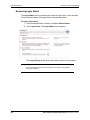
Viewing Audit Reports
Licensed Customer Confidential
8
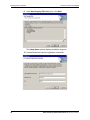
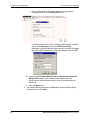
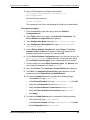
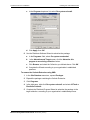
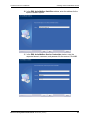
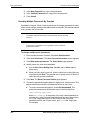
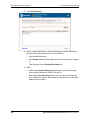
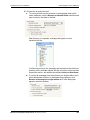
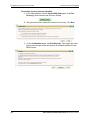
Click the appropriate tab to identify recipients by Server, Mailing List, or
individually by User.
a. If you select the Mailing List or User tab, in the Search box type an
email address or name and search for the results. Then click the listed
mailing list or user to select.
b. If you select the Server tab, click a server to select it.
9
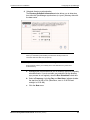
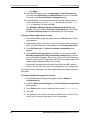
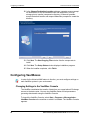
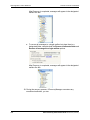
Click Add. Repeat until all recipients are listed in the right list.
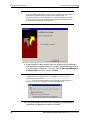
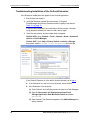
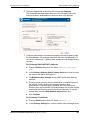
10 Click Next. The Select Recipient Options screen appears.
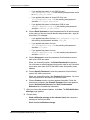
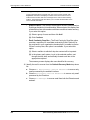
11 Select the addresses to use for the custom notification:
•
Primary addresses in your mail environment
•
Notification addresses (addresses users have provided as alternate
contact information)
•
Both Primary and notification addresses
Click Next.
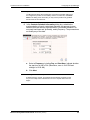
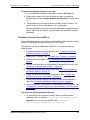
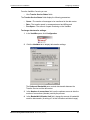
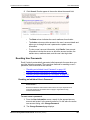
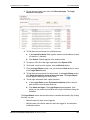
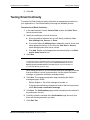
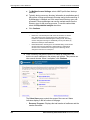
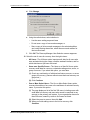
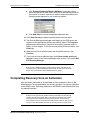
12 To see a list of recipients, click Show Affected Users. Review the
message text.
13 Click Send.
Viewing Audit Reports
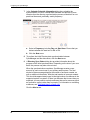
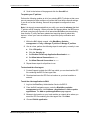
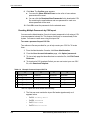
The service provides an audit trail of actions taken within the system. You can
review six months’ history for activations and tests. All audit reports can be
exported to a CSV file. The user initiating each state transition is provided along
with the time and date of the transition. Users’ logon status during an activation is
also collected. If a recovery archive has been generated, the name and size of the
archive are displayed. See the following sections for more information:
•
"Activation Reports" on page 142
•
"Test Reports" on page 143
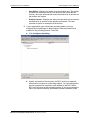
Activation Reports
TIP
Activation History Records
For an easy way to provide disaster recovery/business continuity auditors with
data proving that your organization conducts regular tests, use the Tests page in
the Activation History section for a concise record of Email Continuity tests over
the last six months.
142
Email Continuity Administrator Guide version 6.5 (1st ed.)