1
Wireless Continuity for BlackBerry Administration
4
Licensed Customer Confidential
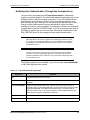
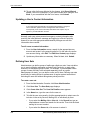
For any version 6.2 or higher agent listed on the BlackBerry Device
Information page, you can send diagnostic information directly to Support
by clicking the Upload Diags button displayed next to each version agent.
This button does not display for version 6.1 and older agents.
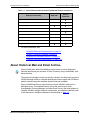
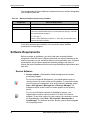
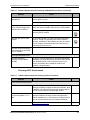
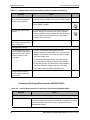
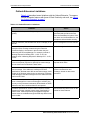
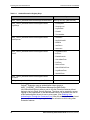
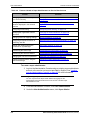
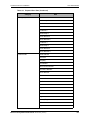
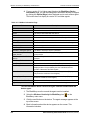
Table 4-11 Mailbox Information Page
Field
Description
Name
The user name.
Email Address
The mail address associated with the device.
Server
The server associated with the device.
Mailbox Store
The mailbox store associated with the device.
State
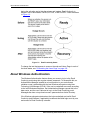
The user’s current continuity state: Active, Ready, or Recovery.
Last Login
The time the device last connected with the data center.
Outlook Extension Version
The Outlook Extension version the user has installed, if any.
Outlook Version
The Outlook version installed, if known.
BlackBerry PIN
The device PIN.
BlackBerry Enterprise Server
The BES to which the device is attached.
Email Continuity BlackBerry
Agent Version
The version of the BlackBerry Continuity agent software installed
on the device.
BlackBerry Handheld Software
Version
The BlackBerry Handheld Software Version the user has installed,
if known.
BlackBerry Platform Version
The firmware version on the device, if known.
BlackBerry Model
The model number of the user’s BlackBerry device.
BlackBerry Carrier
The user’s wireless service provider. This data can only be
displayed when it is provided by the user’s wireless service
provider. Otherwise, this field is blank.
Phone Number
The phone number of the user’s BlackBerry device. (Displayed
only for device versions 6.2 and higher.)
Pending Signal Request
The last pending signal request for this user, if any. (Displayed only
for device versions 6.2 and higher.)
Last Contact from BlackBerry
The time and date from the last contact with the device.
Login History
The time, status, and IP address from the last Login.
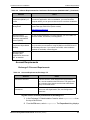
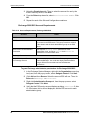
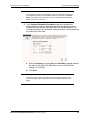
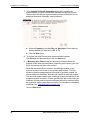
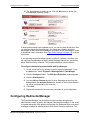
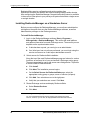
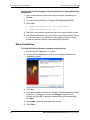
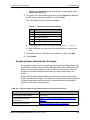
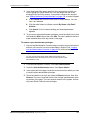
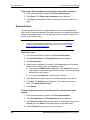
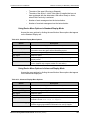
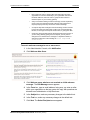
To view information about a device using the interface installed with the
device agent:
130
1
The BlackBerry must be on and the agent must be installed.
2
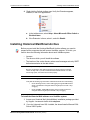
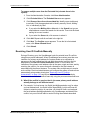
Select the Wireless Continuity for BlackBerry icon
BlackBerry main menu.
3
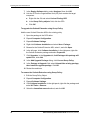
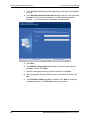
Click the scroll button on the device. The agent message appears at the
top of the screen.
4
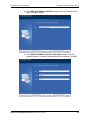
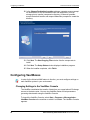
Basic information about the device appears on the screen. This
information includes:
on the
Email Continuity Administrator Guide version 6.5 (1st ed.)