1
Licensed Customer Confidential
5
Activating Email Continuity
Activation
When your primary mail system experiences a disruption of service, you can
activate Email Continuity and allow end users to access their email through the
webmail interface.
If the Outlook® Extension has been deployed, end users can choose to continue
to send and receive their email using Outlook. See the online help provided with
the extension for more information. To compare Email Continuity webmail features
with Outlook Extension features, see "About the Outlook Extension" on page 7.
Once the regular email system is functional, follow the recovery process to restore
users’ email data to the primary mail system.
Activating Email Continuity
When preparing for an activation, ensure that none of the internet gateway mail
servers has a higher priority than the MTA hostname for Email Continuity (see the
network settings document provided by Support). When the service is given
highest priority, mail destined for the domain is routed to the Email Continuity MX
record and users receive email via the service.
To activate Email Continuity:
1
Log in to the Administration Console (you must use an administrator
account or the root account).
2
Ensure that all components are functioning properly; that is, that a green
check mark precedes all items in the Readiness Check panel. If there are
problems, contact Support for assistance.
3
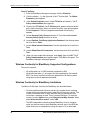
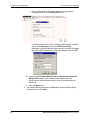
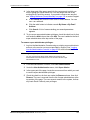
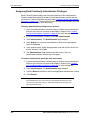
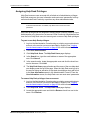
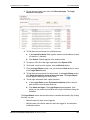
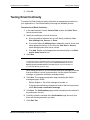
In the Current ESS State panel, click Activate.
NOTE
Deleted Users In the Ready State Are Not Activated
Users that are deleted but in the Ready state will not transition to Active during
an activation. Deleted users in the Active or Recovery states will transition
during an activation or recovery like all other users. This may cause user
statistics to appear out of sync in the SyncManager summary.
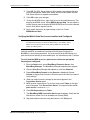
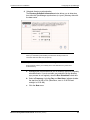
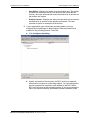
If your implementation includes the partial activation feature, the Selecting
the Scope of the Activation page displays.
Email Continuity Administrator Guide version 6.5 (1st ed.)
155