1
Reference
Programming Software User Manual
4.
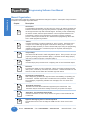
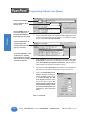
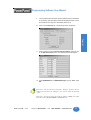
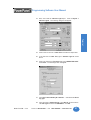
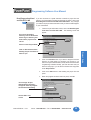
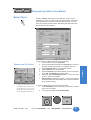
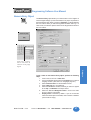
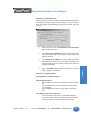
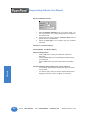
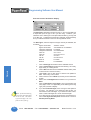
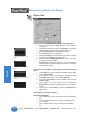
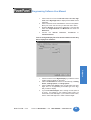
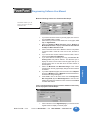
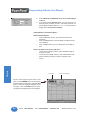
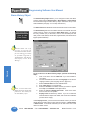
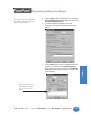
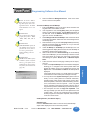
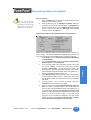
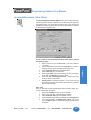
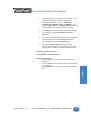
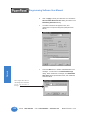
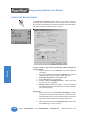
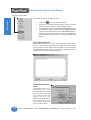
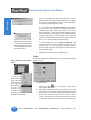
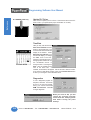
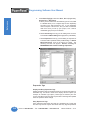
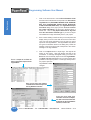
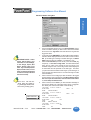
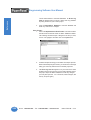
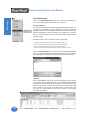
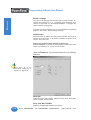
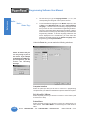
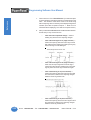
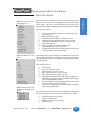
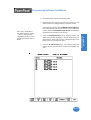
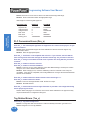
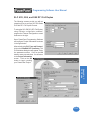
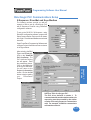
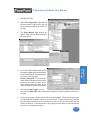
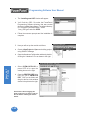
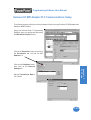
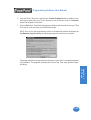
The next time you type in Language Number 1, 2 or 3, the
corresponding text string will come up in the text box.
5.
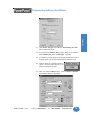
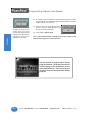
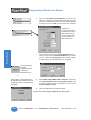
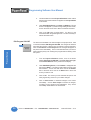
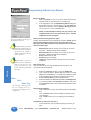
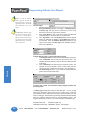
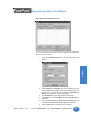
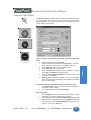
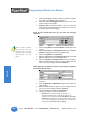
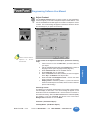
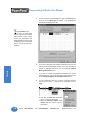
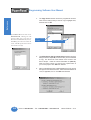
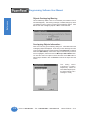
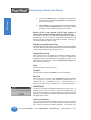
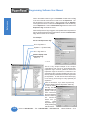
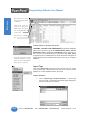
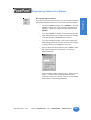
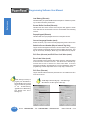
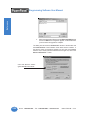
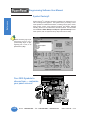
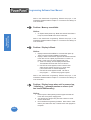
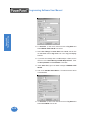
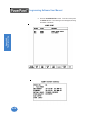
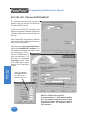
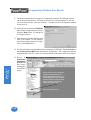
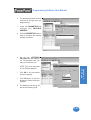
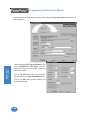
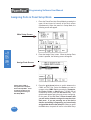
To view the different languages for the Button object text, click
on Edit on the Main Menu Bar and select Current Editing
Language..., and then enter the "Working" language number
that you want to view in PowerPanel Programming Software.
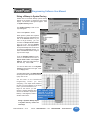
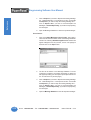
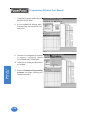
The text in your Button Object will change accordingly. Keep in
mind that this is for viewing only while working in the PowerPanel
Programming Software. To set the language preference that
will be displayed on the PowerPanel, you must select the
preferred Language Number as the Default Language while
programming your Project Attributes.
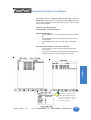
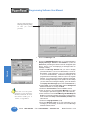
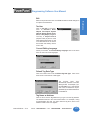
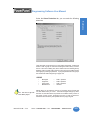
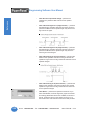
Hello...
Hola...
Guten Tag...
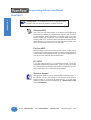
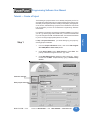
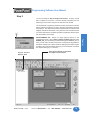
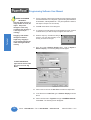
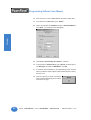
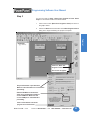
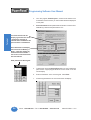
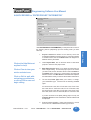
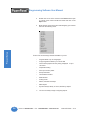
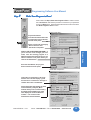
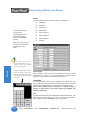
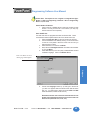
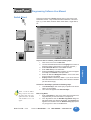
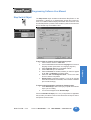
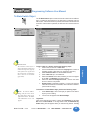
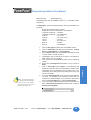
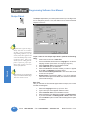
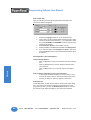
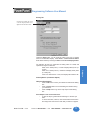
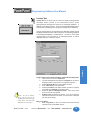
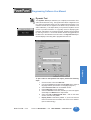
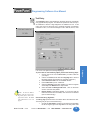
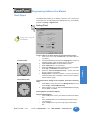
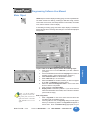
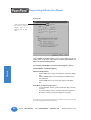
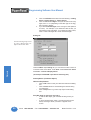
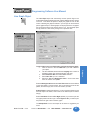
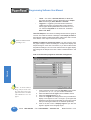
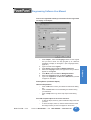
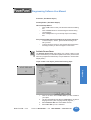
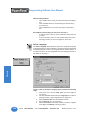
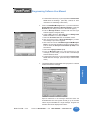
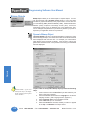
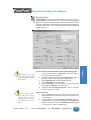
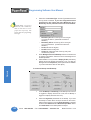
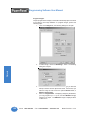
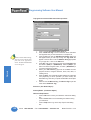
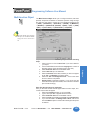
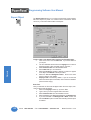
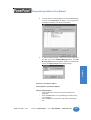
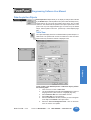
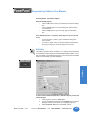
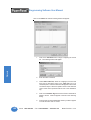
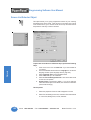
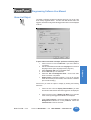
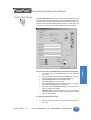
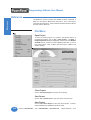
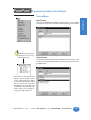
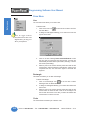
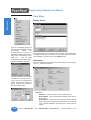
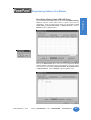
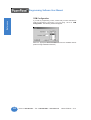
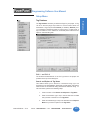
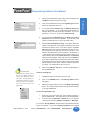
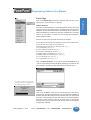
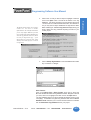
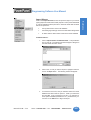
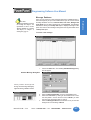
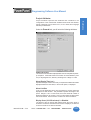
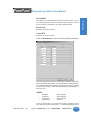
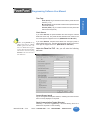
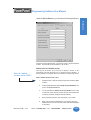
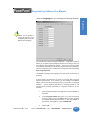
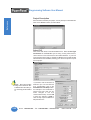
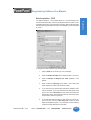
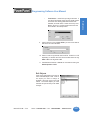
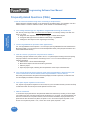
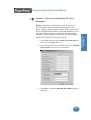
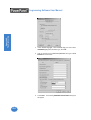
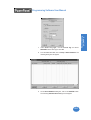
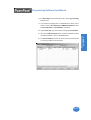
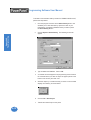
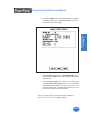
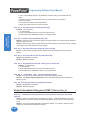
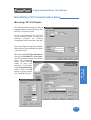
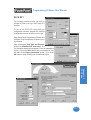
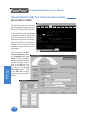
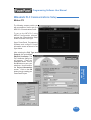
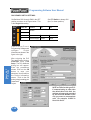
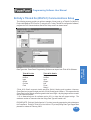
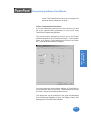
Under the Ports tab, you can make the following selections:
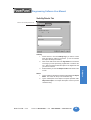
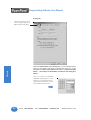
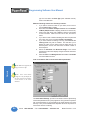
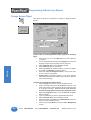
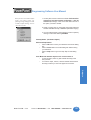
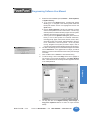
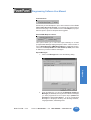
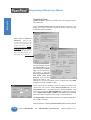
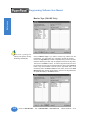
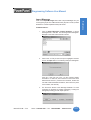
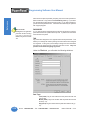
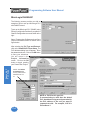
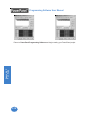
Please be aware that you
can only assign a port to
one device. If you attempt
to duplicate the COM1 (e.g.)
port assignment, you will
receive the following
message.
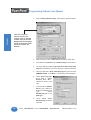
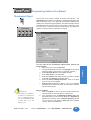
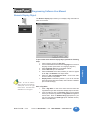
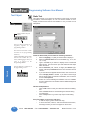
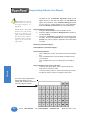
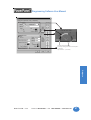
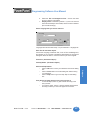
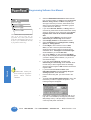
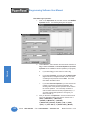
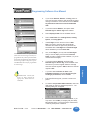
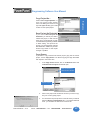
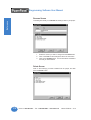
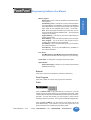
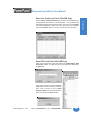
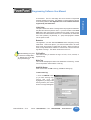
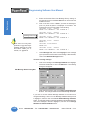
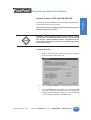
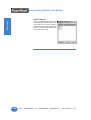
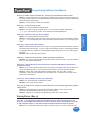
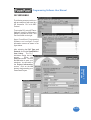
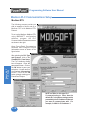
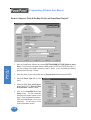
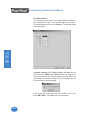
Computer Interface
Select the panel port that you will use to connect to a programming
computer when you create a PowerPanel Project and load it into a panel.
PLC Driver/PLC 2 Driver
Select the panel port that you will use to connect to a PLC Driver (and
PLC Driver 2 if used).
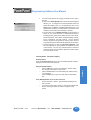
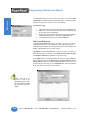
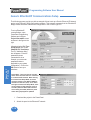
Printer/Slave
222
Select the panel port that you will use to connect to a serial printer or a
slave device. Select NOT USED if not connecting to a Printer and/or a
slave .
Phone: 1-563-359-7501 • Fax: 1-563-359-9094 • www.uticor.net
MAN-UTICW-M — V4.0