1
Programming Software User Manual
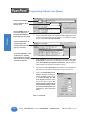
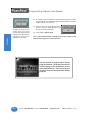
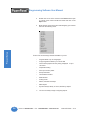
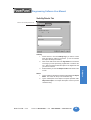
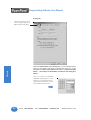
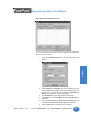
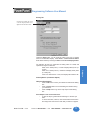
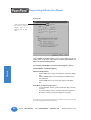
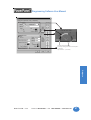
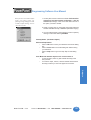
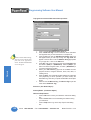
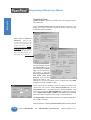
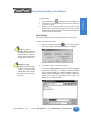
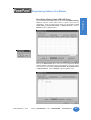
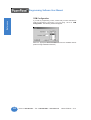
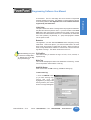
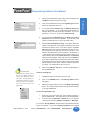
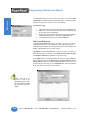
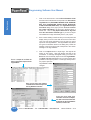
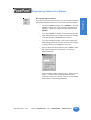
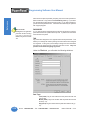
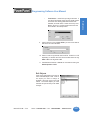
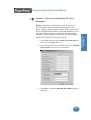
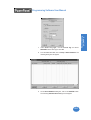
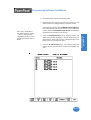
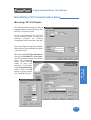
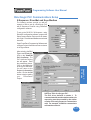
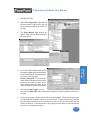
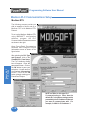
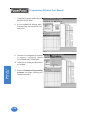
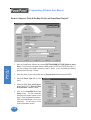
NOTE: To edit the Address
String, with your cursor in the
Tag Name field, click on the right
mouse button. The EDIT TAG
DETAILS screen will appear.
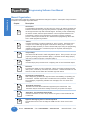
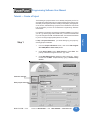
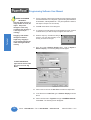
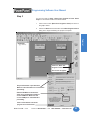
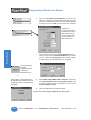
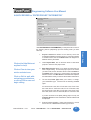
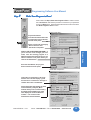
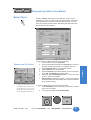
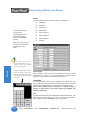
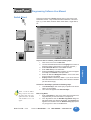
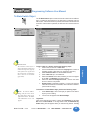
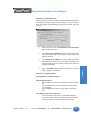
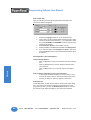
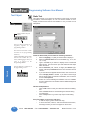
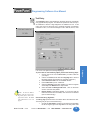
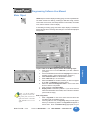
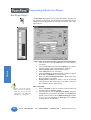
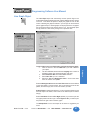
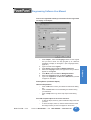
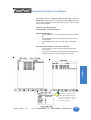
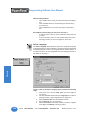
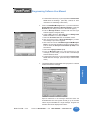
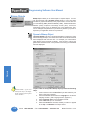
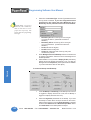
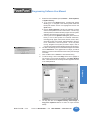
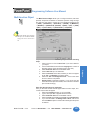
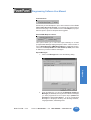
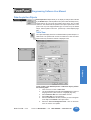
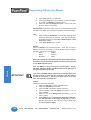
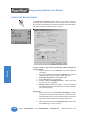
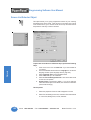
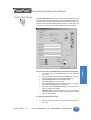
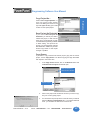
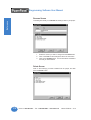
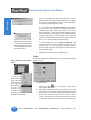
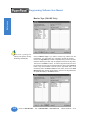
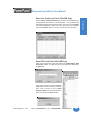
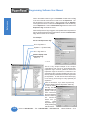
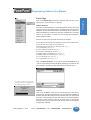
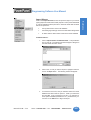
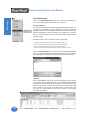
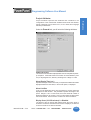
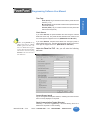
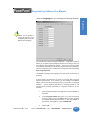
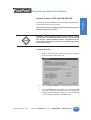
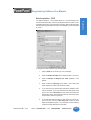
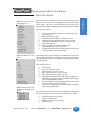
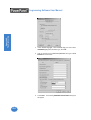
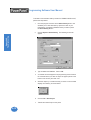
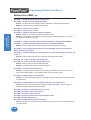
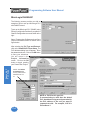
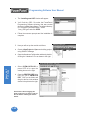
Choose the Trigger Tag Name:
This Tag allows the PowerPanel to monitor a bit in the PLC and display
text based on the ASCII values in a block of PLC registers.
1.
2.
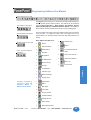
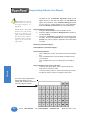
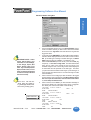
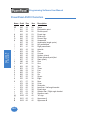
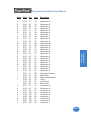
Please Note: For a list of ASCII
Characters that the PowerPanel
Supports, see Appendix B.
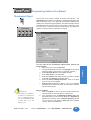
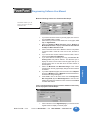
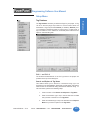
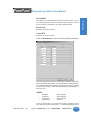
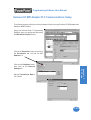
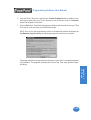
Select the Trigger Tag Name by clicking on the down arrow to
display the list or enter a Tag Name in the entry field. If the Tag
Name is new, the ADD NEW TAG DETAILS dialog box will
appear. The Tag Name will appear in the first field. Enter an
Address String appropriate for your type PLC. Click on the OK
button.
Choose to Activate when ON or Activate when OFF. If you
choose ON, the Text will display when the bit is ON. When the
bit is OFF, the Text will disappear.
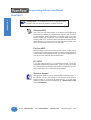
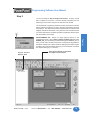
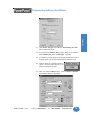
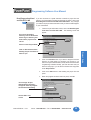
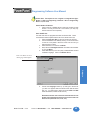
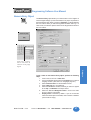
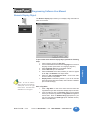
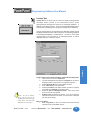
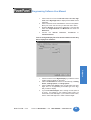
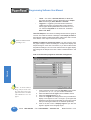
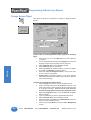
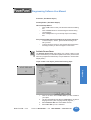
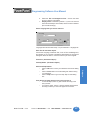
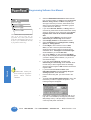
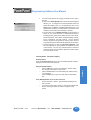
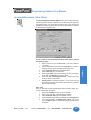
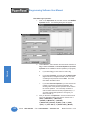
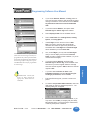
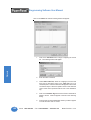
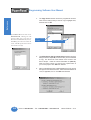
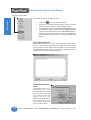
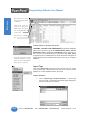
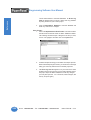
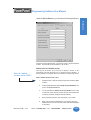
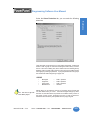
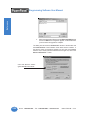
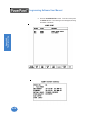
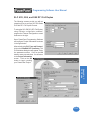
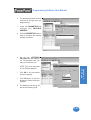
Choose the String Tag Name:
The String Tag is the PLC register location where the values are read
and displayed in a character string. The string may be up to 40 characters
long. The Address String is the beginning register for the text.
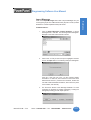
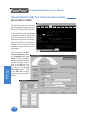
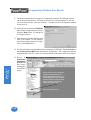
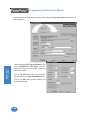
Choose the Tag Name by clicking on the down arrow to display the list of
Tags or type in the Tag Name in the entry field. If the Tag Name is new, the
ADD NEW TAG DETAILS dialog box will appear where you will enter tag
details. The Tag Name will appear in the first field. Enter an Address
String appropriate for your type PLC (ASCII STRING is the only choice).
Click on the OK button.
Objects
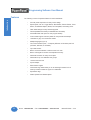
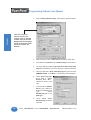
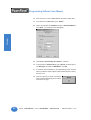
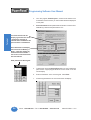
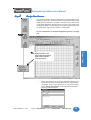
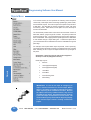
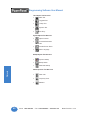
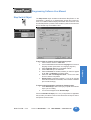
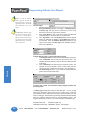
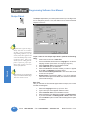
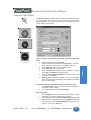
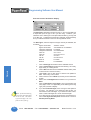
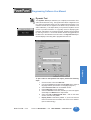
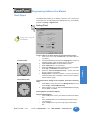
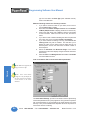
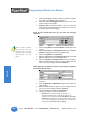
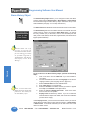
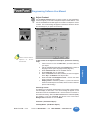
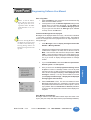
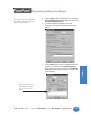
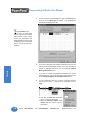
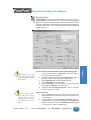
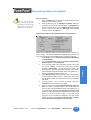
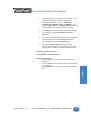
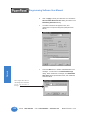
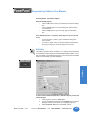
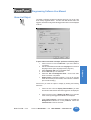
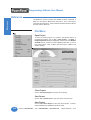
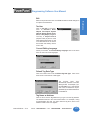
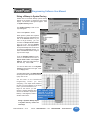
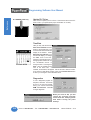
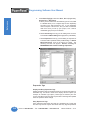
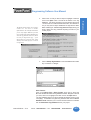
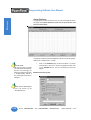
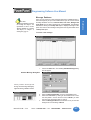
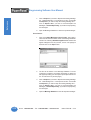
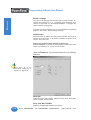
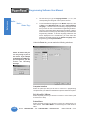
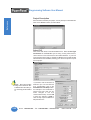
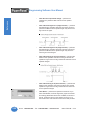
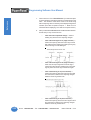
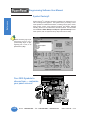
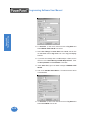
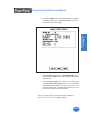
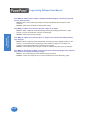
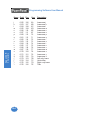
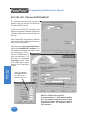
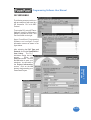
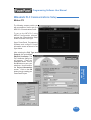
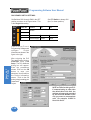
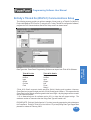
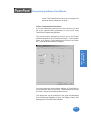
Select the Dynamic Text Characteristics:
1. Select the Character Size from the available choices.
2. Select the Color of the Text and Background and whether or
not they will Blink.
3. Choose the Justification of the Text that is displayed within the
frame. Choose both Horizontal (Left, Center, or Right) and
Vertical (Top, Center, or Bottom) justification for the Text within
the frame.
Visibility/Details (See Button Object.)
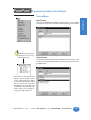
OK/Cancel/Help Buttons
•
Click on OK button to save your selections and exit the dialog
box.
•
Click on Cancel button to exit the dialog box without saving
your selections.
•
Click on Help button to go to the Help Topic for that dialog
box.
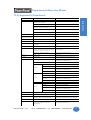
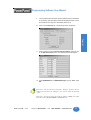
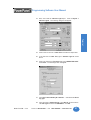
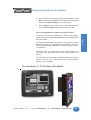
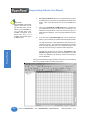
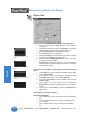
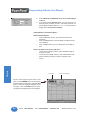
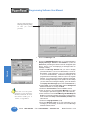
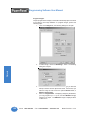
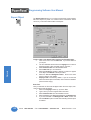
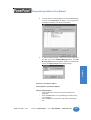
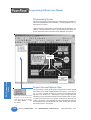
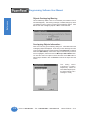
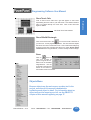
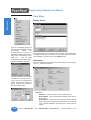
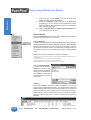
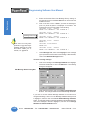
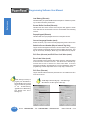
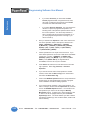
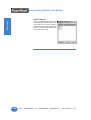
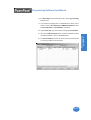
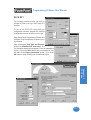
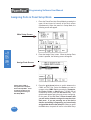
Place object on the screen and size it.
•
To size the object, grab a handle and drag it to the size you
want.
•
To move the object, select it, click and hold left mouse button
and drag to where you want it to appear on the screen.
78
Phone: 1-563-359-7501 • Fax: 1-563-359-9094 • www.uticor.net
MAN-UTICW-M — V4.0