1
Connect To an Email List
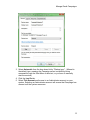
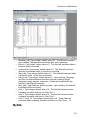
editing the Subscribe tab. Once the source table, email address and unique ID
are selected in the Datasource tab, you can edit the Subscribe tab.
At the top of the Subscribe tab, select the table to which records will be added. It
does not have to be the same as the source table specified in the Data source
page, but it does need to be a table in the same database. Once the table is
selected, enter the name of the email address field for the specified table. As with
all table and field names, there should be no spaces or special characters in the
names.
Next, enter the hyperlink text for the subscribe link. This is the link on which the
reader will click in order to open the subscription form. This can be a simple text
invitation like "click to subscribe," or a web based image. When using an image,
simply input the HTML image tag in the subscription text field. Make sure you
include a "border =0" in the tag so there is no blue box around the image in the
email message. Here is a sample image tag:
<img src="http://www.domain.com/imagefolder/image.gif" border="0">
When the subscribe link or image is clicked, the server hosting Campaign
Enterprise serves the subscription page, which is why it is necessary to configure
Campaign Enterprise with a public IP address or domain name.
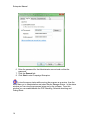
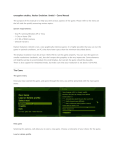
The code for the web form and the confirmation page are shown in the text areas
at the bottom of the Subscribe tab. These are both fully configurable. You can
preview how the pages look by enabling the editor, but modifications to the web
form should occur in the HTML code directly. Campaign Enterprise offers a
default form, which is a good starting point for those who are not familiar with
web forms. The form is bare, and other elements need to be added to the page
to brand it, and inform the person signing up more about what they are getting
into. The web form must contain the merge field {Action} in the form post line:
<form name="form1" method="post" action={ACTION}>
The default form provides an email address field, first name, last name, company
and phone number field available, but only the email address field is required.
The field names in the input types need to match the names of the fields the form
is updating in the table. For example, if the email address field is
"email_address," then the input type must be "email_address." Any other
modification of the form will work as long as the {Action} merge field is included.
A web designer should be consulted to make major changes to the form or
submit button.
The confirmation page is also fully customizable and is served up by the
Campaign Enterprise server. Links on the confirmation page could lead the new
subscriber to the index page, or other areas of your website.
95