1
MacroView Navigator Manual
Message Line
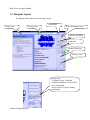
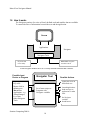
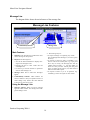
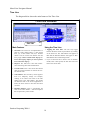
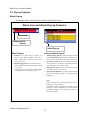
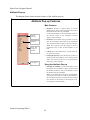
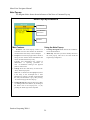
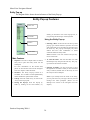
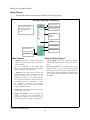
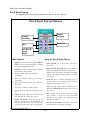
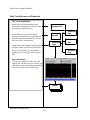
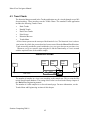
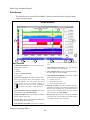
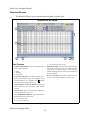
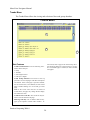
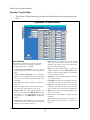
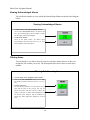
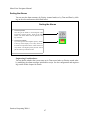
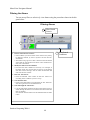
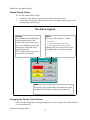
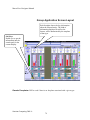
The diagram below shows the main features of the message line.
Message Line Features
Confirm/Deny buttons
Message Line
Main Features:
2 The message may be:
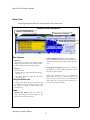
1 Structure: The message line contains the most
recent message for the operator.
• A simple message not requiring any action.
You can disregard the message or, to clear it, press
the Y key.
• A request to select an entity or attribute, or to
enter a value in the scratch pad. E.g. if you press
the E key for entity, the message line will say
“Please enter an Entity -->”. You may either: (i)
Enter the entity into the scratch pad and press
enter, (ii) simply press enter or, (iii) click on the N
button to cancel the request.
• A request to answer a yes or no question. E.g.
confirming a value set request or other action.
2 Purpose: The message line:
• Acts as the main mechanism to display messages to the Navigator user.
• Prompts the user to enter values into the
scratchpad area.
• Is used to get Yes/No answers to questions
such as mode changes, etc.
3 Message Area: This is where the messages
appear.
4 Confirm/Deny buttons: These buttons are
used to confirm or deny an operation such as a
mode change. They achieve the same function
as the Yes (Y) and No (N) keys.
Using the Message Line:
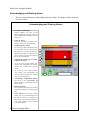
1 Message appears: When an active message
appears in the window, the message line background changes color.
Sentient Computing 2006 ©
14