1
PROOFMATE (PROOFREADY) PLUGIN FOR EPSON STYLUS PRO 7800/9880
An extension is required but not found
This message appears when a file extension is expected but is not specified in the template. For example, if
using the <dot> tag, a file extension must be given.
File requested is not writeable
This message appears when trying to write to a file that already exists and that has read-only access. If you
wish to overwrite the file, then you must change the file permissions to provide write access.
Unique name requested but all names are in use
This message appears when no further unique numbers are available. For example, if using the template
stem<1unique><dot>epf, this error would occur once the file names stem1.epf through stem9.epf had
been generated, because no further unique numbers are available.
E.1.4 Post processing messages
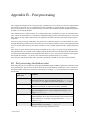
This section details possible messages that may appear during post processing (see Appendix B, “Post
processing”).
Running post processing command "command" in folder "folder name"
This is a progress message, confirming the command that is being run.
Post processing command failed - Cannot change directory to "directory path"
This error message appears when there is a problem changing to the specified directory that prevents the
completion of the post processing. Check that the directory exists and that you have permission to access
the directory.
Post processing command failed - "status value"
This error message appears when the post processing has been unsuccessful. The "status value" is the
error code generated by the command or shell you are using and can be used by your system administrator
to determine the exact cause of the post processing failure.
E.1.5 Miscellaneous messages
The following is a general list of error messages or warnings that may appear in the RIP monitor window:
%%[ Error: rangecheck; OffendingCommand: get ]%%
This message may appear if you try to use a 1-bit device type without first enabling the HEDS1 screening
plugin.
To prevent this error, ensure you enable the HEDS1 plugin, as described in “Enabling the printer plugin”,
on page 4, before using a 1-bit device type.
%%[ Error: VMerror; OffendingCommand: pagedevice ]%%
When printing using large paper sizes or high resolutions a VM Error may occur. Some jobs may suppress
the VM Error and print using the default page size specified in the Page Layout dialog box, so that the
output appears clipped. If this occurs we recommend that you increase the Band size in the Configure RIP
options dialog box to 1024 KB.
%%[Error: undefinedfilename; Offending Command: run]%%
This error message appears if you have created a device type using a name similar to the name of the device
type on which it is based. If you use the same text to name the new device as that used to label the device
type, you must match the use of lowercase and uppercase characters in the device type label. To prevent
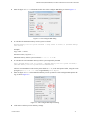
this error, open the Device Manager, select the device and click Edit. In the Device Manager Edit dialog
box, change the name of the device to something completely different.
AG50567 REV. 5
42