1
Device Initialization User Manual
User Interface
Help Menu
The menu with help pages links is integrated in the Help menu of the CodeWarrior under the Help | Device
Initialization submenu.
• Device Initialization help - displays the main help file.
• Device Initialization Tutorial - opens a tutorial showing the device initialization basics.
• List of all supported CPUs - displays the page with the list of CPUs supported in the current installation.
• List of all supported Peripheral Initialization Beans - displays the page with the list of CPUs supported in
the current installation.
• View Read Me and Revision History - shows the document containing details related to the current version
and the history of revisions and changes of the Device Initialization tool.
2.2. Device Initialization Window
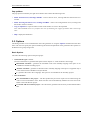
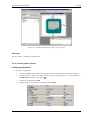
The Device Initialization window is the main window of the Device Initialization design. The window contain
the design control buttons at the top of the window and working area that allows the user to browse and
configure the CPU peripherals. This window can be opened using the command Device Initialization | Initialize
Device.
Design Control Buttons
The window contains the following control buttons:
• Select CPU package - lists available packages from the current target CPU allows the user to choose one
that will be used in the design. See chapter 3.5 Changing The CPU for details.
• Generate Code - invokes the Code Generation dialog allowing the user to generate the initialization code
according to the current settings. See chapter 3.2 Code Generation And Usage for details.
• Backup... - invokes a file selection dialog and if the user confirms the selection, saves all design settings
using the selected file name. See chapter 3.3 Saving And Restoring The Design for details.
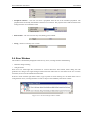
• Restore... - allows to restore the whole design from a file. File selection dialog is invoked immediately. See
chapter 3.3 Saving And Restoring The Design for details.
• Help - opens this help page.
Work Area
This area allows the user to configure the CPU peripherals by adding Peripheral Initialization Beans. See chapter
3.1 Peripheral Initialization Beans for details.
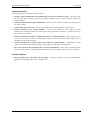
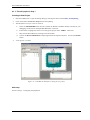
The following view modes are available:
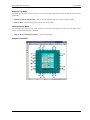
• Package View of the CPU mode.
To configure a peripheral click on the peripheral field.
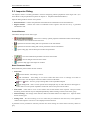
• Alphabetically ordered peripherals list mode.
To configure a peripheral click on its name or icon.
Control Icons
•
- rotates the CPU by 90 degrees.
-8-