1
CHAPTER 12. CUSTOMIZING VIS
246
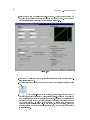
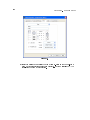
These options apply to the VI when it is running. Use these options to change how the user
interacts with the application by restricting access to LabVIEW features and by changing the way
the window looks and behaves. You can make the VI look and act like a dialog box so the user
cannot interact with other windows while the VI window is open. You also can remove the scrollbars
and toolbar, and you can set a window to be centered or automatically sized to t the screen.
By default, the VI window title is the same as the VI name. You can customize the VI window
title to make it more descriptive than the VI lename. This is useful for localized VIs so the VI
window title can be translated to the local language. Remove the checkmark from the Same as VI
Name checkbox to edit Window title.
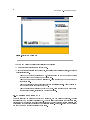
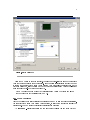
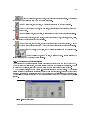
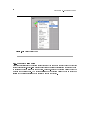
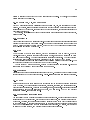
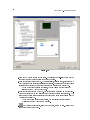
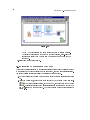
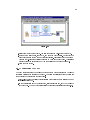
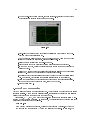
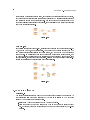
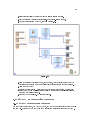
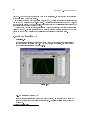
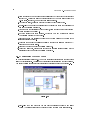
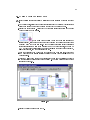
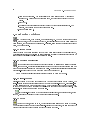
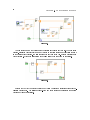
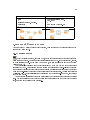
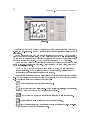
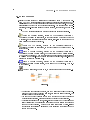
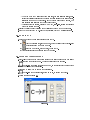
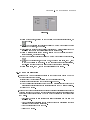
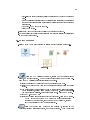
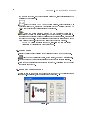
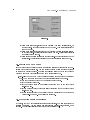
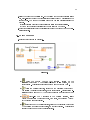
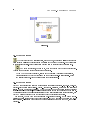
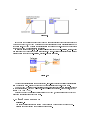
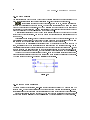
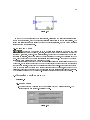
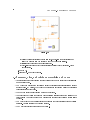
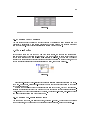
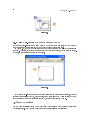
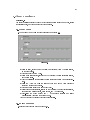
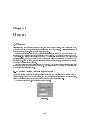
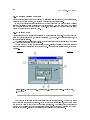
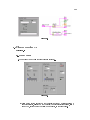
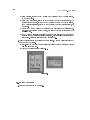
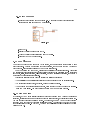
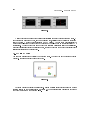
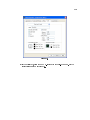
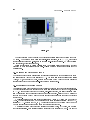
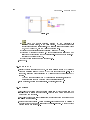
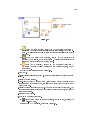
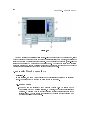
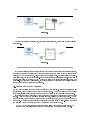
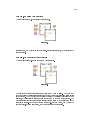
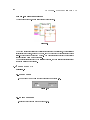
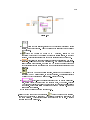
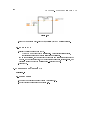
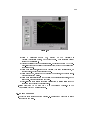
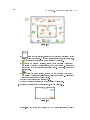
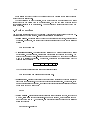
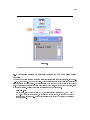
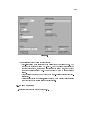
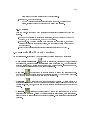
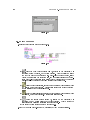
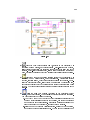
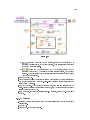
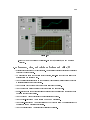
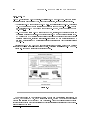
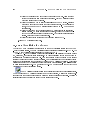
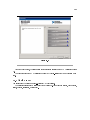
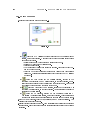
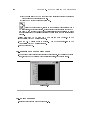
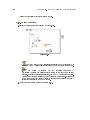
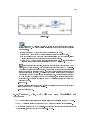
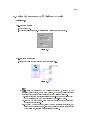
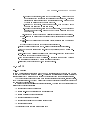
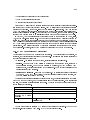
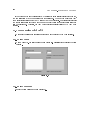
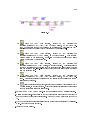
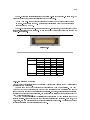
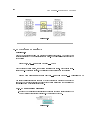
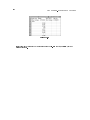
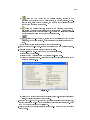
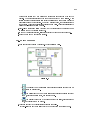
To congure the window appearance, select one of the following window styles. A graphical
representation of each style displays on the right when you select the style.
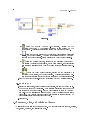
•
Top-level Application Window
•
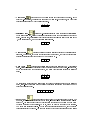
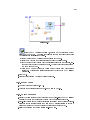
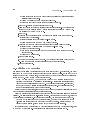
Dialog - The VI functions as a dialog box in the operating system, so the user cannot interact
- Shows the title bar and menu bar, hides the scrollbars
and toolbar, allows the user to close the window, allows run-time shortcut menus, does not
allow resizing, and shows the front panel when called.
with other LabVIEW windows while this VI window is open. This option does not prevent
you from bringing windows of other applications to the front. (UNIX) You cannot make a
window stay in front of all other windows. Dialog style windows stay on top, have no menu
bar, scrollbars, or toolbar, allow the user to close the window but not resize it, allow runtime shortcut menus, and show the front panel when called. Also, if a Boolean parameter on
the front panel is associated with the <Enter> or <Return> key, LabVIEW highlights the
parameter with a dark border.
•
•
•
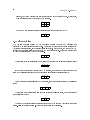
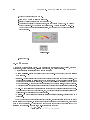
Default - Same window style used in the LabVIEW development environment.
Custom - Custom window style.
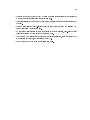
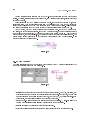
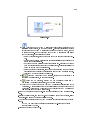
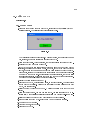
Customize - Displays the Customize Window Appearance dialog box.
12.1.2 Window Size
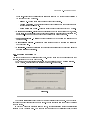
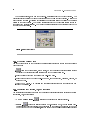
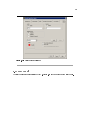
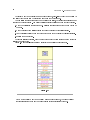
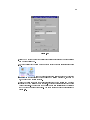
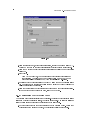
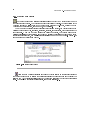
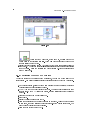
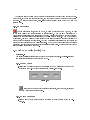
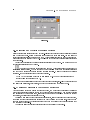
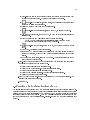
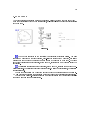
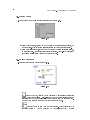
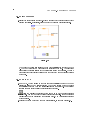
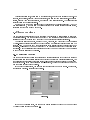
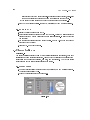
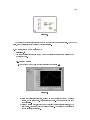
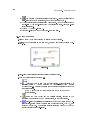
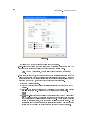
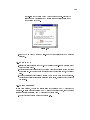
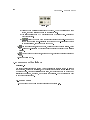
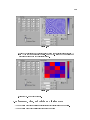
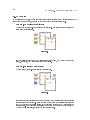
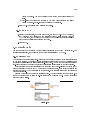
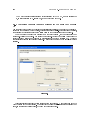
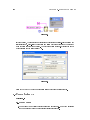
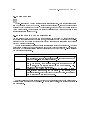
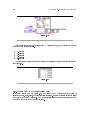
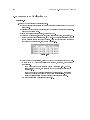
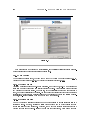
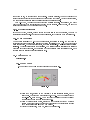
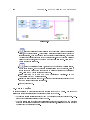
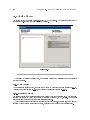
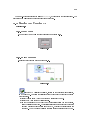
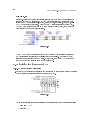
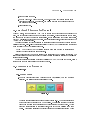
In the VI Properties dialog box, select Window Size from the Category pull-down menu to customize
the window size for VIs. This page includes the following components:
•
•
•
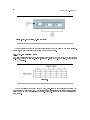
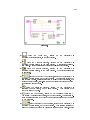
Minimum Panel Size - Sets the minimum size of the front panel. If you allow the user to
resize the window on the Window Appearance page, the user cannot resize the front panel
smaller than the width and height you set on this page.
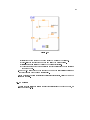
Size the front panel to the width and height of the entire screen - Automatically
resizes the front panel window to t the screen when you run the VI. The VI does not retain
a record of its original size and location, so it stays in the new location if you switch back to
edit mode.
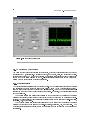
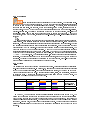
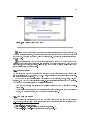
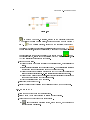
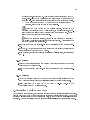
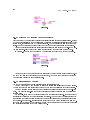
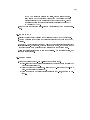
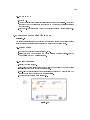
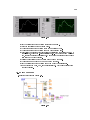
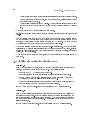
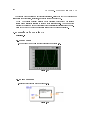
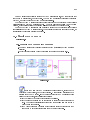
Maintain proportions of window for dierent monitor resolutions - Resizes the VI
so it takes up approximately the same amount of screen space when opened on a computer
with a dierent monitor resolution. For example, if you develop a VI on a computer with a
monitor resolution of 1, 024 × 768, you might want to run the VI on a computer with a monitor
resolution of 800 × 600. Use this control in conjunction with scaling one or all the objects on
the front panel.