1
Amazon Elastic Compute Cloud User Guide for Linux
Instances
GPU Instances
Install the NVIDIA Driver Manually
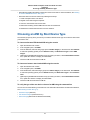
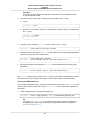
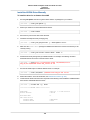
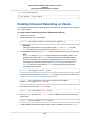
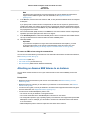
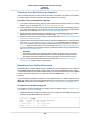
To install the driver for an Amazon Linux AMI
1.
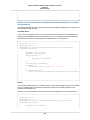
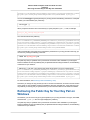
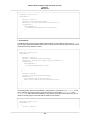
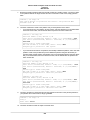
Run the yum update command to get the latest versions of packages for your instance.
[ec2-user ~]$ sudo yum update -y
2.
Reboot your instance to load the latest kernel version.
[ec2-user ~]$ sudo reboot
3.
Reconnect to your instance after it has rebooted.
4.
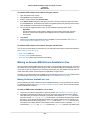
Install the "Development tools" package group.
[ec2-user ~]$ sudo yum groupinstall -y "Development tools"
5.
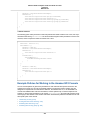
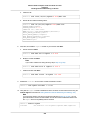
Make sure the kernel-devel package is installed and matches the version of the kernel you are
currently running.
[ec2-user ~]$ sudo yum install kernel-devel-`uname -r`
6.
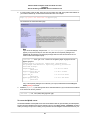
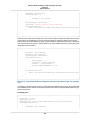
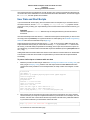
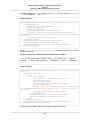
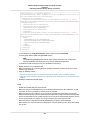
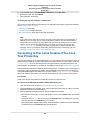
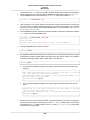
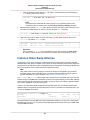
Download the driver package that you identified earlier. For example, the following command
downloads the 340.46 version of the G2 instance driver.
[ec2-user ~]$ wget http://us.download.nvidia.com/XFree86/Linuxx86_64/340.46/NVIDIA-Linux-x86_64-340.46.run
7.
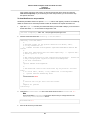
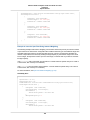
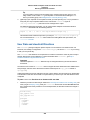
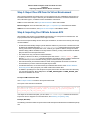
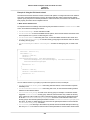
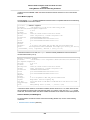
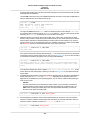
Run the self-install script to install the NVIDIA driver. For example:
[ec2-user ~]$ sudo /bin/bash ./NVIDIA-Linux-x86_64-340.46.run
8.
9.
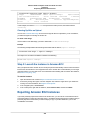
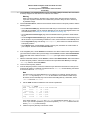
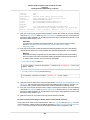
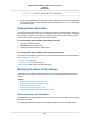
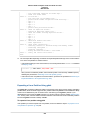
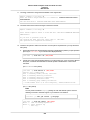
Reboot the instance. For more information, see Reboot Your Instance (p. 254).
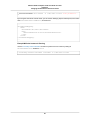
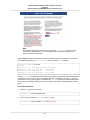
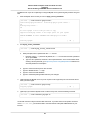
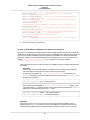
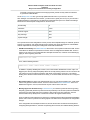
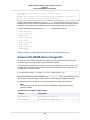
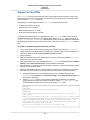
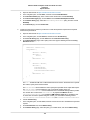
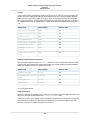
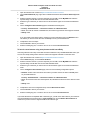
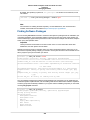
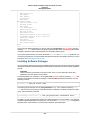
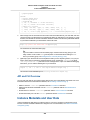
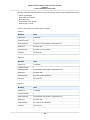
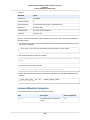
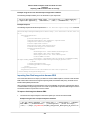
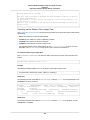
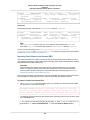
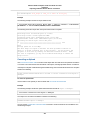
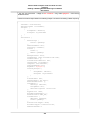
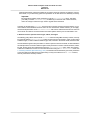
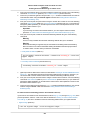
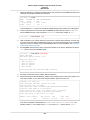
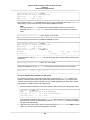
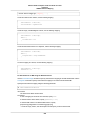
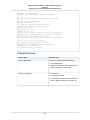
Confirm that the driver is functional. The response for the following command lists the installed NVIDIA
driver version and details about the GPUs.
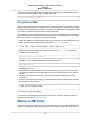
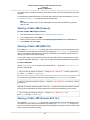
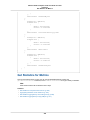
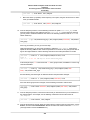
[ec2-user ~]$ nvidia-smi -q | head
==============NVSMI LOG==============
Timestamp
Driver Version
: Thu Oct
: 340.46
Attached GPUs
GPU 0000:00:03.0
Product Name
Product Brand
: 1
: GRID K520
: Grid
2 17:28:29 2014
134