1
6
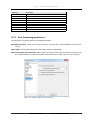
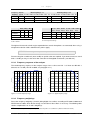
DATA STORAGE
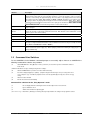
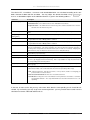
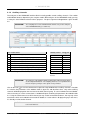
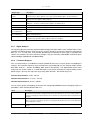
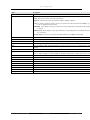
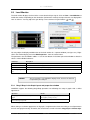
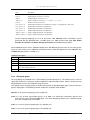
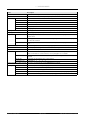
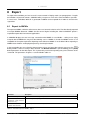
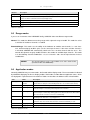
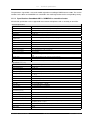
Button
Description
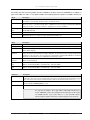
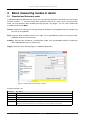
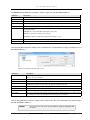
Add...
Click to open a Windows standard dialogue for selecting a folder. If the selected folder is no SAMURAI
working folder, the programme asks you to confirm the folder as working folder.
Remove
Click to remove a folder from the working folder list (not from the hard disk). This command can not by
applied to the current working folder.
Rename
Rename a folder. This command can not by applied to the current working folder.
Select
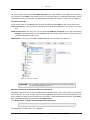
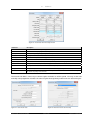
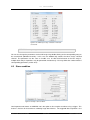
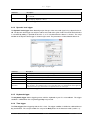
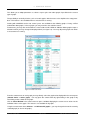
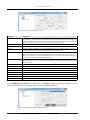
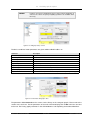
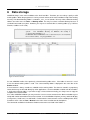
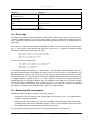
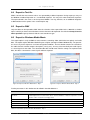
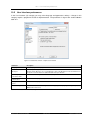
Click to open a window in which the hard disk may be searched for SAMURAI working folders (see
figure 6.3).
Advanced settings. . . Open a window for setting additional parameters (for description see section 6.1.2).
Table 6.2: Edit the working folder list
6.1.1
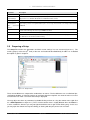
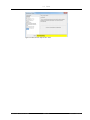
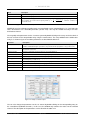
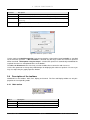
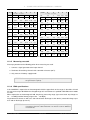
Search for working folders
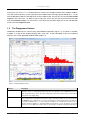
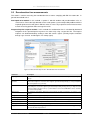
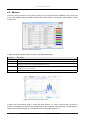
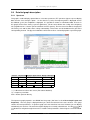
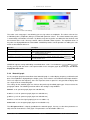
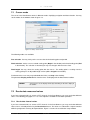
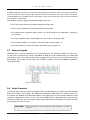
Figure 6.3: Search for working folders
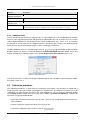
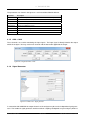
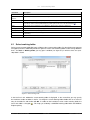
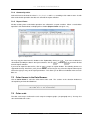
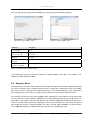
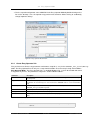
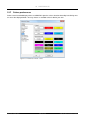
You may select the drives to be searched in the upper section of the window; there you can also start the
search operation. When the search operation has been completed and folders were found, these are displayed in a list. Now you may select a folder and click on Remember to add the folder to the list of working
folders. Click on Set to normal folder to add and select the folder.
6.1.2
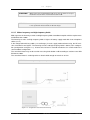
Advanced settings for a working folder
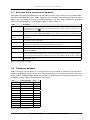
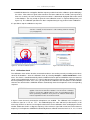
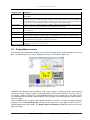
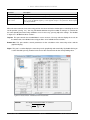
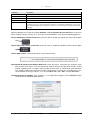
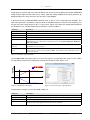
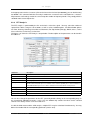
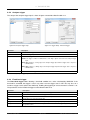
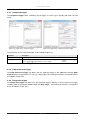
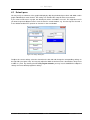
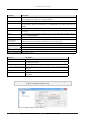
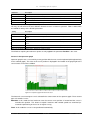
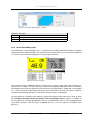
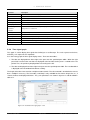
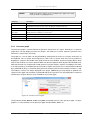
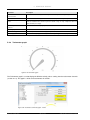
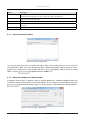
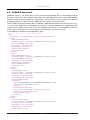
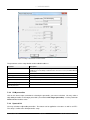
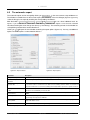
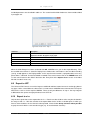
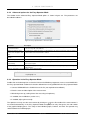
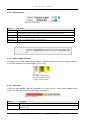
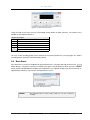
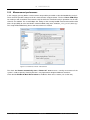
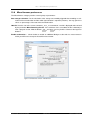
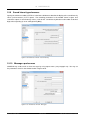
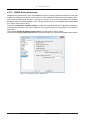
In longterm measurements it might be useful to regularly delete data. Therefore SAMURAI allows you
to limit the number of measurements in the working folder. You may open the setup window by clicking on
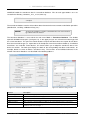
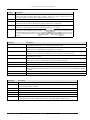
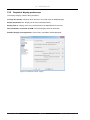
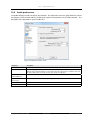
Advanced settings. . . in the window shown in figure 6.2. The parameters are described in the following table 6.3.
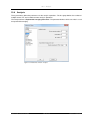
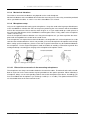
Figure 6.4: Advanced settings - Working folder
Manual SAMURAI
74 of 132
SINUS Messtechnik GmbH