1
Amazon Elastic Compute Cloud User Guide for Linux
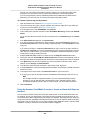
EBS Volumes
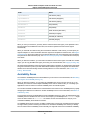
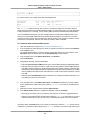
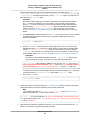
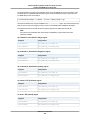
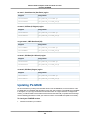
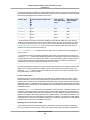
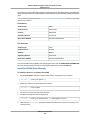
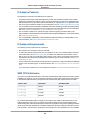
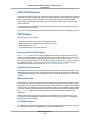
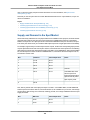
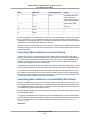
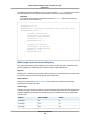
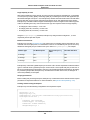
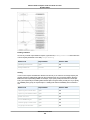
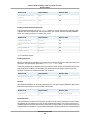
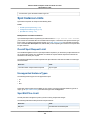
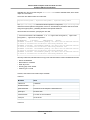
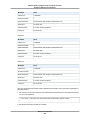
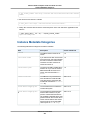
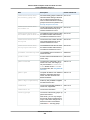
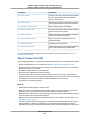
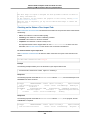
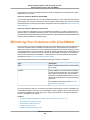
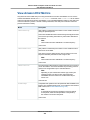
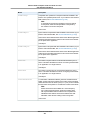
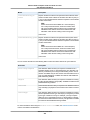
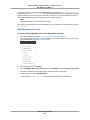
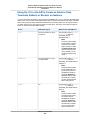
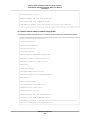
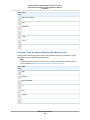
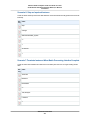
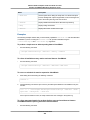
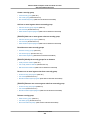
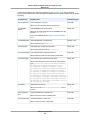
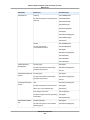
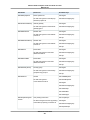
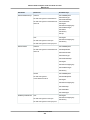
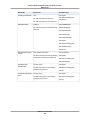
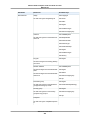
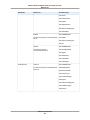
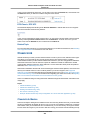
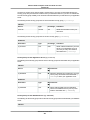
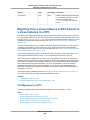
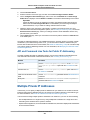
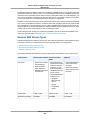
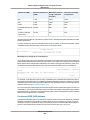
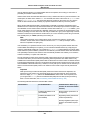
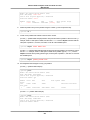
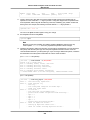
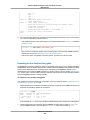
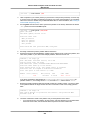
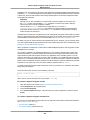
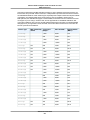
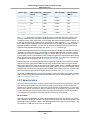
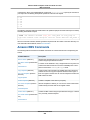
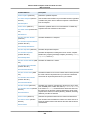
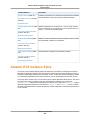
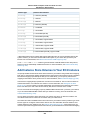
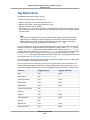
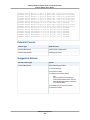
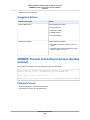
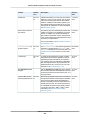
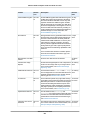
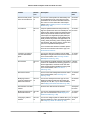
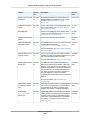
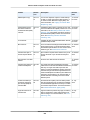
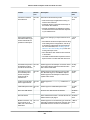
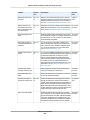
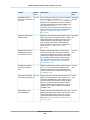
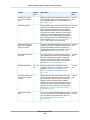
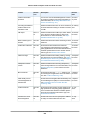
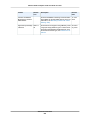
Volume Status
I/O Enabled Status
I/O Performance Status (only
available for Provisioned IOPS
volumes)
impaired
Enabled (I/O Enabled or I/O
Auto-Enabled)
Stalled (Volume performance is
severely impacted)
Disabled (Volume is offline and
pending recovery, or is waiting
for the user to enable I/O)
Not Available (Unable to determine I/O performance because I/O
is disabled)
Enabled (I/O Enabled or I/O
Auto-Enabled)
Insufficient Data
insufficient-data
Insufficient Data
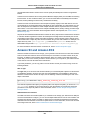
To view and work with status checks, you can use the Amazon EC2 console, the API, or the command
line interface.
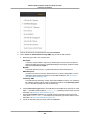
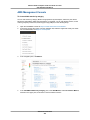
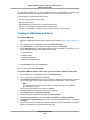
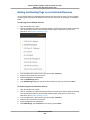
To view status checks in the console
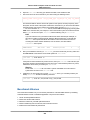
1.
2.
3.
4.
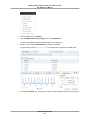
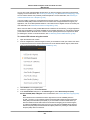
Open the Amazon EC2 console at https://console.amazonaws.cn/ec2/.
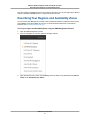
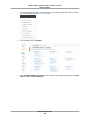
In the navigation pane, click Volumes.
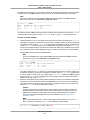
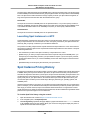
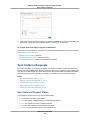
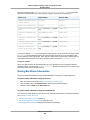
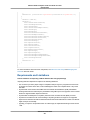
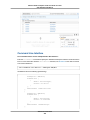
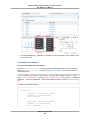
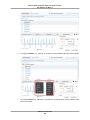
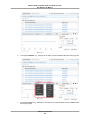
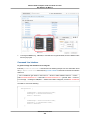
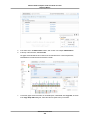
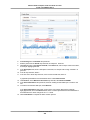
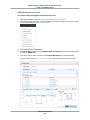
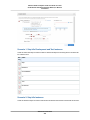
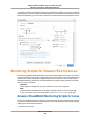
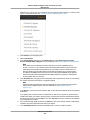
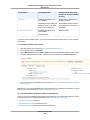
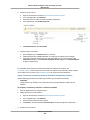
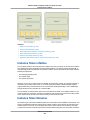
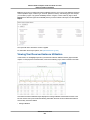
On the EBS Volumes page, the Volume Status column lists the operational status of each volume.
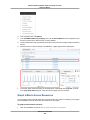
To view an individual volume's status, select the volume, and then click the Status Checks tab.
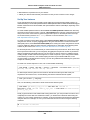
5.
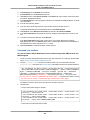
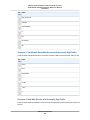
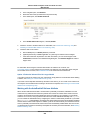
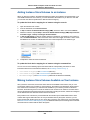
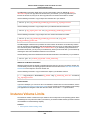
If you have a volume with a failed status check (status is impaired), see Working with an Impaired
Volume (p. 544).
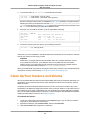
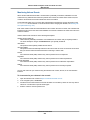
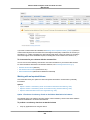
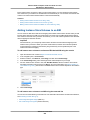
Alternatively, you can use the Events pane to view all events for your instances and volumes in a single
pane. For more information, see Monitoring Volume Events (p. 543).
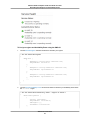
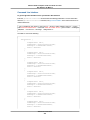
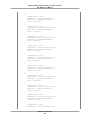
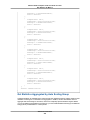
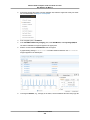
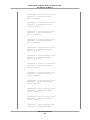
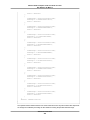
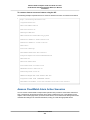
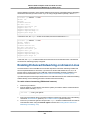
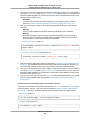
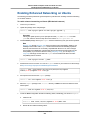
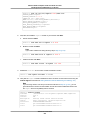
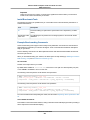
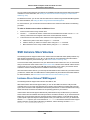
To view volume status information with the command line
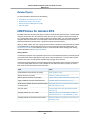
You can use one of the following commands to view the status of your Amazon EBS volumes. For more
information about these command line interfaces, see Accessing Amazon EC2 (p. 3).
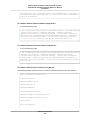
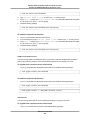
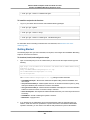
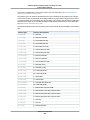
• describe-volume-status (AWS CLI)
• ec2-describe-volume-status (Amazon EC2 CLI)
• Get-EC2VolumeStatus (AWS Tools for Windows PowerShell)
API Version 2015-04-15
542