1
22
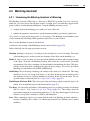
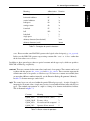
Getting Started
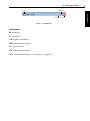
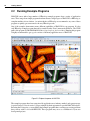
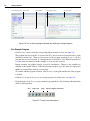
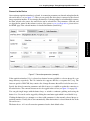
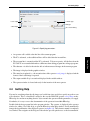
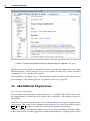
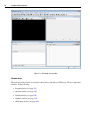
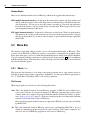
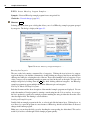
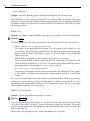
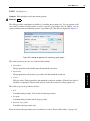
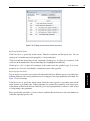
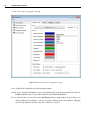
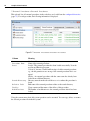
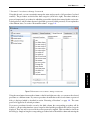
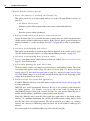
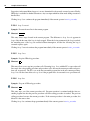
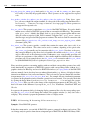
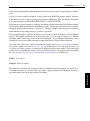
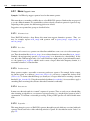
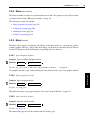
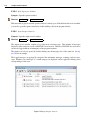
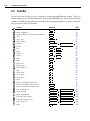
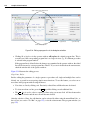
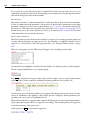
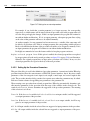
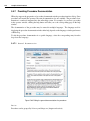
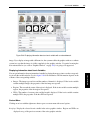
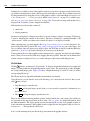
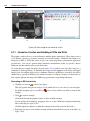
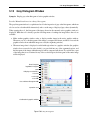
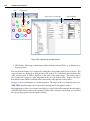
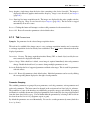
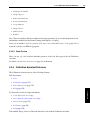
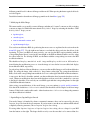
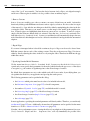
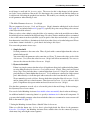
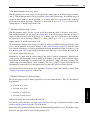
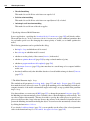
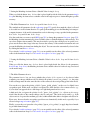
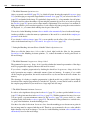
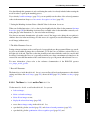
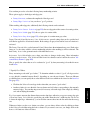
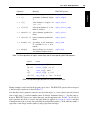
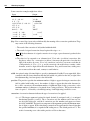
iconic variables (images, regions, XLDs)
control variables
PC (program counter)
current procedure
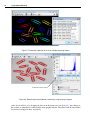
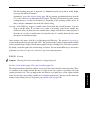
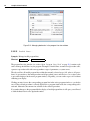
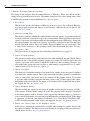
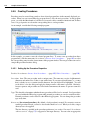
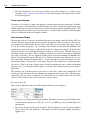
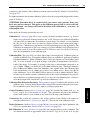
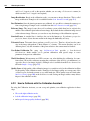
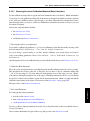
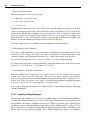
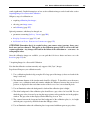
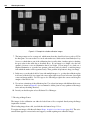
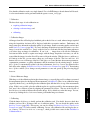
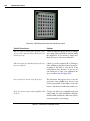
Figure 2.4: The variable and program window after loading the example program.
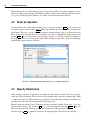
Run Example Program
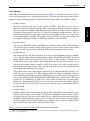
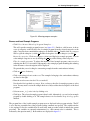
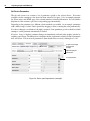
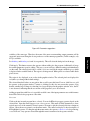
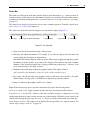
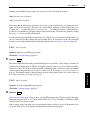
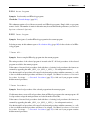
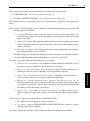
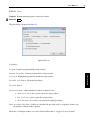
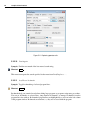
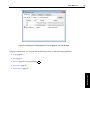
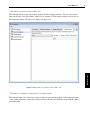
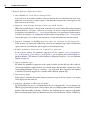
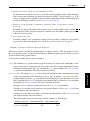
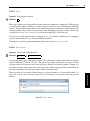
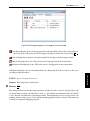
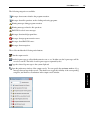
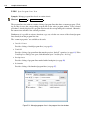
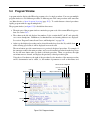
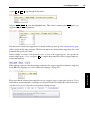
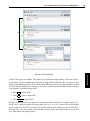
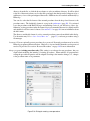
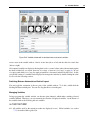
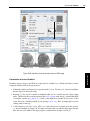
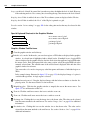
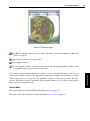
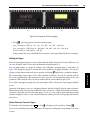
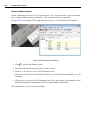
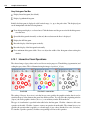
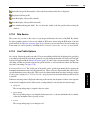
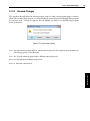
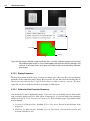
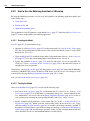
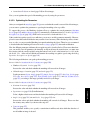
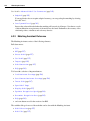
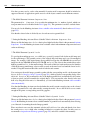
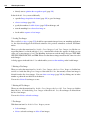
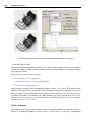
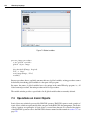
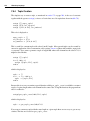
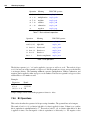
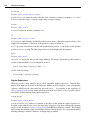
• Click Execute . Run or click the corresponding button from the tool bar (see figure 2.5).
The program line next to the PC is executed, the PC is moved to the following line and so forth
until the execution stops. There are four reasons for the program execution to stop: 1) the last
program line has been executed, 2) a breakpoint has been reached, 3) the HDevelop instruction
stop has been encountered as in this example, or 4) an error has occurred.
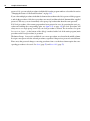
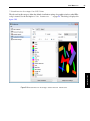
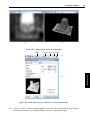
During execution, the graphics window is used for visualization. Changes to the variables are
reflected in the variable window. When the program execution stops, the status bar displays the
number of executed lines and the processing time.
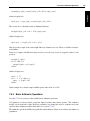
To continue with the program execution, click Execute . Run again until the end of the program
is reached.
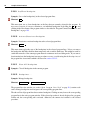
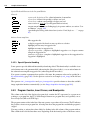
• Click Reset Program Execution to reset the program to its initial state. (see figure 2.5).
• Using the button Step Over you can execute the program line by line and inspect the immediate
effect of each instruction.
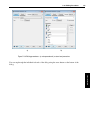
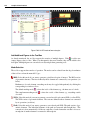
Run
Step Over
Stop
Reset Program Execution
Figure 2.5: The basic execution buttons.