1
5.2.4 Menu Visualization
99
5.2.4.20 Set Parameters...
Synopsis: Set visualization parameters of the active graphics window with interactive preview.
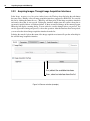
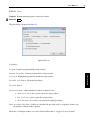
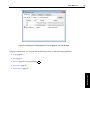
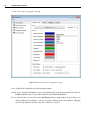
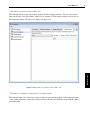
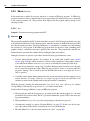
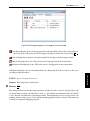
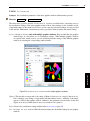
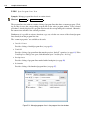
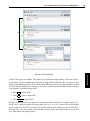
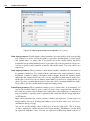
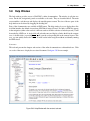
Shortcut: Ctrl+Shift+G,P or Ctrl+Shift+G,Ctrl+Shift+P This menu entry opens the window Visualization Parameters which allows convenient access to
the visualization settings of the active graphics window. Most of the settings are also available as individual menu entries in the menu Visualization, but some more advanced settings are only provided
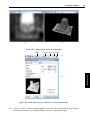
in this window. Furthermore, an interactive preview is provided, which visualizes the current settings.
GUI Reference
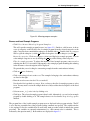
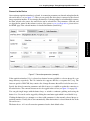
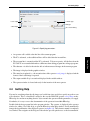
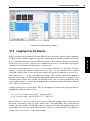
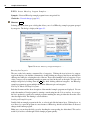
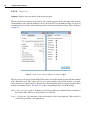
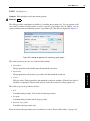
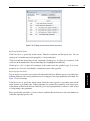
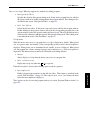
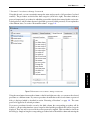
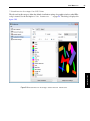
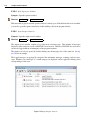
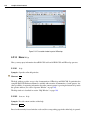
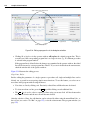
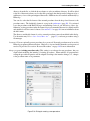
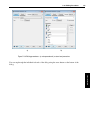
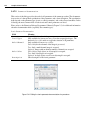
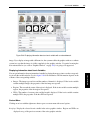
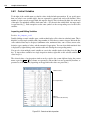
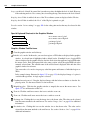
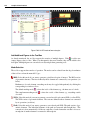
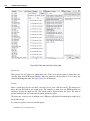
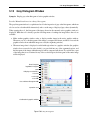
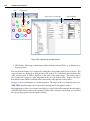
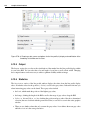
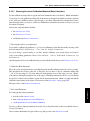
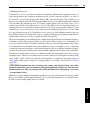
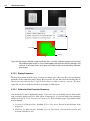
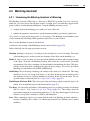
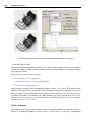
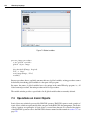
Select Graphics Window (only with multiple graphics windows) Keep in mind that each graphics
window keeps its own private set of visualization settings. When multiple graphics windows
are opened in the current session, you can switch between the settings of the different graphics
windows by selecting the corresponding window handle.
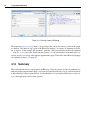
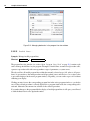
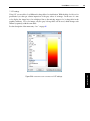
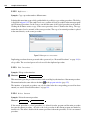
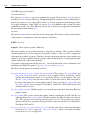
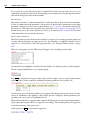
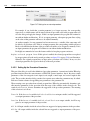
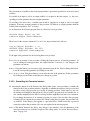
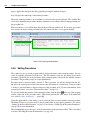
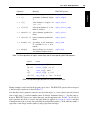
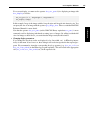
Figure 5.25: Visualization Parameters with multiple graphics windows.
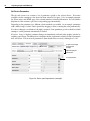
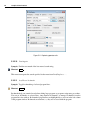
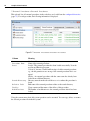
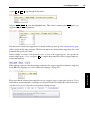
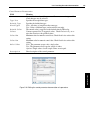
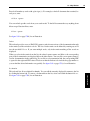
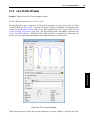
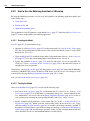
Update This check box corresponds to the setting of Menu Visualization . Apply Immediately.
If it is checked, every change of a parameter will immediately lead to a redisplay of the image,
regions, or XLD in the graphics window. Otherwise, the parameters become active for the next
display of an object (double-click on an icon or execution of an operator).
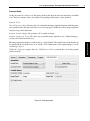
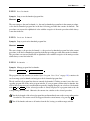
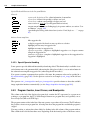
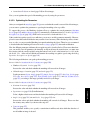
Reset Reset to the visualization settings defined in the Preferences (page 70).
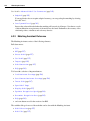
Use settings for new windows Make the current settings also the default settings for new graphics
windows.