1
SENDING AN IMAGE
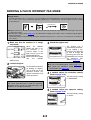
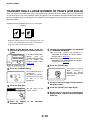
SENDING AN IMAGE IN SCAN MODE
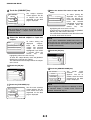
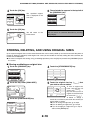
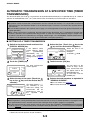
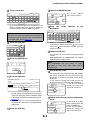
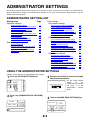
sure that the machine is in image
1 Make
send mode.
needed, adjust the resolution setting.
4 If(Refer
to page 2-18.)
When
the
[IMAGE
LINE SEND] key light is on,
IMAGE SEND
DATA the
machine is in
scanner mode. If the
COPY
light is not on, press the
SYSTEM [IMAGE SEND] key.
JOB STATUS SETTING
Select scan mode with
the [MODE SWITCH]
key.
The initial factory setting
is "300x300dpi".
FILING
DATA
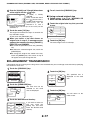
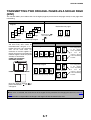
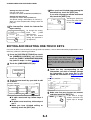
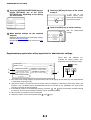
2 Load the original.
For detailed information
on loading an original,
refer to page 4-3 of the
operation manual (for
general information and
copier operation).
EXPOSURE
300x300dpi
RESOLUTION
PDF MMR(G4)
FILE FORMAT
AUTO A4
ORIGINAL
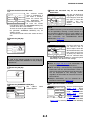
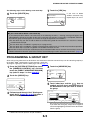
needed, adjust the
5 If(Refer
to page 2-18.)
exposure setting.
The initial factory setting
is "AUTO".
AUTO
EXPOSURE
300x300dpi
RESOLUTION
PDF MMR(G4)
FILE FORMAT
AUTO A4
needed, select the file format. (Refer to
6 Ifpage
2-19.)
EXPOSURE
300x300dpi
RESOLUTION
PDF MMR(G4)
FILE FORMAT
AUTO A4
ORIGINAL
NOTE
You cannot load documents in both the automatic
document feeder and on the document glass and
send them in a single transmission.
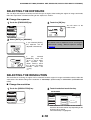
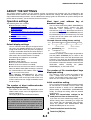
3 Check the original size.
300x300dpi
RESOLUTION
PDF MMR(G4)
FILE FORMAT
AUTO A4
ORIGINAL
The original size is
automatically detected.
If you loaded a nonstandard size document
or wish to change the
scanning size, touch the
[ORIGINAL] key and set
the document size.
(Refer to page 2-15.)
The initial factory setting
is "PDF MMR(G4)".
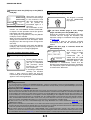
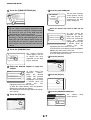
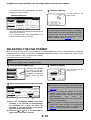
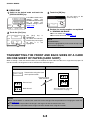
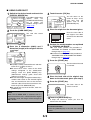
7 Touch the [SEND SETTINGS] key.
ADDRESS ENTRY
SEND SETTINGS
NOTES
NOTES
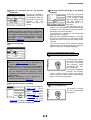
● You can skip the send settings (Proceed to step
18). If you skip these settings, the subject and the
file name that were set on the Web page and the
sender name that was set with the administrator
setting (if the name is not registered, the default is
the administrator name for the Web page) will
automatically be used for transmission.
● Subjects, file names, and senders are stored
using the Web page. Up to 30 subjects and file
names, and up to 999*1 (500*2) senders can be
stored. You can input the subject and the file name
directly using the procedure on the next page.
● To scan a two-sided original, refer to page 2-14.
● To rotate the document image 90° before
transmission, see page 2-15.
*1 On the MX-M350N/450N, or on a model with the network expansion kit (with hard drive) installed
*2 Without the network expansion kit (with hard drive)
2-2







![2 Appuyez sur la touche [OK].](http://vs1.manualzilla.com/store/data/006375112_1-113b6d7be7675b26487a7e650bd0b9b3-150x150.png)