1
Setting the Time & Date
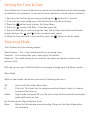
The CarCam has a Time & Date function which can be embedded onto all video footage
recorded for easy reference. To ensure the Time and Date is correct, adjust as follows:1. Switch on the CarCam by pressing and holding the
button for 2 seconds.
2. If the CarCam is recording, press the OK button to stop the recording.
3. Press the
button twice to enter the Setup Menu.
4. Press the
to select Set Date / Time then press OK.
5. Use the OK button to scroll through the Year, Month, Date, Hour, Minute & Second
options and use the
and
buttons to adjust each option.
6. When the Time and Date is set correctly, press the
button to exit the menu.
Switching Mode
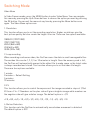
The CarCam has three working modes:
Video Camera - This is the standard mode for recording video.
Snapshot - This mode allows you to take digital still photos.
Playback - This mode allows you to review all the videos and photos stored on the
memory card.
With the unit on, press the Mode Button to navigate through each of different modes.
Video Mode
While in video mode, the buttons perform the following functions:OK
M
Starts and Stops Video Recording.
File Lock. This locks the file being recorded and keeps it safe so it cannot
be overwritten later on.
Power
Night mode. Infrared LED’s on the front of the CarCam provide illumination
when light levels are low.
Up & Down Arrow: Digital Zoom in & out.
Menu
Mutes the Microphone when recording. Brings up the Video Menu when
not recording.