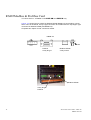
1
s SIREC D Communication Display Recorder Operating Manual 43-TV-25-24 GLO Issue 3 01/02 UK Edition 01/2002 !"#$% $&$ '$%% % #())* %+$ 43-TV-25-24 GLO Issue 3 01/02 UK YLL YLLL L[ ! "#$% ! "# &"' $% " & ( )* 43-TV-25-24 GLO Issue 3 01/02 UK A5E00117347-03 iii ! +(, '( )$) # ! '( )$) " '( )$) '( -. *+, -.- #$%&"/ " *+,$ 0 10 0 0 ! " 0 " " " '/'( 0 1 # 1 # # $ 2 ' ( % % &"#$%3 " iv 43-TV-25-24 GLO Issue 3 01/02 UK A5E00117347-03 - " $& ' ( ( 0 % - 4 ( ( 2 ( " (( ! ! ! '&$ ! ! 0 " #" #" ( ( #" # !" &"& &5 # 3 # " 4 # # 4 # &"6 #$ %$! & 74 7. (& ' (! &," 43-TV-25-24 GLO Issue 3 01/02 UK A5E00117347-03 " v $5 5 5 '!! ! "4 0 ! "4#$% !6 7-888 9 ! "4- 4 ( ' $ ) # ( ) vi 43-TV-25-24 GLO Issue 3 01/02 UK A5E00117347-03 License Agreement SIREC D - Software This License Agreement is your proof of license. Please treat it as valuable property. This is a legal agreement between you (either an individual or entity), the end user, and SIEMENS. If you do not agree to the terms of this Agreement, promptly return the disk package and the accompanying items (including written materials and binders or other containers) to the place you obtained them for a full refund. Grant of License SIEMENS grants to you the right to use the software programme identified above on an individual computer. For the purposes of this Agreement, ‘use’ means loading the software into RAM as well as installation on a hard disk or other storage. You may access the software from a hard disk, over a network, or any other method you choose, so long as you comply with this Agreement. Software a) Software, if listed on the face hereof, is hereby licensed and not sold. The licence is non-exclusive, and is limited to such equipment and/ or location(s) as are specified on the purchase order for which this instrument serves as either a quotation or acknowledgment. No other use is permitted. b) SIEMENS retains for itself (or, if applicable, its suppliers) all title and ownership to any software delivered hereunder, all of which contains confidential and proprietary information and which ownership includes without limitations all rights in patents, copyrights, trademarks and trade secrets. Buyer shall not attempt any sale, transfer, sublicense, reverse compilation or disassembly or redistribution of the software. Nor shall Buyer copy, disclose or display any such software, or otherwise make it available to others (except asSIEMENS authorizes in writing). 43-TV-25-24 GLO Issue 3 01/02 UK A5E00117347-03 vii Year 2000 Compliance Statement The SIREC D - Software is Year 2000 compliant in accordance with the BSI DISC PD2000-1 definition, provided that the host PC, its BIOS, operating system and any other active applications are also Year 2000 compliant. viii 43-TV-25-24 GLO Issue 3 01/02 UK A5E00117347-03 Preface Communications Hardware Communications cards are available as options for the SIREC DM and the SIREC DH. The variables are: 1. Ethernet only with Modbus TCP/IP (Modbus X option) 2. RS485 Trendbus only 3. Comms card - Ethernet (Trendbus, Web browser and Modbus TCP/IP, Modbus X option)/ RS232 (Web browser) and FTP/RS485 Trendbus. 4. Comms card 2 - RS485 Modbus (Modbus X option)/Profibus The SIREC DS has the communications built into the processor card. The SIREC DS comms has Ethernet as standard with Trendbus and Modbus TCP/IP capabilities. Modbus TCP/IP has the Modbus X option. These methods of communications are known as Protocols. Protocol governs the transfer of data between a computer and peripherals. Protocols define standardisation formats for data packets and techniques for detecting and correcting errors. For more information, see below and “Protocols” on page 7. Comms Interfaces and Protocols Trendbus Trendbus is a serial communication protocol that can be used over RS485 or Ether- net connections, unique to these recorders*This protocol is used in conjunction with the Windows-based SIREC D - Server software. Realtime data from selected pens on any of the networked recorders can be saved in the SIREC D - Server software’s databases and displayed as graphs in realtime. Modbus Modbus ™ is an industry standard protocol used in many SCADA packages for net- work control. This allows SIEMENS recorders to be inserted into existing networks using Modbus™ or linked directly to a controller over an RS485 link. Also, Modbus TCP/IP can be used through an Ethernet connection. Modbus X Modbus X differs from the standard Modbus only by the 4 byte floating point order being reversed for application compatibility. Ethernet Ethernet is a local area network protocol for connection and interaction or communication between computers and other devices, including SIEMENS recorders. Ethernet communication is used to transfer data between one or many recorders and the SIREC D - Server software. RS232 This protocol is useful for point-to-point communications at low speeds. For example, port COM1 in a PC can be used for a mouse, port COM2 for a modem etc. This is an 43-TV-25-24 GLO Issue 3 01/02 UK A5E00117347-03 ix example of point-to-point communication: one port, one device. RS232 was designed for communication of local devices, and supports one transmitter and one receiver. RS485 RS485 is used as a multiport communication, where more devices may be connected to a single signal cable e.g. Ethernet networks, which use coaxial cable. Both Trendbus and Ethernet use RS485 serial communication protocol. Barcode For a barcode reader that provides an ASCII output use the standard Ethernet/ RS232/RS485 card. FTP File Transfer Protocol - A method of retrieving information from the internet. FTP are the rules that govern the transfer of data files within a computer or between computers. Every Windows PC has FTP capability built in. SIREC D - Server software offers the ability to import data from recorders using FTP via an Ethernet connection through RS485 Profibus Profibus allows communication between devices of different manufacturers without any special interface adjustment. Profibus can be used for both high-speed time critical applications and complex communication tasks. x 43-TV-25-24 GLO Issue 3 01/02 UK A5E00117347-03 Chapter 1: Software Introduction and Installation Communications Software Introduction SIREC D - Server is part of the SIREC D - Software complete with its own Communications Server function. SIREC D - Server is a fully network aware package which allows data viewing, archiving and communication with unlimited recorders. Included as standard is the ability to e-mail, graph, print and export data. Recorder data can be entered into any PC on the LAN (Local Area Networks) and automatically viewed and graphed at any other PC. An optional link to the SIEMENS web site, on http://www.fielddevices.com/ index.asp?Nr=4186 will provide information on the software. Also an extensive online help facility is included as standard. SIREC D - Server offers the ability to download and import data communicating using FTP (File Transfer Protocol) via the Ethernet Interface . To use it you must have a recorder and a Comms card with Ethernet and the FTP option installed. One of the unique features of the SIREC D - Server software is the Realtime facility in conjunction with the Communications Server. Realtime data can be retrieved from the recorder to a PC via an Ethernet and/or RS485 connection. This data can be viewed, graphed and logged into the system. Data from the recorder can be logged to a database and held on a database server. Remote servers can be added to the comms server to allow access to remote recorders on remote databases not on a local network. Communication protocols available including: • Trendbus over RS485 or Ethernet* • FTP (using Ethernet) • RS485 Modbus • Profibus • ‘Modbus TCP/IP with Modbus X option over Ethernet SIREC D - Server runs under Windows™ 98SE, Windows ME, Windows NT V4 service pack 3 onwards, Windows 2000 and Windows XP. Communications on the SIREC DS are all through the Ethernet connection. Either Trendbus or Modbus TCP/IP with Modbus X option. 43-TV-25-24 GLO Issue 3 01/02 UK A5E00117347-03 1 Software Installation The Comms server is only available with the TrendServer software. The comms server will auto install with the SIREC D - Server software. For installation instructions for the SIREC D - Server software, refer to the SIREC D - Software manual. +( There are three software packages available: SIREC D - Viewer, SIREC D - Manager and SIREC D - Server. If your software upgrade is for the same package the software will automatically overwrite the previous version. Local database information will not be affected and all recorders data and setups will be retained. Any other remote database servers will have to be added manually. If you have purchased a different package to what is already installed, the new software will detect this and only make available the same package. To install a different package, first un-install the previous version. Recorders and data held on a local database on the previous version will be retained for use with the new package as long as it is installed into the same directory. 2 43-TV-25-24 GLO Issue 3 01/02 UK A5E00117347-03 Chapter 2: System Overview SIREC D - Server software is a comprehensive, versatile and easy to use communications system using the latest Protocols to transfer data. Individual company requirements will demand different types of protocols dependant on the size and criteria of the communications system network. To help decide which protocol is suitable for each customers setup, see “Protocols” on page 7. Retrieving different types of Data Using the SIREC D - Server software, the recorder’s details are added on to a database in SIREC D - Server. Once the recorder has been configured and enabled, data can be retrieved. Data can be logged to disk - known as disk data. This data can be transferred to SIREC D - Server via a 3.5” floppy disk or imported by using File Transfer Protocol (FTP) via an Ethernet link. Data can be imported from recorders and logged to a Database , known as ‘Stored and Historic data’. Databases are managed by a Database Server. The data can be retrieved, graphed, exported to spreadsheets, e-mailed or transferred from recorders to other databases located on Remote Database Servers . Using the Comms Server actual current data can be sent from a recorder straight to the server using Ethernet or RS485 links. This actual current data can then be logged to a database and viewed on a graph in real time, this is known as ‘Realtime ’ data. Different types of data, realtime, logged and historic data can be displayed next to each other on a split graph screen. The comms server is used to configure logging and manage databases and reflect each recorders status. See “Communications Server” on page 17. Local Area Network setup This is a group of computers and or associated devices e.g SIEMENS recorders, that share a common communications line and typically share the resources of a single processor or server within a local geographical area (e.g. within an office). ),+-$* Realtime data from the recorder to the Comms Server. Comms Server Software Database Server Software Disk data, shown in dotted, is imported from the recorder to the Database server Realtime data from the Comms Server to the TrendServer SIREC D - Server 43-TV-25-24 GLO Issue 3 01/02 UK A5E00117347-03 3 Links to Remote Networks Communications is not just limited to local networks. Recorders and databases on remote networks can be accessed using the SIREC D - Server software via remote comms servers and remote database servers. Remote servers means it is not directly connected to your PC. Figure 2.2 shows an example of two local systems having access to each others remote servers. SIREC D - Server 1 can access Comms Server 2 and Database Server 2 and all the recorders within the databases on those servers. Similarly SIREC D - Server 2 can access the recorders and databases held on Database 1, and Comms Server 1. ),+-$* Logged to Database SIREC D - Server 1 Comms Server 1 Software Database Server 1 Software Database Database Logged to Database Comms Server 2 Software Database Server 2 Software Database DataDatabase base SIREC D - Server 2 4 43-TV-25-24 GLO Issue 3 01/02 UK A5E00117347-03 System Set Up There are three main elements to set up for the communication link to work. Recorder configuration for comms • • • Software configuration for comms. Comms Server software set up. Ensure the same communications information is entered into the hardware and the software in order for the communications link to work.e.g. Recorder name and ID., IP address of the recorders. Install SIREC D - Server from the SIREC D - Software folder and the comms server and database servers install automatically. Comms Server The Communications Server appears as an icon in the bottom right of the screen. Double click or right click to open, loads automatically with SIREC D - Server. The comms server manages the communications status of recorders on a serial port (RS485) or through an Ethernet connection. Unless an RS485 card is used, then an RS485 to RS232 converter is required (Westermo ). Recorders are held on databases and the databases are held on servers. By accessing other comms servers remotely it is possible to receive data from other recorders held on databases on other servers - known as remote servers. The comms server uses IP Addresses to locate recorders on local and remote servers. All logging configuration for comms logging and logging to a database is set up from the Comms Server. See “Communications Server” on page 17. Comms Server Database This is the database icon which will appear in the bottom right of the screen to show that the SIREC D - Server software is running with the Database server active. Loads automatically with SIREC D - Server. System Setup The system can be set up two ways. * For customers who are setting up in preparation for the arrival of their recorders. Using the SIREC D - Server and Comms Server software, create a database for the recorder(s) and configure each recorder for logging using the comms server. When the recorders are in place and connected check the IP address (for Ethernet recorders only) and the recorder ID is correct. * For larger networks - Set up the hardware first noting each recorders ID and IP address. Use the comms server software to set up the recorders on a database and configure logging for each recorder. The recorders will need to be set up on the SIREC D - Server software before the connections can be tested and become active. 43-TV-25-24 GLO Issue 3 01/02 UK A5E00117347-03 5 6 43-TV-25-24 GLO Issue 3 01/02 UK A5E00117347-03 Chapter 3: Protocols Protocols Protocols are an agreed-upon format for transmitting data between two devices. The protocol determines the following: • • • • the type of error checking to be used data compression method, if any how the sending device will indicate that it has finished sending a message how the receiving device will indicate that it has received a message There are a variety of standard protocols from which programmers can choose. Each has particular advantages and disadvantages; for example, some are simpler than others, some are more reliable, and some are faster. From a user’s point of view, the only important aspect about protocols is that your computer or device must support the right ones if you want to communicate with other computers. The protocol can be implemented in hardware and in software. or . NB. The only comms available on the SIREC DS are Ethernet with Trendbus or Ether net with Modbus. Trendbus RS485 Trendbus is a SIEMENS communications protocol used over RS485 and Ethernet connections. Data can be transferred from the recorder to the SIREC D - Server software and displayed as pen traces on a graph in Realtime. This data can also be logged to a database or communicated to other networks. Data can be selected from any recorder entered onto a LAN with the intervention of the Comms Server. This newer version of Trendbus is an extension of the existing Trendbus, maintaining full backward compatibility with the existing system. Purpose Trendbus is designed to allow the user to view and log realtime data from remote recorders. Function SIREC D - Server uses Trendbus to perform the following functions:- • • Retrieval of current recorder setup • Time synchronisation of network recorders Retrieval of realtime data from individual channels or pens on networked recorders with independent sampling rates and methods Setups cannot be transferred to a recorder using Trendbus. 43-TV-25-24 GLO Issue 3 01/02 UK A5E00117347-03 7 Data Acquisition Data acquired using Trendbus is stored in a different location on the SIREC D Server database from data transferred via floppy disk. The fastest logging rate is 50 times a second and data retrieval can be interrupted during SIREC D - Server operations. For this reason MaxMin logging method is recommended, as the recorder will store the maximum and minimum readings obtained during the interruption and pass those readings to SIREC D - Server when communications are resumed. Modbus™ Modbus is an industry standard protocol used in many SCADA packages for network control. This allows SIEMENS recorders to be inserted into existing networks using Modbus or linked directly to a controller over an RS485 link. Modbus - protocol designed for exchange of data of either one bit binary registers or 16-bit registers. Many extensions and clever use of the protocol have allowed more complex operations built on the fairly straight-forward function codes and messages. Virtually every industrial automation platform has some connectivity to Modbus making it one of the most popular and widespread protocols for exchanging data. Also, Modbus TCP/IP, with Modbus X option can be used through an Ethernet connection. Modbus X Modbus X differs from the standard Modbus only by the 4 byte floating point order being reversed for application compatibility. Profibus Profibus-DP This is the performance optimized version of Profibus, specifically dedicated to timecritical communication between automation systems and distributed peripherals. It is suitable as a replacement for the costly parallel wiring of 24 V and 4(0) to 20 mA measurement signals. Profibus-DP is included into the European Fieldbus Standard EN 50170. DP is the most frequently used communication profile. It is optimized for speed, efficiency and low connection costs and is designed especially for communication between automation systems and distributed peripherals. DP is suitable as a replacement for conventional, parallel signal transmission with 24 volts in manufacturing automation as well as for analog signal transmission with 4-20 mA or Hart in process automation. Profibus can be used for both high-speed time critical applications and complex communication tasks. Through its continuing further technical developments, Profibus Communication Profiles define how users transmit their data serially via the common transmission medium. Barcode (ASCII output) For a barcode reader that provides an ASCII output use the standard Ethernet/RS232/ RS485 card. 8 43-TV-25-24 GLO Issue 3 01/02 UK A5E00117347-03 Chapter 4: Communications Interface Connection Details Communication Cards, PCB Details Communications cards are available as options for the SIREC DM and the SIREC DH. The available communications options are: 1. Ethernet only with Modbus TCP/IP (Modbus X option) and trendbus 2. RS485 Trendbus only 3. Comms card - Ethernet (Trendbus, Web browser and Modbus TCP/IP, Modbus X option)/ RS232 (Web browser) and FTP/RS485 Trendbus. 4. Comms card 2 - RS485 Modbus (Modbus X option)/Profibus The eZtrend V5 has the communications built into the processor card. The SIREC DS comms has Ethernet as standard with Trendbus and Modbus TCP/IP capabilities. Modbus TCP/IP has the Modbus X option. Comms Card Available on the SIREC DM and SIREC DHonly. This card provides Ethernet or Modbus TCP/IP through Ethernet (with Modbus X option), Trendbus RS485 and RS232 communications ports. Figure 4.1 is a view of the Comms card as seen from the rear of the recorder. Complete this chapter for full connection details. ),+-$* LED RS485 5-way socket RS232 9-way D-type Ethernet 8-way RJ45 & Modbus TCP/IP Ethernet/Modbus TCP/IP System requirements *SIREC DM or SIREC DH or the SIREC DS with an Ethernet card fitted. cable, fitted with RJ45 plug, also used for Modbus TCP/IP. *Ethernet *10base T Ethernet Hub, with uplink for network growth. For a one on one connection, between PC and a single recorder, use a simple crossover cable instead of an Ethernet hub. refer to the SIREC D - Software User Manual, for SIREC D - Server system requirements. *PC, With this SIEMENSsoftware, performance improves with more RAM, faster CPU’s, and faster and larger hard disk drives. 43-TV-25-24 GLO Issue 3 01/02 UK A5E00117347-03 9 NB. It is recommended that at least 100 Mbyte of free hard disk space is available for archiving data. Please note the more logging and data being stored, the more free space on the hard disk is required. Ethernet/Modbus TCP/IP Interface Connections The Ethernet or the Modbus TCP/IP system transfers data from the recorders using FTP (File Transfer Protocol) or Realtime. Using the SIREC D - Server, software data can be imported over the Ethernet link to a database where the information is stored. The data can be logged to the data base and displayed, as a graph, in Realtime or Historical format. HUB Uplink (optional) to other networks Mains Mains This example shows five SIEMENS SIREC DM recorders connected to a PC via an Ethernet hub. The system can be connected to other networks using the Uplink socket on the hub. 10 43-TV-25-24 GLO Issue 3 01/02 UK A5E00117347-03 Ethernet/Modbus TCP/IP Interface This is an 8-way RJ45 Molex socket used for Ethernet connection. TD+ TDRD RD- 1 2 3 4 5 6 7 8 2 1 4 3 6 5 8 7 locating pins (not connected) A B Recorder and PC Ethernet connections Connect an Ethernet cable from the Ethernet port on the back of the recorder to the Ethernet hub. Connect another Ethernet cable from the Ethernet port on the PC to the Ethernet hub. 43-TV-25-24 GLO Issue 3 01/02 UK A5E00117347-03 11 Hubs Hubs come in all different shapes and sizes. A hub is a common connection point for devices in a network. Hubs are commonly used to connect segments of a LAN. A hub contains multiple ports. When a packet arrives at one port, it is copied to the other ports so that all segments of the LAN can see all packets. Ethernet cable to recorder Ethernet cable to PC Spare Ethernet ports for additional recorders Ethernet Uplink option to other networks DC Power Supply Getting connected - IP Address Stand alone system This is for a local recorder direct to a PC using an Ethernet crossover cable. By using a crossover cable, the PC will be able to receive data transmitted from the recorder. Contact your IT systems administrator for setting up this link. The TCP/IP properties will be displayed showing the PC’s IP address and the Subnet mask. Make a note of the IP Address and the Subnet mask. If there is no IP address or Subnet mask displayed, contact your IT systems administrator. When this information is entered, the next stage is to configure the recorder. See “Recorder Communications” on page 25. For information on setting up the Communications Server refer to “Communications Server” on page 17. 12 43-TV-25-24 GLO Issue 3 01/02 UK A5E00117347-03 RS485 Trendbus Interface Connections Not available on the SIREC DS. This is a 5-way socket, pcb position J1, it has a 2 Wire line type which will transmit and receive data down both lines. Data has to be fully received before data can be transmitted.. 2 wire connection in the RS485 port -RX/TXB RX/TXA 1 2 3 4 5 2 wire pin connections Pin5 RX/TXA Receive and Transmit line A Pin4 -RX/TXB Receive and Transmit line B RS232 Interface Connections Not available on the SIREC DS. This is a 9-way D-type connector (mating half not supplied), pcb position P1.. 5 9 4 8 3 7 2 6 1 -RI2 -DTR2 -CTS2 TXD2 -RTS2 RXD2 -DSR2 -DCD2 RS232 pin connection details Pin number Description Pin number Description Pin 1 -DCD2 Data Carrier Detect Pin 6 -DSR2 Data Set Ready Pin 2 RXD2 Received Data Pin 7 -RTS2 Request To Send Pin 3 TXD2 Transmitted Data Pin 8 -CTS2 Clear To Send Pin 4 -DTR2 Data Terminal Ready Pin 9 -RI2 Pin 5 Signal Ground 43-TV-25-24 GLO Issue 3 01/02 UK A5E00117347-03 13 RS485Modbus & Profibus Card or Comms Card 2 - available on the SIREC DM and SIREC DH only. Figure 4.2 shows Comms card 2 for Modbus RS485 (Modbus X) and Profibus connections. There is an RS232, 9-way D type connection for Profibus and a 3-way klippon type connector for Modbus RS485 (and Modbus X). Complete this chapter for full connection details. ),+-$* LED Profibus 9-way D-type Modbus RS485 3-way socket Modbus RS485 9-way D-type Profibus 14 43-TV-25-24 GLO Issue 3 01/02 UK A5E00117347-03 Profibus Interface Connections This is a 9-way D-type connector (mating half not supplied) 1 6 2 7 3 8 4 9 5 Protective GND Voltage-Plus Reserved for power Reserved for power RX/TX Data-P RX/TX Data-N Control-P Control-N Data GND Isol RS485 Modbus Interface Connections This is a 3-way socket (mating half supplied) 1 2 3 RS485 A - (non-inverting) Nearest edge of board RS485 B - (inverting) Comms Ground Ethernet for SIREC DS The Ethernet interface is fitted as standard to the SIREC DS. The Ethernet connection is an integrated part of the main processor card in the recorder. The connection is a standard RJ45 ‘telephone type’ connector. Modbus TCP/IP with Modbus X option is available through the Ethernet connection and is also comes as standard. For Ethernet connection details see “Ethernet/Modbus TCP/IP System requirements” on page 9. 43-TV-25-24 GLO Issue 3 01/02 UK A5E00117347-03 15 16 43-TV-25-24 GLO Issue 3 01/02 UK A5E00117347-03 Chapter 5: Communications Server Comms Server Overview The Comms Server and the Database server will automatically become active when the SIREC D - Server software is running. Refer to the SIREC D - Software Manual, Installation instructions. The Comms server will enable the user to: • Monitor the status of communications with recorder on any serial port, up to 8 ports and an Ethernet connection. • Set up local and remote databases • Set up local and remote servers • • • • • Modbus TCP/IP operates through the Ethernet port Enable and disable ports Add, edit and remove recorders Restrict user access to management functions through a password system Log to database or client connections, local or OPC client. The comms server will appear as an icon in the system task bar in the bottom right of the PC screen. Comms Server The Communications Server appears as an icon in the bottom right of the screen. The Comms Sever will open automatically with SIREC D Server, if not double click or right click on the icon to open. The comms server screen can be minimised an closed using the icons in the top ricght. Closing the comms server does not shut it down. Right click on the icon or see “Administration” on page 18 to shut down the comms server. The comms server manages the communications status of recorders on a serial port (RS485) or through an Ethernet connection. Recorders are held on databases and the databases are held on servers. By accessing other comms servers remotely it is possible to receive data from other recorders held on databases on other servers - known as remote servers. The comms server uses IP Addresses to locate recorders on local and remote servers. All Logging configuration for comms logging and logging to a database is set up from the Comms Server. The Comms Status shows all the activity of recorders, Communications ports, Databases and Database Servers. The window to the left displays the areas controlled by the comms server, the database servers and the communications ports. The display area(s) to the right will display details of any item selected in the left window. Depending on what has been selected the right window will split in two to give logging information. Items listed in the left window that have a + sign against them contain other items, click on the + sign to reveal the list of items contained within. The + sign will change to a sign when all the items are displayed. To close the list, click on the - sign. 43-TV-25-24 GLO Issue 3 01/02 UK A5E00117347-03 17 Comms Server Screen Administration Administration button appears in the top left of the comms server • Shutdown Server - From here the comms server can be shut down this will disconnect the comms server, it will also shutdown the database servers at the same time. • Preferences - This has two tabs, General settings and Timing setups. The general settings tabs has an option to minimise the Server when it is opened, and the diagnostics option that will produce an additional tab to the bottom window. The Clear Setup Cache button will remove all setup files. • Contents - Enables the Help files. • About Communications Server - Gives the version of the software. Add a new Device to a communications port. Use this icon button as one way of adding a recorder to Communications port. Other ways of adding a recorder are to right click on the desired port in the left window ie. Ethernet, and select the Add Recorder option. Or select a comms port in the left window, right click in a clear space in the top window and select Add Recorder. Configure Database Logging Use this icon button to configure a recorder for logging pens to a database. Other ways to configure logging are to right click on a comms port or a recorder in the left window, or a recorder in the top window displaying the recorder for that port. Connect to a new Database Server Use this icon button to connect to a database server, either a Local, or Remote Server that has been added to the database servers list. Connection can be made by selecting ‘Database Servers’ in the left window and then right clicking in a clear space in the top window displaying the database servers list. 18 43-TV-25-24 GLO Issue 3 01/02 UK A5E00117347-03 Comms Server Status Screen This section looks at the Comms Server’s main elements displayed in the Status Screen: Database Servers, Local and Remote Servers, Databases and Communication Ports. Also information on Database logging and Client connections. Database Servers The Database Server will list databases and display the recorders within each database as they are added. Click on any of the database servers or the database within and details of that item will be displayed in the main window. The main window will split to give additional information for databases showing comms port and recorder details. Recorders are added to the comms server through the Communications port, when logging is configured for a recorder a database is designated to receive the data. The recorders appear in the database and these databases are held within database servers. The image below shows the comms status screen, in the left window from the top are displayed Database Servers, Databases and recorders held on those databases. Connected databases will be displayed with a green icon. If the database is in red it is not connected, check the IP Address and Recorder ID are correct and a protocol has been selected on the recorder. Un-tick and then tick the active box on the comms server to restart the database connection. Remote database servers can be added to the list to enable access to recorders held in other databases on a remote database server in another location. To connect to a remote database server the IP address must be known of the PC where the databases server is held. Listed under the Database Servers will be a list of Servers. Listed under each Server will be the Databases. Listed under each Database will be the recorders. This is the Database Server icon. This window displays details of the item selected in the left window. Initial Database is selected and the two recorders on that database are displayed. This is the Database icon Items with a ‘+’ sign signifies there are items listed within. Click on the ‘+’ sign to activate/ expand. 43-TV-25-24 GLO Issue 3 01/02 UK A5E00117347-03 This window displays details of recorders configured for logging 19 The bottom window has three actions, Client connections , Database logging and Diagnostics . When a recorder is selected from the top window details of the recorders activity will be displayed here. Recoredr logging to a database will diplay details in the Database logging tab. Realtime data will display in the Client connections tab. The Diagnostics tab can be activated by going to Administration, Preferences and ticking the show diagnostics box, showing an analysis of the recorder. Communication Ports The Communication Ports is a list of ports available, COM1 to COM8 and Ethernet . As recorders are added they will be displayed under the port name. Click on Communication Ports to display a list of all the ports in the main window, tick the required port to enable. Click on a port and the main window splits into two windows, top and bottom. The top window displays details of the recorders using that port including recorder ID No. , recorder Name , Mode and Status show if the recorder is connected, how many Pens the recorder has enabled, an Active button to activate the recorder and the recorder’s IP Address . As recorders get added to each port they will display in the list for that particular port. For details on the Mode and Status of a recorder on the comms server, refer to the “Appendix D - Comms Troubleshooter” on page 53. This widow displays the recorders on the Ethernet port, selected in the left window. Client connections tab displays realtime comms running on the server software, for the recorder selected in the top window. The Database logging tab displays the pens logging to a database for the recorder selected in the top window. A third tab, Diagnostics, is acivated from Administration, Preferences. 20 43-TV-25-24 GLO Issue 3 01/02 UK A5E00117347-03 Client connections Realtime comms data from the recorder will only display on the comms server communications status screen when realtime data is active on either the server software or by using an OPC client. Once data is active on a client connection, this window will display details of the recorder selected in the top window: its Destination or where the information is going to, Source or origin of the data (pen or event), Rate and Type of data sampling being communicated. See “OPC Clients” on page 24 and “OPC Server” on page 24. Database logging This tab will display information on what is currently being logged to a database for the recorder that is selected in the top window: its Destination or where the information is going to, Source or origin of the data (pen or event), Rate and Type of data sampling being communicated. Comms Server Setup This new version of comms server is backwards compatible and will overwrite previous installed versions. The comms server software can be run independently to the main application software by creating a shortcut to the startup folder. If overwriting a previous version of comms server, only the local server will retain the database information and load all the recorders and settings from the databases. Any other remote database servers will have to be added manually. Comms Server - new user Using the comms server from scratch requires: *Adding recorders to Communications port. These will appear under a selected Communica- tions Port in the left window and will appear in the initial database on the local comms server. See “Add a Recorder” on page 22 *Click on ‘Communication Ports’ in the left window to display a list of the ports in the main window. Tick the port that the recorder has been added to. See “Communication Ports” on page 20 *For a realtime connection, check recorder connection status by clicking on the recorder under its comms port in the left window to display the recorder status in the top main window. Green LED’s will show a realtime connection is made. If grey LED’s are showing and the recorder displays ‘Unconnected’ and if Red LED’s display then there is a problem with connection. See “Appendix D - Comms Troubleshooter” on page 53 *The data from this recorder can now be logged to a database by using the Configure log- ging screen and setting up pens for logging with the log rate and type and setting up a destination database. See “Logging Configuration” on page 22 *When the realtime data is being run, eg. graphed to the application server software, or an OPC client, this will enable the bottom window that will display details of the data. Add a Database To add a database to a server, right click on the server eg. Local Server, select Add Database and complete the dialog box details for the name and description of the recorder. Add a Database Server *Use the database icon with a + sign in the top left of the comms server window. *Right click on Database Servers in the top left window 43-TV-25-24 GLO Issue 3 01/02 UK A5E00117347-03 21 Connect to a Database Server *Select ‘Database Servers’ in the left window and then right click on the server to be connected in the servers list in the main window. *Connect to database server dialog box will appear, enter an IP address and a description to identify the database server. Delete a Database Server *Right click on the database server to be removed and select the delete option. *A dialog box will appear with the IP address of the database server to be deleted. If this is correct, click on OK. All database servers can be removed except for the Local Server. Add a Recorder There are three ways to add a recorder, they all deliver the same dialog box: *User the recorder icon in the top left of the comms server window. *Right click on a selected Comms port in the left window, COM1 to COM8 or Ethernet. *Select a Comms port and right click in a blank space in the top window. All these methods will produce the Add Device Details box. Edit a Recorder (Ethernet only) Select the Comms port containing the recorder for editing and right click on the recorder either in the left or top window. The Edit recorder dialog box will appear showing the items that can be changed, these are the IP address and a tick box to make the recorder active or inactive. Click on the OK button and the changes will be saved. Delete a Recorder Select the Comms port containing the recorder to be deleted and right click on the recorder either in the left or top window. The Delete recorder dialog box will appear showing the details of that particular recorder. Check this is the correct recorder for deletion, then click on the OK button and the recorder will be removed. Logging Configuration This screen configures pens for logging from a recorder to a database, it can be accessed in several ways. *Use the Configure Database Logging icon at the top left of the screen. *Right click on ‘Communication Ports’ in the left window *Right click on the comms port *Right click on the recorder Any of these will display the Logging Configuration box. If this screen is selected from either a comms port or a recorder then the comms port information will already be inserted. If the screen is selected from the icon or Communications Port heading then the comms port will need to be assigned. Enter the recorder ID number (if necessary), from the drop down menu. The next section is Database Configuration, a list of connected database servers and a list of databases that are currently being logged to. In this section is a window showing 22 43-TV-25-24 GLO Issue 3 01/02 UK A5E00117347-03 the pens available to be logged. As pens are selected from this window, three additional buttons will be come active: ‘Add Pen selection’, select each pen for logging, ‘Add all Pens’ for logging and Clear Pen selection. Logging Configuration box Add pens for logging As each pen is selected, or all pens depending on the button selected, the Logging Pen Configuration box appears so the Log Rate and Type of logging can be set for each pen individually or all pens. When the pens have been selected they will appear in the bottom window, click on Apply to enable the pens to log. Once the pens are in the ‘Pens logging to selected database’ window they can be selected and the Edit and Delete button become active. The Edit button allows the logging rate or type of logging to be changed. There is also a Database Events Logging box that can be ticked that allows any events to be logged to the database. Summary of Logging Changes - If any changes are made using the Edit button, the Summary of Changes button becomes active, this will show the last changes made to any of the pens for this configuration only. The Delete button will take the pen out of this window and put it into the window showing available pens for logging, logging will stop for this pen. 43-TV-25-24 GLO Issue 3 01/02 UK A5E00117347-03 23 OPC Clients An OPC client can be used instead of the SIREC D - Serversoftware. It is a user software application for realtime interface between servers and clients. Information from our comms server, which is OPC compliant, uses an industry standard method of uniform data intechange. The OPC client can then export realtime communications to other applications, eg. Excel. OPC Server The OPC Server is automatically registered when the package is installed and is available from within the client package as “Trendview.OPC.1” To construct a Pen tag the user can browse if available with the client package. The recorders will be grouped under the communications port that they are connected to, COM! to 8 and Ethernet. A list of recorders will be displayed under each port and within each recorder list of available pens. Constructed port.recorder.pen.tag e.g. Ethernet.Rec 0002.Pen 1.CV. Each pen has 6 Tags available which are: *CV - the current process value *Zero - Bottom of scale in engineering units *Span - Top of scale in engineering units *Low EU - Absolute bottom of engineering scale (inc 4% under range) *High EU - Absolute top engineering scale (inc 4% over range) *Units - Units of engineering values as Text field. Both Asynchronous and Synchronous modes are supported. Connection problems For details of an problems connecting to a recorder using the Comms Server see “Appendix D - Comms Troubleshooter” on page 53 24 43-TV-25-24 GLO Issue 3 01/02 UK A5E00117347-03 Chapter 6: Recorder Communications Hardware There are various Communications cards available as options for the SIREC DM and the SIREC DH. The SIREC DS has the communications built into the processor card. The SIREC DS comms has Ethernet as standard with Trendbus and Modbus TCP/IP capabilities. Modbus TCP/IP has the Modbus X option. 1. Ethernet only with Modbus TCP/IP (Modbus X option) 2. RS485 Trendbus only 3. Comms card - Ethernet (Trendbus, Web browser and Modbus TCP/IP, Modbus X option)/ RS232 (Web browser) and FTP/RS485 Trendbus. 4. Comms card 2 - RS485 Modbus (Modbus X option)/Profibus The communications cards, for the SIREC DM and the SIREC DH, fit in the same slot in each recorder and are configured using the same sequence of menus on the recorder. Refer to the SIEMENS User manual for SIREC DM and the SIREC DH for more information on Installation, hardware and general recorder configuration. Also see “Communications Interface Connection Details” on page 9, for hardware connection information for the Communications card. Recorder Configuration The setup for the SIREC DM, SIREC DH and the SIREC DS follow a similar sequence of menus. The recorder’s menus will vary in the number of pens and inputs available and options such as alarms and communications. Follow the menu sequence described in this chapter to configure the comms card in the recorder. Enable the Comms Card First, to activate the Comms options choose MainMenu from the on-screen selection bar displayed along the bottom of the screen by pressing the button immediately below. Rotate the thumbwheel to highlight Setup then depress the thumbwheel to select. The setup menu will appear showing three options. The Edit option is for configuring the setup of the recorder and select General from the menu. One of the general menu options is Factory, scroll down using the thumbwheel and press the wheel to select. Choose Comms Ports and select the option required depending on which Comms card is fitted. Only Ethernet communications for the SIREC DS. 43-TV-25-24 GLO Issue 3 01/02 UK A5E00117347-03 25 Comms Ports The Ethernet connection is an option available to only the SIREC DM, the SIREC DH and the SIREC DS. The SIREC DS has Ethernet built in as standatd, no extra comms card is required. For the SIREC DM, and SIREC DH the Ethernet card has the option to connect to Web and Email (TCP/IP) or Trendbus or both. The default state is with the Ethernet option enabled. See “Comms” on page 26. The Ethernet card is required if the user wishes to import data using the SIREC D Server software package. The Ethernet option will also give access to recorder data on the Internet by use of a web browser. If Comms card 2 is fitted, this menu will be disabled. Comms card 2 uses Modbus and Profibus protocols but only one is available at a time. See “Modbus RS485/Profibus Card” on page 30. Comms Card This card provides Ethernet, Modbus TCP/IP through Ethernet, with Modbus X option, Trendbus RS485 and RS232 communications ports for the SIREC DM, SIREC DH. The SIREC DS has Ethernet fitted as standard. Comms $ !! " " ' !! ( ''!-./ 0 To activate the comms card in the recorder go to the Factory option in the General Setup menu. Select Comms Ports and activate the option. The recorder now knows that a comms card is now installed in the unit, see “Comms Ports” on page 26. Ethernet Ethernet is a local area network protocol used for connection and communication between computers and other devices. The Ethernet protocol option on the recorders allows the transfer of data between the recorder and a PC running the SIREC D - Server software. Ethernet connections can be setup to link between many recorders to various computers and other devices. Also, Modbus TCP/IP, with Modbus X option operates through the Ethernet connection. These menus are from a SIREC DM. 26 43-TV-25-24 GLO Issue 3 01/02 UK A5E00117347-03 IP Resolution IP Resolution is a mechanism which maps the IP Address to an Ethernet address. IP Resolution uses different types of protocol to translate the IP Address, the default is FIXED. IP Address This is an identification for communications between two peripherals. The IP Address identifies a specific recorder or device. Please see your IT systems administrator for allocating IP Addresses. To set up an IP address in Comms server this is where it can be found on the recorder. Default Gateway This is a configuration parameter transmitted to each network device. Where an IP Address cannot be found in a local network, the Default Gateway controls IP access out, getting traffic from one subnet to another. Please see your IT systems administrator for information on Default Gateways. Subnet Mask The Subnet Mask acts as a filter when identifying IP Addresses. A single IP network can be divided into many subnets by using some of the MS bits of the host address portion of the IP address as a subnet. A mask is simply a screen of numbers that tells you which number to look at underneath. Please see your IT systems administrator for setting up the mask. Protocols ‘Protocols define the format in which the data is transferred from the recorder to a PC or transfer between other devices and peripherals. The protocol options for the comms card are Trendbus RS485 or Modbus TCP I/P and None. Modbus TCP/IP is through the Ethernet connection with the Modbus X option. If neither are required select None . If None is selected, Ethernet can still be used for FTP down load or HTTP web browser. The None option just de-selects Trendbus, Modbus or Modbus X without disabling the default options. See “Communications” on page 3’. Sockets This is a term given to a software object that connects an application to a network. It works by using a program to open a socket and read and write data to and from the socket. It is a software object not a physical component. Select modbus for Modbus X. Socket number should not need to change. This must only be changed for networking by advanced users. The socket numbers are set according to each type of socket. HTTP is used for web browsing using the SIREC D - Server software via an Ethernet connection. FTP is used for importing data from the recorder using SIREC D - Server software via an Ethernet connection. 43-TV-25-24 GLO Issue 3 01/02 UK A5E00117347-03 27 E-mail The E-mail facility is used in conjunction with SIREC D - Manager or SIREDC D Server software. Set up e-mails in the software to send information to a specific recorder or device. Use this menu option to set up an E-mail Server Address so that information being transmitted to the recorder can be directed effectively. Tick to enable. The recorder sends messages for distribution by a remote e-mail server. The e-mail server is located by its IP address, set up in the communications set-up options. When the recorder sends an e-mail message, it locates the e-mail server you have configured and uses SMTP (Simple Message Transfer Protocol) to send the message to the e-mail server. SMTP allows the recorder to send messages to an e-mail server without having its own e-mail address; because of this the e-mail server will not be able to send any reply back to the recorder. Mail Server Ethernet Recorder LAN Local Area Network 28 43-TV-25-24 GLO Issue 3 01/02 UK A5E00117347-03 RS232 Not available on the SIREC DS. All configurations should be the same as the device being transmitted to or the device from which the data is being received. Data Rate or Baud Rate is the speed at which data will be transferred. Data Bits, this is how many data bits there are per character. Parity ensures data is transmitted accurately and correctly. The Parity bit is added to the end of the data unit that is being transmitted. Set the parity to None, Odd or Even. Both the transmitting and receiving device must be set up the same. Stop Bits signify the end of the character. Protocols define standardisation formats for data packets when transferring information. ASCII is a numeric standard code format for converting and transferring data. RS485 Trendbus Not available on the SIREC DS. The RS485 menu has been set to default for use with Trendbus. None of these options need to be changed for an RS485 interface. To enable, go to the Protocol item and select Trendbus. The None option just deselects Trendbus without disabling the default options. RS232 (Front) Operates the same as RS232, which works on 12V, except RS232 (front) works on 5V. Used for upgrading software revisions. See “RS232” on page 29. 43-TV-25-24 GLO Issue 3 01/02 UK A5E00117347-03 29 Modbus RS485/Profibus Card Comms Card 2 Not available on the SIREC DS. $ !! " " ' !! ( * '1 This Comms card 2 provides Modbus RS485 with Modbus X option or Profibus protocols or channels used for communications. Only one Protocol or channel can be operational at a time, either Modbus RS485 or Profibus . To activate the comms card in the recorder go to the Factory option in the General Set up menu. Select Comms and activate the option. The recorder now knows that a comms card is installed in the unit, see “Comms port” on page 56. Return to the Comms option on the main menu and select Comms. Select None, Modbus or Profibus, Modbus X is accessible through the Modbus option. MODBUS RS485 MODBUS RS485 protocol defines a mes- sage structure that controllers will recognise and use, regardless of the type of networks over which they can communicate. Enable to activate the menu. Address (1-247) This is a three digit slave address and must be unique for each recorder. This is a group of numbers on a RS485 loop. Baud Rate is the speed, in bps (bits per second), at which data will be transferred. Byte Format Option consists of three digits comprising of • 8 Data Bits, per character • Parity set to None, Even or Odd. This ensures data is accurately transmitted. The parity bit is added to the end of a data unit to be transmitted. Both the transmitting and receiving devices must have their parity set the same. • Stop Bits, signifying the end of the character string. Line Turn-around (x10ms) This is for a 2-wire line type. Data has to be fully transmitted before the line can be turned-around and data can be received, or vice versa. Modbus X differs from Modbus RS485 only by the floating point 4 byte order being reversed for application compatibility. 30 43-TV-25-24 GLO Issue 3 01/02 UK A5E00117347-03 PROFBUS Not available on the SIREC DS. PROFIBUS can be used for both highspeed time critical applications and complex communication tasks. Profibus Communication Profiles define how users transmit their data serially via the common transmission medium. This system uses Profibus DP using Master and slave devices. The recorder is the slave device. There are two different modes of operation Acyclic and Cyclic, see below. Enable to activate the menu Address (3-126) Select a different address for each recorder. Do not use addresses 1 and 2 as these are for the master device(s). Acyclic buffer (5-244) This is data that is sent on request. The buffer size is the amount of data the buffer can store and send. Cyclic Input Buffer (0-244) and Cyclic Output Buffer (0-244) This is about data being transmitted and received using a polling cycle. Transmission lines are scanned to check their status and ascertain when data is to be sent or received. The cycle time, in mS, can be reproducible and calculable. Output data from the slave is sent in a numeric string and is deciphered by the master device. Pen data can be configured for selected pens to send data, on a polling cycle, to the master device. e.g. Pens 1, 2, 3 and 5 could be set up to send data on a timed cycle, cyclic data transfer. The remainder of pens setup to only send data on request, acyclic data transfer. Buffer Setup The master and slave devices must have the same buffer size dictated by the application and master configuration NB. The total buffer size between all three buffers must not add up to more than 448 Bytes of data to be transferred. 43-TV-25-24 GLO Issue 3 01/02 UK A5E00117347-03 31 32 43-TV-25-24 GLO Issue 3 01/02 UK A5E00117347-03 Chapter 7: SIREC D - Server Software Setup Recorder Configuration from your PC SIREC D - Server allows you to set up recorders from the comfort of your PC. To start recorder configuration first select the Recorder button on the button bar down the left side of the screen. NB. If any function is denied by a flashing padlock, this is because a password is required to be entered to proceed any further, see SIREC D - Software User manual. All the areas below are covered in the SIREC D - Software software user manual and in the SIREC D - Software Help. Click on any area on the screen and press F1 on the keyboard to access recorder specific help files. Start here Using the recorder icon from the button bar down the left side, select Add New Recorder and follow the on screen instructions to confirm the new device being loaded. In the Hardware Configuration Wizard, enter the recorder details including the ID number. The ID number of the unit must be set by the user. It is important that all of the user’s recorders have different ID numbers especially if Comms is being used. When all the recorder details have been entered the set up window will appear. The first area to be configured is under the heading General. Enter the recorder details under the General Setups and Pen Summary tabs. Then go to the Communications tab. For more information on recorder setup, see SIREC D - Software User manual. Communications tab If the recorder has a comms card fitted, check the configuration has been setup correctly in the Hardware Configuration Wizard . Serial Port RS232 Not available on the SIREC DS. For RS232 Configuration, select either Front or Rear RS232 Port connections. Choose the type of Protocol required to transmit the data between computers or peripherals, either ASCII or None. Select the Baud Rate, which is the speed at which the data will be transferred, default is 1200bits/sec. Enter how many Data bits per character, 5, 6, 7, or 8. Set the Parity to None, Odd or Even. The Stop bit signifies the end of the character, enter 1 or 2. See “Glossary” on page 43. Serial Port RS485 Not available on the SIREC DS. Select the RS485 port and what type of Protocol, either Trendbus or None. The Baud rate is the speed at which the data is transfered, default is 38400bits/sec. 43-TV-25-24 GLO Issue 3 01/02 UK A5E00117347-03 33 Click in any area on the screen and press F1 on the keyboard to display the related help files. Ethernet Port The Ethernet settings on this tab are only available if the unit has been configured for an Ethernet card, see “Recorder Configuration from your PC” on page 33. Enter the Ethernet information on the lower portion of the comms tab. Serial port setup for RS232(front) RS232(rear) RS485 Ethernet port setup IP Address - This is to distinguish between the various devices connected to the internet when communicating using TCP/IP. The address is a 32bit value normally displayed with four numbers separated by a full stop or period e.g. 195.26.34.186. See your IT systems administrator for setting up IP addresses. Subnet Mask - This acts like a filter when identifying an IP address. Specify the Mask that is used to determine the network address from the IP address, default is 255.255.255.0. Set this value according to the system or network to which the recorder or PC belongs. Default Gateway - The Default Gateway is a configuration parameter transmitted to each network device. Set the value according to the system or network to which the recorder or PC belongs. Mail - The Mail Server can only be selected if the mail option is purchased. Enter the IP Address of the device to which the mail is to be sent, see “E-Mail” on page 39. IP Resolution - Uses different types of protocol to translate the IP Address. Default is FIXED . Realtime - Lists the different protocols for ethernet transfer of data, either Trendbus, Modbus TCP I/P, Modbus X or none. Sockets - These numbers should not need to be changed, only by advanced users for networking. For a listing of technical terms used in this manual, please refer to See “Glossary” on page 43. For context-sensitive help hit the F1 key at any point in the SIREC D - Software. 34 43-TV-25-24 GLO Issue 3 01/02 UK A5E00117347-03 Comms Server Setup Ensure the hardware for the comms is connected correctly, see “Communications Interface Connection Details” on page 9. Comms connections can be made through Ethernet or Trendbus RS485 or Modbus RS485. Set up the Hardware Configuration using the Hardware Wizard using the SIREC D Software, see “Recorder Configuration from your PC” on page 33. Comms Server brief First a little info on the Communications Server. The Comms server software manages the communications status of a recorder across a comms port connection. Data can be configured for logging to a database and realtime data transfered direct through a client connection such as SIREC D - Softwareapplication software. Recorders are added to the comms server via connections to communications ports. When recorders are entered, they can be configured for logging data to a database. When the data is logging, the recorder will appear in the database list. Databases can be added using the Database server. Realtime data is setup through the comms server showing client connections ie. the SIREC D - Software application software,and comms port settings. Realtime logging can be done through the TrendServer software or through the comms server. All data, logged or realtime, can be interfaced directly from the comms server to the server application software (client connection). To access the Comms Server and Realtime date, ensure the recorders required have been added into the comms server. See “Communications Server” on page 17. Back to the SIREC D - SoftwareThese are some of the settings to be configured in the SIREC D - Software Communications Realtime Pen Settings • Select the System button from the left side of the main screen and click on the realtime icon, this will produce a window containing the realtime pen settings. All these settings are for realtime data only. • From this box the default for the type of data can be set to either Sample or MaxMin . Sample will log the actual data value of the last sampled reading. MaxMin will log the maximum and minimum values since the last log. • Click in the box to retrieve and display event data, if required, then enter a default data rate time. • Use the left mouse button to move the indicator on the Realtime Graphing Data Buffer Size indicator, from 10 minutes to 2 hours. This is the amount of data being displayed in the realtime data graph, To stop the realtime data scrolling, hit the Pause button, use the scroll bar at the bottom of the graph to review previous data, see “Pause button” on page 38 and “Realtime Data Buffer” on page 35. Realtime Data Buffer • The realtime data buffer is from 10 minutes to 2 hours. The oldest data will disappear from the realtime graph. • 43-TV-25-24 GLO Issue 3 01/02 UK A5E00117347-03 Go to the System button down the left side of the main screen, and select the realtime icon. See “Communications Realtime Pen Settings” on page 35. 35 Realtime Comms logging Left click on the Realtime icon from the tool bar down the left side of the main screen. This will produce the Recorders pane displaying the recorders that are available on the comms server. From here the user can also see which server the comms server is using, which pens are available on each recorder and the comms server status. The instructions listed here include selecting a destination server and database. • Right click on the recorder and select Log to produce the Logging Configuration window. The same window is in the Comms Server. • Designate a destination server i.e. Local Server being your own PC, and a destination database to store the logged data. • Select a pen from the ‘Pens available to be logged’ window and the Add Pen to Selection button will be enabled, OR • Select All Pens and the Logging Pens Configuration box will appear. • Select Log Rate from 20milliseconds up to 24 hours and the Type of logged data, choose from Sample or MaxMin . Sample will log the actual data value of the last sampled reading. MaxMin will log the maximum and minimum values since the last log. • Click on the Send Event Data if you require the event data to be logged. Click on the Start Logging button when complete. This will enable the logging to the designated database. The window will now display the name of the database, which pens are being logged, the log interval and the type of logging. To view the database go to the Recorder icon down the left side of the main screen, and select the database designated for that recorder. • Add pens for logging As each pen is selected, or all pens depending on the button selected, the Logging Pen Configuration box appears so the Log Rate and Type of logging can be set for each pen individually or all pens. When the pens have been selected they will appear in the bottom window, click on Apply to enable the pens to log. Once the pens are in the ‘Pens logging to selected database’ window they can be selected and the Edit and Delete button become active. The Edit button allows the logging rate or type of logging to be changed. Summary of Logging Changes - If any changes are made using the Edit button, the Summary of Changes button becomes active, this will show the last changes made to any of the pens for this configuration only. The Delete button will take the pen out of this window and put it into the window showing available pens for logging. Logging will stop for this pen. 36 43-TV-25-24 GLO Issue 3 01/02 UK A5E00117347-03 Realtime Graphing Graphing Realtime Data Realtime pens shown in orange Logged data or data from a disk Realtime data from the same recorder To display realtime data on a graph left click on the Realtime icon from the tool bar down the left side of the main screen. This will produce the Recorders pane displaying the recorders that are available. Click on the Comms server tab to view a list of the servers. The Pens tab will display which pens are available on the recorder. • Either, select the recorder from the list and drag it across the screen into the blank graph area, this will display all the pens on the recorder. Or, alternatively, select the Pens label at the top of the Recorders pane and select individual pens and drag them on to the blank graph area. • Maximise the graph and use the Arrange button, at the bottom of the graph screen, to organise the pen traces and scales. The graph is split into two areas. The area to the right, with a blue tint, is the realtime graph area. The white area between the scale and the realtime graph area is for graphing logged or historical data. See “Graphing different types of data” on page 38. • If there is no data being displayed in the realtime graph area, check the comms server is active, then check the comms server status to see if the recorder is Talking or Waiting . If there is still no realtime data being graphed, check to see if the pause button at the bottom of the realtime graph area has been activated, if so, click to deactivate. 43-TV-25-24 GLO Issue 3 01/02 UK A5E00117347-03 37 • Data will graph across the screen from right to left, the furthest point to the right showing the current time. Place the cursor in the Date/time bar running along the bottom of the graph area. use the right and left mouse buttons to zoom in and out on the data. Ensure the time is synchronised between the recorder and PC. The time displayed on the graph is the time set on the recorder, where ever in the world it may be. • Right click in the graph area to produce the Digital Values cursor, hold the right mouse button down to drag the cursor to any point in the graph area. Pause button The Pause button stops the automatic scrolling, the data will continue to arrive in realtime, but the current time will stop on the right side of the screen. This is to help the user review the realtime data that has passed off the graph to the left. The Horizontal scroll bar at the bottom of the screen can be used to scroll back and survey the previous data. To zoom in on a specific area of data, left click the mouse button, hold and drag over the selected area in the Time/date zone at the bottom of the graph area. When the pause button is deactivated the auto scrolling will resume and the current time will be displayed at the furthest point on the right side of the screen. Only time is frozen, no data is lost, this includes event data if this option has been selected. Realtime Graphing across Time Zones Realtime graphed data appears from the right hand edge of the screen and scrolls to the left. The right hand edge represents the time ‘Now’. If an event or a spike occurs, it happens at the moment you see it appear on the graph, not the same as the date line shows on the graph. The recorder has to be synchronised with the PC through the same Comms Server. Retrieving data via another Comms Server may give a different time setting. If the user is accessing data from a recorder in a different time zone, the time displayed on the graph will be the time set for the PC. Example: User UK1 wishes to access data using software on the PC in the United Kingdom, the data is on a recorder in Washington D.C. USA. The Comms Server in the US and the recorder are synchronised. User UK1 sees an event occur at 4.00pm on the graph it would actually have happened at 11.00 am on the recorder in Washington D.C. The graph will show the time lines as for real UK time. Data logged to disk will store the time as displayed on the recorder once they have been synchronised. Graphing different types of data Realtime data is displayed as a scale with an orange strip down the left side of the scale, realtime data comes directly over the comms connection via the comms server. Historic data scales are sky blue, this is data that has been received via comms and stored in a database Logged data or data from disk will have a completely white scale, this is data that has been transferred or imported from a disk or via FTP. Time adjustment pen scales have a grey strip down the left side, this is overlap data from pens that have had a time adjustment due to day light saving time. Realtime data and Historic data comes over the comms via the comms server. The historic data is stored in a data base and both sets of data can be displayed at the same time. First, make sure the comms server is active. See “Graphing different types of data” on page 38. 38 43-TV-25-24 GLO Issue 3 01/02 UK A5E00117347-03 Adding historical data to a realtime graph Historical data from a recorder on a database in the comms server can be added to a graph already displaying realtime data. The realtime data is graphed in the blue tint section of the graph area. Drag a recorder or pens from a recorder, on a database in the comms server, on to the white middle section of the graph area. See “Realtime Comms logging” on page 36. System status Available only on SIREC D - Server. All the areas listed below are covered in the SIREC D - Software Help. For recorder specific help, select any item on the screen for enquiry and press F1 on the keyboard. Activate this button to reveal three more options. Password Password control allows an Administrator to manage password accounts. These accounts have a user name and password with different levels of authority which restrict access to system orientated areas of the program. For more information on passwords refer to the SIREC D - Software User Manual. Status The status button toggles the system information panel on or off, this shows a list of text messages linked to reporting major events in the system. E-Mail The E-mail function is for setting up default accounts and destinations for any part of the program that uses E-mail. This is for use when exporting to spread sheets. Also see “Appendix B - Ethernet & E-mail” on page 49. Realtime This is the Realtime Pen Settings dialogue box configuring pens for realtime logging. Enter the Data Rate and the Type of data to be logged, either Sample or MaxMin . Sample data will log the actual data value of the last imported reading, Max/Min will log the maximum and the minimum values since the last log. There are a list of rules concerning priorities for data rate and data type when accessing a recorder on line, see “Multi client data type/rate priorities” on page 54. Server Available only on SIREC D - Server. All the areas listed below are covered in the SIREC D - Software Help and in the SIREC D - Software User manual. For recorder specific help, select any item on the screen for enquiry and press F1 on the keyboard. Click on this button to produce the Remote server list . From here the user can access the Server database list by clicking on Database . Select a server and close the list, all the recorders and databases that will be displayed will be held on that selected database server. For more information on Server availability, see the “Server access table” on page 41. 43-TV-25-24 GLO Issue 3 01/02 UK A5E00117347-03 39 Add a Remote Server • Go to the Server List in the Server slide-out pane (only connected servers listed). • • Click Add new server. Enter the remote machine’s IP address and name into the dialogue box.Or use this button ‘Look up the IP address from the machine name’ to translate a name to an address. Click on OK. If the new server icon appears with a red cross on it, there has been a link problem. Verify the IP address is correct and the machine is turned on. See the message window at the bottom of the screen for details. Double click on the server icon to retry connection. Double click on the server icon to reload all of that server’s databases. • Delete a Server • Go to the Server list in the Server slide-out pane. • Either drag and drop the selected server icon over the nearest Trash can or right click and select delete. Change the current server 40 • Go to the Server list in the Server slide-out pane. • Click on the desired server, this will now be the currently selected server. 43-TV-25-24 GLO Issue 3 01/02 UK A5E00117347-03 Server access table Server access Server access Servers Databases Recorders ) ' SIREC D Manager 2 .3 14 ' 14 ' SIREC D Server -! .3 ) ' 14 ' -! .3 ) ' 14 ' 43-TV-25-24 GLO Issue 3 01/02 UK A5E00117347-03 Pens 41 42 43-TV-25-24 GLO Issue 3 01/02 UK A5E00117347-03 *ORVVDU\ Explanation of terms relating to the SIREC D - Software . 10baseT - Network cable and connections. Twisted pair cable, the most commonly used for Ethernet networks. 100 mm key recorder - The recorder with a four way directional key on the keypad. 100 mm thumb recorder - The recorder with a thumbwheel on the keypad. ARP - Address Resolution Protocol - Used for mapping an IP Address to a physical machine address that is recognised in a local network, such as an Ethernet Address. ASCII - American Standard Code for Information Interchange. Represents characters as numbers for data transfer between computers. Barcode - A machine readable, graphic image using pre-defined patterns of linear bars or polygonal elements to encode, typically all of ASCII character codes. Baud rate (or data rate) - This is the number of signalling elements that occur each second (bps). BOOTP - Bootstrap Protocol is an Internet Protocol which allows a diskless workstation to discover its own Internet Address, the IP address of a BOOTP server on the network, and a file to be loaded into memory to boot the machine. This enables a workstation to boot without requiring a hard or floppy drive. Client connections - realtime connections to local or remote servers. eg. SIREC D - Server software or an OPC client Comms Server - This is the communications server which manages the communications status of a recorder via a serial port or Ethernet connection. ',$ - '.3,%$%#%# %% $ Data bits - Smallest unit of information on a machine. Dedicated network - A computer network in which one or more computers are set aside (or dedicated) as servers, that is, used only to support client terminals. Dedicated server - A computer used exclusively as a network server. Default Gateway - A configuration parameter transmitted to each network device. Where an IP Address cannot be found in a local network, the default gateway sorts out getting traffic from one subnet to another. 43-TV-25-24 GLO Issue 3 01/02 UK A5E00117347-03 43 DHCP - Dynamic Host Configuration Protocol. Used for assigning dynamic IP address to devices on a network. With dynamic IP addresses, a device can have a different IP address every time it connects to the network. DNS - Domain Name System (or Service), an Internet service that translates Domain names into IP addresses. Because domain names are alphabetic, they're easier to remember. The Internet however, is really based on IP Address. Every time you use a domain name, therefore, a DNS service must translate the name into the corresponding IP address. The DNS system has its own network. If one DNS server doesn't know how to translate a particular domain name, it asks another one, and so on, until the correct IP address is returned. E-mail - Correspondence or data transmitted over computer telephone lines to a recipient via network lines or a service provider. Ethernet - The worlds most popular network standard. A local area networking protocol for connection and interaction or communication between computers. Ethertalk - What you call Ethernet when you use it on a Macintosh. Fast Ethernet - An Ethernet standard which operates at 100Mbps rather than 10Mbps. File server - A network computer containing disk drives that are available to network users. A computer library that stores a library of program and data files for a number of network users. File Transfer Protocol (FTP) - A method of retrieving information from the internet. FTP are the rules that govern the transfer of data files within a computer or between computers. FIXED - Fixed IP Resolution specified by user. Enter known IP address and Subnet Mask. Handshaking - The protocol for identification and communication between two pieces of equipment. Host - The home or controlling computer in a network of computers or printers. 5,#$.% /%0# / #%%$% ) ( ,%% %%, %%% IP Address - This is an identification for communication. An IP Address is a 32-bit number that identifies each sender or receiver of information that is sent in packets across the Internet. IP Resolution - A mechanism which maps the IP Address to an Ethernet address. This is also known as an Address Resolution Protocol, or ARP. Local Area Network (LAN) - A local area network (LAN) is a group of computers and associated devices that share a common communications line and typically share the resources of a single processor or server within a small geographic area (for example, within an office building). Usually, the server has applications and data storage that are shared in common by multiple computer users. A local area network may serve as few as two or three users (for example, in a home network) or many as thousands of users 44 43-TV-25-24 GLO Issue 3 01/02 UK A5E00117347-03 Local Database - Referred to in this manual this means a database held on your own PC. MODBUS - Modbus is an industry standard protocol used in many SCADA packages for network control. The recorders can be inserted into existing networks using Modbus or linked directly to a controller over an RS485 link. Modbus TCP/IP is available through the Ethernet interface. MODBUS X - Modbus X differs from the standard Modbus only by the 4 byte floating point order being reversed for application compatibility. Network - Two or more computers connected together by cable so that they can exchange information and resources. A network may be made up of computers, printers, scanners, or other devices. Network drive - A drive that resides somewhere in the network rather than on your own computer. Network Interface Card (NIC) - An adaptor card that lets the computer attach to a network cable. Network Server - A computer that stores and manages programmes, data and peripherals such as output devices for other computers and workstations connected through the network. Also called a file server. OPC client - OLE Process Control. A software application that can be used to interface realtime data via the comms server. Packets - Data is sent over a network in manageable chunks called packets or frames. The size and makeup of a packet is determined by the protocol used. Parity - This ensures data is transmitted accurately and transfers correctly. The parity bit is added to every data unit (typically 7 or 8 bits) that are transmitted. The parity is set to either odd or even. Both the transmitting and receiving device must be set up the same. Passive hub - A passive hub serves simply as a conduit for the data, enabling it to go from one device (or segment) to another. Peer-to-peer network - A network in which any computer can be a server. A scheme in which computers are networked to share resources; each work station may either be client or server. See also Dedicated network. PPP - Point to Point Protocol. This is an Internet protocol (IP) which packages the computers TCP/IP packets and forwards them to the Server. From the Server they can actually be put on the Internet. PPP has error detection and is preferred over SLIP. Profibus - Profibus allows communication between devices of different manufacturers without any special interface adjustment. Profibus can be used for both high-speed time critical applications and complex communication tasks. Protocol - The rules for networking, governing the transfer of data between a computer and peripherals. Protocols define standardisation formats for data packets, techniques for detecting and correcting errors. Realtime Data - Logging or graphing realtime data means that the software and the recorder have been synchronised in time to communicate the transfer of actual current ‘happening now’ data. 43-TV-25-24 GLO Issue 3 01/02 UK A5E00117347-03 45 Remote Database/Servers - Referred to in this manual as a database which is not directly connected to your workstation or PC, not on a local network. RS232 - This protocol is useful for point-to-point communications at low speeds. For example, port COM1 in a PC can be used for a mouse, port COM2 for a modem etc. This is an example of point-to-point communication: one port, one device. RS232 was designed for communication of local devices, and supports one transmitter and one receiver. RS485 - RS485 is used as a multiport communications: more devices may be connected to a single signal cable e.g. Ethernet networks, which use coaxial cable. Trendbus using RS485 serial communication protocol. Server - a computer or device on a network that manages network resources. For example, a File Server is a computer and storage device dedicated to storing files. A Network Server, is a computer that manages network traffic and a Database Server is a computer that processes database queries. Severs are often dedicated, meaning that they perform no other tasks besides their server tasks. SLIP - Serial Line Internet Protocol for communication between two machines previously configured for comms with each other. PPP is preferred. Stopbits - Used to signify the end of a character. Used for setting up constraints for Ethernet communications. Subnet Mask - A single IP network can be divided into many subnets by using some of the MS bits of the host address portion of the IP address as a subnet. A mask is simply a screen of numbers that tells you which number to look at underneath. Using a mask saves the router having to handle the entire 32 bit address; it can simply look at the bits selected by the mask. Switching hub - actually reads the destination address of each packet and then forwards the packet to the correct port. Transmission Control Protocol/Internet Protocol (TCP/IP) - The standard procedure for regulating transmission on the Internet. Trendbus - Our own protocol for connection and interaction or communications between computers and other peripherals. WAP - Wireless Application Protocol. Secure specification allows user access to information instantly via hand held devices such as mobile phones with displays for Internet access. Windows NT Server - Microsoft’s premier server operating system ideal for running dedicated servers in small or large networks. 46 43-TV-25-24 GLO Issue 3 01/02 UK A5E00117347-03 " 3"&! $$ Modbus Memory Map Supplement: Refer to document Modbus Serial Communications User manual, 51-52-25-66H, 9/00. Table 1: Start Address (Hex) End Address (Hex) Description See Appendix 1800 183F Analogue Input Value (32 inputs max.) A.5 1880 18BF Communications Inputs (32 comms values max.)* A.6 18C0 1ABF Pen Values (64 pens max.) A.7 1B00 1B7F Totalisers (64 totalisers max.) A.9 * Communications Inputs can be set by using Modbus function code 16 Totalisers Totaliser values in engineering units, 4 byte IEEE floats using 2 Modbus registers per reading. Input Text message This facility allows a text message to be passed to the recorder to be annotated on the chart and added to the message log. The maximum length of the message is 32 bytes of ASCII characters, which need not be null-terminated. It operates by utilising modbus function code 16 (0x10), Preset Multiple registers, and the unique address 0x0004 in the modbus global register map (Table A-1) The modbus message format follows that shown in section 3.7 of the document cited. The Start Address will be 00 04, and the Byte Count of the number of bytes in the following text message. As 2 modbus registers are used to pass an address to function 16, the Number of Addresses has to be back calculated from the required Byte Count to give the lowest integer such that (Number of Addresses) * 2 ≥ = Byte Count. For example if Byte Count = 4, then Number of Addresses = 2, but if Byte Count = 5, Number of Addresses = 3. As an example, to send the 5-character message Start to a slave address 02 the complete message would be: 43-TV-25-24 GLO Issue 3 01/02 UK A5E00117347-03 47 Slave Address Function Code Start Addr. High Start Addr. Low No Addr. High No Addr. Lo Byte Count 02 10 00 04 00 03 05 Data 53 74 61 72 74 CRC CRC CRC CRC The response follows the normal response for function code 16 given in section 3.7, and so to the above message the response would be: 02 10 00 04 00 03 CRC CRC Analogue Input Value Analogue readings in engineering units. 4byte IEEE floats using 2 Modbus registers per reading. Communications Input Values can be sent to the recorder for inclusion in the Maths Block, using command 16 up to 32 IEEE floats can be sent to the recorder. Using CV1 to CV32 in the Maths Block, these values can be displayed on the pens. i.e. P1 = CV1 will set Pen 1 to the engineering value set address 1880 with the function code 16. Once again these are 4 byte IEEE floats using 2 Modbus registers per reading. Pen Values Pen values in engineering units, 4 byte IEEE floats using 2 Modbus registers per reading. Modbus Function Codes These are described in document Modbus Serial Communications User manual, 51-5225-66H, 9/00. Pages 14 to 25, inclusive. For SIREC D recorders only use codes 01, 02, 03/04, 16 and 17. Supplemental to Function code 16 with standard address 0004 can be used to send. Supplemental to Function code 17, Report Device ID: • • Page 23 - Slave ID for SIREC D recorders is always 05. Page 24 - Device description Item Size in bytes Contents Recorder type+space+software version Device Description 16d, 0x10 The length is extended to exactly 16 bytes by trailing 0x00 characters. Recorder type = SIREC DM, SIREC DH or SIREC DS. Software version is of the form nn.XX, e.g. 00.FQ • Page 25 - Number of data block records, byte 23, always equals 05 for the trendview range. data blocks are always in order. 00 = Analogue inputs, 02 = Digital inputs, 03 = Digital outputs, 06 = Pens, 09 = Totalisers 48 43-TV-25-24 GLO Issue 3 01/02 UK A5E00117347-03 " 3:&'( ;'& Ethernet Ethernet is a local area network (LAN) technology that transmits information between computers and other devices, at speeds of 10 to 100 million bits per second (Mbps). Each Ethernet equipped device operates independently of all other devices on the network. All devices attached to an Ethernet are connected to a shared signalling system. Ethernet signals are transmitted serially, one bit at a time, over the shared signal channel attached to each device. It is up to the high-level protocol that is sending data over the network to make sure that the data is correctly received at the destination device. Devices attached to an Ethernet can send application data to one another using high-level protocol software, such as TCP/IP protocol suite. High-level protocols have their own system addresses, such as the 32-bit addresses used in the current version of IP. The high-level IP-based networking software in a device is aware of its own 32-bit IP address and can read the 48-bit Ethernet address of its own network interface, but it doesn’t know the Ethernet addresses of the other devices on the network. To discover the Ethernet addresses of other IP-based devices on the network another high-level protocol is used. For TCP/IP, this is done using a protocol called Address Resolution Protocol (ARP). Example: Device X has an IP address of 195.23.37.1 and sends data over the Ethernet channel to another IP-based device, Device Y with IP address 195.23.37.2. Device X sends the packets of information containing an ARP request. The ARP request is asking the device with the IP address of 195.23.37.2 to identify the address of the Ethernet Interface. Only Device Y with the IP address of 195.23.37.2 will respond, sending a packet with the Ethernet address of device Y back to device X. Now device X and Y have each others Ethernet addresses to which data can be sent. 43-TV-25-24 GLO Issue 3 01/02 UK A5E00117347-03 49 E-mail General operation of the e-mail system The recorder sends messages for distribution by an e-mail server. The e-mail server is located by its IP address as set-up in the communications set-up options. When the recorder sends an e-mail message, it locates the e-mail server and uses SMTP (Simple Message Transfer Protocol) to send the message to the e-mail server. SMTP allows the recorder to send messages to an e-mail server without having its own e-mail address; because of this the e-mail server will not be able to send any reply back to the recorder. When setting-up the e-mail address list, it is important to include the e-mail administrator address. The Administrator e-mail address is the e-mail address to where the e-mail server will respond in the event of any problems with the delivery of e-mail messages. The Administrator will also appear to be the source of any email messages sent by the recorder. Most e-mail systems require a ‘Reply To’ address as part of an e-mail message, since the recorder does not have its own email address; it uses the e-mail administrator as the ‘Reply To’ address. Any e-mail message will consist of a delivery list (recipients), a subject, and an optional message body. The message body may be omitted for very short messages, or where the message is to be sent to a paging system. The e-mail message body may be either one of the existing event markers, or one of the two e-mail message blocks. Event markers are restricted to 80 characters each. The two e-mail message blocks are restricted to just over 1000 characters each. Both the message subject and body may contain embedded marker tags as used in the event markers. When the recorder sends an e-mail message that includes a message body, the recorder name, recorder number and the time/date will be appended to the end of the message body text. This is to allow easy identification of when the message was send, and by which recorder. Any e-mail message is sent as an action within the recorder events system, so anything that can be configured to act as an event cause, may be configured to send an e-mail message. Any e-mail message may be sent to up to sixteen of the recipients. If the e-mail server supports named groups of e-mail addresses, an email message may be sent to a combination of e-mail addresses and e-mail group. Mail Server Ethernet Recorder LAN Local Area Network 50 43-TV-25-24 GLO Issue 3 01/02 UK A5E00117347-03 " 3&$ Managing Databases The databases are all contained in the Tmp5db folder which is in the folder where the application is installed. Tools for the manipulation of these databases will shortly be available. In the meantime, some users may wish to perform backup operations manually, or free up disk space where data is no longer required. The following operations must be done offline, while the Database Server is not running. Databases In the Tmp5db folder there will be a folder for each database. If the user has not created any databases there will only be the initial database (DAT0001). Newly created databases will be DAT0002, DAT0003, etc. These databases are completely self-contained, and may be copied to off-line storage individually if their size is large. The folder names MUST NOT be changed. Deleting a complete database If a complete database is no longer required then the complete DATxxxx folder may be deleted. However, before deleting the database it is vital to determine the database number. For TMP5.01.46 or any later versions the databases will appear in correct numerical order. On any earlier versions than TMP5.01.46, this is not the case and extreme care must be taken when identifying the database to delete. There are two methods that may be used: *In each DATxxxx folder there is a Dbdesc.dbf database description record. This may be viewed using a hex editor and the name and description of the database can be compared with those in the TMP database list. *The database may be temporarily renamed REMxxxx. When TMP is then run it will not show the renamed database in its list of databases. Making a backup of a database or databases If the user simply wants to make a backup copy of a database or databases, the easiest way is to copy the complete Tmp5db folder. Once this has been done the user may continue to add to their existing database. If there were to be a problem, the old database could be copied back onto the PC and only the data logged since the backup was made will be lost. NB: On no account should databases be 'merged together'. When copying a Tmp5db folder it is vital that it is not copied over another one or interleaved in any way. Tmp5db folders MUST be treated as completely separate entities. 43-TV-25-24 GLO Issue 3 01/02 UK A5E00117347-03 51 Copying data to offline storage to free up disk space If the database(s) have filled the hard drive capacity, older data may be copied off to off-line storage. Each DATxxxx folder that contains data will have one or more ARCxxxx folders. These archive folders are month archives for the database. The name has the following format: ARCyymm where yy is the year in Hexadecimal i.e. 63 is 1999 64 is 2000 65 is 2001 and mm is the zero based month number in Hexadecimal i.e. 00 01 02 : 09 0a 0b is Jan is Feb is March is October is November is December Only a whole months' data (a complete ARCxxx folder) may be removed. This should only be done after all of the data logged in that calendar month has been imported. It is recommended that at least two ARCxxxx folders (this month and the previous month) be kept on the 'live' system. When an ARCxxx folder is copied to offline storage, it may then be deleted from the DATxxxx folder. ARCxxxx folders must be treated as a single entity (they are NOT divisible) If the archive has to be restored at any time, it must go back in exactly the same DATxxxx folder. Therefore it is recommended that the off-line storage be organised in the same way, with a DATxxxx folder and ARCxxxx folders within it. Ideally this will be done by initially making a complete copy of the Tmp5db folder, and then copying archives to it as and when required. This does require that the off-line storage is large enough to maintain the full database in it's entirety. Since this is unlikely to be the case, then strictly maintaining a DATxxxx folder and it's contents is the next best option. All of the other folders and files in the DATxxxx folder MUST remain in the database on the 'live' system. These remaining folders and files make up only a small percentage of database size. 52 43-TV-25-24 GLO Issue 3 01/02 UK A5E00117347-03 " 3& ( Troubleshooting Comms Server This is a list of messages the Comms server may display. Mode LED Status Explanation Flashing Information is being down loaded from the recorder Grey The setup has been down loaded and is waiting for a client Red Received a reply from the recorder, but it was corrupt. Check for faulty connection or recorders with the same ID number. Check the IP address is correct. Also, check a protocol has been selected in the Comms menu on the recorder Realtime Green Realtime data has been received from the recorder and is working correctly. Bad Serial No Grey The recorder has an invalid serial number (000000 or 999999). Contact your supplier for a valid serial number. Incorrect ID Grey Another recorder with the same ID has been added. remove old recorder with same ID before adding the new one. Setup Waiting Unconnected Troubleshooting RS485 For Windows™ 2000 and NT users If the Comms Server status returns Red LED’s and none of the above explanations work, then an adjustment needs to be made to the Windows™ buffer setting. * Go to the Start button on the PC desk top. * Select Settings, Control Panel. * Double click on the System icon. * Click on the Hardware tab and click on the device manager button. * Click on the + next to Ports in the list, then select Communications port 1 * Select the Port settings tab and click on the Advanced button. * Set both TX and RX buffers to Low. 6* Ensure the Fifo buffers box is checked. Troubleshooting Graphing Troubleshooting Realtime Events If no events appear on the graph, check the Realtime Pen Settings box has Events ticked. Select the System icon from the left side of the main screen, then click on the Realtime icon. 43-TV-25-24 GLO Issue 3 01/02 UK A5E00117347-03 53 Multi client data type/rate priorities In some cases the requested data may or may not get returned. There may be some subtle differences in data rate and data type. The reasons for these is a set of priorities written into the system. This will happen when more than one user is accessing and retrieving the data from the same recorder. For realtime, the rate will be the fastest that any current user client has requested. When the fastest client no longer exists, the rate will be that of the next fastest remaining client. Data type will be based on a first come first served basis, with all the clients receiving the same data type. For Comms Logging the data type will be determined by the fastest rate as for real time. This will be different in as much as the software can divide the data rate down and return the approximate logging rate requested. Data type will be set on a first come first served basis. Recorder Comms server software Client 1 Client 2 Client 3 Data rate Client 1 accesses the recorder first and has set the data rate to once per second, client 2 now access the same recorder and requests data at twice per second. SIREC D Server will use the fastest rate selected, twice per second. Client 1’s data rate should not change as SIREC D - Server will see the rate at twice per second and divide by 2 to return the correct rate. Now, Client 3 comes along and wants to log the data at five times per second, logged data takes precedence over realtime so, the data rate will change to five times per second for all clients. As both Client 1 and 2 have both requested slower rates SIREC D - Server will calculate and returned the correct rate. Data type Client 1 requests sample data, client 2 wants MaxMin data, but will get sample data as first setup by client 1 as client 1 was the first to set up the data. Now, client 3 comes along and wants to log MaxMin data, everybody gets MaxMin data. NB. Priority, goes to the logged data. If more than one client wants to log different types and different rates then the priorities stay the same, fastest data rate and the first client to set the data type 54 43-TV-25-24 GLO Issue 3 01/02 UK A5E00117347-03 Time differences in Realtime graphing Realtime graphed data appears from the right hand edge of the screen and scrolls to the left. The right hand edge represents the time ‘Now’. If an event occurs or a spike, it happens at the moment you see it appear on the graph. The time may not be the same as the date line shows on the graph. The recorder has to be synchronised with the PC through the same Comms Server. Retrieving data via another Comms Server may give a different time setting. If the user is accessing data from a recorder in a different time zone, the time displayed on the graph will be the time set for the PC. Example: User UK1 wishes to access data using the software on his PC in the United Kingdom, the data is on a recorder in Washington D.C. USA. The Comms Server in the US and the recorder are synchronised. User UK1 sees an event occurs at 4.00pm on the graph it would actually have happened at 11.00 am on the recorder in Washington D.C. The graph will show the time lines as for real UK time. Data logged to disk will store the time as displayed on the recorder once they have been synchronised. 43-TV-25-24 GLO Issue 3 01/02 UK A5E00117347-03 55 56 43-TV-25-24 GLO Issue 3 01/02 UK A5E00117347-03 3 A 88888888888888888888888888888888%+9< 888888888888888888888888888888888888888888889 " 8888888888888888888888888888888888888888888888888888889 " 8888888888888888888888888888888888888889 " 8888888888888888888888888888888888888888888888888888888 " 8888888888888888888888888888888888888888888# "9 888888888888888888888888888888888888888888888888:: " 8888888888888888888888888888888888888888888: " (( :; " 3"&! $ $ 888888888888888888888888888888888888888888888888888888888888#< " 3:&'( ;'& 8888888888888888888#; " 3:&'( ;' 888888888888888888888#; " 3&$ 888888888%9 " 3&( 888888%: B : 888888888888888888888888888888888888888888888888888888888888888888888888= :/" 0 888888888888888888888888888888888888888$ : 88888888888888888888888888888888888888888888888888888888888888:9 888888888888888888888888888888888888888888888888888888888888> 8888888888888888888888888889 ( 888888888888888888888888888888888888888%: 8888:% 88888888888888888888888888888888888888888888:: ,- 8888888888888888888888888888888888888888888888888888888:# 74 8888888888888888888888888888888888888888888888888888888888888:# 88888888888888888888888888888888888888888888888888888888888888888:# 8888888888888888888888888888888888888888888888888888888888888:# & 0 8888888888888888888888888888888888888888888888888888888888888888:# 888888888888888888888888888888888888888888888888888888888888888888888:# : 88888888888888888888888888888888888888888888888888888:: #$% 88888888888888888888888888888888888888888888888888888:: 88888888888888888888888888888888888888888888888888888888888888888888888:# "& 8888888888888888888888888888888888888888888888888888888888888:# < 8888888888888888888:: 8888888888888888888888888888888888888888 D C &" 88888888888888888888888888888888888888888888888888888888888888888888888= ," 8888888888888888888888888888888888888888888888888888888889 ," 0 888888888888888888888888888888888888888888889 888888888888888888888888888888888888888888888888888888888 ," 888888888888888888888888888888888888888888888 ,," 88888888888888888888888888888888888888888888888888888 , 88888888888888888888888888888888888888888888888888888 7 888888888888888888888888888888888888888888888888888888888 88888888888888888888888888888888888888888888 8888888888888888888= 74 8888888888888888888888888888888888888888888888888888888888888888888888= 6! 8888888888888888888888888888888888888888888888888888888888888888888888888888888= " 88888888888888888888888888888888888888888888888888888888888888888888888= : 8888888888888888888888888888888888888888888888888888888888888888888888888= #$% 88888888888888888888888888888888888888888888888888888888888888888888888888= ! " 888888888888888888888888888888888888888888888888888888888888888888888= $ &" 3 888888888%9 8888888888888888888888888888888888888888888888888888:# 88888888888888888888888888888888888888888888888888888< 8888888888888888888888888888888888888888888888888 88888888888888888888888888888888888888888888888888 8888888888888888888888888888888888888888888888888888888# 1 8888888888888888888888888888888888888888888888888888: 88888888888888888888888888888888888888888888888888888888888> 43-TV-25-24 GLO Issue 3 01/02 UK A5E00117347-03 57 E ' 888888888888888888888888888888888888888888888888888888 ' 888888888888888888888888888888888888888888888888888888888888888888888888888 :; ' ( 88888888888888888888888888888888888 % '( 888888888888888888888888888888888888888888888888888888888888888888888 > L ,- 888888888888888888888888888888888888888888888888888888 < 7. 888888888888888888888888888888888888888888888888888888888888888888888888 $ 8888888888888888888888888888888888888888888888888888888888888888 < 888888888888888888888888888888888888888888888888888888888888 < 8888888888888888888888888888888888888888888888888888888888888888888 < 8888888888888888888888888888888888888888888888888888888888888888888888 < "& 8888888888888888888888888888888888888888888888888888888888888 < '( ;'&<" 3: 888888888888888888888 #; '( ' 88888888888888888888888888888888888888 9% '( 88888888888888888888888888888888888888888888888888 = '( 88888888888888888888888888888888888888888888888888888888888 :# F ! 888888888888888888888888888888888888888888 = ! $$<" 3" 88888888888888888888888888888888888888888888888888888<+:# " 88888888888888888888888888888888888888888888888 0 "95 88888888888888888888888888888888888888888888888: 888888888888888888888888888888888888888 88888888888888888888888888888888888888888888888: 1 88888888888888888888888888888888888888888888888888888888888888# 4 888888888888888888888888888888: M $ 888888888888888888888888888888888888888888888888888888888888888:# $$ ! 8888888888888#< $ 8888888888888888888888888888888888888888888888888888888888888888888888888$ $ 88888888888888888888888888888888888888888888888888888= $ *+,) " 8888888888888888888888888888888888888888888888888888888888888888888888:9 #< O G 888888888888888888888888888888888888888888888888888888888888888888888 #: ( 8888888888888888888 :$ ( 4 4 8888888888 :; - 4 888888888888888888888888888 :$ - 4 !? 8888888888888888 :$ H 6= 888888888888888888 :: 1 8888888888888888888888888888888888888888888888888888888888888# 1 888888888888888888888888888888888888888888888888888888888888888# P 88888888888888888888888888888888888888888888888888888888888888888888:; 8888888888888888888888888888888888888888888888888888888888888888888888888= 888888888888888888888888888888888888888888888888888888888888888888888888$ 8888888888888888888888888888888888888888888888888888= &" 888888888888888888888888888888888888888888888888888888888888888888888888$ " 888888888888888888888888888888888888888888888888888888888888888888888888$ ! "#$% 888888888888888888888888888888888888888888888888888888888< I 88888888888888888888888888888888888888888888888888888888888888888 9 888888888888888888888888888888888888888888888888888888888888888 9 " 8888888888888888888888888888888888888888888888888888888888888888 :# 58 R 88888888888888888888888888888888888:> 43-TV-25-24 GLO Issue 3 01/02 UK A5E00117347-03 88888888888888888888888888888888:% : 8888888888888888888888888888888888888888888:% 88888888888888888888888888888888888888888888:% ( 4 4 8888888888:; - 4 888888888888888888888888888:$ - 4, 88888888888888888888888888888888888888888:< - 4 !? 8888888888888888:$ *+, 8888888888888888888888888888888888888888888888888888888 < *+, 88888888888888888888888888888888888 = ( 888888888888888888888888888888888888 %: 888888888888888888888888888888888888888888888888888888888888 :$ ( 2 888888:$ ( 2 88888888:$ 88888888888888888888888888888888888888888:% 8888888888888888888888888888888888888% 8888888:: 95 88888888888888888888888888888888888888888888888888888# -.- 888888888888888888888888888888888888888888888888888888888; -.- 88888888888888888888888888888888888888888888888888888888= -.- 88888888888888888888888888888888888888888888888888:: *+, 888888888888888888888888888888888888888888888888888888888= *+, 8888888888888888888888888888888888888888888888888:: S 88888888888888888888888888888888888888888888888888888888888888888888888888:; 0 8888888888888888888888888888888888888888888888# 44 0 888888888888888888888888888888888888888# , 0 888888888888888888888888888888888888888888888888888888888# 0 !" 888888888888888888888888888888888888888888888888#9 " 888888888888888888888888888888888888888888888#9 5 888888888888888888888888888888888888888888888888888888888888888888888888< 8888888888888888888888888888888888888888888888 88888888888888888888888888888888888888888888888888888888:: " 888888888888888888888888888888888888888888888888:: 74 888888888888888888888888888888888888888888888888888888888888888888888> : 888888888888888888888888888888888888888888888888888888888888888888888888; :)6 * 88888888888888888888888888888888888888888888888888888888888; #$% 888888888888888888888888888888888888888888888888888888888; < 8888888888888888888888888888888888888888888888888888888888:; $5 8888888888888888888888888888888888888888888888888888888<+:# ( 88888888888888888888888: 88888888888888888888888888888888888888888888888888888888888:; 8888888888888888888888888888888888888888888888888888888888888888888:; 88888888888888888888888888888888888888888888888888888888888888888888:; 88888888888888888888888888888888888888888888888888888888888888888888888888:; 7.& 888888888888888888888888888888888888888888888888888888888888888888888888:; T = 88888888888888888888888888888888888888888888888888888888888888888:$ 43-TV-25-24 GLO Issue 3 01/02 UK A5E00117347-03 59 60 43-TV-25-24 GLO Issue 3 01/02 UK A5E00117347-03 43-TV-25-24 GLO Issue 3 01/02 UK Siemens AG Bereich Automatisierungs - und Antriebstechnik Gesch1ftsgebiet A&D Pl D-76181 Karlsruhe Siemens Aktiengesellschaft 43-TV-25-24 GLO Issue 3 01/02 UK Siemens AG 2002 Subject to change without prior notice '2))**3453,)4 6)*)(3(67