1
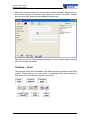
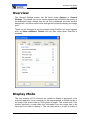
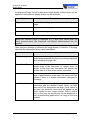
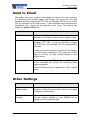
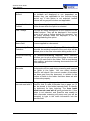
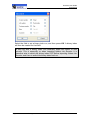
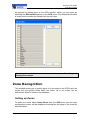
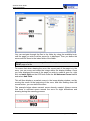
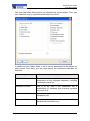
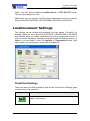
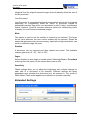
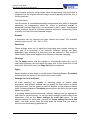
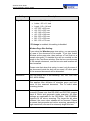
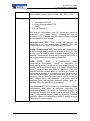
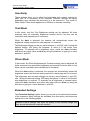
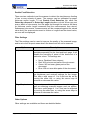
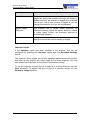
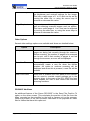
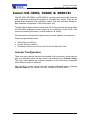
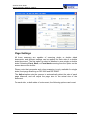
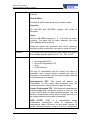
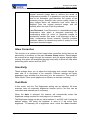
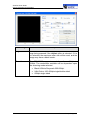
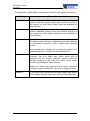
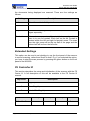
ScanFile User Guide Canon DR-5020, 5080C & 5060F Border Removal You can set a margin around the scanning area. The value ranged from – 10mm to +10mm. To use this function, tick the Activate checkbox. To adjust the values, use the arrow keys or the slider bar to increase or decrease the value. To enlarge the scanning area, to ensure the document edges are not clipped, set a plus value. To reduce the scanning area, so that the image is not framed by a black border, set a minus value. Filter Settings The Filter settings can be used to improve the quality of the scanned image, and to set colour dropout areas where the document will not be scanned. Option Description Erase Black Dots This will automatically erase isolated black dots on a white background from the scanned image. Erase White Dots This will automatically erase isolated white dots on a black background from the scanned image. Erase Notch This will automatically remove areas that are caused by contours Complete Thin Lines This will automatically fill in broken or thin faint lines. Drop Out Colour This function is only available for the DR-5080c and will disable the scanning of areas of the document of a particular colour. The settings are: None: Disables Colour dropout Red: Will not scan red parts of the document Green: Will not scan green parts of the document Blue: Will not scan blue parts of the document Colour Dropout can be disabled for a part of the document by setting values in the Disable Dropout option. This is measured in millimetres, and is applied x mm from the top edge of the scanned image to x mm from the top edge of the image, where x is the value required. Scanner Setup Page 261