1
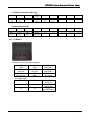
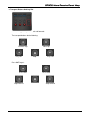
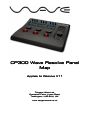
CP300 Wave Resolve Panel Map
1. About the mapping
The mapping is supplied and maintained by Blackmagic Design.
It is not possible to change the mapping.
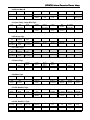
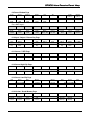
The document will not tell you how to use the panels with Resolve, and it will not tell you what the
controls do. It is designed to act as a quick reference for how the controls are mapped. For a more
detailed explanation you should refer to the Resolve user manual from Blackmagic Design.
The information supplied is correct to the best of Tangent’s knowledge but there may be differences if
Blackmagic Design have made updates since this document was produced. Please contact Tangent if
you find any differences or errors.
2. Requirements
If you are using Mac OS X Mavericks or later, then you will need to update your Wave firmware to
v1.12.
You DO NOT need to install the Tangent Hub software.
Make sure you have set Wave as the panel type in the Resolve preferences. You will need to restart
Resolve the first time you do this.
3. Control Sensitivities
You can adjust the response of the knobs, dials, and balls in the Resolve preferences. Click on the
“cog” icon bottom-left of the Resolve display and select Control Panel.
4. ALT button
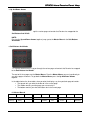
Pressing the ALT button on the panel will select alternative functions to some of the controls on the
panel. These are listed in this document with the word ALT.
When ALT is active the panel displays will be inverted.
2