1
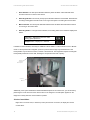
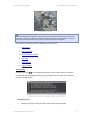
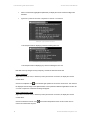
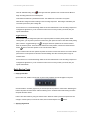
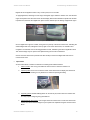
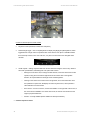
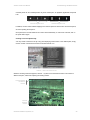
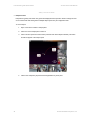
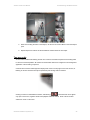
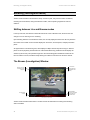
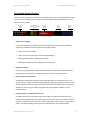
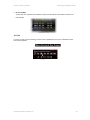
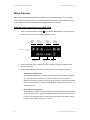
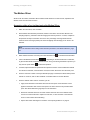
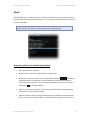
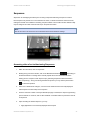
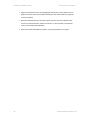
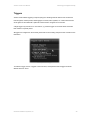
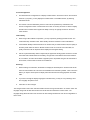
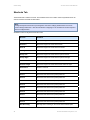
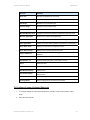
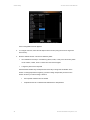
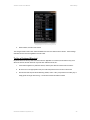
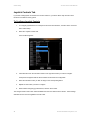
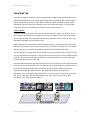
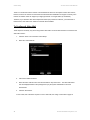
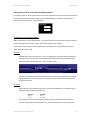
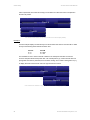
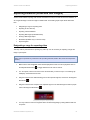
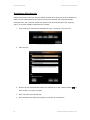
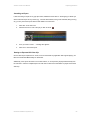
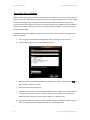
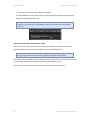
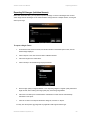
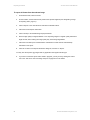
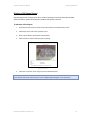
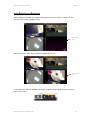
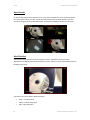
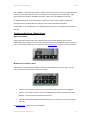
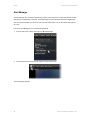
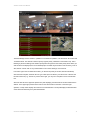
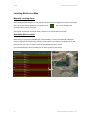
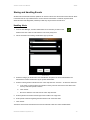
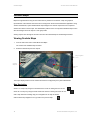
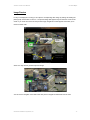
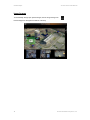
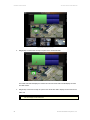
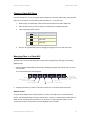
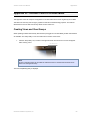
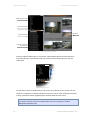
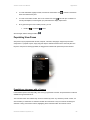
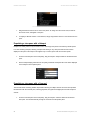
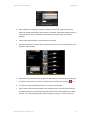
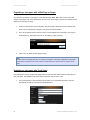
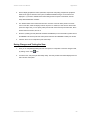
Alerts Ocularis Client User Manual Low and Medium level alerts remain visible in a Blank Screen pane for about 10 seconds (default dwell time) and then they are cleared from the screen. These alerts can be retrieved from the Alert Manager. High priority alerts remain visible on the Blank Screen pane until they are acknowledged by an operator. An audible sound may be heard when an alert is triggered. The sound may be different for each alert regardless of priority. Audible alerts are configured in the Ocularis Administrator application. Alerts go either to the ‘Alert Manager’ or the ‘Handled Alerts’ list and may be investigated and reviewed at a later time. Clearing an Alert from a Blank Screen High Priority Alerts A High priority alert remains visible until an operator clears it from the Blank Screen pane. Click the acknowledge button (checkmark icon) above the navigation controls to acknowledge the alert and clear the pane. You can handle the alert now or at a later time. See Handling Alerts on page 73 for more information. Acknowledge a high priority alert Medium and Low Priority Alerts Since Medium or Low priority alerts display on the blank screen temporarily, there is an option to pin the video to the pane until such time as it is cleared manually. Acknowledge, pin or close a low priority alert Click the ‘Pin’ button when viewing a low or medium priority alert to keep the video displayed. Click the ‘Close’ button to clear the video from the Blank Screen and move the alert to the Alerts Manager. It can be reviewed and handled at a later time. Click the checkmark (acknowledge) to handle the alert now. It will then be moved to the ‘Handled Alerts’ list. See Handling Alerts on page 73 for more information. On-Net Surveillance Systems, Inc. 69