1
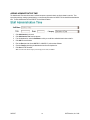
Editing Administrative Time
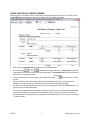
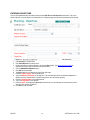
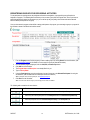
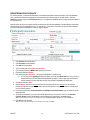
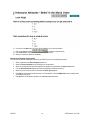
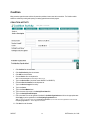
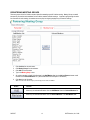
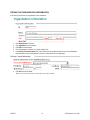
After you enter your Admin Time in the form above, the information will be saved in a table shown below.
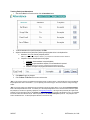
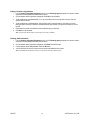
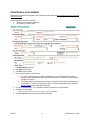
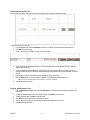
To edit an existing Admin Time entry:
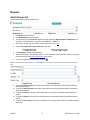
1. From the dropdown list, select the Staff Name to which you would like to edit administrative time entries from.
2. Click Edit from the left toolbar.
3. To edit a specific date, click Edit on the row with the correct date.
4.
6.
7.
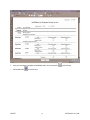
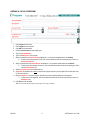
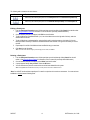
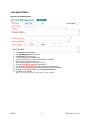
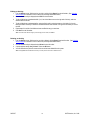
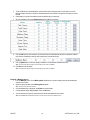
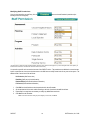
To edit a field that has a predetermined list (i.e., it has a black down-arrow on the right end of the box), select the
desired value from the list.
To edit a field without a predetermined list, select the field to edit by using the mouse to click inside of it. Use the
Backspace and/or Arrow key to delete the unwanted characters from the field. Then type the information you want in
the field.
Repeat steps 4-5 until all of the fields have been modified the way you want them.
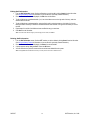
Click the Update button to save any changes or additions to a Staff member’s administrative time.
8.
Click Back from the left toolbar.
5.
*Note: To exit this screen without saving any of the changes you have made, click Cancel.
Deleting Administrative Time
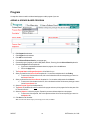
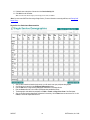
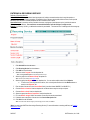
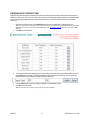
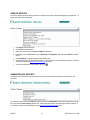
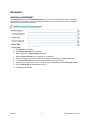
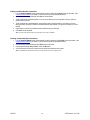
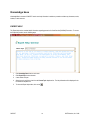
1. From the Administrative Time screen, select the Staff Name to which you would like to delete administrative time
entries from.
2. To delete all administrative time for a specific staff member, click Delete on the left toolbar.
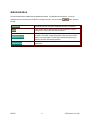
3. To delete a specific date, click Edit from the left toolbar
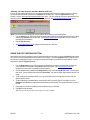
4. Click Delete on the row with the date you would like removed.
5. You are returned to the previous screen and the record has been deleted from the system.
6. Click Back from the left toolbar.
CADCAT
63
© KIT Solutions, Inc. 2006