1
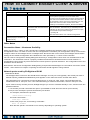
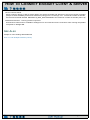
HOW TO CHANGE TIME STEPS
Change Time Steps
INTRODUCTION
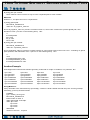
From it’s inception, EnSight has been used extensively to postprocess time-varying or transient data. In many cases,
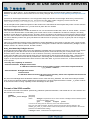
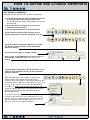
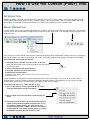
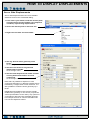
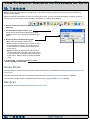
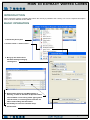
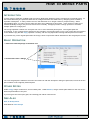
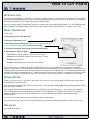
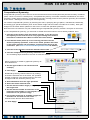
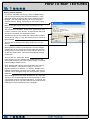
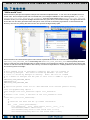
dynamic phenomena can only be understood through interactive exploration. One can easily change time with vcrtype controls in the Solution Time Player (which comes up by default for transient models). Further control for
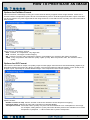
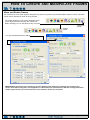
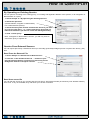
transient data time handling is provided in the Create/edit Transient Animation dialog, accessed via the Solution time
icon.
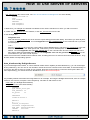
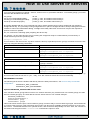
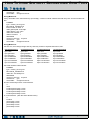
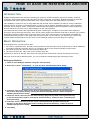
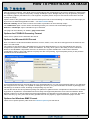
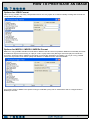
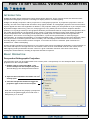
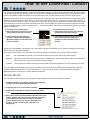
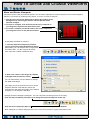
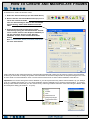
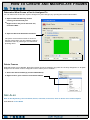
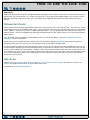
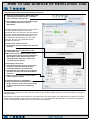
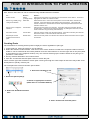
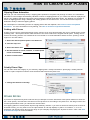
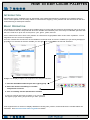
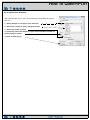
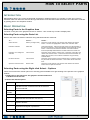
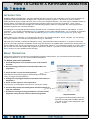
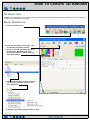
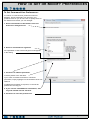
EnSight provides two ways to work with transient data. By default, time is presented as a series of discrete steps
running from zero to the total number of steps minus one. However, you can also present time based on the actual
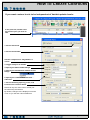
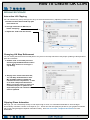
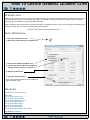
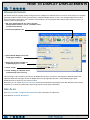
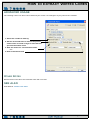
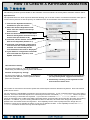
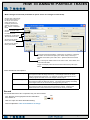
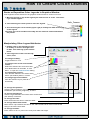
simulation time values found in your results data. The presentation mode is controlled by the Units pulldown which
will be shown below. shown below.
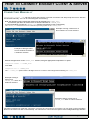
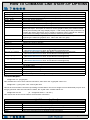
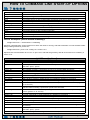
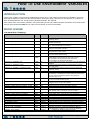
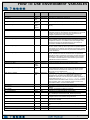
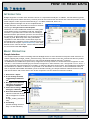
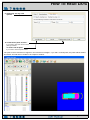
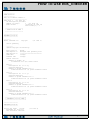
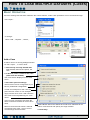
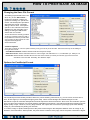
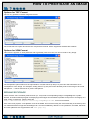
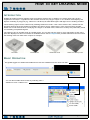
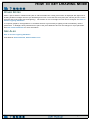
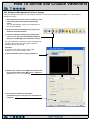
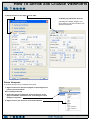
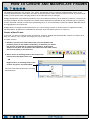
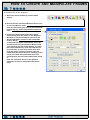
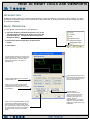
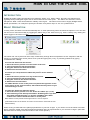
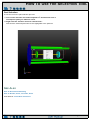
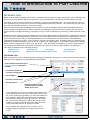
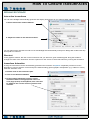
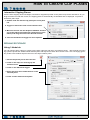
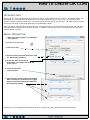
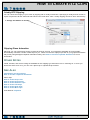
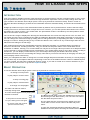
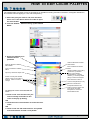
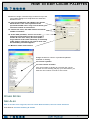
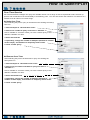
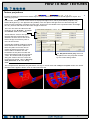
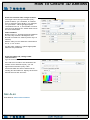
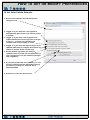
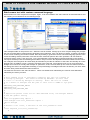
The current time range is displayed in the Beg and End fields with the current time step shown in the Cur field. You
can modify the time range controlled by the slider by editing the Beg and/or End fields (remember to press return).
You can change the current time step by editing the Cur field (press return), manipulating the slider, or clicking the
left/right vcr buttons. Setting the Beg to any number less than the min, and End to any number larger than the max
will Reset Time Range to its full range.
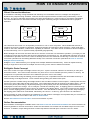
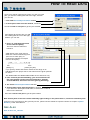
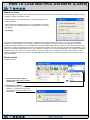
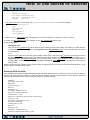
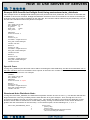
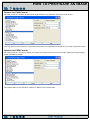
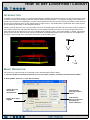
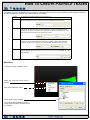
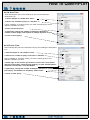
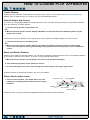
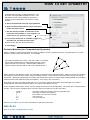
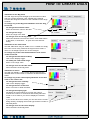
Time scaling and stepping (as manipulated through the slider bar and Beg, Cur, and End fields) can either be
Discrete or Continuous. If scaling is Discrete, only your actual time steps as written in the results data can be
visualized. In addition, the Beg, Cur, and End fields can only be set to integer values (if Units is set to Step and Scale
Type is Discrete) or actual simulation times represented in your results data (if Units is set to Sim. Time). If scaling is
Continuous, you can display results between your actual output time steps (all variable values are linearly
interpolated between the two surrounding time steps). Note that if your mesh connectivity is changing over time you
cannot display results continuously.
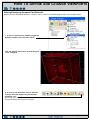
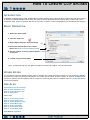
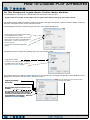
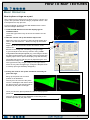
When you manipulate the slider or change the Cur field, EnSight will perform all tasks necessary to correctly display
the new time step in the Graphics Window. Depending on the size of the dataset and the number of additional parts
you have created, this may take a significant amount of time. If you wish to create an on-screen animation of your
results, use the VCR run icon or go use the Flipbook facility.
BASIC OPERATION
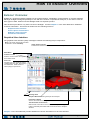
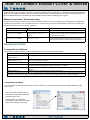
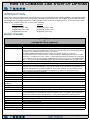
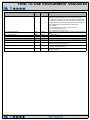
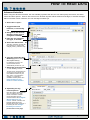
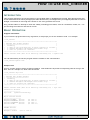
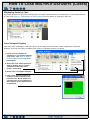
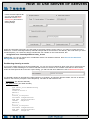
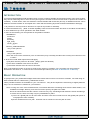
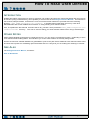
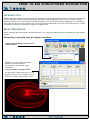
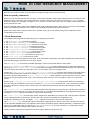
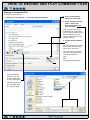
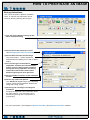
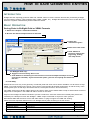
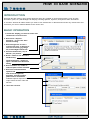
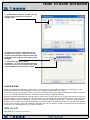
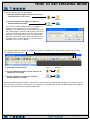
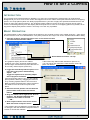
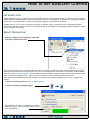
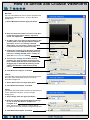
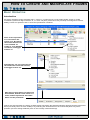
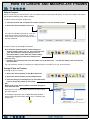
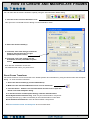
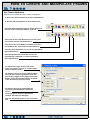
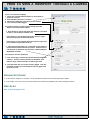
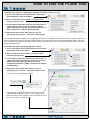
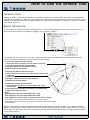
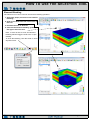
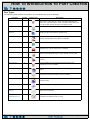
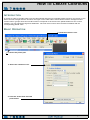
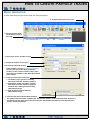
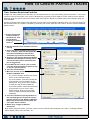
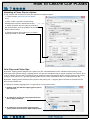
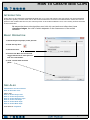
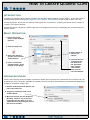
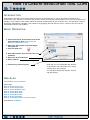
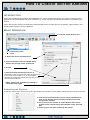
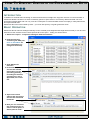
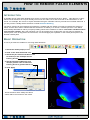
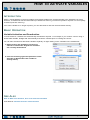
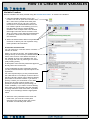
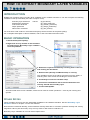
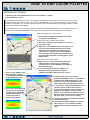
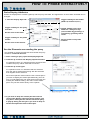
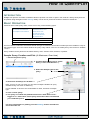
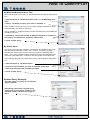
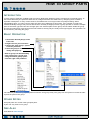
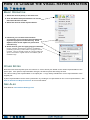
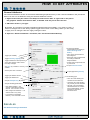
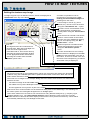
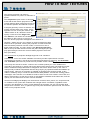
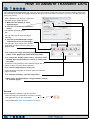
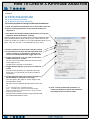
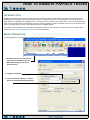
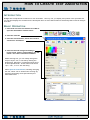
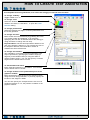
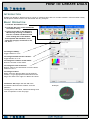
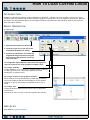
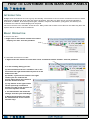
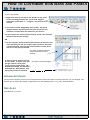
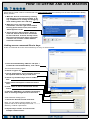
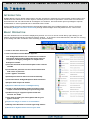
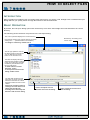
To use the Solution Time Player (which comes up by default for transient models):
To change one step lower.
To play steps in reverse order.
To stop a running play.
To play steps in forward order.
To change one step higher.
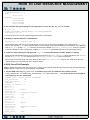
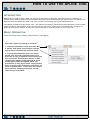
The slider can also be used to
manually change time.
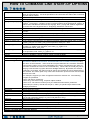
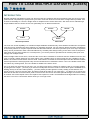
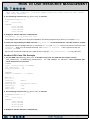
To control what happens when playing and
the limit is reached.
To stop when it reaches the limit.
To cycle, starting at the first again.
To reverse order and continue.
(bounce back and forth)
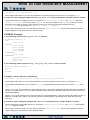
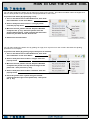
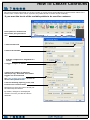
The Beg and End fields control the available time range (and
also the range of the slider action). You can enter new values
into the fields and press return.
The Cur field sets the current time step. Either move the
center slider or enter a new value in the field and press
return.
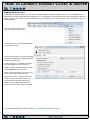
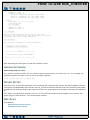
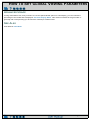
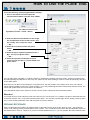
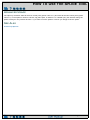
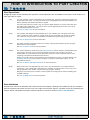
To open the Create/edit Transient Animation dialog for
additional controls. (Same as hitting the Solution time icon).
Page 265