1
UML Diagrams
Behavioral Diagrams
257
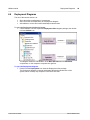
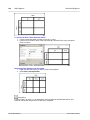
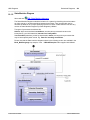
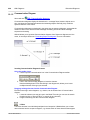
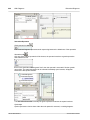
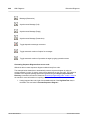
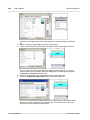
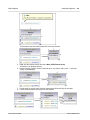
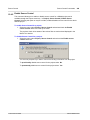
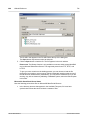
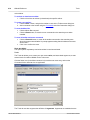
CombinedFragment.
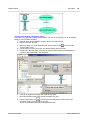
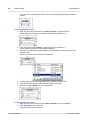
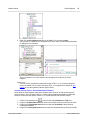
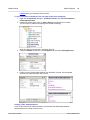
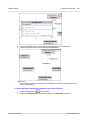
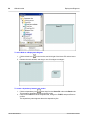
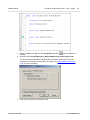
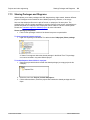
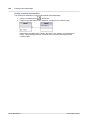
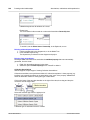
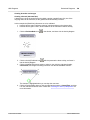
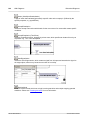
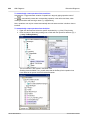
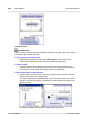
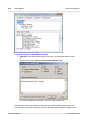
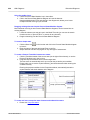
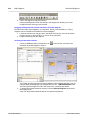
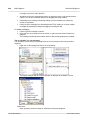
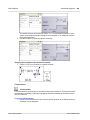
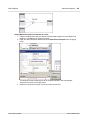
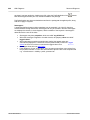
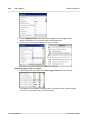
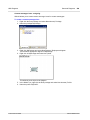
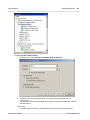
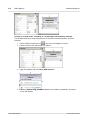
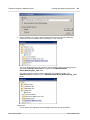
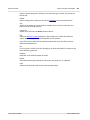
2 Enter the code fragment, e.g. return.
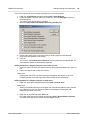
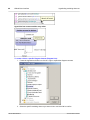
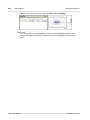
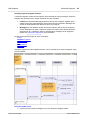
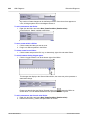
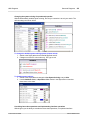
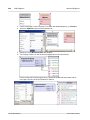
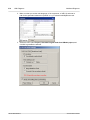
3. Click the Node Link handle of the inserted note and drop the cursor on the lifeline.
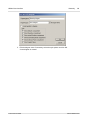
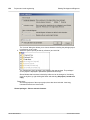
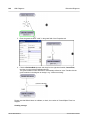
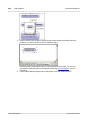
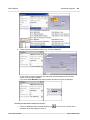
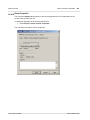
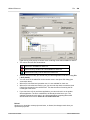
4. Activate the "Is Code" check box in the Properties tab to include this code fragment
when generating code.
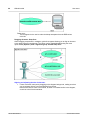
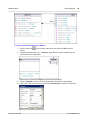
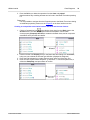
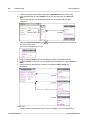
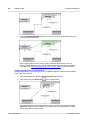
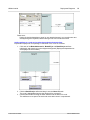
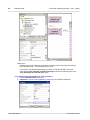
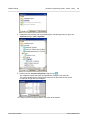
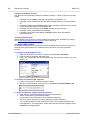
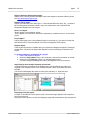
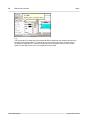
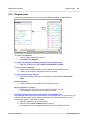
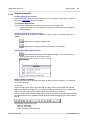
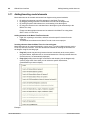
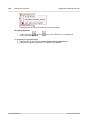
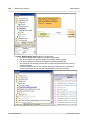
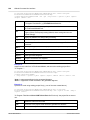
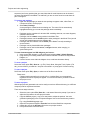
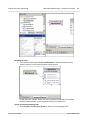
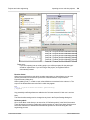
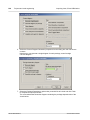
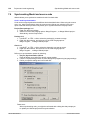
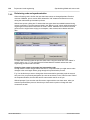
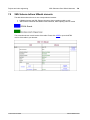
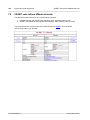
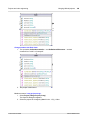
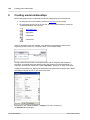
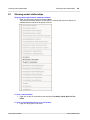
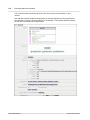
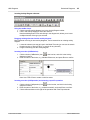
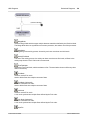
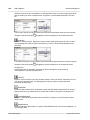
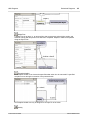
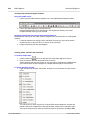
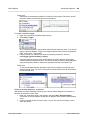
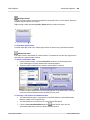
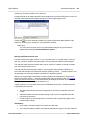
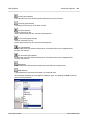
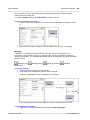
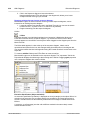
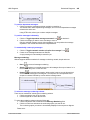
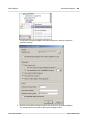
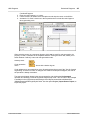
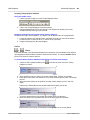
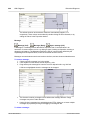
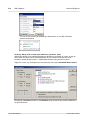
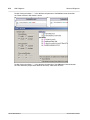
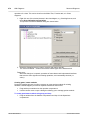
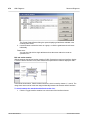
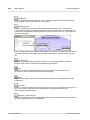
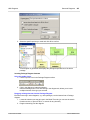
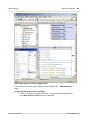
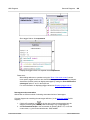
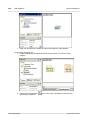
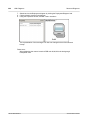
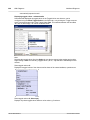
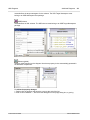
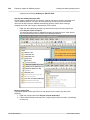
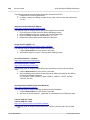
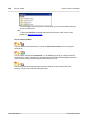
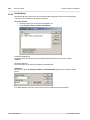
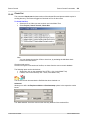
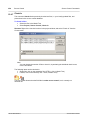
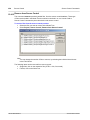
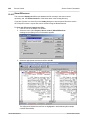
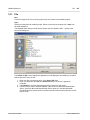
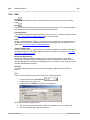
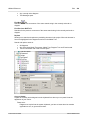
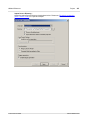
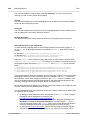
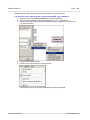
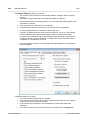
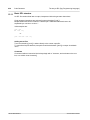
When selecting a note on a sequence diagram, which can be used for code generation, the
property "is code" is available in the Properties window. Clicking the check box, allows you to
switch between "ordinary" notes and code generation notes.
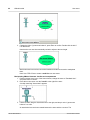
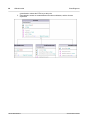
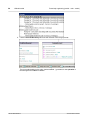
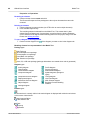
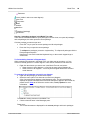
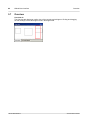
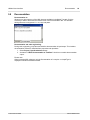
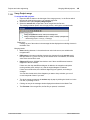
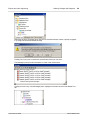
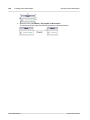
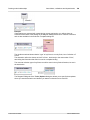
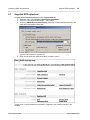
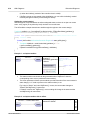
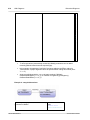
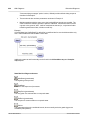
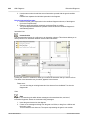
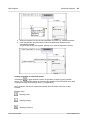
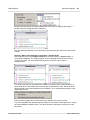
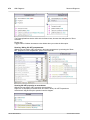
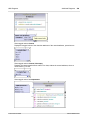
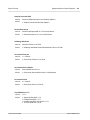
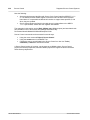
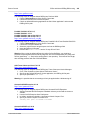
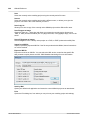
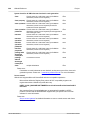
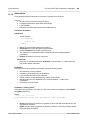
Ordinary notes:
Code generation
notes
- shown with a darker dog-ear
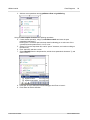
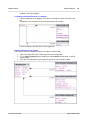
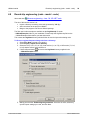
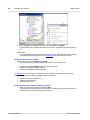
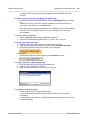
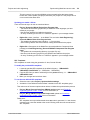
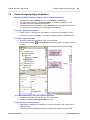
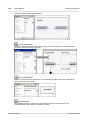
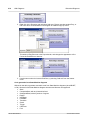
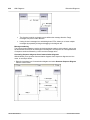
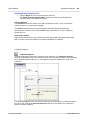
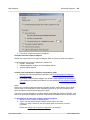
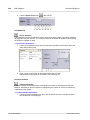
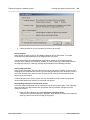
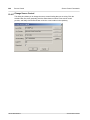
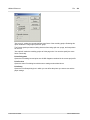
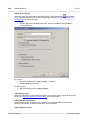
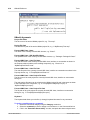
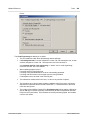
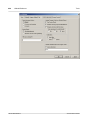
Code updates occur automatically on every forward engineering process if the "Use for forward
engineering" check box is active. If changes were made to the sequence diagram, the code of
the operation is always overwritten.
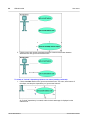
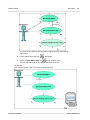
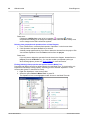
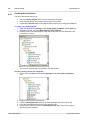
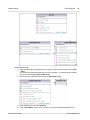
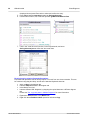
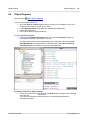
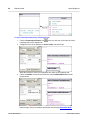
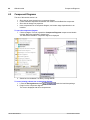
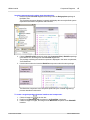
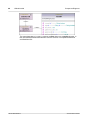
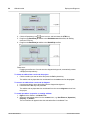
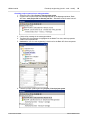
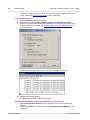
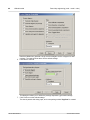
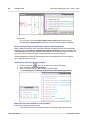
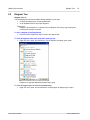
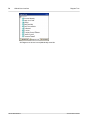
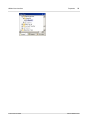
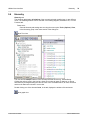
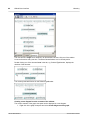
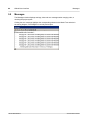
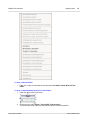
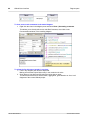
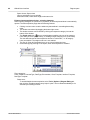
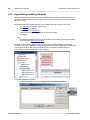
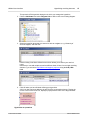
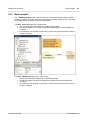
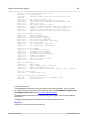
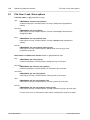
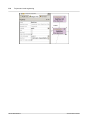
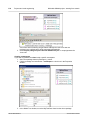
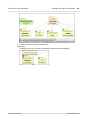
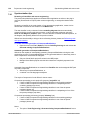
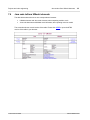
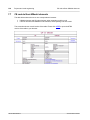
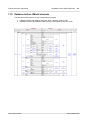
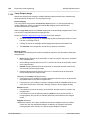
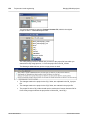
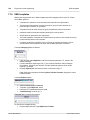
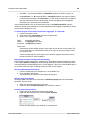
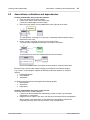
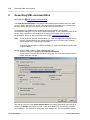
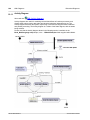
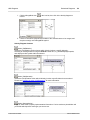
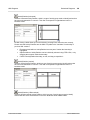
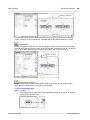
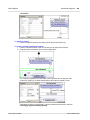
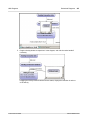
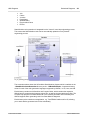
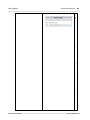
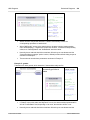
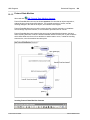
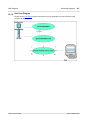
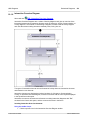
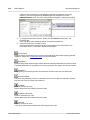
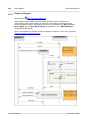
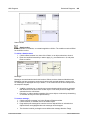
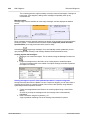
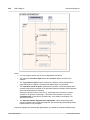
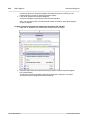
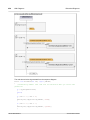
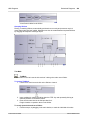
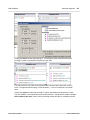
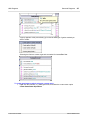
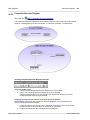
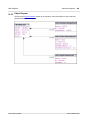
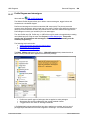
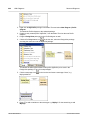
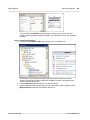
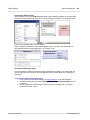
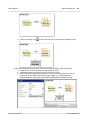
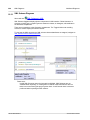
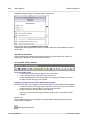
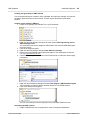
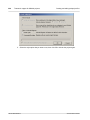
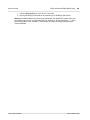
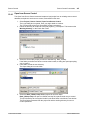
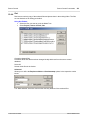
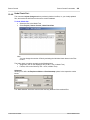
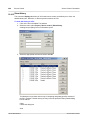
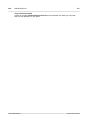
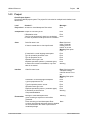
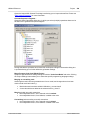
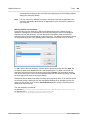
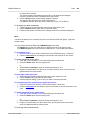
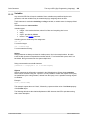
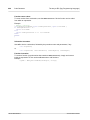
The sequence diagram shown below was generated by right clicking the OnCommand
operation and selecting "Generate sequence diagram from code". The C# code of this example
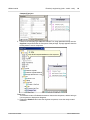
is available in the c:\Documents and Settings\<user>\My Documents\Altova\UModel2012
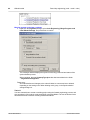
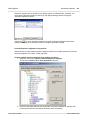
\UModelExamples\IDEPlugIn\Styles\ folder. Use the option Project | Import Source Project, to
import the project.
© 2012 Altova GmbH
Altova UModel 2013