1
1 Using GFI MailArchiver
Read this chapter for information related to:
Logging in GFI MailArchiver
Browsing archived emails
Working with emails
Searching for archived emails
Accessing multiple mailboxes
Generating MailInsights reports
Changing the display language and other options
1.1 Logging In GFI MailArchiver
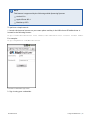
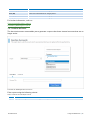
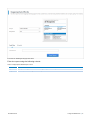
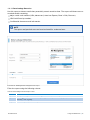
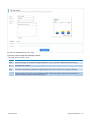
Navigate to Start > GFI MailArchiver > GFI MailArchiver. GFI MailArchiver will load in your
default Internet browser. Key in your domain credentials (username and password used to
login to Windows®) when prompted.
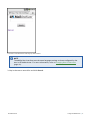
Alternately, from your Internet browser, key in the following URL:
http://<GFI MailArchiver host name>/<GFI MailArchiver virtual folder name>
For example:
http://mydomain.com/MailArchiver
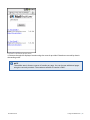
By default, GFI MailArchiver does not require any login credentials while logging in. It will
instead use the credentials of the currently logged in user. Closing your browser session
logs off the currently logged on user from GFI MailArchiver.
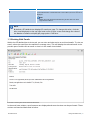
NOTE
To login as a different user, log off your profile and log in using a different Windows®
user.
NOTE
If you are logging in from a computer that is not joined to the domain where GFI
MailArchiver is installed, you will be prompted to key in the credentials used to log in
the domain where GFI MailArchiver is installed.
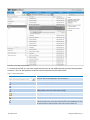
1.2 Browsing Archived Emails
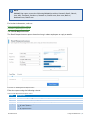
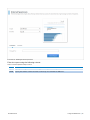
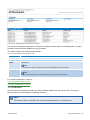
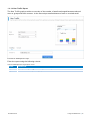
1. From GFI MailArchiver, select Archive tab.
GFI MailArchiver
1 Using GFI MailArchiver | 4