1
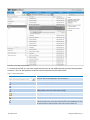
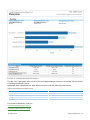
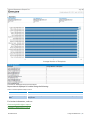
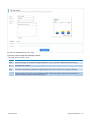
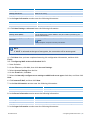
OPTION
DESCRIPTION
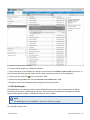
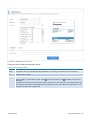
Includes all/any
Defines whether to display emails that match all conditions or emails that match any of the
conditions. From the drop-down list select:
All – Displays emails that match at least one of the conditions specified.
Any – Displays emails that meet all the conditions specified.
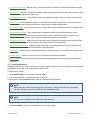
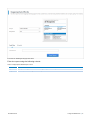
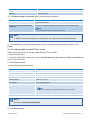
Click this button to add conditions. Available conditions are:
Subject – Search for emails having a specific subject.
Sender - Specify the email address or Active Directory® display name of the email sender for
which to search emails.
Recipient - Specify the email address or Active Directory® display name of the email recipient for which to search emails.
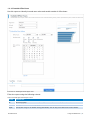
Sent Date - Search for emails sent before, after or exactly on a specific date. Key in or
select a date, and select Is before, Is after or Is exactly.
Received Date - Search for emails received before, after or exactly on a specific date. Key
in or select a date, and select Is before, Is after or Is exactly.
Size (KB) - Search for emails that are bigger, smaller or equal to a particular size. Key in a
size and select Is greater than, Is smaller than and Is exactly.
Message ID - Search using the ‘Message ID’ field contained in the email header. Key in or
paste the message ID of the email to find.
Whole Email - Search for emails that have some specific content anywhere in the email
(including the body, headers and attachments).
Body - Search for emails that have some specific content in the body.
Attachment - Search for emails that have some specific content anywhere in the attachment.
Folder - Search for emails contained in a specific mailbox folder.
Folder/Subfolders - Search for emails contained in a specific subfolder within a mailbox
folder.
Label - Search for emails categorized with a specific label.
NOTE
Click
Exclude emails
with the following
conditions
next to a search condition to remove it.
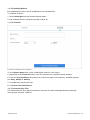
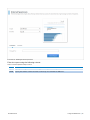
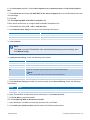
Defines a list of conditions that the email will NOT have to meet to be returned as a search
result. Click and select the conditions to apply. The conditions that can be selected are similar
to the ones described above.
NOTE
Click
next to a search criteria to remove it from search.
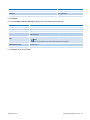
Search
Starts the search for the archived emails. Results are returned as per the conditions selected.
Reset
Resets the search conditions and enables you to start all over again.
Save
Saves the search conditions as a saved search query that can be triggered at any time. Saved
searches are displayed in the Classifications window under Archive tab.
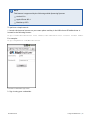
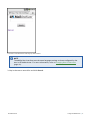
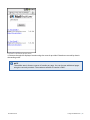
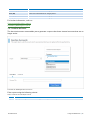
1.4.2 Email Search Using Smart Phones
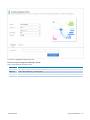
Within GFI MailArchiver, you can search for emails using a smart phone.
GFI MailArchiver
1 Using GFI MailArchiver | 9