1
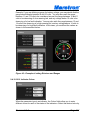
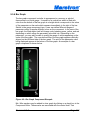
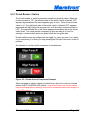
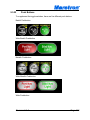
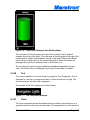
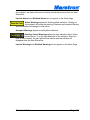
Accepted Warnings appear as solid yellow indicators.
Awaiting Cancel Warnings appear as dark indicators with a yellow
border and an “x” on the right hand side of the indicator. When you
click on this indicator, the alert will become inactive and the indicator will
disappear from the Alert Status Bar.
Inactive Warnings and Disabled Warnings do not appear on the Alert Status
Bar.
10.3.2
Alerts Tab
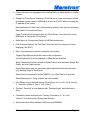
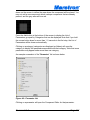
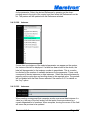
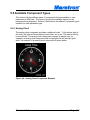
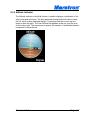
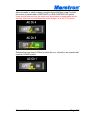
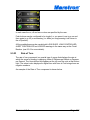
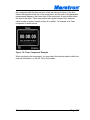
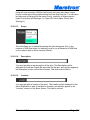
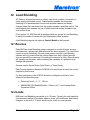
The Alerts Tab appears along the top of the N2KView main screen just as any
other favorite screen tab except that the Alerts Tab always appears in the upper
left tab position. If the Alerts Module is licensed, pressing or left clicking on the
Alerts Tab causes the Alerts Screen to appear.
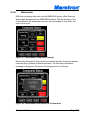
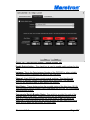
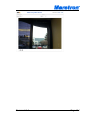
Figure 92 - Alerts Tab (Platinum)
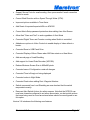
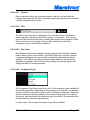
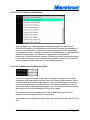
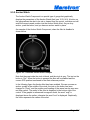
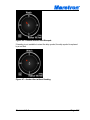
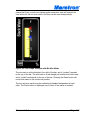
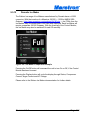
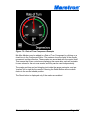
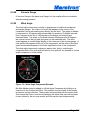
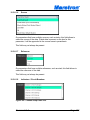
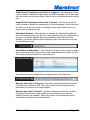
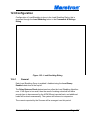
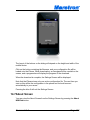
Alerts are not licensed in the Base version of N2kView. The Alerts Tab will
appear semi-transparent, and will not respond to pressing or clicking.
Figure 93 - Alerts Tab (Standard)
10.3.3
Alert Status Screen
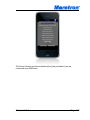
The Alert Status Screen is a tabular listing of alerts in log form where you can
view all pending and past alerts. Extensive sorting capabilities allow you to
Revision 3.6.3
Page 261