1
Establishing Network Connection:
Network Setup - Altronix Dashboard USB Connection
The USB connection on the LINQ8PD(CB) is used for Network and Trap Receiver configuration only. When connected to a PC via the USB cable the LINQ8PD(CB) will receive
power from the USB port allowing programming of the LINQ8PD(CB) prior to being connected to the power supply.
1. Install the software supplied with the LINQ8PD(CB) on the PC being used for programming. This software should be installed on all computers that will have access
to the LINQ8PD(CB).
2. Connect the supplied USB cable to the USB port on the LINQ8PD(CB) and the computer.
3. Click [Dashboard Icon] on the desktop of the computer and open the Dashboard.
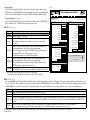
4. Click [USB Network Setup] button located in the upper right hand side of the Dashboard. This will open the USB Network Setup screen.
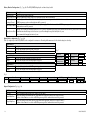
In this screen the MAC Address of the LINQ8PD(CB) module will be found along with the Network Settings, Trap Receiver Settings and SNMP Port Settings.
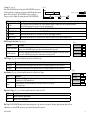
1. Network Settings (Fig. 2a, pg. 5):
In the IP Address Method field select the method that the IP Address for
the LINQ8PD will be obtained “Static” or “DHCP” then follow the appropriate steps.
STATIC:
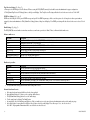
Field Name Description
Enter the IP address assigned to the LINQ8PD(CB) by the
IP Address
network administrator.
Subnet Mask Enter the Subnet of the network.
Enter the TCP/IP gateway of the network access point (router)
being used
Gateway
Note: Gateway configuration is required to properly receive emails
from the device.
Enables standard remote access and monitoring. Enter the port
HTTP Port number assigned to the LINQ8PD(CB) module by the network
administrator. Default Port setting 80.*
Enables secure remote access and monitoring. Enter the port numHTTPS Port ber assigned to the LINQ8PD(CB) module by the network administrator. Default Port setting 443.*
Used to update device firmware. Enter the port number
System Port assigned to the LINQ8PD(CB) module by the
network administrator. Default Port setting 667*
a. Click [Submit Network Settings] button, a dialog box will display
“New network settings will take effect after the server is rebooted” click “OK”.
*Note: When remote access is required or using multiple devices on the same
network it is recommended to assign an independent port to each connected device.
Fig. 2
x
Dashboard - USB Network Setup
Linq8
USB Network Settings
MAC Address BC:34:00:30:01:77
A
Network Settings:
IP Address Method:
IP Address:
Subnet Mask:
Gateway:
HTTP Port:
B
Trap Receiver Settings:
Trap Receiver 1 :
STATIC
192.168.168.108
Trap Receiver 2 :
255.255.255.0
Trap Receiver 3 :
192.168.0.11
Trap Receiver 4 :
80
Trap Receiver 5 :
HTTPS Port:
443
System Port:
667
Submit Trap Receiver IP Settings
C
SNMP Port Settings :
Submit Network Settings
SNMP Port : 161
Trap Messages Port : 162
Restore Factory Settings
Submit Port Settings
D
Reboot Server
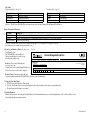
DHCP (Fig. 2a, pg. 5):
Connect LINQ8PD(CB) to the DHCP router to obtain IP address.
a. After selecting DHCP in the IP Address Method field click [Submit Network Settings] button, a dialog box will display “New network settings will take effect after the
server is rebooted” click “OK”. Next click [Reboot Server] button (Fig. 2d, pg. 5). After the LINQ8PD(CB) reboots the IP address assigned will appear in the IP Address
field. It is recommended to have the assigned IP Address reserved on the router to ensure continued access to the LINQ8PD(CB) (see the network administrator).
LINQ8PD/LINQ8PDCB
-5-