1
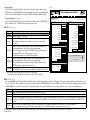
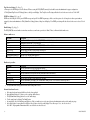
Trap Receiver Settings (Fig. 3b, pg. 7):
a. Enter up to five SNMP trap receiver IP addresses. When accessing the LINQ8PD(CB) remotely check with the network administrator for proper configuration.
b. Click [Submit Trap Receiver IP Settings] button, a dialog box will display “New Trap Receiver IP settings will take effect after the server is rebooted” click “OK”.
SNMP Port Settings (Fig. 3c, pg. 7):
SNMP uses the default port 161 for general SNMP messages and port 162 for SNMP trap messages. In the event these port need to be changed enter the new port numbers
assigned by the network administrator. Click [Submit Port Settings] button, a dialog box will display “New SMNP port settings will take effect after the server is rebooted” click
“OK”.
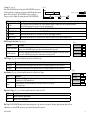
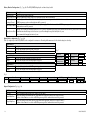
Email Settings (Fig. 3d, pg. 7):
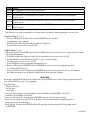
The LINQ8PD(CB) can send emails via an in-house email server, email service provider (i.e. Gmail, Yahoo) or Altronix default email service.
In-house email server:
Field Name
Description
From
Enter the email address assigned to the LINQ8PD(CB) module by the system administrator.
Subject
Identify the location of the v (i.e. the Site ID).
Username
Enter the username associated with the LINQ8PD(CB) module email address.
Password
Enter the username password.
SMTP server IP
Enter the SMTP IP address of the in-house email server.
SMTP server Port
Enter the SMTP port assigned to the in-house email server.
Outgoing Email Address 1-5 Enter up to five outgoing email addresses.
a. Click [Submit Email Settings] button and the email settings will be saved.
Email service provider:
Field Name
Description
From
Enter the email address for the LINQ8PD(CB) module.
Subject
Identify the location of the LINQ8PD(CB) (i.e. the Site ID).
Username
Enter the username associated with the LINQ8PD(CB) module email address.
Password
Enter the username password.
SMTP server IP
Enter the SMTP IP address of the email service provider.
SMTP server Port
Enter the email SMTP port number. The default SMTP email ports are 25 or 465 unless otherwise specified.
Outgoing Email Address 1-5 Enter up to five outgoing email addresses.
a. Click [Submit Email Settings] button and the email settings will be saved.
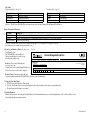
Altronix default email service:
a. All required sender and network fields have already been populated.
b. Outgoing Email Address 1-5: Enter up to five outgoing email addresses.
c. Click [Submit Email Settings] button to save the email settings.
d. Test the email setup by clicking [Test Email] button.
e. An email will be sent to all Outgoing email addresses. If the test email is not received contact the network administrator and repeat the email setup steps.
f. After all fields have been programed, click [Reboot Server] button, a dialog box will display “Please allow up to 30 sec. for server to reboot”
click “OK”. All programmed information will be saved after the server has rebooted.
- 8 -
LINQ8PD/LINQ8PDCB