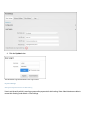
1
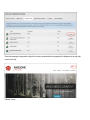
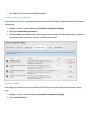
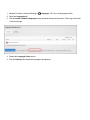
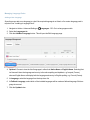
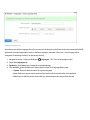
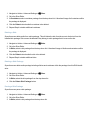
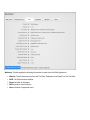
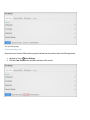
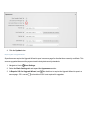
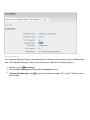
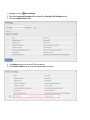
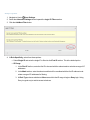
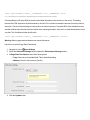
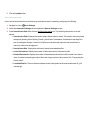
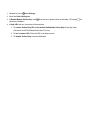
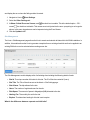
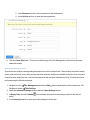
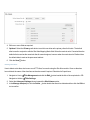
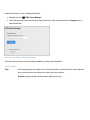
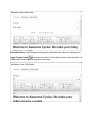
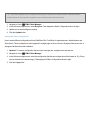
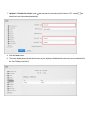
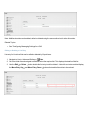
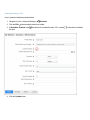
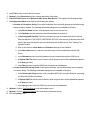
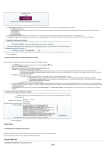
1. Navigate to Host >
Extensions.
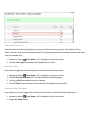
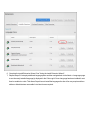
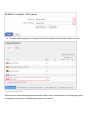
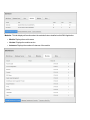
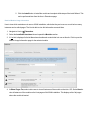
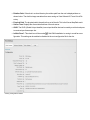
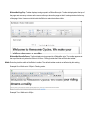
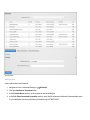
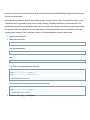
2. Select the Installed Extensions tab and then expand the section that the required extension is associated
with.
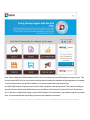
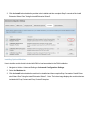
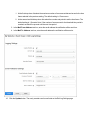
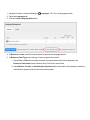
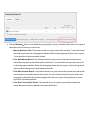
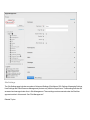
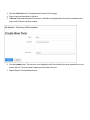
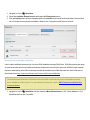
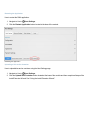
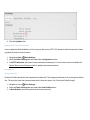
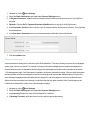
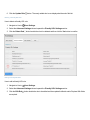
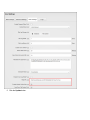
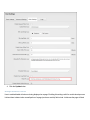
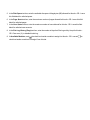
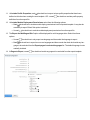
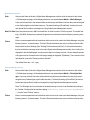
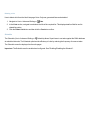
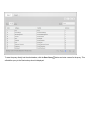
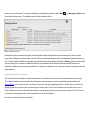
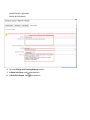
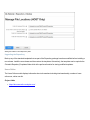
3. Click the UnInstall This Extension
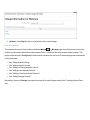
button beside the extension to be uninstalled. This opens the Uninstall
Package page.
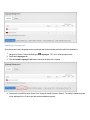
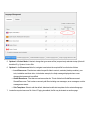
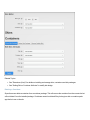
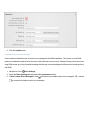
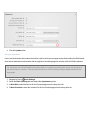
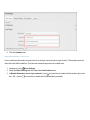
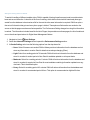
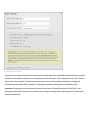
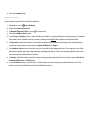
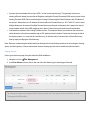
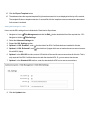
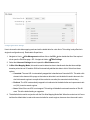
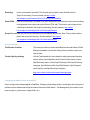
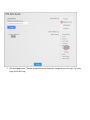
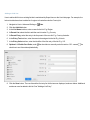
4. Optional. Mark
the check box at Delete Files to permanently remove the resource files associated with the
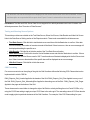
language. Warning. Removing the resource files for a language will remove the languages permanently. The
only way to regain a language deleted in this manner is to re-enter all of the language values into a new language.
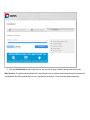
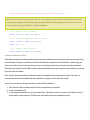
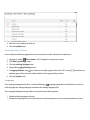
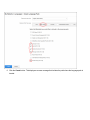
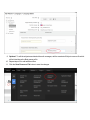
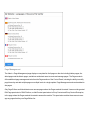
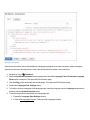
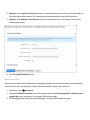
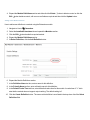
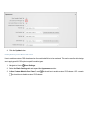
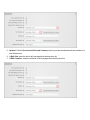
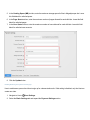
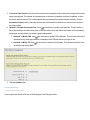
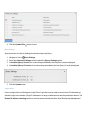
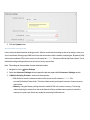
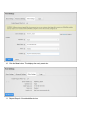
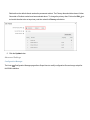
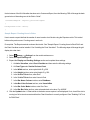
5. Click the UnInstall Package button and then click the Yes button to confirm. This displays the Package Uninstall Logs for review.
Using the Install Extension Wizard
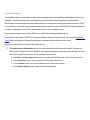
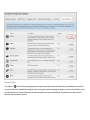
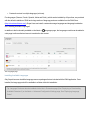
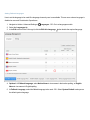
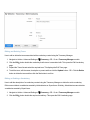
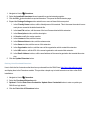
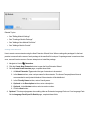
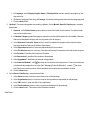
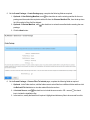
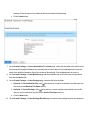
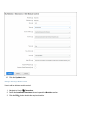
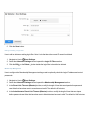
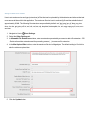
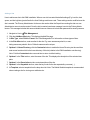
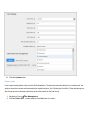
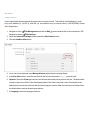
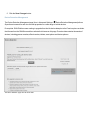
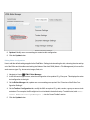
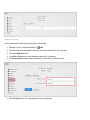
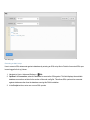
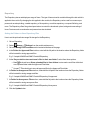
How to install an extension using the Install Extension Wizard. This tutorial assumes are currently viewing the Upload
New Extension page of the Install Extension Wizard. This wizard can be accessed via the action menu of certain modules such as the Dashboard and Extensions module.
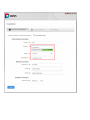
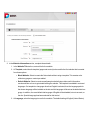
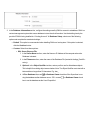
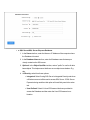
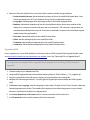
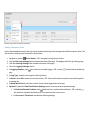
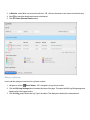
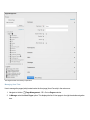
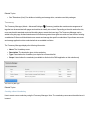
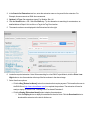
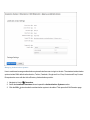
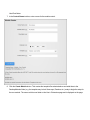
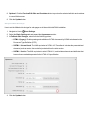
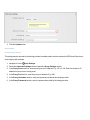
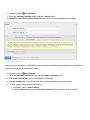
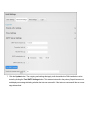
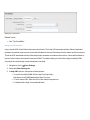
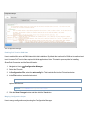
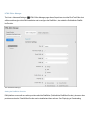
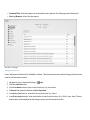
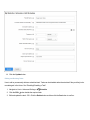
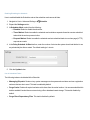
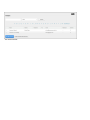
1. On the Upload New Extension Package page:
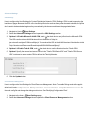
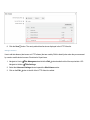
1. Click the Choose File button, select the required file from the computer and then click the Next button.