1
In the case of the Swiid® cord switch provided as part of your Swiid® Cord Switch Set, it
has already been included in the factory in the Z-Wave® network of the set's wall controller
switch. It is therefore necessary to clear the memory of cord switch to include in another
Z-Wave® network. This is done by performing an exclusion procedure as described in
the next Chapter of this Section.
The inclusion of a Swiid® cord switch is performed with the switch fully assembled (shell
cover joined and screwed together) and with the power cord plugged into the mains.
When including a Swiid® cord switch, make sure that it is in its final position. If this location
is not in the direct range of the including controller then the Cord Switch has to be moved
closer to the controller for the Inclusion ; in which case a network rediscovery process is
subsequently needed in order to refresh the routing table.
Tools required:
- Fingernail (if thin enough) or any pointed tip
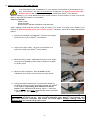
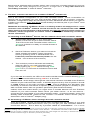
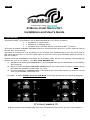
1. First put your primary Z-Wave® controller in
inclusion mode (generally done by pressing once
or several times on an inclusion button on the
controller : here an Aeotech Z-Stick2)
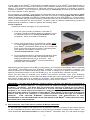
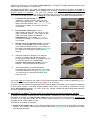
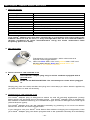
2. Using your fingernail or a pointed tip, press once
on the Z-Wave® pairing guide on the bottom of
your Swiid® cord switch after which a red LED will
light up through the pairing guide, indicating that
your Swiid® cord switch is now in the
"inclusion/exclusion" mode
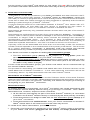
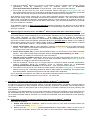
3. The inclusion/exclusion process should then start
automatically and the red LED will blink before
staying lit permanently for 2 seconds. This
indicates that the Z-Wave® inclusion/exclusion
process was successful
Depending on the type of controller you are using, you may be immediately able to operate
your Swiid® cord switch via your Z-Wave® network. For some controllers, however, you
need to perform an additional pairing step in order to assign your Swiid® cord switch to a
specific command button on the controller (e.g. on a multi-button remote control)
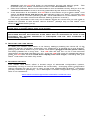
Once you are able to operate your Swiid® cord switch remotely from your Z-Wave®
network, you are able to check that the blue LEDs light up to illuminate the perimeter of
the ON/OFF button when it is turned on remotely. Also check that your Swiid® cord switch
continues to respond to a manual press locally on the ON/OFF button.
WARNING : As with any Z-Wave® "binary switch" device, the Swiid® cord switch is
not able - for patent reasons - to report back its status changes automatically to a
Z -Wave® controller. The best way to monitor the change in status of your Swiid®
cord switch in real-time is to associate it via the second association group (see
Chapter 7 on "Cord switch associations") with your primary controller. This works
both when the change in status of your Swiid® cord switch is the result of a manual
action and when it is linked to a command communicated through the Z-Wave®
network.
FOR CERTAIN Z-WAVE® CONTROLLERS, THIS ASSOCIATION IS PREPROGRAMED TO BE IMPLEMENTED ON ITS OWN WHEN YOUR SWIID® CORD SWITCH IS FIRST
INCLUDED INTO THE NETWORK.
6. EXCLUSION OF THE CORD SWITCH FROM A Z-WAVE® NETWORK
To exclude your Swiid® cord switch from a Z-Wave® network, proceed in the same way as
for the integration/inclusion described in the previous Chapter, except that in Step 1, you
must press the exclusion button on the Z-Wave® controller that you will have brought
-7-