1
representing a vehicle is on the detection zone specified by
the location of its leading and trailing edge, the detector
signal is triggered. The interaction between loop detectors
and cars occurs in real-time. Whenever the display in the
simulator shows an active detector, the detector signal read
by the controller for that specific detector is active as well
(see Figure 5). This is a desired feature for a debugging tool,
since it helps to visually identify what is the state of each
signal going into the controller.
In order to recreate the signals generated in a real onramp/freeway system more realistically, three types of vehicles can be generated in the simulator: 1) cars, 2) pickups,
and 3) trucks. Each vehicle has an independent length, shape,
and probability of occurrence. The particular shape of each
car can be observed in Figure 5.
used in conjunction with the URMS Input File Test utility, it
is straightforward to check if the simulation and the URMS
signal assignments match and if the detector states are read
properly by the 2070 controller.
IV. SIMULATION TOOL
The simulation software was developed using the NI LabVIEW development environment. This software is composed
of four elements: 1) the 2070 controller input configurator,
2) the 2070 controller output configurator, 3) a freeway
simulator, and 4) an on-ramp simulator. When the program
is run, the user can decide if any configurator will be used. If
the configuration process for the inputs or outputs is skipped,
the configuration stored in the computer will be used by
the program. After the configuration process is completed or
bypassed, the on-ramp and freeway simulations start. In the
following, each component of the software is described.
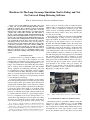
Fig. 7.
2070 Controller Output Configurator
B. 2070 Controller Output Configurator
The 2070 controller output configuration application was
developed to match the URMS configuration convention. The
diagram used in the configurator to show the output file
current assignments (see Figure 7) is the same as that used in
[1] to describe the physical output number for each output
file slot for a Model 334 cabinet. An output configurator
was implemented in order to map every phase indication
used in the simulation to the corresponding phase in the
2070 controller, as recommended in [5]. In this configuration
application, it is possible to independently read the phase of
each active output. When this feature is used in conjunction
with the URMS Output File Test, Output Signal Test, and/or
Lights Test utilities, it is easy to check if the simulation and
the URMS output signal assignments match and if the phase
states are read properly by the simulation.
C. Freeway Simulator
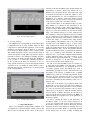
Fig. 6.
2070 Controller Input Configurator
A. 2070 Controller Input Configurator
The 2070 controller input configuration application was
developed to match the URMS configuration convention.
The diagram used in the configurator to show the Input File
current assignments (see Figure 6) is the same as that used
in [1] to describe the physical input number for each input
file slot for a Model 334 cabinet. An input configurator
was included in this tool, because it is necessary to map
every detector used in the simulation to the corresponding
detector in the 2070 controller, as recommended in [5]. In
this configuration application, it is possible to independently
change the state of each active input. When this feature is
The constant velocity microscopic mainline traffic model
described earlier is implemented in the freeway simulator
application. There are three components associated with
this part of the simulation: 1) the freeway simulation user
interface, shown in Figure 8, 2) a freeway layout menu
(see Figure 4(left)), and 3) a vehicle menu. The simulation
interface is used to observe the movement of vehicles through
the defined freeway segment. With this interface, information
related to the simulation can be accessed and it is possible to
set and modify freeway lane parameters independently. In the
freeway layout menu, the dimension of the mainline segment,
the detector location, and the detector separation can be set.
Finally, the vehicle menu is used to determine the properties
of the three types of vehicles present in the simulation.
The vehicle parameters for the mainline simulation can be
different from those used on the on-ramp simulator.