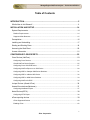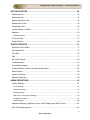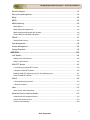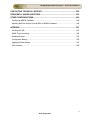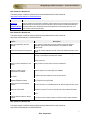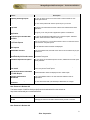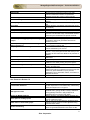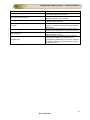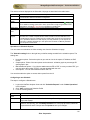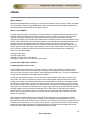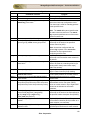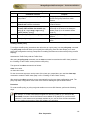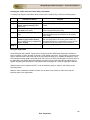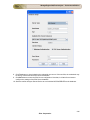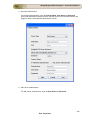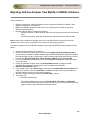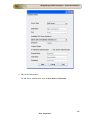
1
ManageEngine NetFlow Analyzer – Professional Edition Table of Contents INTRODUCTION ............................................................................................................. 5 What's New in this Release? .................................................................................................. 6 INSTALLATION AND SETUP ...................................................................................... 14 System Requirements............................................................................................................14 Platform Requirements ........................................................................................................................ 14 Supported Web Browsers .................................................................................................................... 15 Prerequisites ..........................................................................................................................16 Installing and Uninstalling ......................................................................................................17 Starting and Shutting Down ...................................................................................................18 Accessing the Web Client ......................................................................................................20 License Information ...............................................................................................................21 CONFIGURING FLOW EXPORTS ............................................................................... 22 Cisco Devices (NetFlow) ........................................................................................................23 Configuring Cisco Devices ................................................................................................................... 23 Cisco® NetFlow Device Support ......................................................................................................... 25 Configuring Cisco ASA 5500 series..................................................................................................... 27 Configuring NetFlow Export on an IOS Device ................................................................................... 28 Configuring NDE on Catalyst 6000 Series Switches ........................................................................... 31 Configuring NDE on a Native IOS Device ........................................................................................... 32 Configuring NDE on 4000 Series Switches ......................................................................................... 33 Configuring NetFlow for BGP .............................................................................................................. 34 Juniper Devices (cflowd/J-Flow) ............................................................................................36 Huwaei/3com devices(Netstream) .........................................................................................37 Configuring NetStream Export ............................................................................................................. 37 Nortel Devices(IPFIX) ............................................................................................................38 Configuring IPFIX Export ..................................................................................................................... 38 sFlow exporting devices .........................................................................................................39 sFlow Supported Devices .................................................................................................................... 40 Enabling sFlow..................................................................................................................................... 42 1 Zoho Corporation ManageEngine NetFlow Analyzer – Professional Edition GETTING STARTED .................................................................................................... 44 Dashboard view .....................................................................................................................45 Dashboard view .....................................................................................................................47 Dashboard Device View .........................................................................................................49 Dashboard AS View ...............................................................................................................55 Google Map View ..................................................................................................................56 Various Reports in WAAS ......................................................................................................57 Medianet ................................................................................................................................60 Medianet Reports................................................................................................................................. 64 IP Groups View ......................................................................................................................67 Report Profiles .......................................................................................................................68 TRAFFIC REPORTS..................................................................................................... 70 Real-time Traffic Graphs ........................................................................................................71 Top Applications ....................................................................................................................73 Top Hosts ..............................................................................................................................76 QoS .......................................................................................................................................77 AS Traffic Reports .................................................................................................................80 Troubleshooting .....................................................................................................................81 Consolidated Reports ............................................................................................................82 Compare Report - NetFlow Analyzer Global Report ...............................................................83 Search Report........................................................................................................................84 Capacity Planning ..................................................................................................................85 Medianet Reporting ...............................................................................................................86 ADMIN OPERATIONS .................................................................................................. 92 Product Settings ....................................................................................................................93 Server Settings .................................................................................................................................... 94 Advanced Settings ............................................................................................................................... 95 Storage Settings .................................................................................................................................. 97 Mail Server / Proxy Server Settings ..................................................................................................... 98 Google Map Settings ........................................................................................................................... 99 WAAS Settings .................................................................................................................................. 100 Application Mapping, Application Group, DSCP Mapping and DSCP Group ........................101 Alert Profiles Management ...................................................................................................110 2 Zoho Corporation ManageEngine NetFlow Analyzer – Professional Edition Schedule Reports ................................................................................................................113 Device Group Management .................................................................................................118 Billing ...................................................................................................................................120 NBAR ..................................................................................................................................125 NBAR Reporting ..................................................................................................................125 NBAR Report ..................................................................................................................................... 129 NBAR Supported Applications ........................................................................................................... 130 NBAR supported platforms & IOS Versions ...................................................................................... 134 Flexible NetFlow and NBAR integration ............................................................................................ 135 CBQoS ................................................................................................................................137 CBQoS Child Policies ........................................................................................................................ 145 User Management ...............................................................................................................148 License Management...........................................................................................................150 Change Password ...............................................................................................................152 ADD-ONS ................................................................................................................... 153 VoIP Monitor ........................................................................................................................154 Adding a New VoIP Monitor ............................................................................................................... 156 FAQs on VoIP Monitor ....................................................................................................................... 160 WAN RTT Monitor ...............................................................................................................162 2. Configuring new WAN RTT monitor .............................................................................................. 164 3. Reports in WAN RTT Monitor ........................................................................................................ 166 Enabling WAN RTT Monitoring using IP Group Management .......................................................... 167 FAQs on WAN RTT Monitor .............................................................................................................. 168 WAAS ..................................................................................................................................169 2. Getting Started with WAAS ............................................................................................................ 170 3. Reports in WAAS ........................................................................................................................... 172 Video ...................................................................................................................................173 About IP SLA Video Operations ........................................................................................................ 173 Advanced Security Analytics Module ...................................................................................175 Advanced Security Analytics Module................................................................................................. 176 Viewing the Network Events .............................................................................................................. 179 Problem class catalogue .................................................................................................................... 184 3 Zoho Corporation ManageEngine NetFlow Analyzer – Professional Edition CONTACTING TECHNICAL SUPPORT .................................................................... 229 FREQUENTLY ASKED QUESTIONS ........................................................................ 230 OTHER CONFIGURATIONS ...................................................................................... 242 Configuring MSSQL Database .............................................................................................245 Migrating NetFlow Analyzer from MySQL to MSSQL Database ...........................................248 APPENDIX .................................................................................................................. 251 Working with SSL ................................................................................................................252 SNMP Trap Forwarding .......................................................................................................254 Database Backup ................................................................................................................255 Configuration Backup...........................................................................................................256 Aggregated Data Backup .....................................................................................................257 Geo Locations......................................................................................................................258 4 Zoho Corporation ManageEngine NetFlow Analyzer – Professional Edition Introduction ManageEngine ™ ™ NetFlow Analyzer is a web-based bandwidth monitoring tool that performs in-depth traffic analysis using data exported from NetFlow™ / Netstream™ / cflowd™ / J-Flow™ / sFlow™ / IPFIX™ flows. This data provides granular details about network traffic that has passed through an interface. NetFlow Analyzer processes this information to show you what applications are using bandwidth, who is using them, and when. Extensive graphs and reports make this information easy to analyze, and also help accelerate the troubleshooting process. This User Guide will help you install NetFlow Analyzer, and get familiar with the user interface. If you are unable to find the information you are looking for in this document, please let us know at [email protected] 5 Zoho Corporation ManageEngine NetFlow Analyzer – Professional Edition What's New in this Release? New Features in Release 9.7 Feature Description IP SLA Video Operations We now support IP SLA video operations. That makes it 3: IP SLA VoIP, IP SLA WAN RTT and IP SLA Video operations. Every possible kind of SLA verfication is now possible with NetFlow Analyzer. Billing module enhanced Interface grouping is now possible in the billing module. This improves manageability by leaps and bounds. New Features in Release 9.6 Feature Description Advanced Security Analytics Module enhanced In the enhanced version, source and destination based anomaly detection is possible. You can also ignore events for all resources. It also supports IPv6 addressing. Multicast Reporings You can now send packets from one host to a specific group of hosts through multicast. Mediatrace On-Demand reports You can now view the path of an IP flow, on the go. Get mediatrace reports instantly without any additional configuration. New Features in Release 9.5 The latest release of NetFlow Analyzer (9.5) can be downloaded from the website at http://www.netflowanalyzer.com/download.html Feature Re-vamped User Interface Description The look and feel of NetFlow Analyzer's user interface has been modified for better user experience Cisco's Medianet technology Cisco's Medianet is an end-to-end architecture that is capable analyzing voice, video and data traffic and report on loss, latency and jitter thereby helping you optimize rich media applications. Support for App-flow protocol A standard for application monitoring and reporting that doesn't require network taps or span ports. Create and Monitor IP groups using WAN RTT monitor Using WAN RTT monitor, you can create specific IP groups for the IP address or IP range monitored. This way, you can monitor both latency and the number of flows for a specific IP address or range. On-demand billing in Capacity Planning Reports Generate on-demand bills in capacity planning reports Performance tuning Improve the performance of product through user interface 6 Zoho Corporation ManageEngine NetFlow Analyzer – Professional Edition New Features in Release 9.1 The latest release of NetFlow Analyzer (9.1) can be downloaded from the website at http://www.netflowanalyzer.com/download.html Feature Description Advanced Security analytics tool that helps in detecting network intrusions and classifying the intrusions to Security tackle network security threats in real time has been enhanced with Anomaly based detection, Analytics Module Heuristics based event classification that includes Denial of Service Attack,Host Scan, Port Scan, Diagonal Scan and Grid Scan. New Features in Release 9.0 The latest release of NetFlow Analyzer (9.0) can be downloaded from the website at http://www.netflowanalyzer.com/download.html Feature Description Wide Area Application Services (WAAS) Cisco Wide Area Application Services (WAAS) is designed optimize application performance and infrastructure consolidation in WAN environments. Enhanced Capacity Planning Report Top 10 IN and Out Application Growth report and Standard deviation graph added Support IPV6 Address Format Support for IPV6 Flow format in Troubleshoot reports, and Top applications and Top Conversations report has been added Wan RTT The WAN RTT monitor is used to monitor WAN availability, Latency and Quality of Service. Option to map IP addresses to site names Ability to add a new site name to known IP addresses. Report Filter Enhancements You can filter reports according to your requirement Support for Radius server Authentication in MSSQL NetFlow Analyzer now offers support for MSSQL Creating Alert Profile with IP Address as Criteria IP address has been added as one of the alert criteria Scheduling option for Compare Reports and Report Profiles Compare reports and Report Profiles can be scheduled prior and reports that are compared can be generated Enhancements to Consolidated Reports The user interface of consolidated report has been changed for easy of use Network Snapshot Improved with Widget for Top N Alerts The Top N Alerts widget can now be viewed in the network snapshot dashboard. This way you can get a quick view of all the alerts generated String Search Option for IP groups IP Groups and Addresses can now be located easily using the search option. Custom Selection Option in Device Reports In the device report custom selection of devices and time period enabled New Features in Release 8.6 The latest release of NetFlow Analyzer (8.6) can be downloaded from the website at http://www.netflowanalyzer.com/download.html 7 Zoho Corporation ManageEngine NetFlow Analyzer – Professional Edition Feature Capacity Planning Report Report Profiles Top Sites Description You can use these reports to see the growth in network traffic for userdefined period of time You can create profiles with various reports as per your choice This gives a list of applcations and the various sites visited through these applications Selection box for list of application This gives you an easy access to application specific conversations Compare report include 95th percetile You can see the 95th percentile data in the "compare reports". Standard deviation values have been added in this report. Compare report should include 1,5,15 min reports Now you can select 1/ 5 / 15 minutes average in which you want the reports to be viewed in "compare reports" Resolve NATED Addresses in ASA reports The IP addresses will be resolved and displayed Resizeable columns In the conversation tabs, the width of the columns can be resized as per your convenience Configures CBQoS As soon as you add devices, the first 20 devices will be automatically polled automatically for first 20 routers and CBQoS configured Schedule Reports CSV option You can export the "scheduled reports" as CSV, additional to the PDF option already available Geo location PDF and CSV The "geo location reports" can be exported as PDF and CSV Schedule Business hours for last month In the "scheduled reports", you can define business hours for the 'previous month' and 'previous week' reports Standard Deviation calculation in Traffic Report Standard deviation values are displayed in the "traffic report" Interface performance dashboard In the "consolidated reports", pie chart has been added for ease of interpretation Add custom URL widget in Dashboard You can add custom URL (user defined) in dashboard, as a widget New Features in Release 8.5 The latest release of NetFlow Analyzer (8.5) can be downloaded from the website at http://www.netflowanalyzer.com/download.html Feature Advanced Security Analytics Module Description Security analytics tool that helps in detecting network intrusions and classifying the intrusions to tackle network security threats in real time. New Features in Release 8.0 8 Zoho Corporation ManageEngine NetFlow Analyzer – Professional Edition Feature IPSLA (VoIP) Description Monitors the key performance metrics of the VoIP network to determine its health. The parameters measured include Jitter, Latency, Packet Loss etc. SNMP V3 support FNF - NBAR integration Support for SNMP V3 has been added in this build V9 Sampling Cisco ASA CBQoS Child Policy PDF Option in CBQoS Geo Locations reports of IP Addresses Single Click Scheduling Option Network Layout using google maps and Google map widgets More Graphical Widgets and some new Widgets added in Dashboard Sampling rate accounted during the flow calculation Global search for IP Address link Operator specific Dashboard permissions Top N AS reports Last 15, 30 Min reports 1, 5, 15 Min averages in traffic report Consolidated report for a device Localization Now users can get data on NBAR by configuring flexible NetFlow NetFlow Analyzer now does NetFlow V9 sampling as well NetFlow Analyzer now supports Cisco ASA (ISO version 8.2 onwards) Child policies can be created under parent policies CBQoS reports can be exported as PDF Resolves and groups IP addresses into groups of countries. Lists the traffic usage and bandwidth utilization of the link by the IP address from separate countries Scheduling reports have been made easier now Devices can be located on google maps and a click on link between devices will give details about the link utilization and more The widgets have become more graphical, which means it is now easier to interpret data Flow calculation also takes sampling rate(defined by the network administrator) into account Type in the IP address of the source / destination / network... or any of the given choices and Voila! you will get Traffic IN and Traffic OUT details for the particular IP address Operators and guest accounts can also create dashboards Top N AS reports can be selected from the drop down You can see the reports for the last 15 and 30 mins also, additional to the already existing time period options You have an option to view 1,5, 15 mins average data points in the traffic page Clicking on the device name / IP address from the interface view will let you drilldown and view the top 10 of interface by speed & utilization, top 10 protocols, applications, source, destination, DSCP, conversation of that particular device. NetFlow Analyzer also support Croatian, Spanish, Dutch. New Features in Release 7.5 Feature Customizable dashboard GRE application filter Support for MSSQL database Email option for sending reports DSCP names in alerts and IP groups Volume based billing Description Users can create dashboard by placing the widgets as per their requirements. This enables easy understanding of the network behavior in one glance Applying this filter in any cryptomap tunnel prevents the GRE traffic getting double counted. Otherwise, the cryptomap interface in which NetFlow is enabled double counts the GRE traffic. NetFlow Analyzer now supports MSSQL Database also. This option allows the user to send a screenshot of a page to a particular mail ID Now, an user can set alerts based on the DSCP names and also create IP groups to monitor application using particular DSCP names. The next level of billing is here, after usage based billing. Users can generate bills based on the volume of data. 9 Zoho Corporation ManageEngine NetFlow Analyzer – Professional Edition Site-to-site traffic monitoring Users can create groups for monitoring site-to-site traffic. This allows the system to go through DNS servers other than primary ones for resolving DNS names. For users who do not need an in depth report and for whom storing large data is an issue, you can now store the raw data for as less as 1 hour. Secondary DNS server lookup Raw data storage New Features in Release 7.0 Feature Reporting on Cisco CBQoS Authentication using radius server Ability to create IP groups with exclude IP address option DNS resolving enhancement of source and destination addresses Support for user configurable DNS names for IP addresses Usage based billing Reporting on source network and destination network Different IN and OUT speed can be configured for interfaces Support for exporting reports to CSV Sorting on the Autonomous Systems view for easier tracking and for peering arrangement Option to exclude ESP_App on user defined interfaces Option to suppress output interface accounting on user defined interfaces Quick view traffic graph in Dashboard view Graphs enhanced to one min granularity and also to real-time in Network Snapshot Ability to set snmp parameters globally for all routers Support for sorting of interfaces based on usage in Dashboard View User management enhanced to provide last login time and current login status for all users Support for configuring alerts on interface groups. User permission can be granted at a interface group level. Look and feel changed Localization supported Description Useful for monitoring class based pre and post policy traffic usage, class based drops and queuing Useful for centralized controlling of access to resources in a network by a single global set of credentials One could bulk load IP groups and selectively remove unwanted IP groups Faster retrieval of DNS names made possible Customizable DNS names helps in easier management of the network Generation of periodic bills for accounting and for charge-back. This allows the user to view the source networks, destination networks and conversation between them. Helps in setting appropriate speed for IN and OUT interfaces Helps in easier maintenance of data for historical reporting besides the flexibility to import in XLS sheets for any analysis Ability to group together applications into a single logical entity Ensures that traffic is not double counted in case of ESP tunnels. Useful when working with WAN accelarators Offers Enhanced usability Offers a more realistic reporting of the network health for quicker action to avoid any network eventuality Offers the flexibility to avoid havign to set the same SNMP parameters on each individual router Helps in easier viewing of interfaces based on maximum/minimum bandwidth usage and for appropriate action Helps individual users to quickly confirm that one's login credentials have not been compromised Interface groups can be used for checking the router traffic (by combining all the interfaces into a single group) This feature would enable providing permission at an interface level while creating a user. The user interface has been changed for a better user experience NetFlow Analyzer supports French, German, Chinese and Japanese. New Features in Release 6.0 10 Zoho Corporation ManageEngine NetFlow Analyzer – Professional Edition Feature sFlow Support Selectable Graph Real-Time Reports Link Down alert Enhanced Granularity Performance improvement Google Map Integration Application Grouping DSCP Mapping Description Support for sFlow data capture and reporting Option to click and drag on the graph for easier drilldown Real time reports with graphs. Updates immediately as the data is received Alerting feature enhanced to send an alert when link goes down or when no flows are received for 15 minutes IN and OUT traffic (in bytes and packets) for each interface maintained with 1 minute granularity for upto 1 year Performance improvement in IP group classification engine Integration with Google Maps for a better view of the network Ability to group together applications into a single logical entity Ability to report on DSCP mapping 11 Zoho Corporation ManageEngine NetFlow Analyzer – Professional Edition New Features in Release 5.5.0 Feature Description NBAR(Network Based Application Recognition) - By intelligent classification of traffic lets you set QoS standard. Allows setting of time intervals at which network traffic reports are generated automatically and mailed to desired recipient(s). Basic V9 support. Associate IP address to an application in addition to port & protocol. Ability to group interfaces together and monitor traffic. Reports based on TCP flags & TOS can be generated from the Trouble-shooting page. NBAR based Reporting Scheduling of Reports NetFlow V9 Support Associating IP address to application Create Interface Groups ToS & TCP_flag New Features in Release 5.0 Feature Description Set up alerts based on link utilization and send emails or SNMP Traps when thresholds are exceeded. Retain raw data for longer time periods (up to 2 weeks) to enable increased visibility into traffic data for troubleshooting and alerts. Wide range of options to contact technical support in case of any problems running NetFlow Analyzer. Specify whether router details need to be fetched based on IfName, IfAlias or IfDescription value. Filter Dashboard Interface View to display only those interfaces exceeding specific values of incoming or outgoing traffic. Filter daily and weekly traffic graphs to show hour-based traffic details. Specify interfaces when creating IP groups to further filter traffic details for an IP group. NetFlow Analyzer supports French, German, and Spanish along with Chinese and Japanese. Threshold-based Alerting Troubleshooting Support link Enhanced Router Settings Dashboard View Filter Traffic Graph Filters Enhanced IP Group Management Localized Versions Features in Previous Releases (4.0 to 4.0.2) Feature Web-based interface Support for NetFlow export versions Simply "turn on" NetFlow Real-time Traffic Graphs Historical Trend Reports Bandwidth Usage Reports Description Generate reports and perform administrative tasks from just a web browser As of release 4.0.2, NetFlow Analyzer includes support for NetFlow version 5 and version 7 exports Simply configure NetFlow export on your router or switch, and see it automatically added on the Dashboard View instant graphs of bandwidth utilization per network interface as soon as NetFlow data is received Generate daily, weekly, monthly, and custom time period bandwidth reports showing peak traffic patterns View reports showing top applications, top hosts, and top conversations using bandwidth 12 Zoho Corporation ManageEngine NetFlow Analyzer – Professional Edition Feature Consolidated Reports Autonomous Systems Reports NetFlow Devices IP Groups Application Configuration User management Localized setup Description View bandwidth reports per interface, showing all details on bandwidth usage for that interface View AS and peering information for routers configured with BGP (useful for service providers) Categorize devices exporting NetFlow into logical groups and monitor them exclusively Create departments based on IP addresses, ports, protocols, or interfaces and generate specific bandwidth usage reports Identify most standard applications out-of-the-box and configure custom applications to recognize specific traffic Add users with different privileges, assign device groups, and selectively allow access NetFlow Analyzer can be installed and run in Chinese and Japanese languages, with support for more languages being added frequently. Check the website for the latest list of languages localized, and also contribute to translation works. 13 Zoho Corporation ManageEngine NetFlow Analyzer – Professional Edition Installation and Setup System Requirements This section lists the minimum requirements for installing and working with NetFlow Analyzer. Hardware Requirements The minimum hardware requirements for NetFlow Analyzer to start running are listed below. • • • 2.4GHz, Pentium 4 processor, or equivalent 1GB RAM 10GB disk space for the database Interface Processor RAM Hard-disk space Upto 10 (low end routers) 2.6 GHz P-D/ 3.0 GHz P4 HT or equivalent 1 GB 20 GB 11 - 25 2.8 GHz P-D or equivalent 1 GB 40 GB 26 - 50 2.6 GHz Core 2 Duo or equivalent 1 GB 60 GB 51 - 100 3.0 GHz Core 2 Duo / 2.4 GHz dual core Xeon 3000 series or equivalent 2 GB 75 GB 101 - 300 2.6 GHz dual core 3000 series Xeon Processor or equivalent 4 GB 225 GB 301 - 600 2.6 GHz quad core 3000 series Xeon Processor or equivalent 4 GB 450 GB NetFlow Analyzer is optimized for 1024 x 768 resolution and above. For the device exporting NetFlow, ensure that the NetFlow export version format is exactly the same as the Cisco NetFlow version 5 or version 7 or version 9 format. For information on Cisco devices and IOS versions supporting Netflow, consult the Cisco NetFlow Device Support table. Software Requirements Platform Requirements NetFlow Analyzer can be installed and run on the following operating systems and versions: • • • • Windows 2000 Server/Professional with SP 4 Windows XP with SP 1 RedHat Linux 8.0, 9.0 SUSE Linux 14 Zoho Corporation ManageEngine NetFlow Analyzer – Professional Edition Supported Web Browsers NetFlow Analyzer has been tested to support the following web browsers and versions: • • • Internet Explorer 5.5 and later Netscape 7.0 and later Mozilla 1.5 and later 15 Zoho Corporation ManageEngine NetFlow Analyzer – Professional Edition Prerequisites Before setting up NetFlow Analyzer in your enterprise, ensure that the following are taken care of. Ports Required NetFlow Analyzer requires the following ports to be free: Port Name Default Port Number Usage Web server port 8080 This is the port on which you will connect to the NetFlow Analyzer server from a web browser. You can change this at any time from the Settings tab. NetFlow Listener port 9996 This is the port on which NetFlow exports are received from routers. You can change this at any time from the Settings tab. MySQL port 13310 This is the port used to connect to the MySQL database in NetFlow Analyzer. Changing this port requires configuration level changes. Recommended System Setup Apart from the System Requirements, the following setup would ensure optimal performance from NetFlow Analyzer. • • Run NetFlow Analyzer on a separate, dedicated PC or server. The software is resource-intensive, and a busy processor can cause problems in collecting NetFlow data. Use the MySQL pre-bundled with NetFlow Analyzer that runs on port 13310. You need not start another separate instance of MySQL. Changing the Default MySQL Port 1. Edit the mysql-ds.xml file present in the <NetFlowAnalyzer_Home>/server/default/deploy directory. 2. Change the port number in the following line to the desired port number: <connection-url>jdbc:mysql://localhost:13310/netflow</connection-url> 3. Save the file and restart the server. 16 Zoho Corporation ManageEngine NetFlow Analyzer – Professional Edition Installing and Uninstalling NetFlow Analyzer is available for Windows and Linux platforms. For information on supported versions and other specifications, look up System Requirements. Installing NetFlow Analyzer Windows: The Windows download for NetFlow Analyzer is available as an EXE file at http://www.netflowanalyzer.com/download.html Download the EXE file to your local machine, and double-click it to start installation.Follow the instructions as they appear on screen to successfully install NetFlow Analyzer on to your machine. Linux: The Linux download for NetFlow Analyzer is available as a BIN file at http://www.netflowanalyzer.com/download.html 1. Download the BIN file and assign execute permission using the command: chmod a+x <file_name>.bin where <file_name> is the name of the downloaded BIN file. 2. Execute the following command: ./<file_name>.bin During installation if you get an error message stating that the temp folder does not have enough space, try executing this command with the -is:tempdir <directoryname> option, where <directoryname> is the absolute path of an existing directory. ./<file_name>.bin -is:tempdir <directory_name> 3. Follow the instructions as they appear on the screen to successfully install NetFlow Analyzer on to your machine. Uninstalling NetFlow Analyzer Windows 1. Navigate to the Program folder in which NetFlow Analyzer has been installed. By default, this is Start > Programs > ManageEngine NetFlow Analyzer 2. Select the option Uninstall NetFlow Analyzer 3. You will be asked to confirm your choice, after which NetFlow Analyzer is uninstalled Linux 1. Navigate to the <NetFlowAnalyzerHome>/_uninst directory. 2. Execute the command ./uninstaller.bin 3. You will be asked to confirm your choice, after which NetFlow Analyzer is uninstalled. 17 Zoho Corporation ManageEngine NetFlow Analyzer – Professional Edition Starting and Shutting Down Once you have successfully installed NetFlow Analyzer, start the NetFlow Analyzer server by following the steps below. Starting NetFlow Analyzer Windows: Click on Start > Programs > ManageEngine NetFlow Analyzer > NetFlow Analyzer to start the server. Alternatively you can navigate to the <NetFlowAnalyzer_Home>\bin folder and invoke the run.bat file. Linux: Navigate to the <NetFlow Home>/bin directory and execute the run.sh file. When the server is started, a command prompt window opens up showing startup information on several modules of NetFlow Analyzer. Once all the modules have been successfully created, the following message is displayed: Server started. Please connect your client at http://localhost:8080 where 8080 is replaced by the port you have specified as the web server port during installation. Starting as Service Windows: If you have chosen the Start as Service option during installation, NetFlow Analyzer will run as a service on Windows. Linux: 1. 2. 3. 4. Login as root user. Navigate to the <NetFlowAnalyzer_Home>\bin directory. Execute the linkAsService.sh file Then execute the command /etc/init.d/netflowanalyzer start This starts NetFlow Analyzer as a service on Linux. As far as Fedora / SUSE is concerned, please open the mysql-ds.xml file under the server\default\deploy directory and change the <connection-url>jdbc:mysql://localhost:13310/netflow </connection-url> to <connection-url>jdbc:mysql://127.0.0.1:13310/netflow </connection-url> and restart the NetFlow Analyzer server. 18 Zoho Corporation ManageEngine NetFlow Analyzer – Professional Edition Please follow the instructions below, 1. Navigate to /bin folder and backup (copy) linkAsService.sh to a safe location. 2. Open file linkAsService.sh in a editor and look for the following lines, [code:1:f5099fc2e0]for i in {0,6} do ln -s -f $initvar /etc/rc$i.d/$stopwith done ln -s -f $initvar /etc/rc5.d/$startwith[/code:1:f5099fc2e0] 3. Edit the above lines as follows, suffixing rc.d folder after /etc/ folder, [code:1:f5099fc2e0]for i in {0,6} do ln -s -f $initvar /etc/rc.d/rc$i.d/$stopwith done ln -s -f $initvar /etc/rc.d/rc5.d/$startwith [/code:1:f5099fc2e0] 4. Save the file. 5. Shutdown NetFlow Analyzer. 6. Execute linkAsService.sh and start NetFlow Analyzer using the command \" /etc/init.d/netflowanalyzer start \" Shutting Down NetFlow Analyzer Follow the steps below to shut down the NetFlow Analyzer server. Please note that once the server is successfully shut down, the MySQL database connection is automatically closed, and all the ports used by NetFlow Analyzer are freed. Windows: 1. Navigate to the Program folder in which NetFlow Analyzer has been installed. By default, this is Start > Programs > ManageEngine NetFlow Analyzer 2. Select the option Shut Down NetFlow Analyzer 3. Alternatively, you can navigate to the <NetFlowAnalyzer_Home>\bin folder and invoke the shutdown.bat file. 4. You will be asked to confirm your choice, after which the NetFlow Analyzer server is shut down. Linux: 1. Navigate to the <NetFlowAnalyzer_Home>/bin directory. 2. Execute the shutdown.sh file. 3. You will be asked to confirm your choice, after which the NetFlow Analyzer server is shut down. 19 Zoho Corporation ManageEngine NetFlow Analyzer – Professional Edition Accessing the Web Client NetFlow Analyzer is essentially a bandwidth monitoring tool that uses Cisco NetFlow exports to analyze network traffic and determine bandwidth usage. Once the server has successfully started, follow the steps below to access NetFlow Analyzer. 1. Open a supported web browser window 2. Type the URL address as http://<hostname>:8090 (where <hostname> is the name of the machine on which NetFlow Analyzer is running, and 8090 is the default web server port) 3. Log in to NetFlow Analyzer using the default username/password combination of admin/admin Once you log in, you can start managing devices exporting Cisco NetFlow, generate bandwidth reports, and more. 20 Zoho Corporation ManageEngine NetFlow Analyzer – Professional Edition License Information NetFlow Analyzer comes in two flavors: • • • Free Edition - collect, analyze, and report on Netflow data from a maximum of two interfaces Professional Edition - collect, analyze, and report on Netflow data from a maximum of n interfaces (where 'n' is the number of interfaces for which NetFlow Analyzer has been purchased) Professional Plus Edition - It has all the features of professional edition + reporting on Cisco CBQoS, Cisco NBAR and usage based billing Once installed, NetFlow Analyzer runs in evaluation mode for 30 days. You can obtain a registered license for NetFlow Analyzer at any time during the evaluation period by contacting NetFlow Analyzer Support. If you have not upgraded to the Professional Edition by the end of the evaluation period, NetFlow Analyzer automatically reverts to the Free Edition. Upgrading your License After obtaining the new license from ZOHO Corp, save it on your computer, and follow the steps below to upgrade your NetFlow Analyzer installation: 1. 2. 3. 4. 5. Log in to the NetFlow Analyzer web client Click License Management from Admin Operations Click the Upgrade License link present in the top-right corner of the screen In the License window that opens up, browse for the new license file and select it Click Upgrade to apply the new license file The new license is applied with immediate effect. You do not have to shut down or restart the NetFlow Analyzer server after the license is applied. 21 Zoho Corporation ManageEngine NetFlow Analyzer – Professional Edition Configuring Flow exports Devices and Supported Flow exports The following charts specifiesformation on the various vendors and the flow exports their devices support. Click on the specific device name to know how to configure the corresponding flow export. Device/Vendor Supported Flow Export Cisco NetFlow Juniper Devices cflowd, jFlow Nortel IPFIX Huwaei, 3com,H3C Netstream Alcatel-Lucent, Extreme Networks, Foundry Networks, HP, Hitachi, NEC, AlaxalA Networks, Allied Telesis, Comtec Systems, Force10 Networks sFlow 22 Zoho Corporation ManageEngine NetFlow Analyzer – Professional Edition Cisco Devices (NetFlow) Configuring Cisco Devices This section offers a brief guide to setting up NetFlow on a Cisco router or switch. For more detailed information, refer the Cisco web site at http://www.cisco.com/go/netflow. It is recommended that only people with experience in configuring Cisco devices follow these steps. • • • • • • Cisco devices with NetFlow support Configuring an IOS Device Configuring a Catalyst 6000 Series Switch Configuring a Native IOS Device Configuring a Catalyst 4000 Series Switch Configuring NetFlow for BGP Setting the appropriate time on the router NetFlow Analyzer stamps the flows based on the router time. It is therefore important to ensure that the time on the router is set properly. Netflow Analyer can handle routers from different time zones automatically, provided the correct time is set. Whenever the time difference between the NetFlow Analyzer Server and the router is above 10 minutes a warning icon will appear in the home page. When this happens, NetFlow Analyzer will stamp the flows based on the system time of the NetFlow Analyzer server. In case you see this, please ensure the following on the router: • • Check if the correct time is set on your router. You can check this by logging into the router and typing show clock. You can set the clock time using the command clock set hh:mm:ss date month year. [ An example : clock set 17:00:00 27 March 2007 ] Check if the time zone and the offset (in Hours and Minutes) for the time zone is set properly (E.g. PST -8 00 for PST or EST -5 00 for EST). You can check this by logging into the router, going into the configure terminal and typing show running-config. You can set the clock time zone and offset using the command clock timezone zone hours [minutes] (E.g. clock timezone PST -8 00) To enable NetFlow in an MPLS environment refer Cisco's documentation on MPLS NetFlow 23 Zoho Corporation ManageEngine NetFlow Analyzer – Professional Edition 24 Zoho Corporation ManageEngine NetFlow Analyzer – Professional Edition Cisco® NetFlow Device Support The following charts include information on the various vendors and devices supporting NetFlow version 5 or 7 or 9 data export. Use these charts to determine if your devices are compatible with NetFlow Analyzer. Cisco Routers Cisco IOS Software Release Version 11.1CA, 11.1CC 12.0 12.0T, 12.0S 12.0(3)T, 12.0(3)S 12.0(4)T 12.0(4)XE 12.0(6)S Supported Cisco Hardware Platforms Cisco 7200 and 7500 series, RSP 7200 series Cisco 1720, 2600, 3600, 4500, 4700, AS5800 RSP 7000 and 7200 series uBR 7200 and 7500 series RSM series Cisco 1720, 2600, 3600, 4500, 4700, AS5800 RSP 7000 and 7200 series uBR 7200 and 7500 series RSM series, MGX8800RPM series, and BPx8600 series Cisco 1720, 2600, 3600, 4500, 4700, AS5300, AS5800 RSP 7000 and 7200 series uBR 7200 and 7500 series RSM series, MGX8800RPM series, and BPx8650 series Cisco 1400, 1600, 1720, 2500, 2600, 3600, 4500, 4700, AS5300, AS5800 RSP 7000 and 7200 series uBR 7200 and 7500 series RSM series, MGX8800RPM series, and BPx8650 series Cisco 7100 series Cisco 12000 series NetFlow is also supported by these devices Cisco 800, 1700, 1800, 2800, 3800, 6500, 7300, 7600, 10000, CRS-1 and these Catalyst series switches: 45xx, 55xx, 6xxx. These devices do not support NetFlow: Cisco 2900, 3500, 3660, 3750. Cisco Switches NetFlow export is also supported on other Cisco switches when using a NetFlow Feature Card (NFFC) or NFFC II and the Route Switch Module (RSM), or Route Switch Feature Card (RSFC). However, check whether version 5 is supported, as most switches export version 7 by default. NetFlow Version 9 Support Supported Platforms The following platforms support NetFlow Version 9 Data Export : • • • • • • Cisco 2600 series Cisco 3600 series Cisco 7100 series Cisco 7200 series Cisco 7300 series Cisco 7400 series 25 Zoho Corporation ManageEngine NetFlow Analyzer – Professional Edition • • Cisco 7500 series Cisco 12000 series Other Vendors Some of the major vendors supporting NetFlow include: • • • • • • • 3Com - 8800 Series Switches Adtran - NetVanta 3200, 3305, 4305, 5305, 1524, 1624, 3430, 3448, 3130, 340, and 344. (Supports NetFlow version 9) Juniper Networks - Does not support sampling interval attribute. First and last times are stored in seconds rather than milliseconds Riverbed Enterasys Networks Extreme Networks - Does not support input/output interface, octets, or first and last times Foundry Networks 26 Zoho Corporation ManageEngine NetFlow Analyzer – Professional Edition Configuring Cisco ASA 5500 series ASA NetFlow export is dependent on the version of ASA software running. ASA version 8.2 software supports NetFlow export across all ASA models. The following fields must be included in the ASA configuration to export flow data to the NetFlow Analyzer . The following commands must be included in your global service policy for NetFlow export to function. (config)# flow-export destination inside NetFlow Analyzer server IP address 9996 (config)# flow-export template timeout-rate 1 (config)# flow-export delay flow-create 60 (config)# logging flow-export syslogs disable (config)# access-list netflow-export extended permit ip any any (config)# class-map netflow-export-class (config-cmap)#match access-list netflow-export (config)# policy-map netflow-export-policy (config-pmap)# class netflow-export-class (config-pmap-c)# flow-export event-type any destination NetFlow Analyzer server IP (config)#service-policy netflow_export_policy global 27 Zoho Corporation ManageEngine NetFlow Analyzer – Professional Edition Configuring NetFlow Export on an IOS Device Follow the steps below to configure NetFlow export on a Cisco IOS device. Refer the Cisco Version Matrix for information on Cisco platforms and IOS versions supporting NetFlow Enabling NetFlow Export Enter global configuration mode on the router or MSFC, and issue the following commands for each interface on which you want to enable NetFlow: interface {interface} {interface_number} ip route-cache flow bandwidth <kbps> exit In some recent IOS releases Cisco Express Forwarding has to be enabled. Issue the command ip cef in global configuration mode on the router or MSFC for this. This enables NetFlow on the specified interface alone. Remember that on a Cisco IOS device, NetFlow is enabled on a per-interface basis. The bandwidth command is optional, and is used to set the speed of the interface in kilobits per second. Interface speed or link speed value is used to later calculate percentage utilization values in traffic graphs. Exporting NetFlow Data Issue the following commands to export NetFlow data to the server on which NetFlow Analyzer is running: Command Purpose ip flow-export destination {hostname|ip_address} 9996 Exports the NetFlow cache entries to the specified IP address. Use the IP address of the NetFlow Analyzer server and the configured NetFlow listener port. The default port is 9996. ip flow-export source {interface} {interface_number} Sets the source IP address of the NetFlow exports sent by the device to the specified IP address. NetFlow Analyzer will make SNMP requests of the device on this address. ip flow-export version 5 [peer-as | origin-as] Sets the NetFlow export version to version 5. NetFlow Analyzer supports only version 5, version 7 and version 9. If your router uses BGP you can specify that either the origin or peer AS is included in exports - it is not possible to include both. Breaks up long-lived flows into 1-minute fragments. You can choose any number of minutes between 1 and 60. If you leave it at ip flow-cache timeout active the default of 30 minutes your traffic reports will have spikes. 1 It is important to set this value to 1 minute in order to generate alerts and view troubleshooting data. ip flow-cache timeout inactive 15 Ensures that flows that have finished are periodically exported. The default value is 15 seconds. You can choose any number of seconds between 10 28 Zoho Corporation ManageEngine NetFlow Analyzer – Professional Edition and 600. However, if you choose a value greater than 250 seconds, NetFlow Analyzer may report traffic levels that are too low. snmp-server ifindex persist Enables ifIndex persistence (interface names) globally. This ensures that the ifIndex values are persisted during device reboots. For more information on BGP reporting in NetFlow Analyzer, look up the section on Configuring NetFlow for BGP Verifying Device Configuration Issue the following commands in normal (not configuration) mode to verify whether NetFlow export has been configured correctly: Command show ip flow export Purpose Shows the current NetFlow configuration show ip cache flow show ip cache verbose flow These commands summarize the active flows and give an indication of how much NetFlow data the device is exporting A Sample Device Configuration The following is a set of commands issued on a router to enable NetFlow version 5 on the FastEthernet 0/1 interface and export to the machine 192.168.9.101 on port 9996. router#enable Password:***** router#configure terminal router-2621(config)#interface FastEthernet 0/1 router-2621(config-if)#ip route-cache flow router-2621(config-if)#exit router-2621(config)#ip flow-export destination 192.168.9.101 9996 router-2621(config)#ip flow-export source FastEthernet 0/1 router-2621(config)#ip flow-export version 5 router-2621(config)#ip flow-cache timeout active 1 router-2621(config)#ip flow-cache timeout inactive 15 router-2621(config)#snmp-server ifindex persist router-2621(config)#^Z router#write router#show ip flow export router#show ip cache flow *repeat these commands to enable NetFlow for each interface Please note that NetFlow data export has to be enabled on all interfaces of a router in order to see accurate IN and OUT traffic. Suppose you have a router with interface A and B. Since NetFlow, by default, is done on an ingress basis, when you enable NetFlow data export on interface A, it will only export the IN traffic for interface A and OUT traffic for interface B. The OUT traffic for interface A will be contributed by the NetFlow data exported from interface B. Even if you are interested in managing only interface A, please enable NetFlow data export on A and B. You may subsequently unmanage interface B from the License Management link. 29 Zoho Corporation ManageEngine NetFlow Analyzer – Professional Edition Turning off NetFlow Issue the following commands in global configuration mode to stop exporting NetFlow data: Command no ip flow-export destination {hostname|ip_address} {port_number} interface {interface} {interface_number} no ip route-cache flow Purpose This will stop exporting NetFlow cache entries to the specified destination IP address on the specified port number This will disable NetFlow export on the specified interface. Repeat the commands for each interface on which you need to disable NetFlow. exit For further information on configuring your IOS device for NetFlow data export, refer Cisco's NetFlow commands documentation 30 Zoho Corporation ManageEngine NetFlow Analyzer – Professional Edition Configuring NDE on Catalyst 6000 Series Switches Follow the steps below to configure NDE on Catalyst 6000 Series switches Configuring NDE on Catalyst 6000 Series Switches Enter privileged mode on the Supervisor Engine and issue the following commands to configure NDE: Command Purpose set mls nde {hostname|ip_address} 9996 ip flow-export destination {hostname|ip_address} 9996 set mls agingtime long 64 set mls agingtime 32 set mls flow full set mls nde enable Specifies NetFlow Analyzer as the NDE collector and the configured Netflow listener port as the UDP port for data export of hardware-switched packets. Specifies NetFlow Analyzer as the NDE collector and the configured Netflow listener port as the UDP port for data export of software-switched packets. * Breaks up long-lived flows into 1-minute fragments. This ensures that traffic graphs do not have spikes. It is important to set this value to 1 minute in order to generate alerts and view troubleshooting data. Ensures that flows that have finished are periodically exported. Ensure that the set value is not too low, else NetFlow Analyzer may report traffic levels that are too low. This sets the flow mask to full flows. This is required to get useful information from the switch. This enables NDE *To monitor data and statistics about Layer 3 traffic that is switched in software by the MSFC, you must specify the NDE collector and UDP port on the MSFC. This requires that you enter the ip flow-export destination command on the MSFC. Use the show mls debug command to debug the NDE configuration For more information on configuring NDE on Catalyst 6000 Series switches, refer Cisco's documentation. 31 Zoho Corporation ManageEngine NetFlow Analyzer – Professional Edition Configuring NDE on a Native IOS Device To enable NDE on a Native IOS device, enter the configure mode on the Supervisor Engine, and follow the instructions for an IOS device. Then issue the following commands to enable NDE. Configuring NDE Enter privileged mode on the Supervisor Engine and issue the following commands to enable NDE: Command Purpose mls nde sender version 7 Sets the export version. Version 7 is the most recent full export version supported by switches. set mls aging long 64 Breaks up long-lived flows into 1-minute fragments. This ensures that traffic graphs do not have spikes. It is important to set this value to 1 minute in order to generate alerts and view troubleshooting data. set mls aging normal 32 Ensures that flows that have finished are periodically exported. A lower value may result in NetFlow Analyzer reporting traffic levels that are too low. In order to put interface an routing information into the Netflow exports, issue the following commands depending on the Supervisor Engine. Switch Configuration Lowest IOS (MSFC) Level Commands Sup2 or 720 12.1.13(E) mls flow ip interface-full mls nde interface Sup1 12.1.13(E) set mls flow ip full This information is not available with IOS versions earlier than 12.1.13(E) on the Supervisor Engine 2 or 720 32 Zoho Corporation ManageEngine NetFlow Analyzer – Professional Edition Configuring NDE on 4000 Series Switches Follow the steps below to configure NDE on a 4000 Series switches. The 4000 and 4500 series switches require a Supervisor IV or a Supervisor Engine V with a NetFlow Services daughter card(WS-F4531) and IOS version 12.1(19)EW or above to support NDE. Or you must have the Supervisor Engine V-10GE (the functionality is embedded in the supervisor engine). Configure this device as for an IOS device, but omit the ip route-cache flow command on each interface. Then issue the following command: ip route-cache flow infer-fields This command ensures routing information is included in the flows. You will not enter the ip routecache flow command on each interface. A Sample Device Configuration The following is a set of commands issued on a 4000 Series switch to enable NetFlow version 7 and export to the machine 192.168.9.101 on port 9996 using FastEthernet 0/1 as the source interface. switch>(enable)ip switch>(enable)ip switch>(enable)ip switch>(enable)ip switch>(enable)ip flow-export destination 192.168.9.101 9996 flow-export version 7 flow-export source FastEthernet 0/1 flow-cache timeout active 1 route-cache flow infer-fields 33 Zoho Corporation ManageEngine NetFlow Analyzer – Professional Edition Configuring NetFlow for BGP The Border Gateway Protocol (BGP), defined in RFC 1771, provides loop-free interdomain routing between autonomous systems. (An autonomous system [AS] is a set of routers that operate under the same administration.) BGP is often run among the networks of Internet service providers (ISPs). In order to get AS info, you need to configure your router to include AS info. AS information collection is resource intensive, especially when configured for origin-AS. In case you are not interested in monitoring peering arrangements, disabling AS collection may improve NetFlow Analyzer performance. Enabling BGP Routing Enter the global configuration mode and issue the following commands to enable BGP routing and establish a BGP routing process: Command Purpose router bgp as-number Enables the BGP routing process, which places the router in router configuration mode network network-number [mask networkmask] [route-map route-map-name] Flags a network as local to this autonomous system and enters it to the BGP table Configuring BGP Neighbors BGP supports two kinds of neighbors: internal and external. Internal neighbors are in the same autonomous system; external neighbors are in different autonomous systems. Normally, external neighbors are adjacent to each other and share a subnet, while internal neighbors may be anywhere in the same autonomous system. To configure BGP neighbors, issue the following command in router configuration mode: Command Purpose neighbor {ip-address|peer-group-name} remote-as as-number Specifies a BGP neighbor BGP Neighbor Configuration Examples The following example shows how BGP neighbors on an autonomous system are configured to share information. router bgp 109 network 131.108.0.0 network 192.31.7.0 neighbor 131.108.200.1 remote-as 167 neighbor 131.108.234.2 remote-as 109 neighbor 150.136.64.19 remote-as 99 In the example, a BGP router is assigned to autonomous system 109, and two networks are listed as originating in the autonomous system. Then the addresses of three remote routers (and their autonomous systems) are listed. The router being configured will share information about networks 131.108.0.0 and 192.31.7.0 with the neighboring routers. The first router listed is in a different autonomous system; the second neighbor's remote-as router configuration command specifies an internal neighbor (with the 34 Zoho Corporation ManageEngine NetFlow Analyzer – Professional Edition same autonomous system number) at address 131.108.234.2 and the third neighbor's remote-as router configuration command specifies a neighbor on a different autonomous system. Including AS Info in Netflow Exports If you have configured BGP on your network, and want Netflow to report on autonomous systems (AS info), issue the following command on the router in global configuration mode: Command Purpose ip flow-export destination {hostname|ip_address} 9996 Exports the Netflow cache entries to the specified IP address. Use the IP address of the NetFlow Analyzer server and the configured Netflow listener port. The default port is 9996. ip flow-export {version}[peeras | origin-as] Exports NetFlow cache entries in the specified version format (5 or 7). If your router uses BGP, you can specify that either the origin or peer ASs are included in exports – it is not possible to include both. 35 Zoho Corporation ManageEngine NetFlow Analyzer – Professional Edition Juniper Devices (cflowd/J-Flow) Configuring flow exports on Juniper Routers This section gives the steps to configure cflowd/J-Flow export on Juniper devices.To enable sampling and to export the flow records to specific destination address, follow the below command: forwarding-options { sampling { input { family inet { rate 100; run-length 9; max-packets-per-second 7000; } } output { cflowd <destination address>{ port <port number>; source-address <source address>; version <version number>; no-local-dump; autonomous-system-type origin; } } } } To enable packet sampling on the particular interface(s), from which flow analyzis to be done follow the below steps: interfaces { ge-1/3/0 { vlan-tagging; unit 101 { vlan-id 101; family inet { sampling { input; output; } address 206.80.253.26/25 } } } } For more information, refer here and this link ( to configure V9 Template record). 36 Zoho Corporation ManageEngine NetFlow Analyzer – Professional Edition Huwaei/3com devices(Netstream) Configuring NetStream Export On H3C routers: Please refer to this link to configure Netstream exports on H3C devices. On Huawei Devices: Follow the below command to enable NetStream on huawei devices ip netstream export host {hostname|ip_address} 9996 This exports the NetStream exports to the specified IP address. Use the IP address of the NetFlow Analyzer server and the configured listener port. The default port is 9996. ip netstream export source interface {interface name} Sets the source IP address of the NetStream exports sent by the device to the specified IP address. NetFlow Analyzer will make SNMP requests of the device on this address. For enabling Netstream on the desired interface, please execute the following command ip netstream inbound 37 Zoho Corporation ManageEngine NetFlow Analyzer – Professional Edition Nortel Devices(IPFIX) Configuring IPFIX Export According to Nortel Devices, Internet Protocol Flow Information eXport (IPFIX) has evolved as an improvement upon the Netflow V9 protocol. It is an upcoming standard that has been proposed by an IETF Working Group - http://www.ietf.org/html.charters/ipfix-charter.html. IPFIX is an effort to standardize on architecture for IP flow measurement and export. In an IPFIX model, an exporter such as a switch or router collects IP flows and then exports the IP flow information using a transport protocol to a collection server or servers. An IP flow is defined as a set of packets over a period of time that has some common properties. Please refer to the PDF document published by Nortel Devices in this page to configure IPFIX flow exports from your Nortel Devices. 38 Zoho Corporation ManageEngine NetFlow Analyzer – Professional Edition sFlow exporting devices sFlow Reporting What is sFlow ? According to sFlow.org, sFlow® is an industry standard technology for monitoring high speed switched networks. It gives complete visibility into the use of networks enabling performance optimization, accounting/billing for usage, and defense against security threats. It further says, sFlow is a sampling technology that meets the key requirements for a network traffic monitoring solution: • • • • sFlow is an industry standard with interoperable implementations provided by a wide range of network equipment and software application vendors sFlow provides a network-wide view of usage and active routes. It is a scalable technique for measuring network traffic, collecting, storing, and analyzing traffic data. This enables tens of thousands of interfaces to be monitored from a single location sFlow is scalable, enabling it to monitor links of speeds up to 10Gb/s and beyond without impacting the performance of core internet routers and switches, and without adding significant network load sFlow is a low cost solution. It has been implemented on a wide range of devices, from simple L2 workgroup switches to high-end core routers, without requiring additional memory and CPU 39 Zoho Corporation ManageEngine NetFlow Analyzer – Professional Edition sFlow Supported Devices Which devices support sFlow ? The following devices are capable of exporting sFlow : AlaxalA Networks • • • • AX7800R AX7800S AX7700R AX5400S • • OmniSwitch 6850 OmniSwitch 9000 Alcatel Allied Telesis • • • SwitchBlade 7800R series SwitchBlade 7800S series SwitchBlade 5400S series Comtec Systems • !-Rex 16Gi & 24Gi & 24Gi-Combo Extreme Networks • • • • • • • • Alpine 3800 series BlackDiamond 6800 series BlackDiamond 8800 series BlackDiamond 10808 BlackDiamond 12804C BlackDiamond 12804R Summit X450 Series Summit i series Force10 Networks • E series Foundry Networks • • • • • • BigIron series FastIron series IronPoint series NetIron series SecureIron series ServerIron series 40 Zoho Corporation ManageEngine NetFlow Analyzer – Professional Edition Hewlett-Packard • • • • • • • • • • ProCurve 2800 series ProCurve 3400cl series ProCurve 3500yl series ProCurve 4200vl series ProCurve 5300xl series ProCurve 5400zl series ProCurve 6200yl series ProCurve 6400cl series ProCurve 9300m series ProCurve Routing Switch 9408sl • • • GR4000 GS4000 GS3000 • • • IP8800/R400 series IP8800/S400 series IP8800/S300 series Hitachi NEC 41 Zoho Corporation ManageEngine NetFlow Analyzer – Professional Edition Enabling sFlow How do I enable sFlow ? If your device supports sFlow, then you will have to enable sFlow on each of the interfaces that you want to collect flow statistics on. Enabling sFlow on various devices Foundry Networks switch foundry2402#enable Password:***** foundry2402#configure terminal foundry2402(config)# interface ethernet 10 foundry2402(config-if-e100-10)#sflow forwarding foundry2402(config-if)#exit foundry2402(config)# sflow enable foundry2402(config)# sflow destination 192.168.0.2 9996 foundry2402(config)# sflow sample 256 foundry2402(config)# sflow polling-interval 10 Please note that the part in red has to be repeated for each interface individually. For more information on Foundry devices configuration refer to www.foundrynet.com Force10 switch force#enable Password:***** force#configure terminal force(config-interface)#sflow enable [ This command has to be repeated for all interfaces. ] force(config)#sflow destination 192.168.0.2 9996 agent-addr 192.168.1.2 force(config)# sflow sample 256 force(config)# sflow polling 10 For more information on Force10 devices refer to www.force10networks.com Extreme Networks switch 1. Please refer to the following documentation for configuring sFlow on Extreme Networks switch http://www.extremenetworks.com/libraries/whitepapers/WPsFlow_1247.pdf For enabling sFlow on the port use the following command. This has to be repeated for all the ports. extreme#enable sflow port 2 For more information on Extreme Network devices refer to www.extremenetworks.com 42 Zoho Corporation ManageEngine NetFlow Analyzer – Professional Edition Hewlett-Packard ProCurve switches hp#enable Password:***** hp#configure terminal hp# sflow 1 sampling A1,A2,A2 256 [ sflow 1 sampling <modules> <sampling rate>] hp# sflow 1 destination 192.168.0.2 9996 The above commands work only on latest HP devices. sFlow can be enabled on some of the HP switches only through SNMP. We provide two script files for enabling and disabling sFlow on HP switch. The script files SFlowEnable.bat / SFlowEnable.sh and SFlowDisable.bat / SFlowDisable.sh are present under <NFA_HOME>/troubleshooting folder. For enabling sFlow you need to provide the below command: SFlowEnable.bat switchIp snmpPort snmpWriteCommunity collecorIP collectorPort samplingRate An example, SFlowEnable.bat Hp2824 161 private 192.168.3.1 9996 256 For disabling sFlow you need to provide the below command: SFlowDisable.bat switchIp snmpPort snmpWriteCommunity An example, SFlowDisable HpProcurve 161 private For more information on HP devices refer to www.hp.com 43 Zoho Corporation ManageEngine NetFlow Analyzer – Professional Edition Getting Started Once NetFlow Analyzer has been successfully set up and started in your network, the next thing to do is to start receiving Netflow exports from routing devices on your network. The Configuring Cisco Devices section contains useful information on how to configure Netflow export on different Cisco routers and switches. The sFlow section contains useful information on configuring sFlow. As soon as you log in to the NetFlow Analyzer web client, you will see the Global View - Dashboard View. This view shows you information on interfaces sending Netflow and sFlow exports, AS info, as well as traffic information for all IP groups created so far. The Dashboard is populated as soon as Netflow or sFlow data is received from any interface. The Global View is divided into three tabs 1. The Network Snapshot View which lists the top devices, top interfaces and top IP Groups 2. The Interface View which lists all the interfaces from which Netflow or sFlow exports are received 3. The Autonomous System View which lists all the autonomous systems configured with each router From any tab, click the icon to return to the Global View. 44 Zoho Corporation ManageEngine NetFlow Analyzer – Professional Edition Dashboard view The NetFlow Analyzer Dashboard gives a quick summary about the bandwidth usage of your devices, interfaces and IP groups with respect to the widgets you have selected. By default, you can view the Network snapshot. You can also customize the dashboard as per your own requirements. Network Snapshot The Network Snapshot is the default view of the dashboard NetFlow Analyzer's web interface during login. The Top Devices by Speed widget: The table lists the top 5 devices ( routers/switches )according to the speed at which traffic passes through each interface. Details of the Maximum Speed, Average Speed is displayed against each device name. Clicking on the Device Name will give you a consolidated report that gives you interface level details of the device. Top devices by Volume: The table lists the top 5 devices ( routers/switches )according to the volume of traffic passing through each device. The table displays the device, volume of traffic and the total percentage of traffic. Clicking on the device name will give you a consolidated report for the selected device. Top interfaces by speed: The table lists the top 5 devices ( routers/switches ) according to the speed at which traffic passes through each interface. It details top interface name, the device where it is present, Traffic IN and OUT speed in Kbps. Clicking on the Interface Name will give you the traffic report of the specific interface. Top interfaces by utilization: The table gives you an instant view about the bandwidth utlization perecentage of the top interfaces. It details top interface name, the device where it is present, utilization percentage of IN and OUT traffic. Clicking on the interface Name will give you the traffic report of the specific interface. Top IP groups by speed: The table reports you on the top IP groups according to the spped at which traffic passes through eac interface associated with it. The table lists the IP group name along with IN and OUT traffic in kbps. Clicking on the IP group Name will give you the traffic report of the specific IP group. Top IP groups by Utilization: The table gives a glance about the top IP groups according to the percentage of bandwidth utilized. The table lists the IP group name and the percentage of IN and OUT traffic. Clicking on the IP Group Name will give you the traffic report of the specific IP group. 45 Zoho Corporation ManageEngine NetFlow Analyzer – Professional Edition Alert: The alerts report provides an at-a-glance view of the alerts generated in the network for the last hour and a specified time period. The alerts are generated based on the list of critiria provided in the alert profile. Click on the last hour or all alert link to view the type of alerts. The report lists the device name, the interface and the time at which the alert was last generated and the number of such alerts. You can generate reports from 1 hour to 24 hour duration. 46 Zoho Corporation ManageEngine NetFlow Analyzer – Professional Edition Dashboard view Dashboard can also be created by "operator" and " guest" privilege users. Configuring the dashboard: The dashboard can be customized by users to display widgets of their own choice. To create a new dashboard view, click on "Actions" on the top right. In the dropdown click on "new dashboard". Fill in the Information: Title Description Name The name of the dashboard view Description Describe this view for easy reference and understanding No. of columns No. of columns the user wants to be displayed in this dashboard view. It can be 1,2 or 3. And the the numbers below with "%" gives the width of the page allocated to the particular column. Widgets Select the widgets that needs to be displayed in the dashboard Widgets: Select the required widgets from the list on the right. It consists the four critical parameters one needs to monitor: 1. Device - This lets the user monitor the top N devices / interfaces by speed, volume and other listed parameters. The "N" can be either 5 or 10 and can be configured in the dashboard view, after creating the dashboard. 2. Interface - This lets the user monitor the top N source / destination / conversation / application and many more by IN / OUT, for a particular interface, which can be configured in the dashboard view, after creating the dashboard. 3. Interface group - This lets the user monitor the top N source / destination / conversation / application and many more by IN / OUT, for a particular interface group, which can be configured in the dashboard view, after creating the dashboard. 4. IP group - This lets the user monitor the top N source / destination / conversation / application and many more by IN / OUT, for a particular IP group, which can be configured in the dashboard view, after creating the dashboard. The "N" can be either 5 or 10 and can be configured through the dashboard view, after creating the dashboard. 47 Zoho Corporation ManageEngine NetFlow Analyzer – Professional Edition You can "reload" a widget by clicking on " " icon; delete a particular widget by clicking on " " and configure / edit a widget by clicking on configure or " " icon. You can delete a dashboard view by clicking on "Actions" on the top right. In the dropdown click on "Delete". This deletes the current dashboard view. Click "Save" to save this particular dashboard view. It can be later edited, at any time, by going to the particular dashboard view and clicking on "Actions" on the top right. In the dropdown click on either "Edit layout " if the need is to change the name, layout, description OR click on "Add Widgets" to add additional widgets. Once the view is saved, the particular dashboard will be displayed. You can move the widgets as per your wish by dragging and dropping the widget at another place. 48 Zoho Corporation ManageEngine NetFlow Analyzer – Professional Edition Dashboard Device View The Device view gives an at-a-glance view of all routers/switches present in the network. This helps you determine the traffic statistics of every NetFlow enabled device in the network. You can choose to view the devices in an Interface view or grid view. Interface View The Interface view shows all the routers and interfaces from which NetFlow exports have been received so far, along with specific details about each interface. The default view shows the first router's interfaces alone. The remaining routers' interfaces are hidden. Click the [Show All] link to display all routers' interfaces on the Dashboard. Click the [Hide All] link to hide all interfaces and show only the router names in the Router List. You can click on the device name and drilldown to see the particular device-based 10 top interfaces based on utilization and speed, top protocols, top application, top source, top destination, top conversation, top DSCP. You can export this particular device based report as pdf by clicking on the pdf icon on the right top. You can set filters on the Dashboard view to display only those interfaces whose incoming or outgoing traffic values exceed a specified percentage value. Click the [Filter] link to specify minimum percentage values for IN or OUT traffic. Click the Set button for the changes to take effect. The filter settings are then displayed beside the [Filter] link. Click the icon at any time to clear the filter settings and display all interfaces on the Dashboard again. By clicking on the Select Period, the required time period for which the traffic details need to be seen can be selected from the drop-down. Reports corresponsing to the chosen time period is shown in the Dashboard View. The purpose of icons and buttons in the Router List is explained below. Icon/ Button Purpose Click this icon, or on the router name, to view the interfaces corresponding to the router Click this icon to hide the interfaces corresponding to the router Click this icon to change the display name of the device, its SNMP community string, or its SNMP port. You can also choose to get the Interface Name details from one of 3 fields (after Router Name) IfDesc, IfName, or IfAlias. Click this icon before the interface name to change the display name of the interface, or its (after Interface Name) link speed (in bps). You can also set the SNMP parameters of the router corresponding to an interface by clicking the link present in the Note included below the settings. You can also provide the V9 sampling rate for the particular interface (is "1" by default), which is taken ainto account for flow calculation. Click this link to troubleshoot an interface. You can troubleshoot only one interface at a time. Note: Troubleshooting results are shown directly from raw data. Hence results depend on the raw data retention time period set in Settings Click this icon to see a quick report for the respective interface. This report shows you all the details about the traffic across that interface for the past one hour 49 Zoho Corporation ManageEngine NetFlow Analyzer – Professional Edition Icon/ Button Purpose Indicates that NBAR report is available for the interface Indicates a serial interface Indicates an ethernet interface Indicates an unknown interface Indicates FDDI Objects Indicates a MPLS Tunnel Virtual Interface Indicates a Point-to-Point Protocol Interface Indicates an ATM interface Indicatesan ISDN and X.25 interface Indicates an Asymmetric Digital Subscriber Loop interface Indicates a Symmetric Digital Subscriber Loop interface The Interface Name column lists all the interfaces on a discovered device. Click on an interface to view the traffic details for that interface. The Status column indicates the current status of that interface. Icon Description The Status of the interface is unknown and no flows have been received for the past 10 minutes. The interface is not responding to SNMP requests. The interface is responding to SNMP requests and the link is up, but no flows have been received for the past ten minutes. The link is up, and flows are being received. The interface is responding to SNMP requests and the link is down and no flows are being received. The IN Traffic and OUT Traffic columns show the utilization of IN and OUT Traffic on the respective interfaces for the past one hour. You can click on the IN Traffic or OUT traffic bar to view the respective application traffic graph for that interface. Use the Custom Report link to generate custom reports. Set the value in Refresh this Page to inform the application how frequently the refresh has to be done to fetch the most recent data. Grid View The grid view lists the routers in a grid fashion. It gives details about the different routers in the network, the type of flows each router is exporting(v5 or v9), and the interfaces asscosiated with each routers. Click on the device name or number of interfaces listed to view the device/interface snapshot of the selected resource. The grid view also displays the " Most Viewed Devices" "Most Viewed IP Groups". 50 Zoho Corporation ManageEngine NetFlow Analyzer – Professional Edition Device Snapshot: IP Group List A set of 4 IP groups have already been defined and have been named as • • • • Mail sites (eg. Gmail, Yahoo, ) Social network sites (eg. Facebook, Twitter, MySpace) Sports sites (eg. Foxsports, Cricinfo) Video sites (eg. Youtube, hulu, FoxinteractiveMedia) Using IP group list search option you can search for IP groups that are defined. You can also add or remove IP groups to suit your requirement. Enabling SNMP V3 SNMP V3 is the latest version of the Simple Network Management Protocol by Cisco. With SNMP V3, data can be collected securely from SNMP devices without fear of the data being tampered with or corrupted and confidential information, for example, SNMP Set command packets that change a router's configuration, can be encrypted to prevent its contents from being exposed on the network. For NetFlow Analyzer to be able to successfully poll the routers, users need to give the SNMP V3 credentials to NetFlow Analyzer. In the "Interface view" tab, click on "set SNMP", which appears on the top left besides "router name". 1. In the pop-up that follows, you can select the "router name", for which you need to create / apply credentials,from the drop-down. 2. Check the "Enable SNMP V3" box, and click on the "credential settings" 3. You can add a new credential or apply an aldready present credential from the credential list. 51 Zoho Corporation ManageEngine NetFlow Analyzer – Professional Edition 4. To add a new credential, click on "add new". 5. Once the "credential setting" pops up, users can key in the credentials as per the following table. Parameters Description Credential name Users can name it as they find necessary Description Write a brief description for ease of understanding Username Same as the one set in the router Context name Same as the one set in the router Authentication protocol Same as the one set in the router Authentication password Same as the one set in the router Encryption protocol Same as the one set in the router Encryption password Same as the one set in the router SNMP V3 Security Models and Levels Model Level Authentication Encryption v3 noAuthNoPriv Username No v3 AuthNoPriv MD5 or SHA No What happens Uses a username match for authentication. Provides authentication based on the HMACMD5 or HMAC-SHA algorithms. 52 Zoho Corporation ManageEngine NetFlow Analyzer – Professional Edition Model Level v3 AuthPriv Authentication Encryption MD5 or SHA What happens Provides authentication based on the HMACMD5 or HMAC-SHA algorithms. Provides DES 56-bit encryption in addition to authentication based on the CBC-DES (DES-56) standard. DES For more details on SNMP V3, you can also view the Cisco site. More Reports Click on More Reports to Compare Device(s) over various time period(s) and to Generate Report based on custom defined criterion. Compare Devices Compare Devices feature lets the user Compare multiple devices for the same time period or Compare the same Device over different time periods. eg: Every Day Report, Every Hour Report, Every Week Report, Every Month Report. Field Report Type Purpose/Description The report type could be one of : • • Select Period Compare Multiple Devices over the same time period ( or) Compare same device over different time periods as the case may be. When the Report Type is chosen as - Compare Multiple Devices over the same time period, the available Periods are Last Hour, Last 6 Hour, Today, Last 24 Hours, Yesterday, Last Week, Last Month, Last Quarter or Custom Selection. Custom Selection lets one choose the time period for which one desires the report to be generated. When the Report Type is chosen as -Compare same device over different time periods, the available Periods are Every Day Report, Every Hour Report, Every Week Report, Every Month Report. Select Device(s) This allows the user to select the device( if the same device is to be compared over various time periods) or the set of devices ( that are to be compared for a single time period). The Select Devices option allows the user to select the devices in terms of Interface or IP Group ( By default the top 10 interfaces or IP Group by utilization are chosen) which can be modified by clicking on the Modify button Generate Report The Generate Report invokes the report for the defined criteria. Report Options: The Report Options could be chosen to be one of • • • Maximize Minimize Show Speed Show Utilization Show Packets When the Generate Report option is invoked, the filter condition frame is minimized to offer a better view of the graph ( report ) without scrolling. The filter frame can be restored by using the Maximize button. The Minimize button can be used to minimize the Filter Frame for a better view of the report (graph) generated without scrolling 53 Zoho Corporation ManageEngine NetFlow Analyzer – Professional Edition Search Devices The Search link lets you set criteria and view specific details about the traffic across the network on various interfaces. Data to generate this report is taken directly from aggregated data. Upon clicking the Search link a pop-up with provision to Select Devices & set criteria comes up. In the pop-up window that opens up, click the Select Devices link to choose the interfaces on which the report should be generated. Under Search Criteria, enter the criteria on which traffic needs to be filtered. You can enter any of the following criteria to filter traffic: • • • • • Source/Destination Address Source/Destination Network Source/Destination Nodes Application Port/Port Range The From and To boxes let you choose custom time periods for the report. Use the IN/OUT box to display values based on IN traffic, OUT traffic, or both IN and OUT traffic. The View per page lets you choose how many results to display. Once you select all the desired criteria, click the Generate Report button to display the corresponding traffic report. The default report view shows the IP addresses of the hosts. Click the Resolve DNS link to see the corresponding DNS values. You can also sort the data displayed either by Number of packets or Bytes. 54 Zoho Corporation ManageEngine NetFlow Analyzer – Professional Edition Dashboard AS View The Autonomous System View displays information on all the autonomous systems (AS) to which a router belongs, along with traffic details for each AS. In order to get AS info in this view, you need to configure your router to include AS info. AS information collection is resource intensive, especially when configured for origin-AS. In case you are not interested in monitoring peering arrangements, disabling AS collection may improve NetFlow Analyzer performance. The Router List displays each router along with the AS to which it belongs. Click on the AS Name to view the traffic report for that AS. The Dashboard also shows the organization to which the AS belongs, and the amount of incoming and outgoing traffic for the past one hour. You can select the time period for which you need to see the AS data from the dropdown "Select Period". The AS data can also be sorted as IN or OUT traffic. You can opt to see only the top n AS by selecting the relevant number from the dropdown. The purpose of icons and buttons in the Router List are explained below. Icon/ Button Purpose Click this icon, or on the router name, to view the autonomous systems to which this router belongs Click this icon to hide the AS corresponding to a router Click this icon before the router name to change the display name of the device, its SNMP community string, or its SNMP port 55 Zoho Corporation ManageEngine NetFlow Analyzer – Professional Edition Google Map View Google maps feature lets you physically locate your network resources on a map. This enables network administrators to have a feel of how distributed their network is and more importantly in a quick and easy drill down to resource-specific information. Information on up to 3 top interfaces linked to a router is shown in the map. NetFlow Analyzer, by using google maps, lets you position your devices on a map for a graphical presentation. You need to obtain a Google API Key in order to set up this. The steps to obtain one is elaborated below. Generating the Google Maps API key The Google Maps API key is necessary to access the Google Map feature. You can get it by following the below steps: • • • • • • • • • Click on the Google Map View tab - An alert message pops up which tells you the URL at which you can generate a key for your access Proceed to the Configuring Google Map View screen Follow Step 1 - Click on the "Click Here" link A new window opens up which reads "Sign up for the Google Maps API". o Agree to the terms and conditions set forth in that page Specify the URL at which you will be accessing the application Click on the "Generate API Key" button A window will appear with the message " Your Key is" and the key below it Copy the key and paste it in the place provided in the application ( in Step 2 ) Click on "Update" Once the key is pasted a map can be seen with the devices located on it. Refer to Settings to make any changes to the display. Please note that, NetFlow Analyzer allows you to store only one key for a particular installation. In case you obtain the key using http://<12.12.12.12>:8080 and try to access it using http://<servername>:8080, you will not be able to access the Google Map View and you may be prompted to obtain a fresh key. We recommend that you use the IP address / DNS name when you obtain the key and access NetFlow Analyzer using the same URL. Network layout in google map You can visually see the devices that you are monitoring with NetFlow Analyzer on the google map and you can also see the traffic / interface details by clicking on the link. Given below are the steps to do so: 1. Click the "Configure network layout", on the top right, in the google map view 2. In the pop-up select the nodes (routers or switches). Provide the link name and description. Click "Next" 3. Select the interface relative to which you need to see the traffic details and "save". 4. Now you can see the traffic between the two link as per your need. 56 Zoho Corporation ManageEngine NetFlow Analyzer – Professional Edition Various Reports in WAAS You can find the WAAS reports of each router in the index page of the NetFlow Analyzer. Here, the routers that are mapped to a specific WAE along with router's IP address, peer WAE volume of LAN, WAN traffic and its reduction percentage can be viewed. Click on the router name to view the detailed statistics optimized traffic, application, and connections of the router selected. Optimized Traffic: Details the percentage of traffic that is WAN and LAN traffic in the specified time period. The WAN traffic denotes optimized traffic whereas LAN traffic denotes unoptimized traffic. 57 Zoho Corporation ManageEngine NetFlow Analyzer – Professional Edition Optimized Application: This shows the NetFlow Application Traffic for the mapped WAE application in the selected time period. Click on the application to view the graphical representation of traffic against time. 58 Zoho Corporation ManageEngine NetFlow Analyzer – Professional Edition Optimized Connections: Lists the conversations that passed through the selected WAE device and their corresponding statistics. 59 Zoho Corporation ManageEngine NetFlow Analyzer – Professional Edition Medianet Cisco's Medianet is an end-to-end architecture that is capable analyzing voice, video and data traffic and report on loss, latency and jitter thereby helping you optimize rich media applications.It enables you to monitor the flow of packets in your network and become aware of any issues that might impact the flow before it starts to significantly impact the performance of the application in question. Performance monitoring is especially important for video traffic because high quality interactive video traffic is highly sensitive to network issues. Even minor issues that may not affect other applications can have serious effects on video quality. The Medianet performance monitoring capability(Mediatrace) gives network administrators the ability to view video performance on a specific router to isolate poor video performance. NetFlow Analyzer uses Cisco Medianet to generate reports on the voice and video performance helping network administrators to isolate specific hop of network problem and support quality of service classification or policies. Mediatrace Configuration: Mediatrace feature in NetflowAnalyzer uses Web Service Management Agent(WSMA) to import data from the router. To enable wsma in your router please do the following steps : Enabling http Router#enable Router#config terminal Router(config)#ip http server Router(config)#ip http authentication local Router(config)#end Troubleshoot Router#show ip http server status Enabling Service Listener The service listener is a type of WSMA profile that listens for incoming connections and accepts devices from allowed addresses or accepted user IDs. Router#enable Router#config terminal Router(config)#wsma profile listener mylistener Router(config-wsma-listen)#encap soap11 Router(config-wsma-listen)#transport http path /wsma Router(config-wsma-listen)#transport http Router(config-wsma-listen)#wsse Router(config-wsma-listen)#exit Router(config)#end Troubleshoot Router#show wsma profile connections Enable WSMA agents that provide access to exec Router#enable 60 Zoho Corporation ManageEngine NetFlow Analyzer – Professional Edition Router#config terminal Router (config)#wsma agent exec profile mylistener Router(config)#end TroubleShoot WSMA "%format unable to get tty" If The Max connection for the router is reached it will throw %format unable to get tty For that you have to check the total users connected by "show users" Clear an unwanted line by using "clear line lineno" cisco2081_routerss#show users cisco2081_routerss#show line cisco2081_routerss#clear line lineno [confirm]y [OK] For more information refer this link: http://www.cisco.com/en/US/docs/ios/netmgmt/configuration/guide/nm_cfg_wsma.html#wp1105726 Enable Mediatrace Before implementing a Mediatrace session, you have to enable Mediatrace on each network interface that you want to collect flow information from. The steps to enable meidatrace are given below: SUMMARY STEPS 1. enable 2. configure terminal 3. mediatrace initiator {source-ip ip-address | source-interface interfacename} [force] [max-sessions number] 4. mediatrace responder [max-sessions number] 5. end Mediatrace Settings 1. Configure Medianet Initiator The Medianet Initiator must be enabled on the network interface that you will use to configure, initiate, and control the Mediatrace sessions. You can configure a Initiator using the NetFlow Analyzer web interface. 1. Navigate to Medianet->Settings->Add Session >Click Add Initiator 2. In the new pop-up window that appears 1. Select the IP address of the router, you would like to configure as the Initiator, from the dropdown list. 2. Specify the username and password of the selected router. 3. Click update to save the changes 3. Now an initiator has been configured. 2. Configure Medianet Monitoring profile Cisco Mediatrace provides pre-packaged system-data monitoring profiles, video monitoring profile and system data profile, that contain all of the parameter settings you need to start a system-data monitoring session or video-monitoring session. The Profile configuration in NetFlow Analyzer allows you to configure a Mediatrace a monitoring profile for both system-data and video-monitoring using the web interface. In order to configure a Mediatrace Profile do the following: 1. Navigate to Medianet->Settings->Add Profile 2. Specify the profile name 61 Zoho Corporation ManageEngine NetFlow Analyzer – Professional Edition 3. Select the type of profile. It can either be video-monitoring profile(perf mon) or system-data profiles(system). The metrics will differ according to the type of profile you select. 1. If you have selected video monitoring profile, 1. Specify sampling interval, the interval, in seconds, between samples taken of video-monitoring metrics. 2. Select the metrics being monitored are for TCP or RTP, from the drop-down list 2. If you have selected the system-data profile, 1. The metrics being monitored are for interfaces, the CPU, or the memory. 4. Click "add profile" to save the profile and add the to the session 3. Configure Medianet Parameters The Parameters profile defines the characteristics of a Cisco Mediatrace session and help it to operate smoothly. 1. 2. 3. 4. Navigate to Medianet->Settings->Add Parameters Select the IP address of the router you have configured as the Initiator Specify the parameter name you want to configure Specify response time, the amount of time, in seconds, the initiator will wait for a response from the responder. default value: 100 seconds 5. Specify Frequency, the interval between samples taken of session-params metrics and the amount of time the initiator will remain active without any activity from the responder. The values are mentioned in second. Default value: 30 seconds 6. Specify Inactivity Timeout, the amount of time, in seconds, the initiator will wait for the responder to react to its additional route changes. Default value: 90 seconds 7. Click on "Add Param" to save the changes and add the parameters to the session. 4. Configure Flow Specifier A flow-specifier profile defines the source IP address, destination IP address, source port, destination port, and protocol that identifies a flow. A Mediatrace session configuration requires a flow specifier to identify the flows. The session configuration in NetFlow Analyzer allows you to configure a flow profile using the web interface. In order to configure a flow specifier do the following: 1. 2. 3. 4. 5. Navigate to Medianet->Settings->Add Flows Select the IP address of the router you have configured as the Initiator Enter the name of the flow specifier you intend to create Select the flow Click "Add Flow" to save the changes and add the flows to the session. 5. Configure Medianet Session The Mediatrace session allows you to link the profiles created, to a session. Only one of each type of profile can be associated with a Cisco Mediatrace session. The session configuration in NetFlow Analyzer allows you to link the profiles and sessions using the web interface. In order to configure a session do the following: 1. 2. 3. 4. 5. 6. 7. Navigate to Medianet->Settings->Add Sessions Specify the session name you want to create Select the IP address of the router you have configured, as the Initiator Select the parameter, you have configured, from the drop down list Select the path, you have configured, from the drop down list Select the Flow, you have configured, from the dropdown list Click "save session" to save the session created 62 Zoho Corporation ManageEngine NetFlow Analyzer – Professional Edition 6. Starting a Mediatrace Session The start session configuration allows you to schedule a mediatrace session to begin when you want to start collecting the data. The session performs according to the profiles it is associated with. If the Cisco Mediatrace session is designed to collect performance monitoring metrics, it goes out to enable the Performance Monitor when the session begins. NetFlow Analyzer allows you to start a session using the using the web interface. In order to start a session do the following: 1. 2. 3. 4. 5. 6. Navigate to Medianet->Settings->Add Sessions->start session Select the router IP you have configured as the initiator Select the session name Mention the "start time" of the session. i.e the time when you want the session to begin Mention "Life" of the session. i.e the time duration you want the created session to be active Click "start session" to start the data collection 63 Zoho Corporation ManageEngine NetFlow Analyzer – Professional Edition Medianet Reports Medianet Metrics This section lets you view reports on Medianet metrics. The data is presented as an easy to understand charts and graphs. The reports are generated individually for each of the session selected. The reports are generated based on the metrics each session is associated with. The broad category of metrics are given below: • • • • • • Common Metrics for Each Responder System Metrics: TCP Profile System Metrics: RTP Profile System Metrics: INTF Profile System Metrics: CPU Profile System Metrics: MEMORY Profile Metrics for Mediatrace Request Summary from Initiator Number of Hops Responded Number of Hops with Valid Data Number of Hops with Error Number of hops with no data record Last Route Change Timestamp Common Metrics for Each Responder • • • • • • Metrics Collection Status Reachability address Ingress Interface Egress Interface Hostname Mediatrace Hop Count Perf-Monitor Metrics: TCP Profile • • • • • • IP Packet Drop Count IP Byte Count IP Packet Count Media Byte Count TCP Connect Round Trip Delay TCP Lost Event Count Perf-Monitor Metrics: RTP Profile • • • • • • • IP Packet Drop Count IP Byte Count IP Packet Count Media Byte Count Media Packet Count RTP Interarrival Jitter Average RTP Packets Lost 64 Zoho Corporation ManageEngine NetFlow Analyzer – Professional Edition • • RTP Packet Lost Event Count: RTP Loss Percent System Metrics: INTF Profile • • • • • • Octet input at Ingress Octet output at Egress Packets received with errors at Ingress Packets with errors at Egress Packets discarded at Ingress Packets discarded at Egress System Metrics: CPU Profile • • CPU Utilization Collection timestamp System Metrics: MEMORY Profile • • Processor memory utilization % Collection timestamp Alert Reports NetFlow Analyzer generates alerts when the set threshold values are violated. It lists the alert type, threshold value, the hops involved along with the description. The alert page varies for each of the session created. Top Dash The Top Dash tab gives you at-a-glace view of the entrie medianet reports. It reports on the Top hops with respect to certain standard metrics. • • • • • • • • Top Packet Discarded IN: Lists the Top "N" hops with respect to no of packets by discarded each hop during traffic IN. The table lists the session name, the hop it is monitoring and the amount of packets discarded. Top Packet Discarded OUT: Lists the Top "N" hops with respect to no of packets by discarded each hop during traffic OUT. The table lists the session name, the hop it is monitoring and the amount of packets discarded Top CPU Utilized: The table shows the CPU utilization of top "N" hops along with the session name. Top Memory Utilized: The table shows the Memory utilization of top "N" hops along with the session name. Top IP packet dropped: Lists the Top "N" hops with respect to no of packets dropped each hop. The table lists the session name, the hop it is monitoring and the amount of IP packets dropped. Top RTT : The table lists the top "N" hops with respect to round trip time. The hops with high latency are listed here along with the RTT and session name. Top RTT Packet Lost: The table lists the top "N" hops with respect to RTT packet lost. The hops with high RTT packet loss are listed here along with the RTT packets lost and session name. Top Jitter: The table lists the top "N" hops with respect to Jitter. The hops with high jitter are listed here along with the jitter value and session name. 65 Zoho Corporation ManageEngine NetFlow Analyzer – Professional Edition OnDemand Medianet OnDemand feature helps you discover an IP flow's path, on the go. The On Demand Mediatrace feature allows you to monitor and troubleshoot network incidents quickly, without any additional configuration. Follow the steps given below to start Mediatrace On Demand. 1. 2. 3. 4. Click Mediatrace tab Click OnDemand link in the Mediatrace page Select the initiator IP and Flow, you wish to monitor Click Start The Mediatrace path details for the selected flow will be displayed. 66 Zoho Corporation ManageEngine NetFlow Analyzer – Professional Edition IP Groups View A set of 4 IP groups have already been defined and have been named as • • • • Mail sites (eg. Gmail, Yahoo, ) Social network sites (eg. Facebook, Twitter, MySpace) Sports sites (eg. Foxsports, Cricinfo) Video sites (eg. Youtube, hulu, FoxinteractiveMedia) Users can also add/ remove other sites that they feel can under these predefined IP groups by going to "Admin Operations" >>."IP Groups" Information on IP groups created so far, is displayed below both the Global View tabs. This is also displayed when the All Groups link is clicked on the IP Groups pane on the left. Initially when no IP groups have been created, you will simply see a status message "No IP groups have been configured". The IP Group List shows all the IP groups that have been created so far. Click the View Description link to view descriptive information on all IP groups created. Alternatively you can click the View Description link against each IP group to view descriptive information on that IP group alone. Click the IP Group name to view traffic graphs specific to that IP group. From the traffic graph, you can navigate to see the top applications, top hosts, and top conversations in this IP group. The IN Traffic and OUT Traffic columns show the volume of incoming and outgoing traffic in the IP group generated over the past one hour. You can click on the IN Traffic or OUT traffic bar to view the respective application traffic report. Click the icon to see a consolidated traffic report for the respective IP group. This report shows you all the details about incoming and outgoing traffic in this IP group in a single report. Click the icon to see the speed graph for the particular IP group. 67 Zoho Corporation ManageEngine NetFlow Analyzer – Professional Edition Report Profiles Report Profiles allow users to create customized reports using extensive filter options. The profiles created are saved for future use thereby reducing the time consumed for generating new reports. Report profile option provides high level of customization and easy generation of reports on user defined criteria. Creating a new profile The report profile option is present under the admin tree at the left hand side of the product UI. • • • • Click "Add Profile" option under the report profile tab On the new window that appears enter the profile details that you want to create Select the filter type from the existing ones or create a new filter Click "add" to submit the details and view the new profile created. Once the profiles are added, they will appear on the bottom left side of product tab(by default. This can be toggled and the position can be changed). This can be edited later by clicking on found adjacent to the profile name. Expanding the profile(by clickin on the arrow left to it) gives the list of reports configured for this profile. Note: If you have configured more than four reports for a profile, then the reports will be displayed in a tabbed format, else it will be shown in a widget-grid fromat. 68 Zoho Corporation ManageEngine NetFlow Analyzer – Professional Edition Creating a new filter • • • Click on the "new filter option" in the report profile Enter the filter parameters for customization Click "add" to submit the details Now a new filter has been created. The user can generate customized reports based on the filter options. The Filter options are: • • • • • Application: Lists the available applications that can either be included or exclude in the filter. Source: Here you can add the source IP Address, IP Range, IP Network that has to be include or excluded in the filter. You can add more than one IP address as the source IP in the filter created. Destination: Add the destinnation IP address IP Address, IP Range, IP Network that has to be include or excluded in the filter. You can add more than one IP address as destination IP in the filter created. DSCP: Select the appropriate Differentiated Services Code Point(DSCP) name from the list provided. You can also select the appropriate type of service from the available ToS. Protocol: From the list provide select the appropriate protocols that has either to be included or excluded from the filter. Managing Report Profiles Report profiles are created based on user defined criteria. You can individually edit and delete report profiles created. The user can also edit and delete the created filters for specific report profiles using the and icons. You can also create weekly and monthly filters only for the business hour period. You can view the records either as a "Widget" or as in "Tab" . The widget view lists the top ten records of the selected report profile while the tab view lists all conversations. The report profile can either be downloaded as PDF or exported as CSV using NetFlow Analyzer. The report profile also offers schedule report option where reports can be scheduled instantly. The scheduled reports can be exported as CSV and PDF and contains top 100 records of the time specified. 69 Zoho Corporation ManageEngine NetFlow Analyzer – Professional Edition Traffic Reports NetFlow Traffic Reports This section explains all the traffic reports generated by NetFlow Analyzer. NetFlow Traffic reports are based on real-time NetFlow data exported from the NetFlow enabled routers. The traffic reports give you an in-depth view about the traffic patterns in your network. The traffic reports give you interface specific details of network traffic with one minute granularity. The traffic reports can be accessed by clicking on the interface names displayed in the device view. The traffic reports gives you details about the Traffic IN and OUT details of every interface in the network. The traffic reports in NetFlow Analyzer include information on: • • • • Traffic Trends Top Applications Top Hosts Top Conversations The reports can be generated for a specific time period from last 15 minutes to last quarter.You can also generate reports for a user specified time period by selecting custom report.The time period for these graphs is based on the current system time. Once you select the desired date and time, click on "Show" to display the appropriate traffic report. NetFlow analyzer also offers other reports like troubleshoot, consolidated, search and compare reports, which will be explained in this section. Note: You can also view traffic reports for specific IP groups. Click on the IP Group name listed in the Device View. 70 Zoho Corporation ManageEngine NetFlow Analyzer – Professional Edition Real-time Traffic Graphs NetFlow Analyzer generates traffic graphs as soon as Netflow data is received. The Traffic tab shows real-time traffic graphs for incoming and outgoing traffic. Depending on which link was clicked, you can see traffic graphs for an interface or IP group. The Traffic reports are displayed based on Volume of traffic, Speed, Bandwidth utilization, and number of packets received/sent by a specific resource. The graph and the data points can be viewed as 1 or 5 or 15 mins average by selecting from the top right. The Packets tab shows the number of actual packets of traffic data received. This information is included in exported Netflow data. The Traffic IN Details and the Traffic OUT Details show sampled values of traffic generated over the selected time period.The Packets tab shows the number of actual packets of traffic data received. This information is included in exported Netflow data. Time Filters The default graph is for the "Last Day". You can choose to see hour-based data in the traffic graphs for daily and weekly reports. To do this, first select the Last Day Report or Last Week Report option in the top time selection bar. When the respective traffic graph is displayed, the table below the graph includes the icon next to the Category label. Click the icon to specify the hourly time interval for which you want to see traffic graphs. Click the Show button to set the filter and see hour-based values in the traffic graph as well as the table below. Click the Reset button to turn the filter off and switch to the regular traffic graphs. 95-th Percentile The 95th percentile is the number that is greater than 95% of the numbers in a given set. The reason this statistic is so useful in measuring data throughput is that it gives a very accurate picture of the maximum traffic generated on an interface. This is a standard measure that is used for interpreting the performance data. The 95th Percentile is the highest value left when the top 5% of a numerically sorted set of collected data is discarded. It is used as a measure of the peak value used when one discounts a fair amount for transitory spikes. This makes it markedly different from the average. The following example would help you understand it better. Consider if the data collected for CPU Utilization is 60,45,43,21,56,89,76,32,22,10,12,14,23,35,45,43,23,23,43,23 (20 points). This list is sorted in descending order and a single top value, 89, is discarded. Since 1 consitutes 5% of 20, we discarded 1 value in this case. The highest value in the remaining list, 76, is the 95th percentile. Selectable Graph NetFlow Analyzer brings you the added advantage of drill-down to the traffic graphs presented. As you hover the mouse over the plot-area you can see a "+ " - cross-hair icon. Click on an area of the graph and 71 Zoho Corporation ManageEngine NetFlow Analyzer – Professional Edition holding the mouse down, drag it to the point(time period), you wish to further drill down to. For example : Having chosen a Last week report you could choose to study two specific days by selecting them. You could further drill down on until the time period you have chosen is more than 1 minute. Click on "reset graph" link to take you to a time period depending on the time difference between the From time and the system time. Illustration If you choose Last Hour Report at 18:15 hours, then a graph with a plot of data from 17:15 to 18:15 is shown. If you choose the time period 17: 25 to 17:50 then a corresponding graph with 1 Minute Average is shown. When you click on the "reset graph" link the screen changes to the Last Hour report. ( as the time difference between the From Time 17:25 and system time 18:20 is less than 1 hour) Thus depending on the time difference you are either taken to the Last Hour or Last Day or Last Week or Last Month or Last Quarter graph WAN RTT Monitor The WAN RTT monitor that is configured using IP group management can be viewed here. The graph shows the average round trip time graph of the IP group created. The dial is also a representation of the average RTT. The detailed statistics of the monitor can be viewed using WAN RTT monitor module. 72 Zoho Corporation ManageEngine NetFlow Analyzer – Professional Edition Top Applications The Applications tab displays all the applications that pass through a specific interface for a selected period of time. Choose between IN and OUT to display the application-wise distribution of incoming or outgoing traffic respectively. The default view of the application report shows Traffic IN details. The applications, for the ease of monitoring can be grouped as application groups and top-sites. Applications Report The report shows application-wise distribution of incoming and outgoing traffic. The list of applications are ordered to show the top applications that contribute to maximum network traffic along with the volume of traffic and the total percentage of network traffic it occupies. Clicking on the application name will open the detailed report of all the conversations. The conversations detail report lists the number of resources accessed the specific application. It gives the details of the conversation like source, destination, application type, Ports involved, Protocol, DSCP, volume of traffic, and the perecentage of traffic the specific conversation contributes. The pie-graph below the table gives a quick view about the top applications and the percentage of traffic it occupies in the network. The Show Ports Link next to an application name indicates that that application is not identified by NetFlow Analyzer. When you click on Show Ports Link, a window opens up showing the port and protocol details for this application. If it is a valid application you can then add it to the list of applications in the Application Mapping page. The Show Ports Link will be displayed next to an unknown application only in the Last Hour report. Click on an application's name to see the Top Conversations that contributed to this application's traffic. The Show box above this table lets you choose how many applications need to be displayed. You can set the maximum value for this option from the Settings page. The pie chart below this table shows what percentage of bandwidth is being used by each application. The icon above the pie chart lets you see the pie chart enlarged in a new window. From here, you can the export as a PDF, CSV file or email the report by going to the "Actions" button on top and selecting as per your requirement Applications Group This report displays different applications that are grouped together for the ease of view. This feature enables you to group the applications as a single entity. Creating an application group: To create applications group click "applications / QoS maps" 1. Select Application Group 2. Click on "add" to create a new application group 73 Zoho Corporation ManageEngine NetFlow Analyzer – Professional Edition 3. Specify the group name, a description about the group and select the applications you want to group together 4. Click "save" to view the application group. Now, a new application group has been created. Top Sites This report displays the applications contributing to the maximum network traffic. Expanding the applications displays name of the website (if the DNS is resolved) and names of top 10 machines in your network (if the DNS is resolved) connecting to that website. It will also give the contribution of traffic in terms of upload & download volume (and % of total traffic) from each IP address to the particular site through that application. You can also view the total traffic percentage across each application. The report gives a detailed view about the traffic in terms of upload & download volume and percentage of total traffic from each IP address to the specific site via the application. Further drill-down to the website name gives you information on the upload or download traffic detail and the specific IP address that accessed that site. Adding a sub application: The "Add Sub App" options allows you to add a sub application to the list of applications under top sites tab. By this way you can add a name to the IP address, range, or network and associate it with an application name. This helps identify the IP network, range or address that has accessed a particular application. Viewing Top Protocols Click on the Protocol Distribution link to see the top protocols for the selected interface or IP group, in a new window. Choose between IN and OUT to display the protocol-wise distribution of incoming or outgoing traffic respectively. This report sorts traffic based on the protocol used, while the Application IN/OUT Report sorts traffic based on the application, i.e., the combination of port and protocol. Click on a protocol's name to see the Top Conversations that used this protocol. The Show box above this table lets you choose how many applications need to be displayed. You can set the maximum value for this option from the Settings page. The pie chart below this table shows what percentage of bandwidth is being used by each protocol. The icon above the pie chart lets you see the pie chart enlarged in a new window. From here, you can the export the report as a PDF, CSV file or email the report by going to the "Actions" button on top and selecting as per your requirement. 74 Zoho Corporation ManageEngine NetFlow Analyzer – Professional Edition Support for Internet Protocol Version 6(IPV6) IP version 6 (IPv6) is a new version of the Internet Protocol, designed as the successor to IP version 4 (IPv4). IPv6 increases the IP address size from 32 bits to 128 bits, to support more levels of addressing hierarchy. NetFlow Analyzer now offers support for IPV6. You can view the raw data records for the last two hours in IPV6 format. since the IPV6 addressing format yet to be adapted by most people worldwide we are offering support for IPV6 format only at raw data level. The raw data collected for top ten applications, source, and destination for the past two hours can be viewed in IPV6 format. You can also view the raw data of Troubleshoot Reports in IPV6 format. 75 Zoho Corporation ManageEngine NetFlow Analyzer – Professional Edition Top Hosts The Source tab shows the top source hosts contributing to traffic in the selected time period. The default view shows the Top SourceIN Report. The Destination tab shows the top destination hosts contributing to traffic in the selected time period. The default view shows the Top DestinationIN Report. Choose between IN and OUT to display the top hosts in incoming or outgoing traffic. When you drill down from an IP group, traffic is unidirectional, and hence the IN and OUT options are not available. The Time Period box lets you choose between options available in the drop-down as per your requirement . The From and To boxes let you choose custom time periods for the graphs. Use the icon to select the date and time easily. The time period for these graphs is based on the current system time. Once you select the desired date and time, click the Show button to display the appropriate source or destination traffic report. The default report view shows the IP addresses of the hosts. Click the Resolve DNS link to see the corresponding DNS values. Click the Show Network link to see the network-wise top sources and destinations. Ex: 192.168.4.0 / 24 . Here192.168.4.0 is theIPaddressand24 is thenetworkmask. The Show box above this table lets you choose how many hosts need to be displayed. You can set this value from the Settings page. The pie chart below this report shows what percentage of bandwidth is being used by each host. The icon above the pie chart lets you see the pie chart enlarged in a new window. From here, you can the export the report as a PDF, CSV file or email the report by going to the "Actions" button on top and selecting as per your requirement. 76 Zoho Corporation ManageEngine NetFlow Analyzer – Professional Edition QoS QoS or Quality of service is the most important factor that determines how effectively the available enterprise bandwidth is being used in the WAN. It is also an index of the overall User Experience of the available Bandwidth. The QoS feature by default lists out the Top DSCP IN Report.Clicking on the Show Applications link lists out the various DSCP values along with the list of applications that comprise the DSCP. It also list out details on Traffic and percentage utilization of the total traffic by each of the applications and the DSCP group as a whole. Clicking on the icon next to the DSCP value gives a detailed traffic graph in a popup screen. DSCP The DSCP Groups can be viewed by clicking on the View DSCP Group link. If no DSCP Groups have been created earlier, then an appropriate message is displayed and the user is prompted to create a DSCP group. The bottom of the page lists the Top DSCP IN Traffic as a Pie Distribution. The time period for which the report is shown can be controlled by using the time selection bar at the top. TOS Because the Internet by itself has no direct knowledge of optimizing the path for a particular application or user, the IP protocol provides a facility for upper layer protocols to convey hints to the Internet Layer about how the tradeoffs should be made for a particular packet. This facility is the "Type of Service" facility, abbreviated as the "TOS facility". The TOS facility is one of the features of the Type of Service octet in the IP datagram header. The Type of Service octet consists of three fields. The first 3 bits ( 0,1,2) are for the first field, labeled "Precedence" , intended to denote the importance or priority of the datagram. The second field, labeled "TOS" , denotes how the network should make tradeoffs between throughput, delay, reliability, and cost.The last field, labeled "MBZ" ( for "must be zero" ) above, is currently unused. The originator of a datagram sets this field to zero (unless participating in an Internet protocol experiment which makes use of that bit). Routers and recipients of datagrams ignore the value of this field.This field is copied on fragmentation. Specification of the TOS Field The semantics of the TOS field values (expressed as binary numbers): 1000 0100 0010 0001 0000 minimize delay maximize throughput maximize reliability minimize monetary cost normal service The values used in the TOS field are referred to as "TOS values", and the value of the TOS field of an IP packet is referred to as the "requested TOS". The TOS field value 0000 is referred to "default TOS." 77 Zoho Corporation ManageEngine NetFlow Analyzer – Professional Edition Because this specification redefines TOS values to be integers rather than sets of bits, computing the logical OR of two TOS values is no longer meaningful. For example, it would be a serious error for a router to choose a low delay path for a packet whose requested TOS was 1110 simply because the router noted that the former "delay bit" was set. Although the semantics of values other than the five listed above are not defined , they are perfectly legal TOS values, and hosts and routers must not preclude their use in any way. Only the default TOS is in any way special. A host or router need not make any distinction between TOS values For example, setting the TOS field to 1000 (minimize delay) does not guarantee that the path taken by the datagram will have a delay that the user considers "low". The network will attempt to choose the lowest delay path available, based on its (often imperfect) information about path delay. The network will not discard the datagram simply because it believes that the delay of the available paths is "too high" (actually, the network manager can override this behavior through creative use of routing metrics, but this is strongly discouraged: setting the TOS field is intended to give better service when it is available, rather than to deny service when it is not). Use of the TOS Field in Routing Both hosts and routers should consider the value of the TOS field of a datagram when choosing an appropriate path to get the datagram to its destination.The mechanisms for doing so are discussed in this section. Whether a packet's TOS value actually affects the path it takes inside a particular routing domain, is a choice made by the routing domain's network manager. In many routing domains the paths are sufficiently homogeneous in nature that there is no reason for routers to choose different paths based up the TOS field in a datagram. Inside such a routing domain, the network manager may choose to limit the size of the routing database and of routing protocol updates by only defining routes for the default (0000) TOS. Neither hosts nor routers should need to have any explicit knowledge of whether TOS affects routing in the local routing domain. Inherent Limitations: The most important of all the inherent limitations is that the TOS facility is strictly an advisory mechanism. It is not an appropriate mechanism for requesting service guarantees. There are two reasons why this is so: • • Not all networks will consider the value of the TOS field when deciding how to handle and route packets.Partly this is a transition issue: there will be a (probably lengthy) period when some networks will use equipment that predates this specification. Even long term, many networks will not be able to provide better service by considering the value of the TOS field. For example, the best path through a network composed of a homogeneous collection of interconnected LANs is probably the same for any possible TOS value. Inside such a network, it would make little sense to require routers and routing protocols to do the extra work needed to consider the value of the TOS field when forwarding packets. The TOS mechanism is not powerful enough to allow an application to quantify the level of service it desires. For example, an application may use the TOS field to request that the network choose a path which maximizes throughput, but cannot use that mechanism to say that it needs or wants a particular number of kilobytes or megabytes per second. Because the network cannot know what the application requires, it would be inappropriate for the network to decide to discard a packet which requested maximal throughput because no "high throughput" path was available. 78 Zoho Corporation ManageEngine NetFlow Analyzer – Professional Edition Top Conversations The Conversation tab shows the top conversations contributing to traffic in the selected time period. Choose between IN and OUT to display the top conversations in incoming or outgoing traffic. The Time Period box lets you choose between options available in the drop-down as per your requirement. The From and To boxes let you choose custom time periods for the graphs. Use the icon to select the date and time easily. The time period for these graphs is based on the current system time. Once you select the desired date and time, click the Show button to display the appropriate conversation traffic report. The default report view shows the IP addresses of the hosts. Click the Resolve DNS link to see the corresponding DNS names. The Show box above this table lets you choose how many conversations need to be displayed. You can set this value from the Settings page. The Group by box lets you group conversations by source, destination, or application. The default list shows the conversations sorted in descending order of number of bytes of traffic. The pie charts below this report show the top sources, destinations, and conversations contributing to traffic for the selected time period. The icon above the pie chart lets you see the pie chart enlarged in a new window.From here, you can the export the report as a PDF, CSV file or email the report by going to the "Actions" button on top and selecting as per your requirement. Support for Internet Protocol Version 6(IPV6) IP version 6 (IPv6) is a new version of the Internet Protocol, designed as the successor to IP version 4 (IPv4). IPv6 increases the IP address size from 32 bits to 128 bits, to support more levels of addressing hierarchy. NetFlow Analyzer now offers support for IPV6. You can view the raw data records for the last two hours in IPV6 format. since the IPV6 addressing format yet to be adapted by most people worldwide we are offering support for IPV6 format only at raw data level. The raw data collected for top ten conversations for the past two hours can be viewed in IPV6 format. You can also view the raw data of Troubleshoot Reports in IPV6 format. 79 Zoho Corporation ManageEngine NetFlow Analyzer – Professional Edition AS Traffic Reports The Traffic report for autonomous systems shows the amount of incoming and outgoing traffic for that AS, over the past one hour. Tabs above the traffic graph let you view the graph in terms of volume of traffic, speed, and number of packets received. You can see traffic graphs for different time periods by choosing the appropriate values from the Time Period box. Use the From and To boxes to choose custom time periods for the graphs. Use the icon to select the date and time easily. The time period for these graphs is based on the current system time. Once you select the desired date and time, click the Show Report button to display the appropriate traffic report. The table below the graph shows the legend, along with total, maximum, minimum, and average traffic values for this AS for the selected time period. The Traffic IN Details and the Traffic OUT Details show sampled values of traffic generated over the selected time period. 80 Zoho Corporation ManageEngine NetFlow Analyzer – Professional Edition Troubleshooting The Troubleshoot link lets you set criteria and view specific details about the traffic across a single interface. Data for Troubleshooting reports is taken directly from raw data. Which means that Troubleshooting reports will be available only for the maximum time period for retaining raw data, configured under Settings. Click the icon against an interface on the Dashboard Interface View, or the Troubleshoot link present above the traffic graphs for an interface, to open a popup with options to set criteria for viewing reports. In the pop-up window that opens up, click the Select Devices link to change the interface that you want to troubleshoot. Under Search Criteria, enter the criteria on which traffic needs to be filtered. You can enter any of the following criteria to filter traffic: • • • • • Source/Destination Address Source/Destination Network Source/Destination Nodes Application Port/Port Range The From and To boxes let you choose custom time periods for the report. Use the icon to select the date and time easily. Ensure that the time period selected, falls within the Raw Data Retention Period set under Settings, otherwise graphs will show no data. Use the IN/OUT box to display values based on IN traffic, OUT traffic, or both IN and OUT traffic. The Show box lets you choose how many results to display. You can set this value from the Settings page. Once you select all the desired criteria, click the Generate Report button to display the corresponding traffic report. The default report view shows the IP addresses of the hosts. Click the Resolve DNS link to see the corresponding DNS values. You can also choose to print this report by clicking the link. icon or the Print 81 Zoho Corporation ManageEngine NetFlow Analyzer – Professional Edition Consolidated Reports Consolidated reports let you see all the traffic details for an interface or IP group at a glance. You can then print this report or save it as a PDF file. Click the Consolidated Report link to see all traffic details for an interface at one glance. The same report can be accessed from the Global Dashboard by clicking on the IP group. icon beside an interface or an The source list box list box lets you select an IP Group, Interface, or Interface Group to generate reports. You can choose to generate hourly, daily or reports based only on business hours. The custom selection option allows you to generate reports on desired time period. Use the icon to customise time period. You can also select to view either top 10 ot top 5 applications to view. Selet the appropriate report you want to generate from the given reports. You can generate reports on Application IN/OUT, Source IN/OUT, and Destination IN/OUT. From here, you can the export as a PDF, CSV file or email or print it by clicking the Print icon. 82 Zoho Corporation ManageEngine NetFlow Analyzer – Professional Edition Compare Report - NetFlow Analyzer Global Report Compare Devices Compare Devices feature lets the user Compare multiple devices for the same time period or Compare the same Device over different time periods. eg: Every Day Report, Every Hour Report, Every Week Report, Every Month Report. Field Purpose/Description The report type could be one of : Report Type • • Compare Multiple Devices over the same time period ( or) Compare same device over different time periods as the case may be. Select Period When the Report Type is chosen as - Compare Multiple Devices over the same time period, the available Periods are Last Hour, Last 6 Hour, Today, Last 24 Hours, Yesterday, Last Week, Last Month, Last Quarter or Custom Selection. Custom Selection lets one choose the time period for which one desires the report to be generated. When the Report Type is chosen as -Compare same device over different time periods, the available Periods are Every Day Report, Every Hour Report, Every Week Report, Every Month Report. Select Device(s) This allows the user to select the device( if the same device is to be compared over various time periods) or the set of devices ( that are to be compared for a single time period). The Select Devices option allows the user to select the devices in terms of Interface or IP Group ( By default the top 10 interfaces or IP Group by utilization are chosen) which can be modified by clicking on the Modify button The Generate Report invokes the report for the defined criteria. Report Options: The Report Options could be chosen to be one of Generate Report • • • Show Speed Show Utilization Show Packets Maximize When the Generate Report option is invoked, the filter condition frame is minimized to offer a better view of the graph ( report ) without scrolling. The filter frame can be restored by using the Maximize button. Minimize The Minimize button can be used to minimize the Filter Frame for a better view of the report (graph) generated without scrolling 83 Zoho Corporation ManageEngine NetFlow Analyzer – Professional Edition Search Report Search Reports can be used to generate reports specific to the user. This is especially useful in finding out the bandwidth utilization of a specific host or application. Click More Reports and select Search Reports to set the criteria and view reports. In the pop-up window that opens up, click the Select Devices link to select the routers and/or interfaces whose traffic needs to be analyzed. Under Report Criteria, you can specify a maximum of three filtering criteria: • • • • • Source/Destination Address Source/Destination Network Source/Destination Nodes Application Port/Port Range The From and To boxes let you choose custom time periods for the report. Use the icon to select the date and time easily. Use the IN/OUT box to display values based on IN traffic, OUT traffic, or both IN and OUT traffic. The Show box lets you choose how many results to display. You can set this value from the Settings page. Once you select all the desired criteria, click the Generate Report button to display the corresponding traffic report. The report can be exported as csv also. The default report view shows the IP addresses of the hosts. Click the Resolve DNS link to see the corresponding DNS values. You can also choose to print this report by clicking the link. icon or the Print Search Reports are different from Troubleshooting Reports. You can troubleshoot only one interface at a time, whereas Custom Reports can be generated across interfaces. Data for Troubleshooting reports is taken directly from raw data, whose maximum retention period can be set from Settings. But data for Custom Reports is taken from aggregated data in the database. 84 Zoho Corporation ManageEngine NetFlow Analyzer – Professional Edition Capacity Planning Capacity Planning feature in NetFlow Analyzer helps you make informed decisions about your network bandwidth. It details on the traffic trend and bandwidth utilization pattern over a period of time. The capacity planning Report is available for all interfaces monitored under the NetFlow Analyzer. Drill down to a specific interface on the traffic tab and you will have the Capacity Planning option. Capacity Planning Report The capacity planning report provides you traffic patterns based on volume, speed, utilization, and packets. The reports can be generated for any selected time period from last hour to last quarter and you can also customize the selected time period to suit your requirement. Using business hour and weekend filters, the reports can be generated only for the required time period.. The capacity planning report can be exported as .pdf, CSV and email. Billing Generates on-demand billing based on volume and speed utilized by specific interface for the selected time period. 1 Minute Average The graph gives you traffic IN and Traffic OUT on an one minute average. The report also displays the 95th percentile value for both IN and OUT traffic. The table below the graph provide Total amount of Traffic IN and OUT along with the Min, Max and Average values. It also calculates and displays Standard Deviation and 95th percentile value for the total amount of IN and OUT traffic. The graph displays the traffic deviation from the average amount of daily traffic. Average Use (Daily) The graph displays daily average use of bandwidth for the selected time period. You can view the Traffic IN and OUT details for the selected time period. Data Points This table provides individual data points for Traffic IN and OUT. The data points are displayed a Min, Max and Average value for a selected time period. Application Report The pie chart displays the traffic associated each application. This is also calculated on the basis of IN and OUT traffic. The table below displays the application name, the amount of traffic and the total traffic percentage by each application. Application Growth Report Application Growth Report helps in identifying the usage of a specific application in the network over the selected time period. It gives a graphical view shows the amount of bandwidth used by each application. This helps in prioritizing the applications to suit your enterprise's need. The table below report gives both application IN and OUT details and their usage over the selected time period. 85 Zoho Corporation ManageEngine NetFlow Analyzer – Professional Edition Medianet Reporting What is Cisco Medianet? Cisco's Medianet is an end-to-end architecture that is capable analyzing voice, video and data traffic and report on loss, latency and jitter thereby helping you optimize rich media applications.It enables you to monitor the flow of packets in your network and become aware of any issues that might impact the flow before it starts to significantly impact the performance of the application in question. Performance monitoring is especially important for video traffic because high quality interactive video traffic is highly sensitive to network issues. Even minor issues that may not affect other applications can have dramatic effects on video quality. NetFlow Analyzer uses this feature of Cisco's Medianet to report on the rich media traffic. It helps you to become aware of the volume and quality of media traffic in your network bandwidth. NetFlow Analyzer reports on the volume of media traffic, round trip time, packet loss and jitter along with the source, destination or application that is responsible for the media traffic. These reports help you isolate network issues with regard to rich media applications and determine the quality of media traffic. How do I Enable Cisco Medianet Performance Monitor? The Cisco Medianet Performance Monitor provides per-flow, per-hop visibility into flow metrics such as packet loss and network jitter for audio and video streams, and packet loss events and round-trip times (RTT) for data streams. 1. Prerequisites for Configuring Cisco Performance Monitor The following prerequisites must be met before you can configure Cisco Performance Monitor: • • • The networking device must be running a Cisco IOS release that supports Cisco Performance Monitor. IPv4 Traffic o The networking device must be configured for IPv4 routing. o Cisco Express Forwarding or distributed Cisco Express Forwarding must be enabled on your router and on any interfaces on which you want to enable Cisco Performance Monitor:. 2. Configuration Components of Cisco Performance Monitor To configure Cisco Performance Monitor, configure many of the same basic elements that you normally configure for Flexible NetFlow: • • • • • • Interface Policy Class Flow monitor Flow record Flow exporter 86 Zoho Corporation ManageEngine NetFlow Analyzer – Professional Edition 3. Configuring a Flow Exporter for Cisco Performance Monitor Flow exporters are used to send the data that you collect with Cisco Performance Monitor to a remote system such as a NetFlow Collection Engine. Flow exporters use user datagram protocol (UDP) as the transport protocol and use the Version 9 export format. To configure a flow exporter for the flow monitor, in order to export the data that is collected by Cisco Performance Monitor to a remote system for further analysis and storage, perform the following optional task. For Cisco Performance Monitor, flow exporters are configured the same way as they are configured for Cisco IOS Flexible NetFlow. Summary Steps 1. 2. 3. 4. 5. 6. 7. 8. 9. 10. 11. 12. 13. 14. enable configure terminal flow exporter exporter-name description description destination {ip-address | hostname} [vrf vrf-name] export-protocol netflow-v9 dscp dscp source interface-type interface-number option {exporter-stats | interface-table | sampler-table} [timeout seconds] output-features template data timeout seconds transport udp udp-port ttl seconds end 87 Zoho Corporation ManageEngine NetFlow Analyzer – Professional Edition 4. Configuring a Flow Record for Cisco Performance Monitor The basic concepts and techniques for configuring a flow record for Cisco Performance Monitor are the same as flow records for Flexible NetFlow. The flow record specifies how the data collected data is aggregated and presented. The only significant difference is that, for Cisco Performance Monitor, the command includes type performance-monitor. Summary Steps 1. 2. 3. 4. enable configure terminal flow record type performance-monitor record-name match ipv4 {destination {address | prefix [minimum-mask mask]} | protocol | source {address | prefix [minimum-mask mask]} 1. match ipv4 source address 2. match ipv4 destination address 3. match transport source-port 4. match transport destination-port 5. collect routing forwarding-status 6. collect ipv4 dscp 7. collect ipv4 ttl 8. collect ipv4 source mask 9. collect ipv4 destination mask 10. collect transport packets expected counter 11. collect transport packets lost counter 12. collect transport packets lost rate 13. collect transport round-trip-time 14. collect transport event packet-loss counter 15. collect transport rtp jitter mean 16. collect transport rtp jitter minimum 17. collect transport rtp jitter maximum 18. collect interface input 19. collect interface output 20. collect counter bytes 21. collect counter packets 22. collect timestamp interval 23. collect application media bytes counter 24. collect application media bytes rate 25. collect application media packets counter 26. collect application media packets rate 27. collect application media event 28. collect monitor event 5. End 5. Configuring a Flow Monitor for Cisco Performance Monitor The basic concepts for configuring a flow monitor for Cisco Performance Monitor are the same as flow monitors for Flexible NetFlow. Each flow monitor has a separate cache assigned to it and requires a record to define the contents and layout of its cache entries. 88 Zoho Corporation ManageEngine NetFlow Analyzer – Professional Edition When you configure a flow monitor, you must use either: • • An existing flow record that you configured One of the following default predefined records: o The default RTP record (default-rtp) o The default TCP record (default-tcp) Restrictions To modify a flow record, you must remove it from all flow monitors it is associated with. Summary Steps 1. 2. 3. 4. 5. 6. 7. enable configure terminal flow monitor type performance-monitor monitor-name description description exporter exporter-name record {record-name | default-rtp | default-tcp} end 6. Configuring a Flow Class for Cisco Performance Monitor The basic concepts and techniques for configuring a class for Cisco Performance Monitor are the same as for any other type of class. The class specifies the filter that determines which flow traffic to monitor. The filter is configured using various match commands in class-map mode. If you do not already have a flow monitor configured, you can either: • • • Configure a flow monitor. See the "Configuring a Flow Monitor for Cisco Performance Monitor" section. Use the flow monitor inline option. See the "Configuring a Flow Policy for Cisco Performance Monitor Using an Existing Flow Monitor" section. Note: Nested class maps are not supported. In other words, you cannot use the class-map command while in class-map configuration mode (config-cmap). Summary Steps 1. 2. 3. 4. 5. enable configure terminal class-map class-name description description match {access-group {access-group |name access-group-name} | any| cos cos-value | destination-address mac address | discard-class class-number | dscp dscp-value | flow {direction | sampler} | fr-de | fr-dlci dlci-number | input-interface interface-name | ip {rtp starting-portnumber port-range | precedence | dscp} | mpls experimental topmost number | not matchcriterion | packet length {max maximum-length-value [min minimum-length-value] | min minimum-length-value [max maximum-length-value]} | precedence {precedence-criteria1 | precedence-criteria2 | precedence-criteria3 | precedence-criteria4} | protocol protocol-name | qos-group qos-group-value | source-address mac address-destination | vlan {vlan-id | vlan-range | vlan-combination}} 6. rename class-name 7. end 89 Zoho Corporation ManageEngine NetFlow Analyzer – Professional Edition 7. Configuring a Flow Policy for Cisco Performance Monitor Using an Existing Flow Monitor The basic concepts and techniques for configuring a class for Cisco Performance Monitor are the same as for any other type of class. The class specifies which flow monitor is included. The only significant difference is that, for Cisco Performance Monitor, the policy-map command includes type performancemonitor. If you do not already have a flow monitor configured or do not want to use any of your existing flow monitors for a new class, you can configure it using the flow monitor inline option and specifying which flow record and flow exporter are included. Summary Steps 1. 2. 3. 4. 5. 6. 7. 8. 9. 10. 11. 12. 13. 14. 15. 16. 17. 18. 19. 20. 21. 22. 23. 24. 25. 26. 27. 28. enable configure terminal policy-map type performance-monitor policy-name class {class-name | class-default} flow monitor monitor-name monitor metric ip-cbr rate layer3 {byte-rate {bps | kbps | mbps | gbps} | packet} exit monitor metric rtp clock-rate{type-number | type-name | default} rate max-dropout number max-reorder number min-sequential number ssrc maximum number exit monitor parameters flows number interval duration number history number timeout number exit react ID {media-stop | mrv | rtp-jitter-average | transport-packets-lost-rate} action {snmp | syslog} alarm severity {alert | critical | emergency | error | info} alarm type {discrete | grouped {count number | percent number} threshold value {ge number | gt number | le number | lt number | range rng-start rng-end} description description end 8. Applying a Cisco Performance Monitor Policy to an Interface Using an Existing Flow Policy Before it can be activated, a Cisco Performance Monitor policy must be applied to at least one interface. To activate a Cisco Performance Monitor policy, perform the following required task. Summary Steps 1. 2. 3. 4. 5. enable configure terminal interface type number service-policy type performance-monitor {input | output} policy-name end 90 Zoho Corporation ManageEngine NetFlow Analyzer – Professional Edition Medianet Reports The Medianet report displays traffic IN and traffic OUT details based on media volume, round trip time, packet loss and jitter. Clicking on the drop down box will help you choose the desired metrics for the report. You can also choose to group the reports based on source, destination, application or none of these. Click " Show Top" to view individual reports for media volume, round trip time, packet loss and jitter or choose "All reports" to view all the metrics as a single reports. Click on the " " icon in the table below the graph to view graphical details of the specific resource. Media Volume: The time-line graph gives at-a-glance view of the top 3 contributors(IP address) of media traffic. The pie chart represents the percentage of rich media traffic to other traffic in the network. The table below the displays the source/destination/application that has sent/received maximum number of media packets and volume of media traffic in the network. It also reports the percentage of media traffic when compared to general traffic. Clicking on the respective source/destination/application will open the detail reports page that lists the traffic details of the source/destination/application selected. RTT: The time-line graph gives at-a-glance view of the top 3 IP address with high round trip time(RTT). The pie chart represents the percentage of rich media traffic to other traffic in the network. The table below the displays the source/destination/application and their respective RTT. Clicking on the respective source/destination/application will open the detail reports page that lists the traffic details of the source/destination/application selected. Jitter Avg: The time-line graph gives at-a-glace view of the transport jitter average of the top 3 IP address.The pie chart represents the percentage of rich media traffic to other traffic in the network. The table below the displays the source/destination/application and their maximum, minimum, and average jitter values. Clicking on the respective source/destination/application will open the detail reports page that lists the traffic details of the source/destination/application selected. Packet Lost: The time-line graph gives at-a-glace view of the media packets lost by the top 3 IP address. The pie chart represents the percentage of rich media traffic to other traffic in the network. The table below the displays the source/destination/application and the number of packets lost along with the rate of packet loss. Clicking on the respective source/destination/application will open the detail reports page that lists the traffic details of the source/destination/application selected. All Reports: The time-line graph gives at-a-glance view of the top 3 contributors(IP address) of media traffic. The pie chart represents the percentage of rich media traffic to other traffic in the network. The table below the displays the source/destination/application that has sent/received maximum number of media packets, the volume of media traffic, maximum, minimum, and average jitter values, number of packets lost, the rate of packet loss. Clicking on the respective source/destination/application will open the detail reports page that lists the traffic details of the source/destination/application selected. Detail Report: The Detail report provides a complete view about the resource selected. The Media Volume graph is a bar-graph that details on the volume of media traffic sent/received by a specific resource during the selected time period. It also shows the RTT and Jitter average of the resource selected in the given time period. The table below the graph lists the Source, Destination, Application, Media Packets, Media Volume, RTT, Jitter Max, Jitter Min, Jitter Average, Packet Lost, Packet Lost Rate of the resource. 91 Zoho Corporation ManageEngine NetFlow Analyzer – Professional Edition Admin Operations NetFlow Analyzer lets you perform many administrative tasks typical of an enterprise network administrator, such as managing a group of routers, handling different users, setting up alerts, etc. Explore the following sections to know more about the administrative options available in NetFlow Analyzer. Setting Billing Product Settings Application Mapping IP Group Management Alert Profiles Management Scheduler Configuration Device Group Management NBAR/ CBQoS Description Allows you to Add/Edit bill plans, View reports Click this link to change default server settings for NetFlow Analyzer and also set up the mail server for sending e-mail notifications Click this link to configure applications based on port-protocol combinations User Management License Management Change Password Click this link to create different users for logging in to NetFlow Analyzer and assign access privileges to each user Click this link to manage the list of devices exporting NetFlow data to NetFlow Analyzer based on the current license applied Click this link to change your own password for logging in to NetFlow Analyzer Click this link to create IP groups that let you view traffic details for a selected group of devices, applications, or interfaces Click this link to add new alert profiles or modify existing ones Allows setting of time intervals at which network traffic reports are generated automatically and mailed to desired recipient(s) Click this link to set up device groups based on devices exporting NetFlow data to NetFlow Analyzer Click this link to learn how to configure your device for NBAR and CBQoS 92 Zoho Corporation ManageEngine NetFlow Analyzer – Professional Edition Product Settings The Settings option includes several server configuration settings that you can configure from the user interface namely : • • • • • • Server Settings Advanced Settings Storage Settings Mail Server /Proxy Server Settings Google Map Settings WAAS Settings 93 Zoho Corporation ManageEngine NetFlow Analyzer – Professional Edition Server Settings Server Settings The Server Settings option includes several configuration settings that you can configure from the user interface Default Value Option Requires server restart Description NetFlow / sFlow Listener Port 9996 yes The port on which NetFlow Analyzer listens for NetFlow exports. You need to configure devices to send NetFlow exports to this port. In case you are exporting NetFlow from multiple routers, please configure multiple listener ports. You can specify upto 5 listener ports, each seperated by a comma. You will need to restart the NetFlow Analyzer server when you change the listener port Webserver Port 8080 yes The port used to access NetFlow Analyzer from a web browser no This number governs the top N conversations that are retained for every 10 minute interval for each interface. Set it to 100 for maximum visibility into your traffic.The default record count is 100 but the minimum number of records that can be kept in the database for all traffic data is 10. This is also the maximum value that can be selected from the Show box in all traffic reports Record Count 100 DNS Settings Option Description Resolving DNS Names DNS names may be resolved only when "Resolve DNS"is clicked or automatically by default DNS count in cache The DNS count could take any value from 5000, 7500 and 10,000 User Defined DNS names User defined DNS names can be entered or modified. This value will over-ride the system resolved DNS value. Clear DNS Cache Clicking on this button will clear all DNS entries that have been resolved by the system. The application asks for a confirmation before initating the clearing action 94 Zoho Corporation ManageEngine NetFlow Analyzer – Professional Edition Advanced Settings The Advanced Settings option includes the Flow Filter Settings and the Radius Server Settings and their corresponding configuration settings. Flow Filter Settings The Flow Filter settings empower the administrator with the option to o o o o exclude ESP_App on user defined interfaces - This helps in ensuring that traffic is not double counted in case of ESP tunnels. suppress Access Control List related drops (based on destination interface being null) on user defined interfaces. suppress output interface accounting on user defined interfaces - Useful when working with WAN accelarator. apply GRE filter on the cryptomap tunnels to prevent double counting of GRE traffic. Option Description Select edge interfaces of a cryptomap tunnel to apply ESP application filter One could add or modify interfaces to apply the ESP application filter. Enabling NetFlow on cryptomap tunnel interfaces double counts the ESP traffic. To prevent this please apply this filter on cryptomap tunnel interfaces. It is possible to add or modify interfaces. Select interfaces to apply access control traffic filter Access control filter drops the flow information which contains data pertaining to dropped traffic due to Access Control List. Please apply this filter to drop such flows. These flows have the destination interface as null. If any interface is selected to apply this filter, all the traffic coming from this interface with destination as null interface will be dropped. Please select any WAN optimizer's LAN facing interfaces to suppress the incorrect out traffic ( due to compression ) reported by them. This filter stops the out traffic for any Select interfaces interface that is coming as a destination interface of a flow for a selected interface. to apply output When a WAN optimizer sends a flow which has source and destination interfaces as A interface suppression filter and B respectively , if you select interface A to perform output suppression, B will not get out traffic which is not a correct traffic if reported by interface A ( since compression is happening on interface B on the WAN optimizer ) Select edge interfaces of a cryptomap tunnel to apply GRE application filter o o Please select any cryptomap tunnel interface in which you want to apply GRE fiter. This prevents the GRE traffic getting double counted. Otherwise the cryptomap interface in which NetFlow is enabled double counts the GRE traffic. Radius Server Settings Radius Server ( Remote Authentication Dial In User Service ) is an AAA (Authentication, Authorization and Accounting ) protocol for controlling access to resources in a network. Radius Server is useful in centralised management of user credential details. It facilitates a single global set of credentials that are usable on many public networks.Once the user 95 Zoho Corporation ManageEngine NetFlow Analyzer – Professional Edition roles are defined in the User Management feature of NetFlow Analyzer subsequent handling of the user profiles can be done from the Radius Server. Option Description Radius Server IP Radius Server Authentication Port Radius Server Protocol Radius Server Secret Authentication Retries The IP address of the Radius Server where credentials are configures The authentication port of the Radius Server The Radius Server Protocol could be any of PAP, CHAP, MSCHAP, MSCHAP2 The Secret refers to the password that is necessary to access the Radius Server Authentication Retries can take one of the values from 1, 3, 5. This defines the number of times authentication attempt is allowed 96 Zoho Corporation ManageEngine NetFlow Analyzer – Professional Edition Storage Settings NetFlow Raw Data Settings NetFlow Analyzer classifies data into 2 types namely Aggregated Data and the Raw Data. Aggregated Data represents the total IN and OUT traffic, the top 100 application and the top 100 conversation for each interface for every 10 minute intervals. Data is progressively stored in 10 minute, 1 hour, 6 hour, 24 hour and weekly data points for older data - the most recent data is available with 10 minute granularity and data older than 90 days is available in weekly granularity. This mechanism of storing the top 100 is done to ensure that the database does not grow infinitely. The amount of hard disk space required to store the aggregated data forever is about 150 MB per interface. In addition to the aggregated data, NetFlow Analyzer 5 allows you to store all raw netflow data for up to 1 month. The time period for which you can store this raw data (Raw Data Period) depends on the number of flows received by NetFlow Analyzer and the amount of free disk space available on your computer. Each flow is about 60 bytes. Troubleshooting and Alert reports are generated from Raw data since it provides high level of granularity. NetFlow Analyzer indicates the flows received per second in the Raw Data Settings tab on the Settings link. You should set the raw data period ( Retain Raw Data ) based on the calculation below: Free hard disk space - (150 MB * No. of Managed Interfaces) Raw Data Period (in hours) = ---------------------------------------------------------------------------------------60 Bytes * 3600 seconds * Flows Per Second You can use the recommendation provided by the software to set your Raw data storage period. The maximum raw data storage period is 1 month and the minimum is a day. Similar to the alerting feature, you can choose to have a mail sent whenever the disk space is less than a threshold value( This is set as a percentage value). In addition you can specify the free disk space threshold below which old raw data will be cleared up. This could be as percentage value of the total disk space. This can also take on the value of "Never", in which case the disk place is not cleared up at all. One minute Data-Storage Settings To set the period for which one minute flow data has to be stored use the Retain One Minute Data option. You could choose one of 1 month, 3 months, 6 months or 1 year. You will require a free disk space of 2MB to store one month of one minute traffic data for a single interface. The default period is 3 Months. NBAR Data-Storage Settings You can use this option to specify the time period for which NBAR data has to be retained. You could retain the NBAR data a minimum of 1 day or a maximum of 1 year. You will require a free disk space of 30 MB in order to store NBAR data for a month for each interface. The default value is 2 months. Click on the "Update" button for the settings to take effect. 97 Zoho Corporation ManageEngine NetFlow Analyzer – Professional Edition Mail Server / Proxy Server Settings Mail server settings These settings are important when e-mail notifications have to be sent for alerts generated and when Scheduled Reports have to be emailed. Option Default Value Outgoing SMTP Server smtp 25 Port Description The name of the outgoing SMTP server used to send e-mails The port number on the outgoing server that is used to send e-mails Default e-mail address to send alerts (optional) The default e-mail address to which e-mail notifications have to be sent. Separate multiple e-mail addresses by a comma (,). This is mandatory. From Address (optional) The "From" address of the mail that is being sent. This is optional. Encryption Protocol Requires authentication (none) Enables SSL connection to send secure information. unchecked Select this checkbox if the mail server needs authentication User Name (optional) The authentication user name for the mail server Password (optional) The corresponding password for mail server authentication Click on "Update" once the above required details have been entered. You may also want to do a trial / test of the mail being sent - you can use the "Test Mail" setting for this. Proxy settings This is to configure the network proxy settings. Proxy settings are necessary for resolving "Geo locations" Fields Description Proxy Server The name or IP Address of the proxy server Port The port number on the server User Name The authentication user name for the proxy server Password The corresponding password for the proxy server authentication Click on "Update" once the above required details have been entered. 98 Zoho Corporation ManageEngine NetFlow Analyzer – Professional Edition Google Map Settings Google maps feature lets you physically locate your network resources on a map. This enables network administrators to have a feel of how distributed their network is and more importantly for quick and easier drill down to resource-specific information. Information on up to 3 top interfaces linked to a router is shown in the map. The Google Map settings lists all the devices and their corresponding location.This page gives you the option to place each of the devices in their respective locations Assigning a location to a router Clicking on the Assign link opens up the Google map. Follow the instructions below to place a device on the map: 1. Click on the location to place the device on the map. Use the controls on the top left to navigate or zoom 2. You will see an image indicating your selection 3. To change the location click on the image, it will vanish and then select a new location 4. Enter the location in the 'Location Name' field and hit "Save location" Now a location has been assigned to a router. Editing a location To edit a specific location on the map, click on the "Edit" link under the Google Map Settings tab. Now the map view will open up with the location you had last specified. To edit it ( to move the pointer to the desired location) click on the area of the map where you think it should point to. The last location you spot(click) in the course of locating your resource through "n" different clicks on the map is taken as the final. Deleting a location You may remove any resource/ router from being shown on the map by clicking on the delete button against the resource in the Google Map Settings tab. 99 Zoho Corporation ManageEngine NetFlow Analyzer – Professional Edition WAAS Settings Cisco's Wide Area Application Services (WAAS) is a solution designed optimize application performance and infrastructure consolidation in WAN environments. WAAS consists of a GUI and a set of system devices called wide-area application engines (WAE) that work together to optimize TCP traffic over your network. When client and server applications attempt to communicate with each other, the network intercepts and redirects this traffic to the WAEs so that they can act on behalf of the client application and the destination server. The WAAS GUI is used to centrally configure and monitor the WAEs and application policies in your network. WAAS Central Manager(CM) Settings: Cisco WAAS is centrally managed by a function called the Cisco WAAS Central Manager that runs on Cisco WAE Appliances. The Cisco WAAS Central Manager can be accessed from a web browser, therefore managing these devices is possible from anywhere in the world. Access to the Cisco WAAS Central Manager is secured and encrypted with Secure Sockets Layer (SSL), and users can be authenticated through a local database or a third-party authentication service. In NetFlow Analyzer, the WAAS manager can be configured using the "WAAS Settings" page. In the "WAAS Settings" enter the details of the WAAS Central Manager you want to configure. The NetFlow Analyzer WAAS module supports all versions of the WAAS Central Manager. • • • • • • CM Server IP: Denotes the IP address of the Central Server you want to configure CM Server Port: Denotes the port number of the WAAS central manager. The Default port number is 8443 CM Server Protocol: The server protocol is either http or https. CM Server User Name/Password: Provide the login credentials of the Central Manager you want to configure. CM Server Timezone: Mention the current time zone of the Central Manager you want to configure. CM Server Certificate Path: Denotes the location of the SSL server certificate Now the Central Manager has been configured.Click "update" to submit the details of the Central Manager. Note: In order to obtain the SSL server certificate, open the central manager in the desired browser, click on the identity information of the "https" url. Click More Information. In the new pop-up that opens, click "view certificate". In th ecertificate viewer that opens, select the "details" tab in and click export to save the certificate as .cer file. Now enter the location of this .cer file in the above "CM Server Certificate Path" text box. You can configure any number of CM and manage them using the manage devices option. Once configured the central manager cannot be edited any further. NetFlow WAE Device Mapping: By mapping the NetFlow router name we instruct the WAE on which router to monitor. The mapped routers are monitored by the WAE and the netflow generates reports on the compressed and uncompressed data. NetFlow WAE Application Mapping: The applications of WAE are mapped with NetFlow Analyzer's applications for ease of monitoring and generation of reports. By this way you can view the optimized amount of traffic and the amount of compressed data for each application. 100 Zoho Corporation ManageEngine NetFlow Analyzer – Professional Edition Application Mapping, Application Group, DSCP Mapping and DSCP Group Application Mapping The Application Mapping option lets you configure the applications identified by NetFlow Analyzer. You can add new applications, modify existing ones, or delete them. Please see the Additional Notes on Application Mapping section to understand this feature more clearly. Also it is possible to associate an IP address with an application. Adding an Application Follow the steps below to add a new application: 1. Click the Add button to add a new application 2. Enter the port number of the new application. To enter a port range, separate the start and end points of the range with a hyphen. (eg.) 1400-1700 3. Choose the protocol from the list of protocols 4. Choose one of the options from IP Address / IP Network / IP Range. Depending on what you opt a set of fields are enabled and should be filled. o If you opt for IP Address then you have to enter the address in the IP Address box. o If you opt for IP Network then you have to enter the IP Network and IP Netmask details. o If you opt for IP Range then you have to enter the Start IP, End IP and IP Netmask Enter a unique name for the application 5. The Application Name has to be entered finally by which the IP address is associated with an application. Ensure that the combination of port number and protocol is unique. If not, the older application mapping will be deleted. Once you are done, click the Update button to save your changes. Modifying an Application Select an application and click the Modify button to modify its properties You can only change the name of the application. If you need to change the port or the protocol, you have to delete the application, and add it as a new application. Once you are done, click the Update button to save your changes. Deleting an Application Select an application and click the Delete button to delete it. The application is permanently deleted, the corresponding port is freed, and can be assigned to another application 101 Zoho Corporation ManageEngine NetFlow Analyzer – Professional Edition Additional Notes on Application Mapping Applications are categorized based on the source address, destination address, source port, destination port and protocol values in the flow record. These values are matched with the list of applications in the Application Mapping. The check is done first with the smaller of the 2 ports (source port / destination port), and if no match is found the bigger of the 2 ports is mapped Application mappings created with specific IP address / IP Range / IP Network is given higher priority over applications mappings with no IP address. For example assume you have 2 application mappings as below: Port Protocol IP Address / IP Range Application 80 TCP APP1 80 TCP 10.10.1.0( 255.255.255.0) Any APP2 If a flow is received with source address 10.10.10.10 and Port as TCP-80 then it is classified as APP1. Only TCP-80 flows from non-10.10.10.0 network will be classified as APP2. Application mappings created with single port is given higher priority over applications mappings with port range. For example assume you have application mappings as below: Port Protocol IP Address / IP Range Application 80 70 - to - 90 TCP TCP any any APP1 APP2 If a flow is received with Port as TCP-80 then it is classified as APP1. Applications are categorized based on the source address, destination address, source port, destination port and protocol values in the flow record. The smaller of the 2 ports (source port / destination port) and protocol is matched with the port-protocol in the application mapping list If no match is found, the bigger of the 2 ports (source port / destination port) and protocol is matched with the port-protocol in the application mapping list. If no match is found, the smaller of the 2 ports (source port / destination port) and protocol is matched with the port range-protocol in the application mapping list. If no match is found, the bigger of the 2 ports (source port / destination port) and protocol is matched with the port range-protocol in the application mapping list. If no match is found, the application is categorized as protocol_App (as in TCP_App or UDP_App) In case the protocol is not available in the application mapping list, the application is categorized as Unknown_App 102 Zoho Corporation ManageEngine NetFlow Analyzer – Professional Edition The sequence in which the mappings are checked is as follows: 1. Application mapping with specific IP address / IP Range / IP Network is matched. 2. Application mapping with no IP address and single port number / port range. Application Group Application Groups allow you to define your own class of applications by including one or more applications. For example, you might want to classify all your database applications like Oracle, MySql, MS-Sql in to one group called the DataBase group. Initially when no application groups have been created a message to that effect is displayed. The Application Group report can be viewed on the Application tab for each interface. Adding an Application Group Follow the steps below to add a new application group: 1. Click the Add button to proceed to the Add Group Screen 2. Enter the Group Name and the Group Description (eg.) DataBase Group - Contains the Oracle DB and MySql DB 3. Choose the applications from the list of applications in the left pane o Select an application by clicking on it. o Use the " >> " button to include the selected application to the right pane - "Selected Applications" list. o Add as many applications as you want to this group. 4. Click on update for the application group to be created with the list of applications you had selected. You may create additional Application Groups by clicking on the Add button and following the above steps. Modifying an Application Group Select the Application Group you wish to modify and click on the "Modify" button. You can only change the Application Group description and the list of selected applications. It is not possible to change the application group name. Once you are done, click the Save button to save your changes. Deleting an Application Group Select the application group you want to delete and click on the "Delete" button. You are asked for a confirmation to delete and if you confirm the group is deleted. DSCP Mapping The DiffServ model for DSCP Mapping was developed to differentiate IP traffic so that the traffic's relative priority could be determined on a per-hop basis. Using DSCP Mapping you can name the DiffServ code points and monitor their traffic in troubleshooting reports under the DSCP tab. Note that the DSCP reports can be viewed on the Troubleshooting page by clicking on the DSCP tab. 103 Zoho Corporation ManageEngine NetFlow Analyzer – Professional Edition Adding a new DSCP Mapping Click on the Add button to create a new DSCP Mapping. A window pops out where you may enter the Group Name and the Code Point ( a six-digit Binary Number). For Example: Data Centre devices 001001. Click on the "Add" button to add this mapping. Modifying a DSCP Mapping Please note that it is not possible to modify a DSCP Mapping. Deleting a DSCP Mapping Select the DSCP Mapping ( the combination of QoS Group Name and Code Points) you want to delete and click on the Delete button. DSCP Group Quality of Service is used to measure, improve and guarantee transmission rates, error rates and other characteristics in a networkes setting. The DiffServ model for DSCP Mapping was developed to differentiate IP traffic so that the traffic's relative priority could be determined on a per-hop basis. Using DSCP Mapping you can name the DiffServ code points and monitor their traffic in troubleshooting reports under the DSCP tab. Note that the DSCP reports can be viewed on the Troubleshooting page by clicking on the DSCP tab.The DCSP group is very valuable in the deployment of QoS. Adding a new DSCP Group Follow the steps below to add a new application group: 1. Click the Add button to proceed to the Add Group Screen 2. Enter the Group Name and the Group Description (eg.) DataBase Group - Contains the Oracle DB and MySql DB 3. Choose the DSCP Names from the list of names in the left pane o Select a name by clicking on it. o Use the " >> " button to include the selected DSCP Name to the right pane - "Selected DSCP Names" list. o Add as many DSCP Names as you want to this group. 4. Click on Save for the DSCP Group to be created with the list of DSCP Names you had selected. You may create additional DSCP Group by clicking on the Add button and following the above steps. Modifying a DSCP Group Select the DSCP Group you wish to modify and click on the "Modify" button. You can only change the Group description and the list of selected applications. It is not possible to change the DSCP group name. Once you are done, click the Save button to save your changes. 104 Zoho Corporation ManageEngine NetFlow Analyzer – Professional Edition Deleting a DSCP Group Select the DSCP Group you want to delete and click on the Delete button. Top Sites The Top Sites report displays the applications contributing to the maximum network traffic.The top sites option maps application to the resolved DNS names. Using this option you can now Add, Modify or Delete the pre-defined IP addresses and its corresponding application. Adding a Top Site To add a top site follow the steps given below: 1. Click "Add" 2. In the pop-up screen that appears, Select the IP Address, IP Network or Ip range you wish to map 3. Specify the details 4. Select the application name 5. Click "add" to save the changes Now the Application has been succesfully mapped to the IP address Modifying a Top Site To Modify a top site follow the steps given below: 1. 2. 3. 4. Select the Site Name you want to modify Click "Modify" In the pop-up that appears, specify the new site name Click Update to save the changes Now the site name has been succesfully changed Deleting a Top Site To Delete a top site follow the steps given below: 1. Select the Site Name you want to modify 2. Click "Delete" 3. In the pop-up that appears, Click "OK" to delete the site name Now the site name has been permanently deleted. 105 Zoho Corporation ManageEngine NetFlow Analyzer – Professional Edition IP Group Management A set of 4 IP groups have already been defined and have been named as • • • • Mail sites (eg. Gmail, Yahoo, ) Social network sites (eg. Facebook, Twitter, MySpace) Sports sites (eg. Foxsports, Cricinfo) Video sites (eg. Youtube, hulu, FoxinteractiveMedia) Users can also add/ remove other sites that they feel can under these predefined IP groups. The IP groups feature lets you monitor departmental, intranet or application traffic exclusively. You can create IP groups based on IP addresses and/or a combination of port and protocol. You can even choose to monitor traffic from specific interfaces across different routers. After creating an IP group, you can view the top applications, top protocols, top hosts, and top conversations in this IP group alone. This section will help you understand IP Groups and walk you through the steps needed to create and later delete an IP group if needed. • • • • Understanding IP Groups Defining an IP Group Operations on IP Groups Bulk Loading of IP Groups Understanding IP Groups To further understand how the IP grouping feature can help in understanding exclusive bandwidth usage, consider the following two scenarios: Enterprise Network Scenario A typical enterprise setup where the main servers and databases are located at a central office, and all branch offices are given appropriate access privileges to these servers. Problem: You need to track bandwidth used by each branch office while accessing an ERP/CRM application Solution: Create an IP group for each branch office, along with the port and protocol of the ERP/CRM application running in the central office. The traffic reports for each IP group will then show details on bandwidth used by the branch office while working with the ERP/CRM application. This information is very useful during traffic accounting and usage-based billing. End Note: If the IP addresses in the branch offices are NATed (network address translated) by the web server, you can view overall bandwidth usage for the branch office, but not that of individual hosts within the IP group. 106 Zoho Corporation ManageEngine NetFlow Analyzer – Professional Edition Campus Network Scenario A typical campus network with several departments. Here IP addresses are usually not NATed by the web server. Problem: You need to analyze bandwidth used by each department Solution: Create an IP group for each department (IP address or address ranges), without specifying any port/protocol values. The traffic reports for each IP group will then show bandwidth usage by that department along with information on top talkers, and top conversations within that department. Defining IP Groups IP groups can be defined based on IP address and/or port-protocol combinations. In addition, you can filter IP group traffic based on interfaces. The following matrix shows the different combinations possible, along with a typical example usage for each combination. Combination IP Address IP Address View bandwidth details for a range of IP addresses. Port/Protocol View Web (80/TCP, 80/UDP) traffic details for a range of IP addresses. View bandwidth details across multiple interfaces, for a range of IP addresses. Interfaces DSCP View bandwidth details of the applications using a particular DSCP name Port/Protocol View Web (80/TCP, 80/UDP) traffic details for a range of IP addresses. View Web (80/TCP, 80/UDP) traffic generated across the network View Web (80/TCP, 80/UDP) traffic generated across multiple interfaces. Interfaces View bandwidth details across multiple interfaces, for a range of IP addresses. DSCP View bandwidth details of the applications using a particular DSCP name View Web (80/TCP, 80/UDP) traffic generated across multiple interfaces. View web traffic using the particular DSCP name View web traffic using the particular DSCP name View the traffic traversing through the multiple interfaces with the particular DSCP name [ Not possible ] View the traffic traversing through the multiple interfaces with the particular DSCP name [ Not possible ] Creating an IP Group The IP Group Management link in the Admin Operations box lets you create, modify, and delete IP groups. Click this link, and then click Create to create a new IP group. Fill in the following information and click Add to add the new IP group to the current list of IP groups. Field IP Group Name IP Group Description IP Group Based on Specify IP/IP Range/Network Description Enter a unique name to identify this IP group Enter descriptive information for this IP group to help other operators understand why it was created. Select whether you want to define this IP group based on IP address, DSCP names or port-protocol or the combination of any of the three. Select the IP address, address range, or network that this IP group is based on. Use the Add More option to add additional specifications. 107 Zoho Corporation ManageEngine NetFlow Analyzer – Professional Edition Field Include/Exclude/ Between sites Filter based on DSCP names Associated Interfaces IP Group Speed Description Include option includes the particular the IP address, address range, or network. Exclude option excludes the particular the IP address, address range, or network. Between sites option allows you to group the traffic between sites, which can be defined by two networks or IP addresses. Allows you to set filters based on the DSCP names of the applications. If you need to filter this IP group further, based on devices or different interface combinations, click the "Select Devices" link and select the different devices and interfaces whose traffic needs to be included in this IP group. Enter the interface speed (in bits per second) for calculating percentage of traffic for this IP group. If you add a new combination of ports and protocol, a popup opens stating that this combination of ports and protocol has not been mapped to any application. Add the combination as a new application in the same popup, and click Update to update the Application Mapping list with the new application. Managing IP Groups Click the IP Group Management link in the Admin Operations box to view the list of IP groups created so far. The current status of the IP Group is also shown as or . Select the IP group that you want to modify, and click the Modify button to edit its settings. Once you are done, click Add to save and activate the new changes. To change a IP group's status from Enabled to Disabled or viceversa click on the current status of the IP Group. It is possible to Enable or Disable all the IP Groups at once by using the "Enable All" and "Disable All" buttons. To delete an IP group, select the IP group and click the Delete button. Deleting an IP group removes the IP group from the list of IP groups managed. All users assigned to this IP group will not see this IP group listed on their Dashboard. Unmanaging an IP group will lead to bill generation for the particular IP group, IF that IP group has been selected for billing. Bulk loading IP Groups NetFlow Analyzer allows bulk loading of IP group using the XML file(ipGroup.xml) contained in the location: AdventNet\ME\NetFlow\troubleshooting. using this file it is possible to define multiple IP groups at once. A sample configuration code looks like: <IPGroups ip_group_name="Engineering" ip_group_desc="description in detail" ip_group_speed="1000000"> <GrpIPAddress addr_id="12.12.12.12" flag="include"/> <GrpIPNetwork netmask_addr_id="255.255.255.0" network_addr_id="12.12.13.0" flag="include"/> <GrpIPRange netmask_addr_id="255.255.255.0" start_addr_id="12.12.14.1" end_addr_id="12.12.14.100" flag="exclude"/> <ApplicationNames port="80" protocol="TCP"/> <Selected_Devices> <Router Router_Name="192.168.111.113"> <Interface interface_name="IfIndex1" /> <Interface interface_name="IfIndex3" /> </Router> </Selected_Devices> </IPGroups> 108 Zoho Corporation ManageEngine NetFlow Analyzer – Professional Edition Within this configuration it is possible to have any number of GrpIPAddress or GrpIPNetwork or GrpIPRange or ApplicationNames with Inteface selection. It is also possible to add specific criteria/exceptions to the group definition such as: • • • • configuring an IP group with just one network configuring an IP group with just one address configuring an IP group with just one range configuring an IP group with just port and protocol The user has to ensure that an IP group with the same name does not already exist and that the IP group name does not exceed 50 characters. If all the IP groups are loaded succesfully, you can see the message "All ipgroups are succesfully loaded" in the User Interface. If you try to load the same IP groups twice, you can see the message "Error in loading. IPGroup with name ':grp1' Already exists." in the User Interface. If there is no such file in the directory, you can see the message "NETFLOW_HOME\troubleshooting\ipGroup.xml is not found." in the User Interface. After adding the IP group(s) it is possible to selectively include/exclude a IP Network/ IP Address/ IP Range from the user interface of the product. Enabling WAN using IP Group Management IP Group Management lets you monitor departmental, intranet or application specific traffic exclusively. You can create IP groups based on IP addresses and/or a combination of port and protocol.Now, using IP Group Management you can also monitor wan round trip time for specific IP address or IP range and analyze the latency and quality of service between two locations. In order to enable WAN RTT monitoring using IP Group Management you need to specify the individual IP address or IP range. You can also monitor range latency between two different sites under IP group option.The IP address under the specified IP group acts as the destination IP address while you have to specify the source IP address. Using the include and between sites option you can monitor WAN performance for individual and range of IP addresses but for for IP networks.The added monitor can be viewed under the traffic tab of IP groups along with the average WAN round trip time details. Click on the check box that reads "Also Enable WAN RTT" to enable WAN RTT monitoring under IP Group Management. 109 Zoho Corporation ManageEngine NetFlow Analyzer – Professional Edition Alert Profiles Management An alert profile is created to set the thresholds for generating alerts. The parameters to be set for creating an alert profile are; • Interfaces/ IP Groups / Interface Group - The list of interfaces/ IP Groups / Interface Group whose bandwidth utilization must be watched Traffic pattern - The traffic to be watched - In Traffic, Out Traffic or a Combination of both Application / Port(s) - You can watch the traffic through all the applications or from a particular application. Similarly, through a single port or a range of ports Threshold Settings - It has 3 settings namely % utilization, no. of times, and duration. o % Utilization - When the utilization exceeds this limit, it is noted o No. of time - The number of times the utilization can be allowed to exceed the threshold before an alert is raised o Duration - The time period within which, if the threshold is exceeded the specified number of times - an alert is created(generated) • • • Netflow Analyzer calculates the bandwidth utilization of the specified interfaces/ IP Groups / Interface Group every minute. If the utilization exceeds the threshold value, the time when it exceeded is noted. Subsequently when it exceeds, the corresponding times are noted. If the number of times the utilization exceeds the specified limit, in the specified time duration, an alert is generated. When an alert is generated, you can also send an email to one / more people or send an SNMP trap to a manager application. The Alert Profile Management option lets you create new alert profiles and manage existing ones (Modify or Delete). The Alert Profiles page lists all existing alert profiles, along with the number of alerts generated for each profile. The application comes loaded with a preconfigured alert that can trigger an email alert when a link goes down or when there are no flows for more than 15 minutes. The various columns displayed in the Alert Profiles page are described in the table below: Column Name Description Category Status (Enabled/Disabled) Last Hour Alerts All Alerts Clear Description The name of the alert profile when it was created. Click on the alert profile's name to see more information about the alert profile. Descriptive information entered for this alert profile to help other operators understand why it was created. The category defines, to what type of alert an alert profile belongs to. The preloaded and pre-configured "Link Down" alert belongs to the "Link Status" category. All other alerts created by the user fall under the "Utilization"category. This lists whether an alert profile is currently enabled or disabled. Click the icon to disable an alert profile. When this is done, alerts will no longer be generated for that alert icon to enable the alert. The Link Status alert becomes profile. Click the enabled only after the mail server settings have been set. Lists the number of alerts generated for this alert profile in the last one hour. Colors are used to represent the number of alerts generated with each severity level. Red - Critical, Orange Major, Yellow - Warning, and White - All. Click on each color to see the list of alerts generated with that severity. Lists the total number of alerts generated for this alert profile. Colors are used to represent the number of alerts generated with each severity level. Red - Critical, Orange - Major, Yellow - Warning, and White - All. Click on each color to see the list of alerts generated with that severity. Click the icon to clear all alerts generated for this alert profile 110 Zoho Corporation ManageEngine NetFlow Analyzer – Professional Edition Alerts List The Alerts List is displayed when you click on any color against an alert profile in the Alert Profiles page, or from any link in the Generated Alerts box on the left pane. The list shows the alerts that were generated with the respective severity, along with the device that generated the alert, the time the alert was generated, and an option to view more details about the alert. Click the Details link in the View column against an alert to view detailed information about the alert. The pop-up that opens up, shows the traffic graph outlining traffic values ten minutes before and after the alert was generated, along with details on top applications, sources, destinations, and conversations recorded during that time interval. Link Down Alert This is a preconfigured alert to send an email when the link goes down or when there are no flows for more than 15 minutes. By default this profile is disabled. This is similar to other alerts that are manually configured except that it can't be deleted. It is possible to have emails sent by this alert whenever no flows are received for over 15 minutes. It becomes activated only after the mail server settings are configured. Operations on Alert Profiles You can create new alert profiles, modify, or delete existing ones from the Alert Profiles page. Creating a new Alert Profile Remember to set the active timeout value on the router to 1 minute so that alerts are generated correctly. Refer the Cisco commands section for more information on router settings. The steps to create an Alert Profile are: 1. Login to the NetFlow Analyzer client and click "Alert Profile Management" under "Admin Operations" in the left panel 2. Click "Add" to add a new Alert Profile 3. Fill in the following details 4. Field Alert Profile Name Description Description Enter a unique name to identify this alert profile Select Source By default all Interfaces / IP Groups/ Interface Group sending NetFlow exports are selected. If you want this alert profile to apply to certain interfaces/ ip groups / Interface Groups only, click the Modify Selection link. In the pop-up window, select the required devices and interfaces or select the IP Group Names and click Update to save your changes. Select whether alerts need to be generated based on incoming traffic, outgoing traffic, or both. The default setting is for both(combined). Then select the alert criteria for which the alert has to be generated. The criteria can be based on application, protocol, DSCP or IP address. To identify the overall link utilization the "No Criteria" Define Alert Criteria Enter descriptive information for this alert profile to help other operators understand why it was created. 111 Zoho Corporation ManageEngine NetFlow Analyzer – Professional Edition Field Define Threshold and Action Description option has to be chosen Enter the threshold conditions like utilization, volume, speed, and packet, which on exceeding the threshold limit alerts will be generated. You can also specify an action to be taken during the alert creation. - Email - An email notification with customizable subject, along with a PDF attachment, to one or more people. - SNMP Trap - to send a trap to the manager application (specify the <server name>:<port>:<community>). For details on configuring trap forwarding, refer to SNMP Trap Forwarding section under Appendix To add more threshold values, click 'Add Row' and add values 5. Customizing from address: 6. You can customize the "From Address" from the mail server settings in Settings page. 7. After setting the required thresholds, click 'Save' The new alert profile is created and activated. The system watches the utilization, volume, speed, and packets, and raises alarms when the specified conditions are met. Only one alert is generated for a specified time duration. For example, say for a particular interface, the threshold is set as 60% and number of times is set as 3 times and the time duration is set as 30 minutes. Now lets assume that the utilization in that interface goes above 60% and stays above it. Then in 3 minutes, the above conditions will be met and an alert will be generated. The next alert will NOT be generated after 6 minutes, but only in the 33rd minute, if the condition persists. Thus for the specified 30 minutes time duration, only one alarm is generated. This is designed to avoid a lot of repetitive mail traffic. Modifying or Deleting Alert Profiles Select an alert profile, and click on Modify to modify its settings. You can change all of the alert profile's settings except the profile name. However, it is possible to modify the "Link Down" alert profile's name. There is also an option to clear details of all alerts created for this profile from this page itself. Once you are done, click Save to save your changes. Select an alert profile, and click on Delete to delete the profile. Once an alert profile is deleted, all alerts associated with that profile are automatically cleared. However it is not possible to delete the "Link Down" alert profile 112 Zoho Corporation ManageEngine NetFlow Analyzer – Professional Edition Schedule Reports It is a good idea to schedule reports to be run at non-peak traffic hours since generation of reports is a resource hungry process especially for large interface numbers. An easy scheduling option is available in NetFlow Analyzer for any particular interface while drilling down. Click on the "Actions" tab on the top right and from the dropdown options click on "Add Schedule". You can give a schedule name, description and other scheduling options as per your requirement. A Scheduler is configured to set the parameters for automating the generation of reports. The parameters to be set for creating a Scheduler are: • • • • • Source - The Interfaces or IP Groups which are the source of traffic. o Interfaces - The list of interfaces who's bandwidth utilization must be watched. One report will be generated for each interface selected o IP Groups - The IP groups who's bandwidth utilization must be watched. One report will be generated for each IP Group created Report Type - The type of report to be generated - Please select as per your requirement from the dropdown consisting the following: o Consolidated report o Traffic report o Application report o Source report o Source network report o Destination report o Destination network report o QoS report o Conversation report • o Conversation netrwork report o Custom report o NBAR report o CBQoS report o Compare report o Report Profiles o Capacity Planning Reports o Medianet Reports Report Generation Schedule - How and when the report is to be generated (e.g.) daily,weekly,monthly,or only once o Generate report on - This value determines the time when report is to the generated o Generate report for - This value determines the start and the end time for the report Email Address - This is the address to which the generated reports will be sent Email Subject - The email subject can be customized according to the report selected. Netflow Analyzer calculates the bandwidth utilization on the specified interfaces / IP Groups every minute. Based on the schedule opted for, reports are generated at various time intrevals.The Schedule Reports feature lets you Create new Schedules and Delete existing ones. The Scheduler List page lists all existing schedules , along with the Schedule details,Status, Report types,and the Last Report Generated time. 113 Zoho Corporation ManageEngine NetFlow Analyzer – Professional Edition The various columns displayed in the Scheduler List page are described in the table below: Column Name Description The name of the Schedule when it was created. Click on the Schedule's name to see more information about the schedule's configuration Schedule Details Status Information on when the schedule will run Report Type Last Report Time Generated Reports By default all schedules are Enabled, which means they are active. Click the icon to disable a schedule. When this is done, reports will no longer be generated for that configuration. Click the icon to enable the schedule again Whether it is a consolidated report are user-defined Custom report This column lists the last time when this schedule was run and a report created By clicking on View Reports it is possible to view all the previous reports that have been generated. The number of reports that are stored is based on the user definition in the Schedule Setting page. (By enabling the item "Enable older reports to be accessed from UI" it is possible to retrieve even older reports.) For Daily Schedule up to 90 reports can be stored. For Weekly Schedule up to 104 reports can be stored. For Monthly Schedule up to 60 reports can be stored. Operations on Schedule Reports You can create new schedules or delete existing ones from the Schedule List page. The "Schedule settings" tab on the right lets you define settings needed for the schedule reports. The settings are: • • • • Host name options - Select the option as you want to view in the reports. IP Address or DNS names Graph options - Either of the two options can be selected : utilization graph as percentage OR speed graph in bps Mail attachment options - If you like the attachments as ZIP or PDF. In case you select PDF, you can also select the number of PDF's you want attached with the mail QoS options - You can select between DSCP and ToS You can also enable the option to access older reports from the UI. Configuring a new Schedule The steps to configure a Schedule are: 1. Login to the NetFlow Analyzer client and click "Schedule Reports" under "Admin Operations" in the left panel 2. Click "Add" to add a new Schedule Profile 3. Fill in the following details Field Scheduler Name Description Description Enter a unique name to identify this scheduler. Enter descriptive information for this scheduler profile to help other operators understand why it was created. By default all IP Groups are selected. If you want this schedule configuration to apply to certain IP Groups only, click the Modify Selection link. In the pop-up window, select the required devices and IP Groups and click Update to save your changes. 114 Zoho Corporation ManageEngine NetFlow Analyzer – Professional Edition Field Report Type Schedule Report Generation Email Address to Send Reports Description Select whether the reports that need to be generated from the srop-down. It consists of consolidated, traffic, source, NBAR, custom, QoS reports or many more available options. Select the report generation frequency as one from : Daily, Weekly, Monthly and Only Once. Depending on this the report will be generated at the appropriate time intervals. Enter the email address to which the generated reports have to be emailed. You can enter multiple email addresses separated by a comma. 4. After setting the required parameters, click 'Save' Custom Report : Opting for custom report lets you set criteria on the basis of which the report will be generated. By clicking on the "Add Criteria" button one can set a matching condition on "Source Address, Source Network, Source Nodes, Destination Address, Destination Network, Destination Nodes and Application". To add more criteria click on "Add Criteria" again. Having created all the criterions you can decide whether to make the generated report to match all of the criterions created or any of them. Scheduling Report Generation The report generation schedule can be chosen from one of the following: • Daily - When you opt for "Daily" you have the option to set the time at which the report should be generated. Also, the report could be generated for the previous day, the last 24 hours or any of the options available in the dropdown. When the "Previous Day" option is opted the report is generated for the time period from 00:00 hours to 23:59 hours of the previous day. You have the option to narrow down this time period by using the time filter . For instance if the maximum flow happens during your working hours from 08:00 hours to 18:00 hours you can set it in the window that pops up. When you opt for the last 24 hours then the report is generated for the flow in the intervening 24 hours (from the time at which the report is to be generated today). The 30 most recent reports for this schedule can be accessible from the Schedule List page Exclude weekends: When you choose the Exclude Weekend option with "Previous day", reports will be generated on Tuesday, Wednesday, Thursday, Friday and Saturday. These will be reports pertaining to Monday, Tuesday, Wednesday, Thursday and Friday respectively. When you choose the Exclude Weekend option with "Last 24 hours", reports will be generated on Monday, Tuesday, Wednesday, Thursday and Friday. • Weekly - When you opt for the "Weekly" option, you have the option to specify the day and time at which the report needs to be generated. The report could be generated for the previous day, the last 24 hours or any of the options available in the dropdown. By additionally opting for the "Exclude Weekend" the report can be made to include only data corresponding to monday through friday. The previous week option would generate the report for the time period Sunday 00:00 hours till Saturday 23:59 hours. When"Exclude Weekends" is enabled the report will be generated for the time period Monday 00:00 hours till Friday 23:59 hours. 115 Zoho Corporation ManageEngine NetFlow Analyzer – Professional Edition The"Last 7 Days" option would generate the report for the last 7 days from the time at which the report is to be generated. Again, the exclude weekend option would generate for the last 7 days with the data for the weekend (saturday,sunday) excluded. For instance if the report is to be generated at Monday 10:00 am, with the rules set as "last 7 days" and "Exclude weekend" enabled, then the report will be generated for the time period last week's Monday 10:00 hours to Friday 23:59 hours and from this week Monday's 00:00 hours till 10:00 hours. The 52 most recent reports for this schedule can be accessible from the Schedule List page • Monthly - By opting for the "Monthly" option you can set the date of the month along with the time at which the report needs to be generated every month . The report could be generated for the previous day, the last 24 hours or any of the options available in the dropdown. By selecting "Exclude Weekends" the report can be made to include only data corresponding to monday through friday. When "Previous Month" option is enabled and the report generation date is set to 5-th of every month at 10:00 hours, then the report will be generated for the whole of last month ( first to the last day of the month). When "Exclude weekend" option is enabled then the generated report will exclude all the intervening weekends (saturday & sunday). When "Last 30 Days" option is enabled and the report generation date is set to 5-th of every month at 10:00 hours, then the report will be generated from last month's 5-th 10:00 hours till this month 5-th's 10:00 hours. When"Exclude Weekend" option is enabled then the generated report will exclude all the intervening weekends(saturday & sunday). The 12 most recent reports for this schedule can be accessible from the Schedule List page. • Only Once - If you wish to generate report only once at a specified time you can do that by opting for "Only Once". The date and time at which the report should be run can be specified. The date & time can be altered by using the icon . The report could be generated for the Previous Day, Last 24 Hours, Previous Week, Last 7 Days, Previous Month, Last 30 Days or other options from the drop down. When "Previous Day" option is enabled then the button permits the setting of working hours. The latest report for this schedule can be accessible from the Schedule List page. Customizing from address: You can customize the "From Address" from the mail server settings in settings. A note on emailed reports: A report is generated for each interface / IP Group - 50 such reports are zipped in a single email and mailed. In case of more than 50 interface/ IP Groups selected the report will be sent in multiple emails. The last generated reports for all schedules will be under the folder NetFlow -> Reports. Deleting Schedules Select a schedule from the Schedule List and click on Delete to delete the schedule. Once a schedule is deleted no longer reports are generated at the stipulated intervals. Deleting a schedule also deletes the corresponding folder. 116 Zoho Corporation ManageEngine NetFlow Analyzer – Professional Edition Schedule Settings In addition, there is the Schedule Settings link in the Schedule List Page. This link lets you set parameters that could be applied across all the generated reports. The parameters include: • • • • Host Name display in reports - This determines how the host name is displayed in reports. It could be chosen as one of o IpAddress ( or ) o DNS Name Graph Options (Report Type to be shown in reports) - This determines how the data is to be shown in the generated reports. This could be one of o Utilization (in %) ( or ) o Speed (in bps) Report Mail-Attachment option - The format in which the attachments are to be mailed. It could be one of o Zipped file ( or ) o PDF - The number of PDF files to be sent in a mail is to be specified. The number may range from 5 to 50 in increments of five Enable older reports to be accessed from UI o Daily Schedules - the number of daily reports to be stored ( it can take values of 7 / 30 / 60 / 90 ) o Weekly Schedules - the number of weekly reports to be stored ( it can take values of 4 / 26 / 52 / 104 ) o Monthly Schedules - the number of monthly reports to be stored ( it can take values of 12 / 36 / 60 ) Once the schedule settings have been configured, click on the "Save" button to apply this settings from hereon. Also click on "Close" button to close the window and proceed to the Schedule List page. 117 Zoho Corporation ManageEngine NetFlow Analyzer – Professional Edition Device Group Management NetFlow Analyzer lets you create device groups, which consist of a set of routers. A device group can contain any number of routers, and a router can belong to any number of device groups. The Device Group Management option lets you create, manage, and delete device groups. Initially, when no device groups have been created, you will see a message that lets you start creating device groups. The options visible under the Admin Operations menu depend on the user level you have logged in as. Look up User Management to know more about user levels and the respective administrative operations allowed. Creating a Device Group Follow the steps below to create a new device group: 1. Click the Add button to create a new device group 2. Enter a unique name to identify the device group. The same name is displayed in the Device Group menu on the left, and will be listed under Available device groups when managing a user. 3. Use the Device Group Description box to enter useful information about the device group 4. Select the routers needed for this device group from the list of available routers displayed Once all values have been entered, click the Update button to create this device group and begin generating traffic reports for the same. Managing a Device Group Select an existing device group and click the Modify button to modify its properties. You can change all properties of the device group except its name. Once you have made changes to the properties of this device group, click the Update button to save your changes. Select an existing device group and click the Copy button to copy its settings. This is useful when you need to create a new device group that includes the same routers as that of this device group. This saves you the trouble of adding the routers all over again. Then follow the same steps as those in creating a new device group. Select a device group and click the Delete button to delete the device group. When a device group is deleted, it is removed from the Device Group List and the Device Group menu. All users assigned to this device group will not see this device group on their Dashboard. Interface Group Interface Group allows you to combine interfaces in order to monitor traffic. This can be useful for grouping multiple sub-interfaces into a single logical entity.Follow the steps below to create a new interface group: 1. Click the Interface Group tab next to the Device Group tab 2. Enter a name to identify the interface group in the Interface Group Name box . 3. Use the Interface group speed box to enter the speed limit for the interface group 118 Zoho Corporation ManageEngine NetFlow Analyzer – Professional Edition 4. Select the routers needed and the interfaces under them for this interface group. By selecting a router ,by default, all interfaces are selected. You can selectively unselect the unwanted interfaces from the list. 5. Click on Add to save the changes. The Interface group that is created is listed in the Dashboard view in the "Interface View" tab.The Interface group name, the In-Traffic & Out-Traffic for the last 1 hour can be seen in it.By clicking on the interface group name it is possible to further drill down to view further details. To delete a particular interface group select the interface group and click on delete Modifying an interface group: You can modify any interface group, later, by selecting the particular interface group to be modified and clicking on the "Modify" tab. 119 Zoho Corporation ManageEngine NetFlow Analyzer – Professional Edition Billing Billing Billing is the latest feature introduced in NetFlow Analyzer. This feature helps keep a tab on resource usage and takes the bandwidth monitoring one step ahead - Accounting. It makes easy to understand the reports in terms of cost incurred. Internally, organizations can use this feature for department-wise billing.Also Internet Service Providers can use this to automatically generate reports for their customers. Operations on Billing Billing can be accessed through "Billing" in "Admin Operations" Creating a Bill Plan A bill plan can be created on basis of either one of the following: 1. Speed 2. Volume Speed based billing: The "Bill Plan List" tab lets you create a new bill plan. To create a bill plan, click on the "Add Plan" tab. The Fields and their description are given below. Enter Billing Details Field Bill Plan Bill Plan Description* Billing Type Base Speed Base Cost Additional Speed* Additional Cost* Description Enter the name you wish to assign for this bill plan Describe the plan for detailed understanding and for future reference Select "speed" Enter the base speed of the connection in bps (bits per second) Select the currency from the drop-down box and enter the cost Enter the additional speed of the connection in bps Enter the cost for additional usage 95th Percentile Calculation Select one of the two options from the drop-down box. Selecting "In & Out merge" will merge the In and Out values and calculate the 95 percentile value. Selecting "In & Out separate" will calculate 95th percentile value of IN and 95th percentile value of OUT separately and the higher of the two is considered. This is calculated using 5 minutes average data points. For better understanding, see the example. Billing Period Lets you select the option as quarterly or monthly. Incase you select the billing plan as quarterly, the bill will be generated quartely on the dateyou specify in the "Bill generation date" option. Incase you select the billing plan as monthly, the bill will be generated on a monthly basis on the date you specify in the "Bill generation date" option. Enter the date on which you want the bill to be generated either on monthly basis or quartely basis. Bill Generation Date * - optional fields. Other fields are mandatory. 120 Zoho Corporation ManageEngine NetFlow Analyzer – Professional Edition Associated To This has the list of Routers/interfaces and IP groups. You can select the interfaces and/or the IP groups that is associated with this plan. Once an Interface/IP Group is added to one bill plan, the specific interface/IP Groups does not get displayed while creating other bill plans Email ID To Send Reports Enter the mail ID/IDs to which the generated Bill report needs to be sent. Multiple mail IDs should be separated by comma "," Example for the 95th Percentile calculation: IN & OUT MERGE: inbound = [0.139 0.653 0.201 0.116 0.084 0.032 0.047 0.185 0.198 0.203 0.276 0.370 0.971 0.233 0.218 0.182 0.169 0.126 0.131 0.157] outbound = [1.347 1.435 1.229 0.523 0.438 0.231 0.347 0.689 0.940 1.248 1.385 1.427 3.988 1.265 1.221 1.013 0.992 0.874 0.896 1.002] Inbound and Outbound merge = [0.139 0.653 0.201 0.116 0.084 0.032 0.047 0.185 0.198 0.203 0.276 0.370 0.971 0.233 0.218 0.182 0.169 0.126 0.131 0.157 1.347 1.435 1.229 0.523 0.438 0.231 0.347 0.689 0.940 1.248 1.385 1.427 3.988 1.265 1.221 1.013 0.992 0.874 0.896 1.002] Sorted_In & Out= [3.988 1.435 1.427 1.385 1.347 1.265 1.248 1.229 1.221 1.013 1.002 0.992 0.971 0.940 0.896 0.874 0.689 0.653 0.523 0.438 0.370 0.347 0.231 0.276 0.233 0.218 0.203 0.201 0.198 0.185 0.182 0.169 0.157 0.139 0.131 0.126 0.116 0.084 0.047 0.032] Sorted In and Out contains set contains 40 samples--5% of 40 is 2, so discarding the top 5% means we must discard the top two samples from the data set. We are now left with: Sorted_In & Out= [1.427 1.385 1.347 1.265 1.248 1.229 1.221 1.013 1.002 0.992 0.971 0.940 0.896 0.874 0.689 0.653 0.523 0.438 0.370 0.347 0.231 0.276 0.233 0.218 0.203 0.201 0.198 0.185 0.182 0.169 0.157 0.139 0.131 0.126 0.116 0.084 0.047 0.032] The highest sample from remaining data set is the 95th percentile value for the originating set. So we obtain the following value: 95th_in & out = 1.427 Mbps IN & OUT SEPERATE: 121 Zoho Corporation ManageEngine NetFlow Analyzer – Professional Edition inbound = [0.139 0.653 0.201 0.116 0.084 0.032 0.047 0.185 0.198 0.203 0.276 0.370 0.971 0.233 0.218 0.182 0.169 0.126 0.131 0.157] outbound = [1.347 1.435 1.229 0.523 0.438 0.231 0.347 0.689 0.940 1.248 1.385 1.427 3.988 1.265 1.221 1.013 0.992 0.874 0.896 1.002] After sorting, we obtain: sorted_in = [0.971 0.653 0.370 0.276 0.233 0.218 0.203 0.201 0.198 0.185 0.182 0.169 0.157 0.139 0.131 0.126 0.116 0.084 0.047 0.032] sorted_out = [3.988 1.435 1.427 1.385 1.347 1.265 1.248 1.229 1.221 1.013 1.002 0.992 0.940 0.896 0.874 0.689 0.523 0.438 0.347 0.231] Each sample set contains 20 samples--5% of 20 is 1, so discarding the top 5% means we must discard he top sample from each data set. We are now left with: remaining_in = [0.653 0.370 0.276 0.233 0.218 0.203 0.201 0.198 0.185 0.182 0.169 0.157 0.139 0.131 0.126 0.116 0.084 0.047 0.032] remaining_out = [1.435 1.427 1.385 1.347 1.265 1.248 1.229 1.221 1.013 1.002 0.992 0.940 0.896 0.874 0.689 0.523 0.438 0.347 0.231] The highest sample from each remaining data set is the 95th percentile value for the originating set. So, for each set, above, we obtain the following values: 95th_in = 0.653 Mbps 95th_out = 1.435 Mbps The higher of the two computed 95th percentile values becomes the final 95th percentile value used for billing: 95th percentile = 1.435 Mbps Volume based billing: The "Bill Plan List" tab lets you create a new bill plan. To create a bill plan, click on the "Add Plan" tab. The Fields and their description are given below. 122 Zoho Corporation ManageEngine NetFlow Analyzer – Professional Edition Enter Billing Details Field Bill Plan Bill Plan Description* Bill Type Base Volume Base Cost Additional Volume* Additional Cost* Description Enter the name you wish to assign for this bill plan Describe the plan for detailed understanding and for future reference Select "Volume" Enter the base volume in bytes Select the currency from the drop-down box and enter the cost Enter the additional volume in bytes Enter the cost for additional usage Data transfer calculation Select one of the three options from the drop-down box. Selecting "Download" will take only downloaded data for billing. Selecting "Upload" will take only uploaded data for billing. Selecting "Download & Upload" will take both uploaded and downloaded data for billing. Alert Checking this box will activate threshold based alerting. This will send alerts, if the user specified threshold value has been exceeded. Lets you select the option as quarterly or monthly. Incase you select the billing plan as quarterly, the bill will be generated quartely on the dateyou specify in the "Bill generation date" option. Incase you select the billing plan as monthly, the bill will be generated on a monthly basis on the date you specify in the "Bill generation date" option. Enter the date on which you want the bill to be generated either on monthly basis or quartely basis. Billing Period Bill Generation Date * - optional fields. Other fields are mandatory. Associated To This has the list of Routers/interfaces and IP groups. You can select the interfaces and/or the IP groups that is associated with this plan. Once an Interface/IP Group is added to one bill plan, the specific interface/IP Groups does not get displayed while creating other bill plans Email ID To Send Reports Enter the mail ID/IDs to which the generated Bill report needs to be sent. Multiple mail IDs should be separated by comma "," The email subject can also be customized as per the user requirement. On-Demand Billing Bills can be generated on demand. By clicking on "OnDemand" for a particular bill plan in the bill plan list, a bill can be generated for the time period from the beginning of the billing cycle to the current date. Editing Bill Plan Bill plans can be edited by clicking Bill plans list and editing any particular bill as the need may be. Adding an interface/IP group An interface/IP group can be added during any point of the billing cycle. The bill will be generated for this interface/IP group during the mentioned billing date for the billing plan. 123 Zoho Corporation ManageEngine NetFlow Analyzer – Professional Edition Removing an interface/IP group When an Intereface/IP group is removed from a bill plan, the bill for that interface is generated at the same instant. Other billing parameters Editing base speed / volume, base cost, additional speed / volume, additional cost, billing calculation (95th Percentile / Data transfer) will take effect only from the next billing cycle. Editing email ID and threshold alerting will take effect at the same time. "Billing period" and "Bill generation date" CANNOT be changed. When the interfaces/ IP groups are unmanaged/ deleted, bill is generated for the interface or IP groups at that instant. If you modify the cost in the bill plan, It will be effected from the next billing cycle and NOT at that instant. Deleting Bill Plan Deleting a bill plan will lead to deletions of all the reports generated by the particular bill plan. Reports Generated Reports can be viewed by clicking the "Report" tab on top. Available plans You can view all the plans or any one plan by selecting the suitable option from the drop-down box. By default the "report" page shows only the recent report of all the bill plans. If you want to view all the generated reports for a particular bill plan, select the bill plan from the drop-down box, next to "available plans". The reports are arranged with the most recent report on top. Show details By clicking on "show details" a pop up window opens, wherein you can view a speed-time graph.This shows all the bills generated for the particular interface.The report in can be generated in PDF format by clicking on "PDF" and you can view the data at 5 minutes interval by clicking on the "Data points" 124 Zoho Corporation ManageEngine NetFlow Analyzer – Professional Edition NBAR NBAR Reporting What is NBAR? NBAR (Network Based Application Recognition) is an intelligent classification engine in Cisco IOS Software that can recognize a wide variety of applications like Web-based and client/server applications. It can analyze & classify application traffic in real time. NBAR is supported in most Cisco switches and routers and this information is available via SNMP. Click here to view the list of protocols that are recognized by NBAR. Why do I need NBAR? NBAR, by adding intelligent network classification to your infrastructure, helps in ensuring that the network bandwidth is used efficiently by working with QoS(Quality Of Service ) feature. With NBAR, network-traffic classification becomes possible and by this we can know how much of say , HTTP traffic is going on. By knowing this, QoS standards can be set. Unlike NetFlow, which relies on port & protocol for application categorization, NBAR performs a deep-packet inspection and allows you to recognize applications that use dynamic ports. Also, the NBAR approach is useful in dealing with malicious software using known ports to fake being "priority traffic", as well as non-standard applications using nondeterminaly ports. How do I enable NBAR? You will first have to check whether your router supports NBAR. Please visit here to know about the Platforms & IOS that support NBAR. NBAR can be enabled only on those interfaces which are identified by NetFlow Analyzer. If your router supports NBAR, then you will have to enable NBAR on each of the interface that you want to collect NBAR statistics. NBAR can be enabled in two ways: • • Enabling on the device Enabling from the NetFlow Analyzer user interface Enabling on the device The following is a set of commands issued on a router to enable NBAR on the FastEthernet 0/1 interface. router#enable Password:***** router#configure terminal router-2621(config)#ip cef router-2621(config)#interface FastEthernet 0/1 router-2621(config-if)#ip nbar protocol-discovery router-2621(config-if)#exit 125 Zoho Corporation ManageEngine NetFlow Analyzer – Professional Edition router-2621(config)#exit router-2621(config)#show ip nbar protocol-discovery Please note that the part in red has to be repeated for each interface individually. Enabling from NetFlow Analyzer User Interface Alternately, you may check the router's NBAR supported status and also enable NBAR on the interfaces from the NetFlow Analyzer's NBAR Configuration page. The steps to enable from User Interface are: 1. Under NBAR enabled interfaces : You will first have to enable NBAR on an interface before you can start collecting NBAR data. This step allows you to enable NBAR on the interface. Enabling NBAR on the interface is done through SNMP and requires SNMP write community. 1. Use the "Click Here" link to enable NBAR on Interfaces. 2. Set SNMP Read Community, SNMP Write Community & the Port, in case you want to alter the default parameters. The values given during installation are prepopulated in the screen. 3. Click on "Check Status" to see if the interfaces on the router have NBAR enabled on them. Click on "Check all Status" at the top of the window to know the NBAR support status of all the interfaces (under various routers). At the end of the status check a message is displayed at the bottom of the window( of each router pane). If NBAR has been enabled on the interfaces then the message " Success : NBAR status of the interfaces updated" is displayed. If the Check Status operation didnt succeed, due to SNMP error or Request Time-Out, then the message "SNMP Error : NBAR status of the interfaces not updated" is displayed. Also NBAR support is displayed as 'Yes' or 'Unknown' under the router name as the case may be. In the right pane the status of each interface is shown under "NBAR Status". If NBAR is enabled on all interfaces then the status is shown as "Enabled" against each of the interfaces in that router. 4. Select the interfaces you want NBAR to be enabled on(which are currently not enabled). 5. Click on "Enable NBAR". 6. If NBAR is enabled on the interface then the status will be displayed as "Enabled" against each of the selected interfaces. If NBAR cannot be enabled on the interface then the status will be displayed in red (Unknown or Disabled). How do I disable NBAR? Disabling NBAR can be done in two ways. • • Disabling on the device Disabling from the NetFlow Analyzer user interface 126 Zoho Corporation ManageEngine NetFlow Analyzer – Professional Edition Disabling on the device The following is a set of commands issued on a router to disable NBAR on the FastEthernet 0/1 interface. router#enable Password:***** router#configure terminal router-2621(config)#interface FastEthernet 0/1 router-2621(config-if)#no ip nbar protocol-discovery router-2621(config-if)#exit router-2621(config)#exit Please note that the part in red has to be repeated for each interface individually. Disabling from NetFlow Analyzer User Interface The steps to disable from User Interface are: 1. Under NBAR enabled interfaces: This step allows you to disable NBAR on the interface. Disabling NBAR on the device is done through SNMP and requires you to provide the SNMP write community. 1. Click on "Modify Interfaces". 2. Set SNMP Read Community, SNMP Write Community & the Port, in case it is not already set. 3. Select the interfaces on which you want to disable NBAR and click on "Disable NBAR". 4. If NBAR is disabled on the interface then the status will be displayed as "Disabled" against each of the selected interfaces. If NBAR cannot be disabled on the interface then the status will be displayed in red (Unknown or Enabled). Polling What is Polling - The process of sending the SNMP request periodically to the device to retrieve information ( Traffic usage/ Interface Statistics in this case ) is termed polling. A low polling interval (of say 5 minutes) gives you granular reports but may place an increased load on your server if you poll large amount of interfaces. Time out value needs to be set to a higher value in case your routers are at remote locations. After NBAR has been enabled on select interfaces the polling can be started on those interfaces. Start Polling Polling can be done on those interfaces on which NBAR has been enabled earlier.Please do the following to start polling on an interface: 1. Under "Polling for NBAR data" : 1. Use the link "click here " to invoke the screen which lists the NBAR enabled interfaces. 2. Select the interfaces on which you want to do polling. 127 Zoho Corporation ManageEngine NetFlow Analyzer – Professional Edition 3. Set the Polling Parameters - the Polling Interval & the Time Out. The Polling interval decides the frequency at which the NetFlow Analyzer server will poll the device. Time out is the amount of time for which NetFlow Analyzer server waits for the SNMP response from the device. 4. Click "Update" to update the Polling Parameters. Stop Polling Polling can be stopped on those interfaces by following these steps. 1. Under "Polling for NBAR data" : 1. Use the "Modify Poll Parameters" to invoke the screen, which lists the already polled interfaces with the check box selected and the "Polling Status" set as "Polling". 2. Unselect the interfaces on which you want to stop polling. 3. Click "Update" to stop polling. The default NBAR data storage period is 2 months. You can change the storage period from Raw Data Settings under Settings page. 128 Zoho Corporation ManageEngine NetFlow Analyzer – Professional Edition NBAR Report The NBAR Report tab lists the various applications in your network and their percentage of the total traffic for the selected time period. The default view shows the NBAR Application - In Report. This report shows the distribution of traffic application-wise. Choose between IN and OUT to display the application-wise distribution of incoming or outgoing traffic respectively. The Time Period box lets you choose between last hour, last day, last week, last month, and last quarter's traffic graphs. The From and To boxes let you choose custom time periods for the graphs. Use the icon to select the date and time easily. The time period for these graphs is based on the current system time. Once you select the desired date and time, click the Show button to display the appropriate application traffic report. The table below the graph shows the distribution of traffic per application. You can see what application caused how much traffic, and how much of the total bandwidth was occupied by that application. Click"Supported Applications" link to see the list of supported applications, in a new window. Viewing Top Applications Choose between IN and OUT to display the protocol-wise distribution of incoming or outgoing traffic respectively. The pie chart below shows what percentage of bandwidth is being used by each Application. The icon above the pie chart lets you see the pie chart enlarged in a new window. From here, you can the export as a PDF, CSV file or email the report by going to the "Actions" button on top and selecting as per your requirement 129 Zoho Corporation ManageEngine NetFlow Analyzer – Professional Edition NBAR Supported Applications NBAR supports a wide range of network protocols.The following list shows some of the supported protocols: 1. Peer-to-Peer Protocols Peer-to-Peer Protocol BitTorrent Gnutella Kazaa2 eDonkey Fasttrack Napster Type TCP Description File-sharing application TCP File-sharing application TCP File-sharing application TCP File-sharing application TCP File-sharing application TCP File-sharing application 2. VoIP Protocols VoIP Protocol SCCP SIP MGCP H.323 SKYPE Type Description TCP Skinny Call Control Protocol TCP and UDP TCP and UDP TCP and UDP TCP and UDP Session Initiation Protocol Media Gateway Control Protocol An ITU-T standard for digital videoconferencing over TCP/IP networks Application allowing telephone conversation over the Internet 3. TCP & UDP stateful protocols TCP or UDP Stateful Protocol FTP Exchange HTTP Citrix Netshow Type TCP Description File Transfer Protocol TCP MS-RPC for Exchange TCP HTTP with URL, host, or MIME classification TCP Citrix published application TCP/UDP Microsoft Netshow 130 Zoho Corporation ManageEngine NetFlow Analyzer – Professional Edition TCP or UDP Stateful Protocol RealAudio r-commands StreamWorks SQL*NET SunRPC TFTP VDOLive Type TCP/UDP Description RealAudio Streaming Protocol TCP rsh, rlogin, rexec UDP Xing Technology Stream Works audio/video TCP/UDP SQL*NET for Oracle TCP/UDP Sun Remote Procedure Call UDP Trivial File Transfer Protocol TCP/UDP VDOLive streaming video 4. Non- TCP & Non-UDP protocols Non-UDP or NonTCP Protocol EGP GRE ICMP IPINIP IPsec EIGRP Type Well-Known Port Number Description IP 8 Exterior Gateway Protocol IP 47 Generic Routing Encapsulation IP 1 Internet Control Message Protocol IP 4 IP in IP IP 50, 51 IP 88 IP Encapsulating Security Payload/Authentication Header Enhanced Interior Gateway Routing Protocol 5. TCP & UDP static port protocols TCP or UDP Static Port Protocol BGP CU-SeeMe CU-SeeMe DHCP/Bootp DNS Finger Gopher HTTP Type Well-Known Port Number Description TCP/UDP 179 Border Gateway Protocol TCP/UDP 7648, 7649 Desktop videoconferencing UDP 24032 Desktop videoconferencing UDP 67, 68 TCP/UDP 53 Dynamic Host Configuration Protocol/Bootstrap Protocol Domain Name System TCP 79 Finger User Information Protocol TCP/UDP 70 Internet Gopher Protocol TCP 80 Hypertext Transfer Protocol 131 Zoho Corporation ManageEngine NetFlow Analyzer – Professional Edition TCP or UDP Static Port Protocol HTTPS IMAP IRC Kerberos L2TP LDAP MS-SQLServer NetBIOS NetBIOS NFS NNTP Notes NTP PCAnywhere PCAnywhere POP3 PPTP RIP RSVP SFTP SHTTP SIMAP SIRC SLDAP SNNTP SMTP SNMP Type Well-Known Port Number Description TCP 443 Secured HTTP TCP/UDP 143, 220 Internet Message Access Protocol TCP/UDP 194 Internet Relay Chat TCP/UDP 88, 749 UDP 1701 The Kerberos Network Authentication Service L2F/L2TP Tunnel TCP/UDP 389 Lightweight Directory Access Protocol TCP 1433 TCP 137, 139 Microsoft SQL Servertop videoconferencing NetBIOS over IP (Microsoft Windows) UDP 137, 138 NetBIOS over IP (Microsoft Windows) TCP/UDP 2049 Network File System TCP/UDP 119 Network News Transfer Protocol TCP/UDP 1352 Lotus Notes TCP/UDP 123 Network Time Protocol TCP 5631, 65301 Symantec PCAnywhere UDP 22, 5632 Symantec PCAnywhere TCP/UDP 110 Post Office Protocol TCP 1723 Point to Point Tunneling Protocol UDP 520 Routing Information Protocol UDP 1698,1699 Resource Reservation Protocol TCP 990 Secure FTP TCP 443 Secure HTTP TCP/UDP 585, 993 Secure IMAP TCP/UDP 994 Secure IRC TCP/UDP 636 Secure LDAP TCP/UDP 563 Secure NNTP TCP 25 Simple Mail Transfer Protocol TCP/UDP 161, 162 Simple Network Management Protocol 132 Zoho Corporation ManageEngine NetFlow Analyzer – Professional Edition TCP or UDP Static Port Protocol SOCKS SPOP3 SSH STELNET Syslog Telnet X Windows Type Well-Known Port Number Description TCP 1080 Firewall security protocol TCP/UDP 995 Secure POP3 TCP 22 Secured Shell TCP 992 Secure TELNET UDP 514 System Logging Utility TCP 23 Telnet Protocol TCP 6000-6003 X11, X Windows 6. For more information click here 133 Zoho Corporation ManageEngine NetFlow Analyzer – Professional Edition NBAR supported platforms & IOS Versions Platforms & Cisco IOS Versions that currently support CISCO-NBAR-PROTOCOL-DISCOVERY-MIB are • • • Cisco 1700 Series Router since Release 12.2(2)T Cisco 2600, 3600, 7100, 7200 Series Routers since Release 12.1(5)T Cisco 3700 and 7500 Series Routers since Release 12.2(8)T The following Platforms also support NBAR: • • • • • • • • • Cisco 800 Series Routers Cisco 1800 Series Integrated Services Routers Cisco 2600XM Series Router Cisco 2800 Series Integrated Services Routers Cisco 3700 Series Multiservice Access Routers Cisco 3800 Series Integrated Services Routers Cisco 7300 Series Routers Cisco 7400 Series Routers Catalyst 6500 Family Switch with a FlexWAN card. To know the supported IOS versions check here. 134 Zoho Corporation ManageEngine NetFlow Analyzer – Professional Edition Flexible NetFlow and NBAR integration If a router supports flexible netflow (FNF), then the NBAR data can be collected without polling. To do so, 1. Go to the interface from NetFlow Analyzer. 2. Click on the "NBAR" tab for that interface. 3. In the NBAR tab, click on the "FNF" radio button Configuring Flexible NetFlow for Network Based Application Recognition The FNF/NBAR feature is easily enabled by conguring an additional "application name" field in the flow record configuration sub-mode. This may be configured as a key field under the "match" keyword, or as a non-key field under the "collect" keyword. router (config-flow-record) #match application name The flow record is then configured in flow monitors, and the flow monitors configured on interfaces as usual for Flexible NetFlow. Example: The following example uses Network Based Application Recognition (NBAR) to create different flows for each application seen between any two IP hosts by applying a flow monitor having a flow record that collects the application name as a key field. This sample starts in global configuration mode: ! flow record rm_1 match application name match ipv4 source address match ipv4 destination address collect interface input collect interface output collect counter packets ! flow monitor mm_1 record rm_1 ! interface FastEthernet0/0 ip address 172.16.2.2 255.255.255.0 ip flow monitor mm_1 input ! end Flexible Netflow Related Documents Related Topic Cisco IOS commands Overview of Flexible NetFlow Flexible NetFlow Feature Roadmap Document Title Cisco IOS Master Commands List, All Releases "Cisco IOS Flexible NetFlow Overview" "Cisco IOS Flexible NetFlow Features Roadmap" 135 Zoho Corporation ManageEngine NetFlow Analyzer – Professional Edition Related Topic Document Title Emulating original NetFlow with Flexible NetFlow "Getting Started with Configuring Cisco IOS Flexible NetFlow" "Configuring Data Export for Cisco IOS Flexible NetFlow with Flow Exporters" "Using Cisco IOS Flexible NetFlow Flow Sampling to Reduce the CPU Overhead of Analyzing Traffic" "Configuring Cisco IOS Flexible NetFlow with Predefined Records" "Using Cisco IOS Flexible NetFlow Top N Talkers to Analyze Network Traffic" "Configuring IPv4 Multicast Statistics Support for Cisco IOS Flexible NetFlow" Cisco IOS Flexible NetFlow Command Reference Configuring flow exporters to export Flexible NetFlow data. Configuring flow sampling to reduce the overhead of monitoring traffic with Flexible NetFlow Configuring Flexible NetFlow using predefined records Using Flexible NetFlow Top N Talkers to analyze network traffic Configuring IPv4 multicast statistics support for Flexible NetFlow Configuration commands for Flexible NetFlow 136 Zoho Corporation ManageEngine NetFlow Analyzer – Professional Edition CBQoS What is CBQoS ? CBQoS (Class Based Quality of Service) is a Cisco feature set that is part of the IOS 12.4(4)T and above. This information is retrieved using SNMP and provides information about the QoS policies applied and class based traffic patterns within an enterprise's network. Why do I need CBQoS ? Typically, networks operate on the basis of best-effort delivery, in which all traffic has equal priority and an equal chance of being delivered. When congestion results, all traffic has an equal chance of being dropped. QoS selects network traffic, prioritizes it according to its relative importance, and uses congestion avoidance to provide priority-indexed treatment; CBQoS can also limit the bandwidth used by network traffic. CBQoS can make network performance more predictable and bandwidth utilization more effective. Network administrators implement CBQoS policies to ensure that their business-critical applications receive the highest priority on the network. CBQoS provides you in depth visibility into the policies applied on your links and the traffic patterns in your various class of traffic. The pre-policy, postpolicy and drops in different traffic class along with the queuing status enables you to validate the efficiency of your QoS settings. Creating a traffic class Creating a traffic policy Attaching a Traffic Policy to an Interface Verifying the Traffic Class and Traffic Policy Information How do I start CBQoS data collection ? Configuring Policies on the router Initially CBQoS has to be enabled on the router manually. Further, policies have to be defined on the router. Usually, Traffic Policies are dependent on the type of the enterprise and its business needs.( heavy voice traffic, heavy document transfer, heavy streaming video traffic etc ). The policy (classification ) can be done on the basis of Class Maps and Policy Maps. A class map is a mechanism that you use to isolate and name a specific traffic flow (or class) from all other traffic. The class map defines the criterion used to match against a specific traffic flow to further classify it; the criteria can include matching the access group defined by the ACL or matching a specific list of DSCP or IP precedence values. If you have more than one type of traffic that you want to classify, you can create another class map and use a different name. After a packet is matched against the classmap criteria, you can specify the QoS actions via a policy map. A policy map specifies the QoS actions for the traffic classes. Actions can include trusting the CoS or DSCP values in the traffic class; setting a specific DSCP or IP precedence value in the traffic class; or specifying the traffic bandwidth limitations and the action to take when the traffic is out of profile. Before a policy map can be effective, you must attach it to an interface. After a packet is classified and has an internal DSCP value assigned to it, the policing and marking process has to be done. Policing involves creating a policy that specifies the bandwidth limits for the traffic. Packets that exceed the limits are out of profile or nonconforming. Each policer specifies the action to take for packets that are in or out of profile. These actions, carried out by the marker, include passing through the packet without modification, dropping the packet, or marking down the packet with a new DSCP value that is obtained from the configurable policed-DSCP map. 137 Zoho Corporation ManageEngine NetFlow Analyzer – Professional Edition Fetching Policy details from the router Under the QoS Configuration tab the interfaces that have policies applied on them are displayed along with the router names and specific IN and OUT Policies. To facilitate the NetFlow Analyzer application to recognize the policies applied at each router level, click on the icon. This invokes a new window with the List of all routers, along with their Read Community & Port details. By clicking on "Check Status" or "Check All Status" it is possible to fetch the policy details from the router about each individual interface. Once the policy details have been fetched from the routers the following message is displayed: "Policy Details Updated". If any policy is not found the the "Not Available" message is displayed. Polling for CBQoS data After setting the policies on the router and fetching the policy details polling can be started. Click on the "Modify Interfaces" button to select/unselect the interfaces on which polling has to be done. The Polling Parameters namely Polling Interval and Time Out can also be modified. The Polling interval can take any value from 5, 10, 15, 25, 30, 60. Time Out can take values from 5, 10, 15. After selecting/unselecting the list of interfaces on which Polling has to be done and after the Polling Parameters have been set click on "Update" to start the polling action. Creating a traffic class To create a traffic class, use the class-map command. The syntax of the class-map command is as follows: class-map [match-any | match-all] class-name no class-map [match-any | match-all] class-name The match-all and match-any Keywords The match-all and match-any keywords need to be specified only if more than one match criterion is configured in the traffic class. The match-all keyword is used when all of the match criteria in the traffic class must be met in order for a packet to be placed in the specified traffic class. The match-any keyword is used when only one of the match criterion in the traffic class must be met in order for a packet to be placed in the specified traffic class. If neither the match-all nor match-any keyword is specified, the traffic class will behave in a manner consistent with match-all keyword. About The match not Command The match not command, rather than identifying the specific match parameter to use as a match criterion, is used to specify a match criterion that prevents a packet from being classified as a member of the class. For instance, if the match not qos-group 6 command is issued while you configure the traffic class, QoS group 6 becomes the only QoS group value that is not considered a successful match criterion. All other QoS group values would be successful match criteria. Procedure To create a traffic class containing match criteria, use the class-map command to specify the traffic class name. Then use one or more match commands to specify the appropriate match criteria. Packets matching the criteria you specify are placed in the traffic class. In the following steps, a number of match commands are listed. The specific match commands available vary by platform and Cisco IOS release. For the match commands available, see the Cisco IOS command reference for the platform and Cisco IOS release you are using. 138 Zoho Corporation ManageEngine NetFlow Analyzer – Professional Edition Configuration steps Command or Action Step 1 Step 2 Step 3 Step 4 Router> enable Router # configure terminal Router(config)# class-map [match-all | match-any] class-name Router(config-cmap)# match any Step 6 Router config-cmap)# match class-map class-name Step 7 Router(config-cmap)# match cos cos-number Step 8 Router(config-cmap)# match destinationaddress mac address Router(config-cmap)# match discard-class class-number Router(config-cmap)# match [ip] dscp dscp-value [dscp-value dscp-value dscp-value dscp-value dscp-value dscp-value dscp-value] Step 10 Step 11 Step 12 Step 13 Enables privileged EXEC mode. Enters global configuration mode. Creates a class to be used with a class map, and enters class-map configuration mode. The class map is used for matching packets to the specified class. Note : The match-all keyword specifies that all match criteria must be met. The matchany keyword specifies that one of the match criterion must be met. Use one or more of the following match commands, as applicable. Router(config-cmap)# match access-group (Optional) Configures the match criteria for a {access-group | name access-group-name class map on the basis of the specified access control list (ACL). Step 5 Step 9 Purpose Router(config-cmap)# match field protocol protocol-field {eq [mask] | neq [mask] | gt | lt | range range | regex string} value [next next-protocol] Router(config-cmap)# match fr-dlci dlcinumber Router(config-cmap)# match input-interface interface-name Note: Access lists configured with the optional log keyword of the access-list command are not supported when configuring a traffic class. (Optional) Configures the match criteria for a class map to be successful match criteria for all packets. (Optional) Specifies the name of a traffic class to be used as a matching criterion (for nesting traffic class [nested class maps] within one another). (Optional) Matches a packet based on a Layer 2 class of service (CoS) marking. (Optional) Uses the destination Media Access Control (MAC) address as a match criterion. (Optional) Matches packets of a certain discard class. (Optional) Identifies a specific IP differentiated service code point (DSCP) value as a match criterion. Up to eight DSCP values can be included in one match statement. (Optional) Configures the match criteria for a class map on the basis of the fields defined in the protocol header description files (PHDFs). (Optional) Specifies the Frame Relay datalink connection identifier (DLCI) number as a match criterion in a class map. (Optional) Configures a class map to use the specified input interface as a match criterion. 139 Zoho Corporation ManageEngine NetFlow Analyzer – Professional Edition Configuration steps Command or Action Step 14 Router(config-cmap)# match ip rtp startingport-number port-range Step 15 Router(config-cmap)# match mpls experimental mpls-values Step 16 Router(config-cmap)# match mpls experimental topmost values Router(config-cmap)# match not matchcriteria Step 17 Step 18 Step 19 Step 20 Step 21 Step 22 Step 23 Step 24 Step 25 Step 26 Router(config-cmap)# match packet length {max maximum-length-value [min minimum-length-value] | min minimum-length-value [max maximum-length-value]} Router(config-cmap)# match port-type {routed | switched} Router(config-cmap)# match [ip] precedence precedence-value [precedence-value precedence-value precedence-value] Router(config-cmap)# match protocol protocol-name Router(config-cmap)# match protocol citrix [app application-name-string] [ica-tag ica-tagvalue] Router(config-cmap)# match protocol fasttrack file-transfer "regular-expression" Router(config-cmap)# match protocol gnutella file-transfer "regular-expression" Router(config-cmap)# match protocol http [url url-string | host hostname-string | mime MIME-type | c-header-field c-header-fieldstring | s-header-field s-header-field-string] Router(config-cmap)# match protocol rtp [audio | video | payload-type payload-string] Purpose (Optional) Configures a class map to use the Real-Time Protocol (RTP) protocol port as the match criterion. (Optional) Configure a class map to use the specified value of the Multiprotocol Label Switching (MPLS) experimental (EXP) field as a match criterion. (Optional) Matches the MPLS EXP value in the topmost label. (Optional) Specifies the single match criterion value to use as an unsuccessful match criterion. Optional) Specifies the Layer 3 packet length in the IP header as a match criterion in a class map. {routed | switched} (Optional) Matches traffic on the basis of the port type for a class map. (Optional) Identifies IP precedence values as match criteria. (Optional) Configures the match criteria for a class map on the basis of the specified protocol. Note: There is a separate match protocol (NBAR) command used to configure networkbased application recognition (NBAR) to match traffic by a protocol type known to NBAR. (Optional) Configures NBAR to match Citrix traffic (Optional) Configures NBAR to match FastTrack peer-to-peer traffic. (Optional) Configures NBAR to match Gnutella peer-to-peer traffic. (Optional) Configures NBAR to match Hypertext Transfer Protocol (HTTP) traffic by URL, host, Multipurpose Internet Mail Extension (MIME) type, or fields in HTTP packet headers. (Optional) Configures NBAR to match RealTime Transfer Protocol (RTP) traffic. 140 Zoho Corporation ManageEngine NetFlow Analyzer – Professional Edition Configuration steps Command or Action Purpose Step 27 Router(config-cmap)# match qos-groupqosgroup-value Step 28 Step 30 Router(config-cmap)# match sourceaddress mac address-destination Router(config-cmap)# match start {l2-start | l3-start} offset number size number {eq | neq | gt | lt | range range | regex string} {value [value2] | [string]} Router(config-cmap)# match tag {tag-name} Step 31 Route(config-cmap)# exit qos-group-value (Optional) Identifies a specific QoS group value as a match criterion. (Optional) Uses the source MAC address as a match criterion. (Optional) Configures the match criteria for a class map on the basis of the datagram header (Layer 2) or the network header (Layer 3). (Optional) Specifies tag type as a match criterion. (Optional) Exits class-map configuration mode. Step 29 Creating a traffic policy To configure a traffic policy (sometimes also referred to as a policy map), use the policy-map command. The policy-map command allows you to specify the traffic policy name and also allows you to enter policy-map configuration mode (a prerequisite for enabling QoS features such as traffic policing or traffic shaping). Associate the Traffic Policy with the Traffic Class After using the policy-map command, use the class command to associate the traffic class (created in the "Creating a Traffic Class" section) with the traffic policy. The syntax of the class command is as follows: class class-name no class class-name For the class-name argument, use the name of the class you created when you used the class-map command to create the traffic class (Step 3 of the "Creating a Traffic Class" section). After entering the class command, you are automatically in policy-map class configuration mode. The policy-map class configuration mode is the mode used for enabling the specific QoS features. Procedure To create a traffic policy (or policy map) and enable one or more QoS features, perform the following steps. This procedure lists many of the commands you can use to enable one or more QoS features. For example, to enable Class-Based Weighted Fair Queuing (CBWFQ), you would use the bandwidth command. Not all QoS features are available on all platforms or in all Cisco IOS releases. For the features and commands available to you, see the Cisco IOS documentation for your platform and version of Cisco IOS software you are using. 141 Zoho Corporation ManageEngine NetFlow Analyzer – Professional Edition Configuration Steps Command or Action Step 1 Step 2 Step 3 Step 4 Step 5 Step 6 Step 7 Step 8 Step 9 Step 10 Step 11 Step 12 Step 13 Step 14 Step 15 Step 16 Step 17 Step 18 Step 19 Purpose Router> enable Router# configure terminal Router(config)# policy-map policyname Router(config-pmap)# class {classname |class-default} Enables privileged EXEC mode. Enters global configuration mode. Creates or specifies the name of the traffic policy and enters policy-map configuration mode. Specifies the name of a traffic class (previously created in the "Creating a Traffic Class" section) and enters policy-map class configuration mode. Use one or more of the following commands to enable the specific QoS feature you want to use. Router(config-pmap-c)# bandwidth (Optional) Specifies a minimum bandwidth {bandwidth-kbps | percent percent } guarantee to a traffic class in periods of congestion. A minimum bandwidth guarantee can be specified in kbps or by a percentage of the overall available bandwidth. Router(config-pmap-c)# fair-queue (Optional) Specifies the number of queues to be number-of-queues reserved for a traffic class. Router (config-pmap-c)# police bps (Optional) Configures traffic policing. [burst-normal][burst-max] conformaction action exceed-action action [violate-action action] Router(config-pmap-c)# priority (Optional) Gives priority to a class of traffic {bandwidth-kbps | percent percentage} belonging to a policy map. [burst] Router(config-pmap-c)# queue-limit (Optional) Specifies or modifies the maximum number-of-packets number of packets the queue can hold for a class configured in a policy map. Router(config-pmap-c)# random-detect (Optional) Enables Weighted Random Early [dscp-based | prec-based] Detection (WRED) or distributed WRED (DWRED). Router(config-pmap-c)# set atm-clp (Optional) Sets the cell loss priority (CLP) bit when a policy map is configured. Router(config-pmap-c)# set cos {cos(Optional) Sets the Layer 2 class of service (CoS) value | from-field [table table-mapvalue of an outgoing packet. name]} Router(config-pmap-c)# set discard(Optional) Marks a packet with a discard-class class value value. Router(config-pmap-c)# set [ip] dscp (Optional) Marks a packet by setting the {dscp-value | from-field [table tabledifferentiated services code point (DSCP) value in map-name]} the type of service (ToS) byte. Router(config-pmap-c)# set fr-de (Optional) Changes the discard eligible (DE) bit setting in the address field of a Frame Relay frame to 1 for all traffic leaving an interface. Router(config-pmap-c)# set (Optional) Sets the precedence value in the packet precedence {precedence-value | fromheader. field [table table-map-name]} Route(config-pmap-c)# set (Optional) Designates the value to which the MPLS mpls experimental value bits are set if the packets match the specified policy map. Router (config-pmap-c)# set qos-group (Optional) Sets a QoS group identifier (ID) that can {group-id | from-field [table table-mapbe used later to classify packets. name]} Router(config-pmap-c)# service-policy (Optional) Specifies the name of a traffic policy policy-map-name used as a matching criterion (for nesting traffic 142 Zoho Corporation ManageEngine NetFlow Analyzer – Professional Edition Configuration Steps Command or Action Step 20 Step 21 Purpose Router(config-pmap-c)# shape {average | peak } mean-rate [burst-size [excess-burst-size ]] Router(config-pmap-c)# exit policies [hierarchical traffic policies] within one another). (Optional) Shapes traffic to the indicated bit rate according to the algorithm specified. (Optional) Exits policy-map class configuration mode. Attaching a Traffic Policy to an Interface To attach a traffic policy to an interface, use the service-policy command. The service-policy command also allows you to specify the direction in which the traffic policy should be applied (either on packets coming into the interface or packets leaving the interface). The service-policy command syntax is as follows: service-policy {input | output} policy-map-name no service-policy {input | output} policy-map-name Procedure To attach a traffic policy to an interface, perform the following steps. Depending on the platform and Cisco IOS release you are using, a traffic policy can be attached to an ATM permanent virtual circuit (PVC) subinterface, a Frame Relay data-link connection identifier (DLCI), or another type of interface. Command or Action Step 1 Step 2 Step 3 Router> enable Router# configure terminal Router(config)# interface serial0 Step 4 Router(config-if)# service-policy output [type access-control] {input | output} policymap-name Router (config-if)# exit Step 5 Purpose Enables privileged EXEC mode. Enters global configuration mode Configures an interface type and enters interface configuration mode. Attaches a policy map to an interface. (Optional) Exits interface configuration mode. Multiple traffic policies on tunnel interfaces and physical interfaces are not supported if the interfaces are associated with each other. For instance, if a traffic policy is attached to a tunnel interface while another traffic policy is attached to a physical interface with which the tunnel interface is associated, only the traffic policy on the tunnel interface works properly. 143 Zoho Corporation ManageEngine NetFlow Analyzer – Professional Edition Verifying the Traffic Class and Traffic Policy Information To display and verify the information about a traffic class or traffic policy, perform the following steps. Command or Action Step 1 Step 2 Step 3 Step 4 Step 5 Step 6 Purpose Router> enable Router# show class-map [type {stack | access-control}] [classmap-name] Router# show policy-map policymap class class-name Router# show policy-map policymap Router# show policy-map interface [type access-control] type number [vc [vpi/] vci] [dlci dlci] [input | output] Router# exit Enables privileged EXEC mode. (Optional) Displays all class maps and their matching criteria. (Optional) Displays the configuration for the specified class of the specified policy map. (Optional) Displays the configuration of all classes for a specified policy map or all classes for all existing policy maps. (Optional) Displays the packet statistics of all classes that are configured for all service policies either on the specified interface or subinterface or on a specific permanent virtual circuit (PVC) on the interface. (Optional) Exits privileged EXEC mode. Using the CBQoS data Once Polling has been started, reports can be viewed under the CBQoS tab. Reporting is available in terms of Volume of Traffic, Number of Packets, Traffic Speed and Queue. The pre-policy, post-policy and drops in different traffic class along with the queuing status enables you to validate the efficiency of your QoS settings.Individual graphs are displayed for Pre Policy, Post Policy and Dropped. Pre Policy refers to the state before the CBQoS policy was applied. Post Policy refers to the state after the CQoS policy is applied. Dropped gives information on the packets that are dropped as a result of applying the policies. CBQoS reports can be exported as PDF, or can be mailed by going to "Actions" and clicking on the necessary action. Based on these information suitable correction can be done to the policies to make it best suit the business goals of the organization. 144 Zoho Corporation ManageEngine NetFlow Analyzer – Professional Edition CBQoS Child Policies Now NetFlow Analyzer lets you to create child policies under parent policies. Creating a traffic policy To configure a traffic policy (sometimes also referred to as a policy map), use the policy-map command. The policy-map command allows you to specify the traffic policy name and also allows you to enter policy-map configuration mode (a prerequisite for enabling QoS features such as traffic policing or traffic shaping). Associate the Traffic Policy with the Traffic Class After using the policy-map command, use the class command to associate the traffic class (created in the "Creating a Traffic Class" section) with the traffic policy. The syntax of the class command is as follows: class class-name no class class-name For the class-name argument, use the name of the class you created when you used the class-map command to create the traffic class (Step 3 of the "Creating a Traffic Class" section). After entering the class command, you are automatically in policy-map class configuration mode. The policy-map class configuration mode is the mode used for enabling the specific QoS features. Procedure To create a traffic policy (or policy map) and enable one or more QoS features, perform the following steps. This procedure lists many of the commands you can use to enable one or more QoS features. For example, to enable Class-Based Weighted Fair Queuing (CBWFQ), you would use the bandwidth command. Not all QoS features are available on all platforms or in all Cisco IOS releases. For the features and commands available to you, see the Cisco IOS documentation for your platform and version of Cisco IOS software you are using. Configuration Steps Command or Action Step 1 Step 2 Step 3 Step 4 Step 5 Purpose Router> enable Router# configure terminal Router(config)# policy-map policyname Router(config-pmap)# class {classname |class-default} Enables privileged EXEC mode. Enters global configuration mode. Creates or specifies the name of the traffic policy and enters policy-map configuration mode. Specifies the name of a traffic class (previously created in the "Creating a Traffic Class" section) and enters policy-map class configuration mode. Use one or more of the following commands to enable the specific QoS feature you want to use. Router(config-pmap-c)# bandwidth (Optional) Specifies a minimum bandwidth {bandwidth-kbps | percent percent } guarantee to a traffic class in periods of congestion. A minimum bandwidth guarantee can be specified in kbps or by a percentage of the 145 Zoho Corporation ManageEngine NetFlow Analyzer – Professional Edition Configuration Steps Command or Action Step 6 Step 7 Step 8 Step 9 Step 10 Step 11 Step 12 Step 13 Step 14 Step 15 Step 16 Step 17 Step 18 Step 19 Step 20 Step 21 Purpose Router(config-pmap-c)# fair-queue number-of-queues Router (config-pmap-c)# police bps [burst-normal][burst-max] conformactionaction exceed-actionaction [violate-action action] Router(config-pmap-c)# priority{bandwidth-kbps | percent percentage} [burst] Router(config-pmap-c)# queue-limit number-of-packets Router(config-pmap-c)# random-detect [dscp-based | prec-based] Router(config-pmap-c)# set atm-clp Router(config-pmap-c)# set cos{cosvalue | from-field [table table-mapname]} Router(config-pmap-c)# set discardclass value Router(config-pmap-c)# set [ip] dscp {dscp-value | from-field [table tablemap-name]} Router(config-pmap-c)# set fr-de Router(config-pmap-c)# set precedence{precedence-value | fromfield [table table-map-name]} Route(config-pmap-c)# set mpls experimental value Router (config-pmap-c)# set qosgroup{group-id | from-field [table tablemap-name]} Router(config-pmap-c)# service-policy policy-map-name Router(config-pmap-c)# shape {average | peak } mean-rate [burst-size [excess-burst-size ]] Router(config-pmap-c)# exit overall available bandwidth. (Optional) Specifies the number of queues to be reserved for a traffic class. (Optional) Configures traffic policing. (Optional) Gives priority to a class of traffic belonging to a policy map. (Optional) Specifies or modifies the maximum number of packets the queue can hold for a class configured in a policy map. (Optional) Enables Weighted Random Early Detection (WRED) or distributed WRED (DWRED). (Optional) Sets the cell loss priority (CLP) bit when a policy map is configured. (Optional) Sets the Layer 2 class of service (CoS) value of an outgoing packet. (Optional) Marks a packet with a discard-class value. (Optional) Marks a packet by setting the differentiated services code point (DSCP) value in the type of service (ToS) byte. (Optional) Changes the discard eligible (DE) bit setting in the address field of a Frame Relay frame to 1 for all traffic leaving an interface. (Optional) Sets the precedence value in the packet header. (Optional) Designates the value to which the MPLS bits are set if the packets match the specified policy map. (Optional) Sets a QoS group identifier (ID) that can be used later to classify packets. (Optional) Specifies the name of a traffic policy used as a matching criterion (for nesting traffic policies [hierarchical traffic policies] within one another). (Optional) Shapes traffic to the indicated bit rate according to the algorithm specified. (Optional) Exits policy-map class configuration mode. Traffic policy can be nested with another traffic policy using the service-policy command, called as Hierarchical traffic policy.The policy which holds another policy is the parent policy and the nested one is called child policy. 146 Zoho Corporation ManageEngine NetFlow Analyzer – Professional Edition Sample configuration of policy with parent-child relationship: • • • • • • • • Router(config)# policy-map child Router(config-pmap)# class voice Router(config-pmap-c)# priority 50 Router(config)# policy-map parent Router(config-pmap)# class class-default Router(config-pmap-c)# shape average 10000000 Router(config-pmap-c)# service-policy child Router(config-pmap-c)# exit 147 Zoho Corporation ManageEngine NetFlow Analyzer – Professional Edition User Management The User Management option lets you manage different users with varying access privileges. You can assign different users to different device groups and IP groups, and allow them to manage the assigned groups exclusively. You can choose from three types of users in NetFlow Analyzer - Administrator, Operator, and Guest. You can create any number of users of each type, and assign them to any number of device groups and IP groups. The administrative privileges for each user are described below: Privilege View all available devices and IP groups Administrator Operator Guest Create, modify, or delete device groups or IP groups Modify Runtime Administration properties Change other users' passwords Manage licensed interfaces Apply different licenses Create other Administrator users Create other Operator users Create other Guest users Add, modify, or delete Alerts Enabling and Disabling Alerts Add, modify, or delete applications * ** *** Change device settings View traffic reports View custom reports Assigned to one or more device groups or IP groups Scheduling of Reports NBAR Configuration Viewing NBAR Reports * only within the assigned group ** It is not possible to delete a Link Down Alert *** Link Down alert can be enabled or disabled only by Administrator Adding a New User On the User Management page, click the Add button to add a new user. Fill in the following fields and click the Add User button to create this user. Field User Name Description Enter the unique user name for the user. This name will be used to log in to the NetFlow Analyzer web client. Password, Retype Password Access Level Enter a password for this user. The password should be at least 6 characters long, and all characters are allowed. Available Select the device groups to assign to this user and move them to the Selected Groups. Select the Access Level for the user. Remember that access levels will be available depending on your own access permissions. For example, if you have logged in as an Administrator, all three access levels will be available in the Access Level options box. 148 Zoho Corporation ManageEngine NetFlow Analyzer – Professional Edition Groups Available IP Groups Select the IP groups to assign to this user and move them to the Selected IP Groups. Click on the user name at any time on the User Management page to view the corresponding user name, access level, and assigned device groups and IP groups. Changing User Passwords Only an Administrator user can reset the password of any other user. To assign a new password to a user, click on the icon or the Assign New link. Enter a new password, confirm it, and click the Update button for the new password to take effect. If you have logged in as an Admin user, you can change your own password in the same way as described above. If you have logged in as an Operator user or a Guest user you can change your password by selecting the Change Password option in the Admin Operations menu. Editing User Details Click on the icon against a user, to edit the user's details. You can only modify the device groups and IP groups which have been assigned to the user. You cannot modify the user name or the access level, irrespective of your own access level. Once you are done, click the Update button to save your changes. Deleting a User Click the icon against a user name to delete the respective user. Once a user is deleted, all details of this user are permanently deleted. 149 Zoho Corporation ManageEngine NetFlow Analyzer – Professional Edition License Management The License Management option lets you manage the interfaces exporting NetFlow data to NetFlow Analyzer, depending on the license that you have purchased. The options visible under the Admin Operations menu depend on the user level you have logged in as. Look up User Management to know more about user levels and the respective admin operations allowed. The status box at the top of the page indicates the type of license currently applied, the total number of interfaces currently managed, and the number of days remaining for the license to expire. Look up Licensing to know more about upgrading your license. The Router List shows all the routers and interfaces from which NetFlow exports are received, and whether they are managed or not. Managing a router/interface To select the router and all its interfaces check the checkbox next to the router name. To select a specific interface, check the checkbox next to the interface name. Once you have selected the required interfaces, click the Manage button to manage these interfaces. This means that flows received from these interfaces will be processed by NetFlow Analyzer, and traffic graphs and reports can be generated. The maximum number of interfaces that can be managed, depends on the current license applied. Unmanaging a router/interface To select the router and all its interfaces check the checkbox next to the router name. To select a specific interface, check the checkbox next to the interface name. Click the Unmanage button to unmanage these interfaces. This means that flows received from these interfaces will be dropped by NetFlow Analyzer. Once unmanaged, these interfaces will not be seen on the Dashboard or be listed in device groups. However they will still be listed in the Router List in the License Management page. Deleting a router/interface To select the router and all its interfaces check the checkbox next to the router name. To select a specific interface, check the checkbox next to the interface name. Click the Delete button to delete these interfaces. This means that these interfaces are completely removed from all screens of the NetFlow Analyzer client. However, if flows are still being sent from these interfaces to NetFlow Analyzer, they will reappear in the Dashboard. To prevent this, you need to disable NetFlow export from those interfaces. 150 Zoho Corporation ManageEngine NetFlow Analyzer – Professional Edition Licensing New Interfaces If a NetFlow packet is received from a new interface, and the number of interfaces presently managed is less than that allowed in the current license, this interface is listed under Router List on the Dashboard with a message saying new flows have been received. You need to then click the License Management option and change this interface's status to Managed in order to include this interface in the list of managed interfaces, and also generate traffic graphs and reports for the same. If a NetFlow packet is received from a new interface, and the number of interfaces presently managed is equal to that allowed in the current license, you need to either unmanage any other managed interfaces, and then manage this interface, or leave this interface in New status. In any case graphs and reports can be generated only for managed interfaces. At any time you can buy more licenses by clicking on the Buy Online image. 151 Zoho Corporation ManageEngine NetFlow Analyzer – Professional Edition Change Password The Change Password option lets you change your own password for logging in to NetFlow Analyzer. This is available as a separate option in the Admin Operations menu, for users logged in as Operator or Guest. For Admin users, the password can be changed from the User Management page itself. Enter the new password, confirm it, and click the Update button to save your changes. Enter the new password when you log in again into NetFlow Analyzer. Your present session will not be terminated until you explicitly log out or your session expires. 152 Zoho Corporation ManageEngine NetFlow Analyzer – Professional Edition Add-ons NetFlow Analyzer Add-on NetFlow Analyzer offers add-on features to specific monitoring and managment needs. Add-ons from NetFlow Analyzer are enabled on applying a registered license. • • IPSLA Cisco IOS IPSLA feature gives network administrators the ability to analyze performance metrics of IP applications and services over Internet and other remote connectivity links. Users can ensure application delivery based on the statistics provided by Cisco IPSLA. NetFlow Analyzer currently provides the following reports based on Cisco IPSLA: o VoIP Monitoring: Cisco IPSLA based VoIP monitoring allows users to test their links on its ability to carry voice traffic. The VoIP monitor can report on jitter, latency and packt loss for voice traffic on the links as well as give a Mean Opinion Score (MoS) report about the transmission. o WAN RTT Monitoring: Cisco IPSLA based WAN RTT allows users to test their links for the ability to carry data traffic. The WAN RTT feature reports on latency, SLA violation trends, and • Advanced Security Analytics Module Advanced security Analytics Module(ASAM) helps you safeguard your network with zero-day security analytics. ASAM offers continuous network security monitoring and anomaly detection capabilities and helps you trouble shoot network incidents faster. • Wide Area Application Services:Wide Area Application Services(WAAS) optimizes the performance of TCP-based applications in WAN. NetFlow Analyzer interprets optmized data from Waas Central Manager with netflow data to provide in depth visibility in optimization of WAN Applications. It also reports on complete distribution of applications optimized by any WAE in series with routers exporting netflow. 153 Zoho Corporation ManageEngine NetFlow Analyzer – Professional Edition VoIP Monitor About VoIP Monitor Cisco IPSLA monitor or VoIP monitor comes as an add-on feature in NetFlow Analyzer and requires license to run. NetFlow Analyzer continuously monitors the key performance metrics of the VoIP network to determine its health. The parameters measured include Jitter, Latency, Packet Loss etc. Jitter: Jitter indicates a variation in delay between arriving packets (inter-packet delay variance). Users often experience uneven gaps in speech pattern of the person talking on the other end, and sometimes there are disturbing sounds over a conversation coupled with loss of synchronization etc. Latency: The delay measured is the time taken for a caller's voice at the source site to reach the other caller at the destination site is called as latency. Network latency contributes to delay in voice transmission, resulting in huge gaps between the conversation and interruptions. Packet Loss : Packet loss is a measure of the data lost during transmission from one resource to another in a network. Packets are discarded often due to network latency. MOS: The jitter codec determines the quality of VoIP traffic and each codec provides a certain quality of speech. The Mean Opinion Score is a standard for measuring voice codecs and is measured in the scale of 1 to 5 (poor quality to perfect quality). The quality of transmitted speech is a subjective response of the listener. How it works NetFlow Analyzer primarily relies on Cisco's IP-SLA for monitoring the VoIP and the prerequisite therefore is, that the device should be a Cisco Router and must have IPSLA agent enabled on it. From IOS Version 12.3(14)T all Cisco routers support monitoring of VoIP QoS metrics. Cisco's IPSLA, an active monitoring feature of Cisco IOS software, facilitates simulating and measuring the above mentioned parameters to ensure that your SLAs are met. Cisco IP SLA provides a UDP jitter operation where UDP packets are sent from the source device to a destination device. This simulated traffic is used to determine the jitter, the round-trip-time, packet loss and latency. This data is gathered for multiple tests over a specified period to identify how the network performs at different times in a day or over a few days. The VoIP monitor gathers useful data that helps determine the performance of your VoIP network, equipping you with the required information to perform network performance assessment, troubleshooting, and continuous health monitoring. 154 Zoho Corporation ManageEngine NetFlow Analyzer – Professional Edition 155 Zoho Corporation ManageEngine NetFlow Analyzer – Professional Edition Adding a New VoIP Monitor Prerequisites When you want to test a link from your office to another location, you need a Cisco router ( IOS version 12.4 or later ) at each end. Steps to set up the monitor Using NetFlow Analyzer, you can now monitor the voice and video quality of a 'call path'. Call path is the WAN link between the router in your main office and the one in the branch office that you want to monitor. Step 1 : Export NetFlow from the router in your LAN to NetFlow Analyzer. And make sure the SNMP read and write community are configured properly, for that router. Step 2: Enable SLA responder on the destination device you wish to monitor, Steps are detailed below. a. Open a CLI session on the destination router and enable the EXEC mode as follows: Router>enable b. Start the global configuration mode: Router#configure terminal c. Enable the IP SLA responder: Router(config)#ip sla responder [or] Router(config)#ip sla monitor responder (Note: Enter any one of the command to enable IP SLA responder as it varies according to the IOS versions.) d. Repeat the above steps for all the destination routers on which you want to monitor VoIP performance. Step 3: Creating the VoIP monitor: a. Go to Modules-> VoIP Monitors->Configure VoIP Monitor-> Create New, and enter a name for the monitor. b. Select the source router from the list of routers discovered in NetFlow Analyzer, and select the relevant interface. c. Specify the destination router either by using the 'Search' option to pick from the discovered routers, or use the 'Add' option to specify the IP address of the destination router and submit the details. d. You will see the summary of the monitor you are about to configure. Now click 'Apply to device' to submit the details to the device. This will take few seconds to configure. Refresh the page after few seconds to see the new monitor. The data will be collected every hour, from the time you have configured. 156 Zoho Corporation ManageEngine NetFlow Analyzer – Professional Edition [or] You can also create the VoIP monitor from the Router snapshot page. To do so, go to Router snapshot page, click on Action tab and select Add VoIP Monitor. Enter the Monitor Name and Destination IP. Click Submit to create the monitor or Click Advanced button to go to Create New VoIP Monitor page and follow the steps from b to d given under Step 3. To edit any of the configuration details, go to the respective template, make the changes and save the details. When you create a new monitor, the updated values take effect. When the configuration is complete, the router starts collecting the data at the specified frequency 60 seconds ( default value). NetFlow Analyzer updates this statistics (collected data) every hour and the reports are generated after one hour of configuration. Go through the FAQs section to understand QoS parameters. 157 Zoho Corporation ManageEngine NetFlow Analyzer – Professional Edition Configuring call settings and threshold template Defining Call Settings: Define a template with the required VoIP settings to be used for monitoring performance. The VoIP template comes with pre-populated default values. Incase you would like to effect some changes to the values before initiating monitoring, make the changes as follows: 1. Go to Modulesand click VoIP Monitors. 2. Go to Settings-> Call Settings. 3. Configure the following parameters: Destination Port - Specify the VoIP UDP port to which VoIP Monitor sends simulated traffic to generate performance metrics. The default port number is set as 16384. You can specify a port in the range of 16384 - 32766. Simulated VoIP Codec - The VoIP jitter codec decides the type of traffic that VoIP Monitor simulates over your network. Operation Frequency - The operation frequency is the frequency with which QoS metrics are collected by the IP SLA agent on your network to determine performance. Operation Timeout - The operation timeout is time to wait for the response from the responder / destination device in msecs. Type of service - The Type of Service octet allows you to set precedence levels for VoIP traffic of the IP SLA operations. MOS Advantage Factor - The advantage factor is a measure, on a scale of 0 to 20, of the willingness of your VoIP network users to trade call quality for convenience Defining Thresholds for the monitored parameters: You can define a threshold template so that the VoIP performance parameters can be better suit your company SLA's (Service Level Agreements). Alerts are triggered based on the thresholds configured so that you can take corrective actions in time. Here are the steps to define a threshold template: 1. Go to Modules and click VoIP Monitors. 2. Go to Settings->Threshold Template. 3. Configure the following values: MOS Threshold : Configure the MOS threshold by specifying the upper and lower MOS range values in the range of 1 to 5. Jitter Threshold : Configure the jitter threshold in msecs with upper and lower threshold limits. The range is from 0 to 6000 msecs. Latency Threshold : Specify the delay allowed in msecs again in the range of 0 to 6000. Packet Loss : Specify the number of packets that can be lost in transit. Notification Profile : Select the required notification profile(s) in order to notify when the any threshold rule is violated. 158 Zoho Corporation ManageEngine NetFlow Analyzer – Professional Edition Viewing Top 10 Call Paths ith VoIP Monitor you can view the top 10 call paths by MOS, Packet Loss, Jitter and Latency. This provides you to have a quick view and react proactively. To view the top 10 call paths, follow the steps given below: 1. Go to Modules and click on VoIP Monitors. 2. Click on Top 10. The top 10 call paths by MOS, Packet Loss, Jitter and Latency are listed. 3. Click on the required call path view its snapshot page. 159 Zoho Corporation ManageEngine NetFlow Analyzer – Professional Edition FAQs on VoIP Monitor 1. 2. 3. 4. 5. 6. 7. Why do i need to set SNMP write community on the Source Router ? Why I am getting 'Source router SNMP write community may be wrong' error message? Why should the SLA Responder be enabled on the destination device ? Why are the VoIP metrics shown as zero or 'Not available' in NetFlow Analyzer? What are all the VoIP QoS metrics measured by NetFlow Analyzer ? How do i choose the codec ? How much bandwidth does each monitor occupy ? 1. Why do i need to set SNMP write community on the Source Router ? Both, the SNMP read and write community string needs to be set on the source router. The write community is used to configure the IPSLA on the device while the read community is used by NetFlow Analyzer to gather performance data from the router. 2. Why I am getting 'Source router SNMP write community may be wrong' error message? NetFlow Analyzer uses SNMP to gather data from the Cisco IP SLA agent. This error is displayed when wrong SNMP read / write community string is configured for the Source router of the VoIP Monitor in NetFlow Analyzer. To configure the correct SNMP write community string in NetFlow Analyzer, go to the snapshot page of the source router and change the SNMP credentials by clicking on the 'Click here to change' corresponding to the "Passwords" field. In the pop-up enter the appropriate credentials and submit it. After successfully submitting the correct SNMP credentials, try to add the VoIP Monitor again for the Source device (Modules > VoIP Monitor > Settings). 3. Why should the SLA Responder be enabled on the destination device ? Enabling the IP SLAs Responder provides the details of packet loss statistics on the device sending IP SLAs operations. IP SLAs Responder is enabled on the target router (rtr responder) before configuring a Jitter operation. 4. Why are the VoIP metrics shown as zero or 'Not available' in NetFlow Analyzer? You will see zero or 'not available' values when data is not collected for the monitored metrics. This can be either due to incorrect SNMP read community configured, or of the Responder is not enabled on the destination device. Make sure that the correct SNMP read community is configured and the SLA Responder is enabled. 5.What are the critical parameters monitored to determine the VoIP QoS performance? The monitored parameters include Latency, Jitter, Packet Loss, and MOS. The parameters are described below for reference: Jitter : Jitter is defined as a variation in the delay of received packets. Users often experience disturbing sounds over a conversation coupled with loss of synchronization at times and is referred to as jitter. High levels of jitter can result in some packets getting discarded and thereby impact the call quality. Ensuring a jitter-free transmission to provide qualitative service depends on identifying the bottle-neck responsible for the jitter, and acting on it to eliminate it. NetFlow Analyzer's VoIP monitoring feature helps you find the problem and ensures maximum QoS on your VoIP network. 160 Zoho Corporation ManageEngine NetFlow Analyzer – Professional Edition Packet Loss : Packet loss is a measure of the data lost during transmission from one resource to another in a network. Packets are discarded often due to network latency. Using NetFlow Analyzer, you can monitor the packet loss and take corrective actions based on the information. One way Latency: Latency (delay) is the time taken for a packet to reach the destination device. When monitoring latency over VoIP, the delay measured is the time taken for a caller's voice at the source site to reach the other caller at the destination site. Network latency contributes to delay in voice transmission, resulting in huge gaps between the conversation and interruptions. Round Trip Time: Round Trip Time is the time taken for a packet to reach the destination and again comes back to the source device. The total time it takes for the round trip is measured in milliseconds. MOS: The Mean Opinion Score is the key quality indicator of VoIP traffic quality. And is measured in the scale of 1 to 5 (poor to excellent quality). 6. What is VoIP codec? Codecs (Coder/Decoder) serve to encode voice/video data for transmission across IP networks. The compression capability of a codec facilitates saving network bandwidth and it is therefore appropriate that you choose the correct codec for your IP network. Here is a quick reference to the codecs with the corresponding packets size and bandwidth usage: Codec & Bit Rate (Kbps) Operation Frequency Default number of packets Voice Payload Size G.711a/u (64 kbps) 60 msecs by default. You can specify in the range of 0 - 604800 msecs. 1000 160 + 12 RTP bytes 20 + 12 RTP bytes G.729 (8 kbps) 1000 Bandwidth MP or FRF.12 (Kbps) 82.8 kbps Bandwidth w/cRTP MP or FRF.12 (Kbps) 67.6 Bandwidth Ethernet (Kbps) 26.8 kbps 11.6 31.2 87.2 7. How much bandwidth does each monitor occupy ? The bandwidth occupied depends on the codec selected. Look at the above table for reference. 161 Zoho Corporation ManageEngine NetFlow Analyzer – Professional Edition WAN RTT Monitor Monitoring WAN Round Trip Time using NetFlow Analyzer The WAN Round Trip Time monitoring feature in NetFlow Analyzer is an add-on module and requires license to run. The WAN RTT monitor is used to monitor WAN availability, Latency and Quality of Service. Alerts are triggered when the set thresholds are violated, enabling the administrators to attend to the fault in no time. The WAN RTT Monitor uses Cisco IOS IP Service Level Agreements (SLAs) to monitor latency between two locations, therefore either of the location, monitored using WAN RTT monitor, should have the Cisco router (IOS version 12.4 or later) with the IPSLA agent. The IPSLA agent enabled location will act as the source while the destination can be any IP in the other location. 1. Getting Started The WAN Round Trip Time(RTT) Monitor of NetFlow Analyzer is an add-on tool that monitors latency between two locations. The WAN RTT monitor measures round trip time and helps resolve poor WAN performance. It is also helpful in monitoring Quality of Service(QoS) across WAN links provided by your Internet service provider(ISP) and alerts are generated when the set threshold limits are violated. 1.1 The WAN Monitor Dashboard: The WAN Monitor Dashboard gives you a quick view about all monitors in the network and their corresponding activities. There are three tabs in the WAN Monitor Dashboard namely: "Overview", "All Monitors", and "Settings". Overview: The "Overview" tab has four widgets that display details on least performing paths, least available paths, time wise consolidated alert for top RTT and monitorwise health report. The reports can view from the last hour to the last month.The "Overview" tab also displays Netflow Traffic Reports for source router of the monitor. You can choose the routers by clicking on the dropdown box. • • • • • • • Least Performing Path: All paths and their delay are displayed ,in a descending fashion ,along with their round trip time value, giving you a clear idea about least performing paths. Here you can view the details of the path by clicking on it. Least Available Path: All paths and their availability are displayed in an ascending fashion, along with their availability perecentage. This gives you an overview about least available paths. TimeWise Consolidated Alert for Top Rtt: All paths that have violated the set threshold limits are displaye here along with their severity status and and a message indicating the round trip time and the threshold limit. Monitorwise Health Report: This displays severity status of the monitor on an hourly and daily basis. You can choose the monitor that you want to view from the dropdown box. All Monitors: The "All Monitors" tab displays all the available paths that are being monitored. By clicking the path name you can view path, and threshhold details along with NetFlow Traffic reports of the routers. The graphs indicatethreshold violation percentage, Error Percentage and Round Trip Time. You can also add, remove and view the history of monitors created so far using "All Monitors" tab. Settings: The "Settings" tab helps you configure WAN settings and add devices that needs to be monitored. It has three tabs namely: "Add Monitor","Test Parameters", and "Threshold Template". You can also add device by the entering the SNMP parameters of the router. 162 Zoho Corporation ManageEngine NetFlow Analyzer – Professional Edition • • • Add Monitor: This tab helps you to add a new monitor by specifying the name, source IP, source router, and destination IP. Test Parameters: Here you can customize your test packet's payload, type of service, frequency,and time out value and use it to test links in the network. Threshold Template: You can set upper and lower threshold limits for the round trip time. Alerts are generated, when these threshold limits are violated. 163 Zoho Corporation ManageEngine NetFlow Analyzer – Professional Edition 2. Configuring new WAN RTT monitor 2.1 Prerequisite The WAN RTT Monitor uses Cisco IOS IP Service Level Agreements (SLAs) to monitor latency between two locations, therefore either of the location, monitored using WAN RTT monitor, should have the Cisco router (IOS version 12.4 or later) with the IPSLA agent. The IPSLA agent enabled location will act as the source while the destination can be any IP in the other location 2.2 Creating a new monitor a. Click Modules tab from the dropdown box that appears select IP SLA and then WAN Monitor b. In the new page that appears click on the Settings tab. c. Select Add Monitor tab to add a new location to monitor. • • • • • • Enter the name of the monitor. Select the source router from the dropdown box. The dropdown box displays the list of routers discovered in NetFlow Analyzer Select the relevant interface of the source router from the dropdown box Enter the destination IP address(for example, 203.199.21.11) and click "Add". Check the option "Create an IP group for this WAN Moniter", if you wish to create a seperate IP group for the WAN monitor to be created. Click "Submit" to create add a new monitor. d. Once you submit the details you will see the summary of the monitor you are about to configure. click "Apply to device" to sumbit the details to the device.A new monitor will be created after submittting the details. Click on the path name to view the details of that monitor The scan router option checks the router for new NetFlow enabled interfaces and adds them to the corresponding router. Note: If you are not able to view IPSLA enabled routers in the Source router's dropdown box, click on the "?" icon to check the SNMP parameters and then, click update to scan the router for IPSLA settings. 2.3 Customizing Test Parameters NetFlow Analyzer uses a set of test parameters like payload, type of service(ToS), frequency and timeout for monitoring WAN performance. The test parameters are assigned default values in NetFlow Analyzer. In order to customize the test parameters, to suit your requirement, do the following. a. In the WAN RTT Monitor page select the "Settings" tab. b. Select "Test Parameters" and edit the following fields according to your requirement. • • • • Payload: The default value of payload is 24 bytes. Specify an echo payload value between 0 to 3000 bytes. ToS : The default value of ToS is 30. you can specify any echo ToS value between a range of 0 to 255 . Frequency: The default value of operation frequency is 60 seconds. You can specify any value between a range of 0 to 604800 msecs Timeout: The default value of operation timeout is 60 seconds.You can specify the timeout between a rangeof 0 to 604800 seconds 164 Zoho Corporation ManageEngine NetFlow Analyzer – Professional Edition c. Click "Save" to save the changes. Note: The timeout interval value should be less than the configured operation frequency value, so that if there is no response from the device, or in the event of a delay, the request is timed out and the subsequent operation is launched at the configured frequency. 2.4 Customizing Thresholds NetFlow Analyzer generates alerts when threshold levels are violated. The threshold template is assingned default values in NetFlow Analyzer. In order to customize the threshold parameters, to suit your requirement, do the following. a. In the WAN RTT Monitor page select the "Settings" tab b. Select "Threshold Template" c. Configure the upper and lower threshold limits for round trip time the range being 0-60000 milliseconds. d. Click "Save" to save the changes. 2.5 Add IP The Add IP option allows you to manually add an interface to be monitored. a. In the WAN RTT Monitor page select the "Settings" tab b. Select "Add IP" c. Select the Source Router from the drop down list d. Select the Source Interface e. Specify the IP address of the corresponding interface to be monitored. f. Click update to save the changes. 165 Zoho Corporation ManageEngine NetFlow Analyzer – Professional Edition 3. Reports in WAN RTT Monitor After configuring the WAN RTT Monitor, NetFlow Analyzer starts collecting data once in every 5 minutes. It generates alerts when the set threshhold limits for WAN link availability or latency is violated. • • • The recent alerts can be viewed in the WAN Monitor Dashboard's "Overview" tab. The "TimeWise Consolidated Alert for Top Rtt " widget, lists the recent alerts along with the severity status. The WAN availability, round trip time history (latency), SLA violation trends for any monitor can be viewed using the All Monitors tab. Click on a path link to view the statistics of a monitor. The Monitorwise Health Report details you on the performance of each path. By clicking on the status image you can view details of threshold violation, availability errors, and round trip time. 166 Zoho Corporation ManageEngine NetFlow Analyzer – Professional Edition Enabling WAN RTT Monitoring using IP Group Management IP Group Management lets you monitor departmental, intranet or application specific traffic exclusively. You can create IP groups based on IP addresses and/or a combination of port and protocol.Now, using IP Group Management you can also monitor wan round trip time for specific IP address or IP range and analyze the latency and quality of service between two locations. In order to enable WAN RTT monitoring using IP Group Management you need to specify the individual IP address or IP range. You can also monitor range latency between two different sites under IP group option.The IP address under the specified IP group acts as the destination IP address while you have to specify the source IP address. Using the include and between sites option you can monitor WAN performance for individual and range of IP addresses but for for IP networks.The added monitor can be viewed under the traffic tab of IP groups along with the average WAN round trip time details. Click on the check box that reads "Also Enable WAN RTT" to enable WAN RTT monitoring under IP Group Management. 167 Zoho Corporation ManageEngine NetFlow Analyzer – Professional Edition FAQs on WAN RTT Monitor 1. Why there are no alerts from the device? You might not have received alerts from the device if the trap host is not configured in the source Router. Make sure you configure the routers to send traps to NetFlow Analyzer. Telnet the router and type the following command: snmp-server host <netflowanalyzer server IP> traps <host community string> rtr For instance, if the NetFlow Analyzer's host IP Address is 192.168.18.128, and the community string is private, the command would be: snmp-server host 192.168.18.128 traps private rtr 2. Why should i give Snmp Write community to the router? Both, the SNMP read and write community string needs to be set on the source router. The write community is used to configure the IPSLA agent on the device while the read community is used by NetFlow Analyzer to gather performance data from the router. 3. Why I am getting 'Source router SNMP write community may be wrong' error message? NetFlow Analyzer uses SNMP to gather data from the Cisco IP SLA agent. This error is displayed when wrong SNMP read / write community string is configured for the source router of the WAN RTT Monitor in NetFlow Analyzer. To configure the correct SNMP write community string in NetFlow Analyzer, go to the snapshot page of the source router and change the SNMP credentials by clicking on the "Click here to change" corresponding to the "passwords" field. In the pop-up enter the appropriate credentials and submit it. After successfully submitting the correct SNMP credentials, try to add the VoIP Monitor again for the Source device (Modules > WAN RTT > Settings) 168 Zoho Corporation ManageEngine NetFlow Analyzer – Professional Edition WAAS Cisco's Wide Area Administrative Services ( WAAS) Cisco's Wide Area Application Services (WAAS) is a solution designed optimize application performance and infrastructure consolidation in WAN environments. WAAS consists of a GUI and a set of system devices called wide-area application engines (WAE) that work together to optimize TCP traffic over your network. When client and server applications attempt to communicate with each other, the network intercepts and redirects this traffic to the WAEs so that they can act on behalf of the client application and the destination server. The WAAS GUI is used to centrally configure and monitor the WAEs and application policies in your network. Cisco WAAS is able to ensure high-performance access for remote workers who access distant application infrastructure and information, including file services, e-mail, the Web, intranet and portal applications, and data protection. 169 Zoho Corporation ManageEngine NetFlow Analyzer – Professional Edition 2. Getting Started with WAAS The Cisco Wide Area Application Services (WAAS) network module works together with other Wide Area Application Engines (WAEs) in your network to optimize TCP traffic over your network. When client and server applications attempt to communicate with each other, the network intercepts and redirects this traffic to the WAEs so that they can act on behalf of the client application and the destination server. The WAEs examine the traffic and use built-in application policies to determine whether to optimize the traffic or allow it to pass through your network unoptimized. Configuring WAAS: The WAAS Module can be configures using "Product Settings" option in the "Admin" tab. • • • Click "Admin" tab. Select "Product Settings" Select "WAAS Settings " Now you are ready to configure the WAAS Module. WAAS Central Manager: Cisco WAAS is centrally managed by a function called the Cisco WAAS Central Manager that runs on Cisco WAE Appliances. The Cisco WAAS Central Manager can be accessed from a web browser, therefore managing these devices is possible from anywhere in the world. Access to the Cisco WAAS Central Manager is secured and encrypted with Secure Sockets Layer (SSL), and users can be authenticated through a local database or a third-party authentication service. In NetFlow Analyzer, the WAAS manager can be configured using the "WAAS Settings" page. In the "WAAS Settings" enter the details of the WAAS Central Manager you want to configure. The NetFlow Analyzer WAAS module supports all versions of the WAAS Central Manager. • • • • • • CM Server IP: Denotes the IP address of the Central Server you want to configure CM Server Port: Denotes the port number of the WAAS central manager. The Default port number is 8443 CM Server Protocol: The server protocol is either http or https. CM Server User Name/Password: Provide the login credentials of the Central Manager you want to configure. CM Server Timezone: Mention the current time zone of the Central Manager you want to configure. CM Server Certificate Path: Denotes the location of the SSL server certificate Now the Central Manager has been configured. Click "update" to submit the details of the Central Manager. Note: In order to obtain the SSL server certificate, open the central manager in the desired browser, click on the identity information of the "https" url. Click More Information. In the new pop-up that opens, click "view certificate". In th ecertificate viewer that opens, select the "details" tab in and click export to save the certificate as .cer file. Now enter the location of this .cer file in the above "CM Server Certificate Path" text box. 170 Zoho Corporation ManageEngine NetFlow Analyzer – Professional Edition You can configure any number of CM and manage them using the manage devices option. once configured the central manager cannot be edited any further. NetFlow WAE Device Mapping: By mapping the NetFlow router name we instruct the WAE on which router to monitor. The mapped routers are monitored by the WAE and the netflow generates reports on the compressed and uncompressed data. NetFlow WAE Application Mapping: The applications of WAE are mapped with NetFlow Analyzer's applications for ease of monitoring and generation of reports. By this way you can view the optimized amount of traffic and the amount of compressed data for each application. 171 Zoho Corporation ManageEngine NetFlow Analyzer – Professional Edition 3.Reports in WAAS WAAS Central Manager Reports: WAAS reports details you on the central manager you have created and the devices associated with it. You can access WAAS reports using Modules tab. Select Cisco WAAS from the modules tab. You can view the reports based on hourly, daily, weekly, monthly along with custom reports. The Accelerator Group gives you the list of WAAS Accelerator Engines grouped together for easy identification purposes. You can also view their reduction percentage, Status, and a brief description about the group. You can also view the top 10 WAE's by compression percentage as a pie chart. The report displays WAN, LAN and compressed Traffic along with the reduction percentage. The WAE devices List displays all the devices listed in the WAN Accelerator Engine. The top ten devices are listed first. you can locate the devices using the simple search option by indicating the name, IP address, Status, Location or MAC address of the device. By clicking on the device name you can view the WAE Reports: WAE reports: You can view these reports by clicking on any of the devices in the WAE device list. The WAE reports page gives you detailed statistics of every device associated with a specific Central Manager. This Report Details you on: Application Reduction: The amount of compression each mapped application has gone through. By Clicking on the application name you can view reports indicating bandwidth reduction by location, bandwidth optimization trend and pass through summary trend of the specific Application . Bandwidth Reduction by Location: This details on the WAN, LAN, and amount of traffic compression for each application along with the increase in bandwidth capacity due to compression. Pass Through Summary Trend: Denotes the unoptimized traffic that passes through the WAE. You can view graph based on peer traffic, intermediate traffic,overload traffic and policy applied. WAE Device Connection Statistics: Lists the conversations that passed through the selected WAE device and their corresponding statistics. Using this you can view the Source, destination of the conversation, their respective ports, type of policy applied, and the duration of each conversation. You can also view the type of policy applied, the initial amount of traffic and compressed traffic in bytes along with the compression ratio. 172 Zoho Corporation ManageEngine NetFlow Analyzer – Professional Edition Video About IP SLA Video Operations With video traffic becoming all pervasive in the network it becomes increasingly important to consider the impact of video on the network. Before going for new video end points, it is important to assess the video handling capabilities of the network. This can be done by means of simulation. This involves creating a situation which the network will be subject to conditions that are similar to having real-time video traffic. These results help in assessing the performance of video traffic and baselining performance-based requirements for deploying video. The networking landscape is changing quite dynamically. This makes constant assessment is a necessity in order to fulfill the ever-growing demands on the network. IP SLA - Video operations acts as a stress tester on the network. One can validate the effect of rich media applications on the performance of other applications on the network. This helps a great way in ensuring that the network can handle video traffic smoothly and effectively. Benefits: IP SLA video operations offers the following benefits: • • • • • • Understand IP service levels – By monitoring some critical parameters, it is possible to understand the different IP service levels in the network. Increase Productivity – A network that offers the best service levels has a direct impact on the productivity levels since the ultimate use for implementing voice and video applications is to improve productivity. Lower Operational Costs – Applications with best-in-class service levels help in cutting costs involved in logistics thereby cutting operational costs and boosting operational efficiency. Lower frequency of network outages – When troubleshooting is accelerated, the downtime can be controlled. Lower downtime means cost savings. Network Readiness Assessment – Video operations for IP SLA acts as a tool to assess if the network is ready for deploying video. Network troubleshooting – When the network performance takes a hit, there are disturbances that need to be identified and corrective action needs to be taken. IP SLA VO gives you critical metrics that help you achieve this objective. IP SLA - Video Operations metrics: Here are the broad and specific categories of data that NetFlow Analyzer is capable of displaying: Jitter: Under jitter, the following subtypes are displayed: • • • • • • • • Maximum positive jitter Maximum positive jitter Minimum positive jitter Average positive jitter Maximum negative jitter Minimum negative jitter Average negative jitter Average of positive and negative jitter 173 Zoho Corporation ManageEngine NetFlow Analyzer – Professional Edition • • • Inter arrival jitter at source and destination Latency: Maximum, minimum and average Packet information: Number of delayed packets, number of packets skipped, number of packets out of the sequence and the number of packets lost. Prerequisites for IP SLA video operations: • • Both the source and responder devices for the IP SLAs video operation must be capable of providing platform-assisted video traffic generation and reflection. Time synchronization, such as that provided by Network Time Protocol (NTP), is required between the source and the responder device in order to provide accurate one-way delay (latency) measurements. Restrictions for IP SLA video operations: • • • • This feature is supported only on Cisco devices that are capable of generating platform-assisted video traffic and reflection, such as the Cisco Catalyst 3560, 3560-E, 3560-X, 3750, 3750-E, and 3750-X Series switches. IP SLAs video operations do not support Round Trip Time (RTT) traffic. Because IP SLAs video operations support only one-way traffic, an operation and a responder must be configured on both the source and responder and both devices must support SNMP access. IP SLAs video operations are supported in IPv4 networks only. 174 Zoho Corporation ManageEngine NetFlow Analyzer – Professional Edition Advanced Security Analytics Module Advanced Security Analytics Module (ASAM) is a flow based network security analytics tool that helps detect and classify network intrusions. It offers intelligence to detect a broad spectrum of external and internal security threats. Using the "Continuous Stream Mining Engine" technology, ASAM analyzes NetFlow packets in real time and matches multiple events without duplication. It also offers continuous overall assessment of network security. ASAM is available as an add-on module for NetFlow Analyzer and requires a license to run. Since NetFlow packets are exported directly from NetFlow Analyzer there is no configuration required on the module. 1. Getting Started You can access the Advanced Security Analytics Module in three different ways: • • • Click "Security Dashboards" in the Security Events section found on the left hand side of the UI. Click "Security Analytics" tab in the NetFlow Analyzer dashboard Click "Modules" and select "Security Analytics" 175 Zoho Corporation ManageEngine NetFlow Analyzer – Professional Edition Advanced Security Analytics Module Security Analytics Dashboard The "Security Analytics Dashboard" gives you a quick view of the security events in the network. It has four different reporting options that displays the top problem classes, top algorithm types, top problems and top resources along with their graphical representations. They are: Security Posture report: Displays the top problem classes and their respective problems. It also lists the number of events and unique resources involved for each problem. Click on the problem name to go to the problem analysis tab. The event distribution for each problem is represented as a pie chart and the number of resources involved for each problem is represented as a bar graph. The time-distribution graph is a multi-line graph that represents the number of events, problems, and resources involved for a specific problem class over a given time period. Offenders & Targets report: Displays the top algorithm types and the unique resources involved. It also lists the number of events and distinct problem created by each resource. Click on the resource name to go to the resource analysis tab. The event distribution for each resource is represented as a pie chart and the number of problems created by each resource is represented as a bar graph. The time-distribution graph is a multi-line graph that represents the number of events, problems, and resources involved for an algorithm over a given time period. 176 Zoho Corporation ManageEngine NetFlow Analyzer – Professional Edition Problem Analysis report: Displays the top problem names and the unique resources involved. It also lists the number of events and the problem caused by a specific resource. The event distribution for each resource is represented as a pie chart. The time-distribution graph is a multi-line graph that represents the number of events and resources involved for a specific problem over a given time period. Resource Analysis report: Displays the top resources and the problem caused by them. It also lists the number of events of the problem caused by each resource. Here, the pie chart represents the event distribution for each problem.The time-distribution graph is a multi-line graph that represents the problem and the number of events for a specific resource over a given time period. 177 Zoho Corporation ManageEngine NetFlow Analyzer – Professional Edition 1.2 Security Events Filter Options The Filter option is used to generate reports based on the filter criteria. Click on the "Show Filter" button to view the filters. You can filter the events based on: Period: For any selected time period from last hour to last month. The custom time option can be used to generate report for a specific time period. Status: Denotes the status of the event on whether it is open, closed, or ignored. You can also choose "all" to select all the available events. You can also choose to match all or any of the filter criteria given below: • • • • • • • • • • • Class Problem: Select the specific Class and Problem name Offender IP : Specify the IP/network address of the offender Target IP: Specify the IP/network address of the target Offender Geography: Select the Country of the offender from the list Target Geography: Select the Country of the target from the list Offender Topology: Select the specific location of the offenderfrom the list Target Topology: Select the specific location of the target from the list Router/ Interface: Specify the router or interface name Severity: Select the severity type from the list Algorithm Type: Select the algorithm type from the list Resource: Select the resource from the list Click "Generate Report" button to generate the reports based on the filter criteria. 178 Zoho Corporation ManageEngine NetFlow Analyzer – Professional Edition Viewing the Network Events Event List The "Security Event List Report" displays the number of security events present in the network. The parameters included in the event list are listed in the following table: Parameter Algorithm Type ID Problem Offender Location Offenders Routed Via Target Location Targets Time Hits Severity Status View Description Image representation of the type of Algorithm used namely, Source Aggregation, Destination Aggregation, and Router Aggregation. Its an unique ID which is assigned for an event for your ease of identifying The class and the particular problem to which the event belongs The geographical/topological location of the Offender The unique source IP/network addresses of the event. The router and interface through which the event routed The geographical/topological location of the Target The unique destination IP/network addresses of the event The date and time of the first flow and the last flow of the event The number of flows aggregated in a specific event Denotes the severity of the event generated. There are 4 types of severity - Info, warning, major, critical. They are assigned based on an algorithm. Denotes the status of the event like open, close. you can choose to close or open an even and also delete it once the issue is resolved. Click on "view" to get Event Details report. Note: You can also view the IP address as resolved DNS value using the "Show DNS" option. 179 Zoho Corporation ManageEngine NetFlow Analyzer – Professional Edition 2.1 Customization 2.1a. White List: The White List option allows you to ignore specific events and discard specific flows deemed trusted or allowed network activities for certain resources and problems. Ignore Events: Allows you to ignore specific events of problems for any resource. Select a specific event you want to ignore, click "white list" and select "Ignore Events". In the dialog box that appears, you can view the problem name and the resource to be ignored. Click "OK" to confirm the selection. Note: The problem displayed here is the base problem and criteria selected can be managed for all the problems derived from the base problem. View Ignored: Allows you to view the resources ignored for a specific problem. Select a specific event you have already ignored, click "white list" and select "View Ignored". In the new window that appears, you can view the problem name and the resource ignored. You can also remove the resources that were ignored using this option. Note: Move your mouse over the resource to view the delete button. Discard Flows: Allows you to discard flows for a specific problem. Select a any event of a specific problem, which you want to discard the flows for, click "white list" and select "Discard Flows". In the new window that appears, select the appropriate criteria for which you want to discard the flows. Use the "preview" option to view the selected criteria. Click "save" to confirm the selection. Note: The displayed problem here is the base problem and criteria selected is applicable for all the problems derived from the base problem. In order to apply the selected criteria for all the problems detected by ASAM, select "All Problems". View Discarded: Allows you to view the flow fields and the values for discarded flows. Select a event of a specific problem for which you have discarded the flows. click "white list" and select "View Discarded". In the new window that appears, you can view the problem name and all the selected criteria. You can also remove the selected criteria using this option. Note: Move your mouse over the field value to view the delete button. 2.1b. Manage: The Manage option allows you to manage Problems, Algorithms, and Resources. • • Manage Problem: Allows you to enable or disable a specific or set of problems. Click "Manage Problem" and choose to enable or disable a problem. If a specific problem is disabled, events related to the problem will be not generated Manage Algorithm: Allows you to enable or disable a specific or set of Algorithms. Click "Manage Algorithm" and choose to enable or disable an algorithm. If a specific algorithm is disabled, ASAM will not use the algorithm to generate events. For a base problem like TCP Syn Violations, you can manage three different alogorithms like: TCP Syn Violations from Source (SourceAggregation), TCP Syn Violations to Destination (DestinationAggregation),TCP Syn Violations via router (RouterAggregation). 180 Zoho Corporation ManageEngine NetFlow Analyzer – Professional Edition • • Manage Resource: Allows you to enable or disable resources for a specific resource type. Click "Manage Resources", in the new window that appears, select the resource type, choose to either enable or disable the resources for the selected resource type. To add a new resource specify the resource name in the "Enter" text box and click "Add". Note: Resource is the attribute that is used to group the flows for an Event For example: Flows routed through a single router ip are aggregated as an Event (RouterAggregation) Flows from a single source ip are aggregated as an Event (SourceAggregation) Flows to a single destination ip are aggregated as an Event (DestinationAggregation) 2.1c. Algorithm Settings: Allows you to set the threshold value and the field type to be displayed in the offender and target column in the event list report. • • Threshold Settings: Allows you to set threshold values for an algorithm. Click "Threshold Settings" and set the upper threshold limit for an algorithm. You can also set the Heuristics threshold values for a algorithm using the Advance Settings option. These updated threshold values are used to generate events. Offender/Target settings: You can select specific Offender/Target field to be displayed in the Event List report using this option. Click "Offender/Target settings" and choose the source and destination IP/network field to be displayed in the event list. 2.1d. Location: The Location option allows you to manage the geographical and topological locations for offenders and target. Using this you can load/update geographical location, configure topological location, view/edit topological location list, and configure location mode settings. 1. Click on the "Location" drop-down box 2. Select the appropriate option like Load GeoLocation, Add Topolocation, View Topolocation, Location Mode 3. Specify the requested details 4. Click "OK" Load Geolocation: Allows you to load/update the geographical location of the IP addresses. Add Topolocation: Allows you to configure the topological location for IP addresses View Topolocation: Displays the Configured Topological Location and their associated IP addresses. Also allows you to add/remove IP addresses for the selected topolocation. Location Mode:Displays the List of location modes for offenders and Targets column. You can choose the type of location to be displayed in the offender location and target location column in the event list report. 2.1c. More Actions: Allows you to change the status of a specific or set of selected Events. You can open, close or delete the selected event. 181 Zoho Corporation ManageEngine NetFlow Analyzer – Professional Edition Event Details Report: Event Details Report displays all the attributes of a specific event generated. Click on "view" in the event list report to get to this page. Event Details Report displays the event id and the problem that you have selected. The report displays: volume, packets, hits, unique source IP, unique destination IP, unique source networks, unique destination networks, unique source ports, unique destination ports, unique applications, unique TCP flags, unique protocols, unique ToS values, unique In interfaces, unique out interfaces,unique connections, unique router IP. Security Event Troubleshoot Report: Displays the list of aggregated flows for an event. Click on the unique router IP in the event details report to view this reportr. This report lists on the distribution of packets and traffic from the source to the destination giving more details about the event occurred. You can also view the Application type, ports involved, protocol used, ToS, and TCP Flags used, number of packets and the traffic volume. 182 Zoho Corporation ManageEngine NetFlow Analyzer – Professional Edition 183 Zoho Corporation ManageEngine NetFlow Analyzer – Professional Edition Problem class catalogue Advanced Security Analytics Module The table below lists some of the important abbreviations with their fully expanded word/phrase used in this document Setting IP Src Dst P2P ToS DoS TCP: U-A-P-R-S-F Description Internet Protocol Address Source Destination Peer to Peer Type of Service Denial of Service TCP: Urg – Ack – Psh – Rst – Syn – Fin The table below lists the set of classes used for classifying problems with a brief description Class Name Bad Src – Dst Suspect Flows DoS Scans and Probes Description Either the Src IP or the Dst IP of the flow is suspicious Some attribute(s) other than Src IP and Dst IP of the flow is suspicious Denial of Service Attack Flows are sent to a specific host using multiple ports or to multiple hosts on single port. The table below lists different threshold definitions. Lower Limit Upper Limit Minimum Horizontal Span Minimum Vertical Span Minimum Diagonal Span Minimum Aspect Ratio Minimum Occupancy Minimum Flux Rate Aggregation Limit Settings Minimum number of flows required for performing heuristical analysis and verifying the presence of derived problems like Port Scan, Host Scan, Inflood, etc. Maximum number of flows accrued in a single event under default configuration and it is also the threshold used for base problems like TCP Syn Violations, TCP Fin Violations, etc. Source Pattern Settings Minimum number of distinct source hosts - Host Scan (Reverse) Minimum number of distinct source ports - Port Scan (Reverse) Minimum number of distinct source end points under the constraint: (source hosts = source ports = source end points) Diagonal Scan (Reverse) 1. Minimum source hosts per source ports - Host Scan (Reverse) 2. Minimum source ports per source hosts - Port Scan (Reverse) Minimum spread of source end points in an Event - Host Scan (Reverse), Port Scan (Reverse), Grid Scan (Reverse) Occupancy = Source End Points/(Source Hosts * Source Ports) Minimum hits per source end points – Outflood 184 Zoho Corporation ManageEngine NetFlow Analyzer – Professional Edition Minumum Divergence Minimum Horizontal Span Minimum Vertical Span Minimum Diagonal Span Minimum Aspect Ratio Minimum Occupancy Minimum Flux Rate Minumum Convergence Source Pattern Settings Mimimum destination hosts per source hosts - Outflood Destination Pattern Settings Minimum number of distinct destination hosts - Host Scan Minimum number of distinct destination ports - Port Scan Minimum number of distinct destination end points under the constraint: (destination hosts = destination ports = destination end points) - Diagonal Scan 1. Minimum source hosts per destination ports - Host Scan 2. Minimum source ports per destination hosts - Port Scan Minimum spread of destination end points in an Event - Host Scan, Port Scan, Grid Scan Occupancy = destination End Points/(destination Hosts * destination Ports) Minimum hits per destination end points – Inflood Mimimum destination hosts per destination hosts - Inflood The table below lists the anomalies detected by advanced security analytics module Anomaly Attack Inflood Outflood Port Scan Host Scan Diagonal Scan Grid Scan Port Description Flows from multiple source hosts to fewer destination hosts exceeding Minimum Convergence and Minimum Flux Rate at the destination end . Flows from single/multiple source hosts to single/multiple destination hosts exceeding Minimum Flux Rate at the destination end. 1. Flows from fewer source hosts to multiple destination hosts exceeding Minimum Divergence and Minimum Flux Rate at the source end. 2. Flows from single/multiple source hosts to single/multiple destination hosts exceeding Minimum Flux Rate at the source end. 1. Flows from single/multiple source hosts to single destination host on multiple destination ports exceeding Minimum Vertical Span at the destination end. 2. Flows from single/multiple source hosts to fewer destination hosts on multiple destination ports exceeding Minimum Vertical Span, Minimum Occupancy and Minimum Aspect Ratio at the destination end. 1. Flows from single/multiple source hosts to multiple destination hosts on a single destination port exceeding Minimum Horizontal Span at the destination end. 2. Flows from single/multiple source hosts to multiple destination hosts on fewer destination ports exceeding Minimum Horizontal Span, Minimum Occupancy and Minimum Aspect Ratio at the destination end. Flows from single/multiple source hosts to multiple destination hosts where the number of distinct destination hosts is equal to the number of distinct destination ports which is also equal to the number of destination end points exceeding Minimum Diagonal Span at the destination end (hosts = ports = endpoints) Flows from single/multiple source hosts to multiple destination hosts on multiple destination ports exceeding Minimum Vertical Span or Minimum Horizontal Span and Minimum Occupancy at the destination end. 1. Flows from single source host to single/multiple destination hosts using multiple 185 Zoho Corporation ManageEngine NetFlow Analyzer – Professional Edition Anomaly Scan(Reverse) Description source ports exceeding Minimum Vertical Span at the source end. Host Scan(Reverse) 2. Flows from fewer source hosts to single/multiple destination hosts using multiple source ports exceeding Minimum Vertical Span, Minimum Occupancy and Minimum Aspect Ratio at the source end. 1. Flows from multiple source hosts to single/multiple destination hosts using a single source port exceeding Minimum Horizontal Span at the source end. Diagonal Scan(Reverse) Grid Scan(Reverse) 2. Flows from multiple source hosts to single/multiple destination hosts using fewer source ports exceeding Minimum Horizontal Span, Minimum Occupancy and Minimum Aspect Ratio at the source end. Flows from multiple source hosts to single/multiple destination hosts where the number of distinct source hosts is equal to the number of distinct source ports which is also equal to the number of source end points exceeding Minimum Diagonal Span at the source end (hosts = ports = endpoints). Flows from multiple source host to single/multiple destination hosts using multiple source ports exceeding Minimum Vertical Span or Minimum Horizontal Span and Minimum Occupancy at the source end. The table below lists the set of problems detected, their classification followed by a brief description Problem Name Excess Broadcast Flows Excess Multicast Flows Excess Networkcast Flows Invalid Src-Dst Flows Invalid ToS Flows Land Attack Flows Malformed IP Packets Non Unicast Source Flows TCP Syn Violations TCP Syn Attack TCP Syn Inflood TCP Syn Outflood Description Broadcast traffic exceeds threshold for any given Src IP Multicast traffic exceeds threshold for any given Src IP Network IP destined traffic exceeds threshold for any given Src IP Invalid Src or Dst IP irrespective of whatever be the enterprise perimeter, for example, Loopback IPs or IANA Local IPs in either Src or Dst IP Flows with invalid ToS values Flows with the same Src IP & Dst IP. Causes the target machine to reply to itself continuously Flows with BytePerPacket less than or equal to the minimum 20 octets (bytes) Src IP is either Multicast or Broadcast or Network IP i.e., not Unicast TCP Flows with TCP Flags value equals 2/Syn touching or exceeding the Upper Limit and none of the following derived problems gets satisfied TCP Syn Flows from multiple source hosts to fewer destination hosts exceeding Minimum Flux Rate and Minimum Convergence at the destination end. TCP Syn Flows from single/multiple source hosts to single/multiple destination hosts exceeding Minimum Flux Rate at the destination end. 1. TCP Syn Flows from fewer source hosts to multiple destination hosts exceeding Minimum Divergence and Minimum Flux Rate at the source end. Class Bad SrcDst Bad SrcDst Bad SrcDst Bad SrcDst Bad SrcDst Bad SrcDst Bad SrcDst Bad SrcDst Suspect Flows DoS / Flash Crowd DoS / Flash Crowd DoS / Flash Crowd 186 Zoho Corporation ManageEngine NetFlow Analyzer – Professional Edition Problem Name TCP Syn Port Scan TCP Syn Host Scan TCP Syn Diagonal Scan TCP Syn Grid Scan TCP Syn Port Scan(Reverse) TCP Syn Host Scan(Reverse) TCP Syn Diagonal Scan(Reverse) TCP Syn Grid Scan(Reverse) Description 2. TCP Syn Flows from single/multiple source hosts to single/multiple destination hosts exceeding Minimum Flux Rate at the source end. 1. TCP Syn Flows from single/multiple source hosts to single destination host on multiple destination ports exceeding Minimum Vertical Span at the destination end. 2. TCP Syn Flows from single/multiple source hosts to fewer destination hosts on multiple destination ports exceeding Minimum Vertical Span, Minimum Occupancy and Minimum Aspect Ratio at the destination end. 1. TCP Syn Flows from single/multiple source hosts to multiple destination hosts on a single destination port exceeding Minimum Horizontal Span at the destination end. 2. TCP Syn Flows from single/multiple source hosts to multiple destination hosts on fewer destination ports exceeding Minimum Horizontal Span, Minimum Occupancy and Minimum Aspect Ratio at the destination end. TCP Syn Flows from single/multiple source hosts to multiple destination hosts where the number of distinct destination hosts is equal to the number of distinct destination ports which is also equal to the number of destination end points exceeding Minimum Diagonal Span at the destination end (hosts = ports = endpoints) TCP Syn Flows from single/multiple source hosts to multiple destination hosts on multiple destination ports exceeding Minimum Vertical Span or Minimum Horizontal Span and Minimum Occupancy at the destination end. 1. TCP Syn Flows from single source host to single/multiple destination hosts using multiple source ports exceeding Minimum Vertical Span at the source end. 2. TCP Syn Flows from fewer source hosts to single/multiple destination hosts using multiple source ports exceeding Minimum Vertical Span, Minimum Occupancy and Minimum Aspect Ratio at the source end. 1. TCP Syn Flows from multiple source hosts to single/multiple destination hosts using a single source port exceeding Minimum Horizontal Span at the source end. 2. TCP Syn Flows from multiple source hosts to single/multiple destination hosts using fewer source ports exceeding Minimum Horizontal Span, Minimum Occupancy and Minimum Aspect Ratio at the source end. TCP Syn Flows from multiple source hosts to single/multiple destination hosts where the number of distinct source hosts is equal to the number of distinct source ports which is also equal to the number of source end points exceeding Minimum Diagonal Span at the source end (hosts = ports = endpoints). TCP Syn Flows from single/multiple source hosts to multiple destination hosts on multiple destination ports exceeding Minimum Vertical Span or Minimum Horizontal Span and Minimum Occupancy at the destination end. Class Scans / Probes Scans / Probes Scans / Probes Scans / Probes Scans / Probes Scans / Probes Scans / Probes Scans / Probes 187 Zoho Corporation ManageEngine NetFlow Analyzer – Professional Edition Problem Name Excess Short TCP Syn_Ack Packets Short TCP Syn_Ack Inflood Short TCP Syn_Ack Outflood Short TCP Syn_Ack Port Scan Short TCP Syn_Ack Host Scan Short TCP Syn_Ack Diagonal Scan Short TCP Syn_Ack Grid Scan Short TCP Syn_Ack Port Scan(Reverse) Description TCP Flows with nominal payload ie., BytePerPacket between 40 and 44 octets (bytes) and TCP Flags value equals 18/SA touching or exceeding the Upper Limit and none of the following derived problems gets satisfied 1.Short TCP Syn_Ack Flows from multiple source hosts to fewer destination hosts exceeding Minimum Convergence and Minimum Flux Rate at the destination end. 2. Short TCP Syn_Ack Flows from single/multiple source hosts to single/multiple destination hosts exceeding Minimum Flux Rate at the destination end. 1. Short TCP Syn_Ack Flows from fewer source hosts to multiple destination hosts exceeding Minimum Divergence and Minimum Flux Rate at the source end. 2. Short TCP Syn_Ack Flows from single/multiple source hosts to single/multiple destination hosts exceeding Minimum Flux Rate at the source end. 1. Short TCP Syn_Ack Flows from single/multiple source hosts to single destination host on multiple destination ports exceeding Minimum Vertical Span at the destination end. 2. Short TCP Syn_Ack Flows from single/multiple source hosts to fewer destination hosts on multiple destination ports exceeding Minimum Vertical Span, Minimum Occupancy and Minimum Aspect Ratio at the destination end. 1. Short TCP Syn_Ack Flows from single/multiple source hosts to multiple destination hosts on a single destination port exceeding Minimum Horizontal Span at the destination end. 2. Short TCP Syn_Ack Flows from single/multiple source hosts to multiple destination hosts on fewer destination ports exceeding Minimum Horizontal Span, Minimum Occupancy and Minimum Aspect Ratio at the destination end. Short TCP Syn_Ack Flows from single/multiple source hosts to multiple destination hosts where the number of distinct destination hosts is equal to the number of distinct destination ports which is also equal to the number of destination end points exceeding Minimum Diagonal Span at the destination end (hosts = ports = endpoints) Short TCP Syn_Ack from single/multiple source hosts to multiple destination hosts on multiple destination ports exceeding Minimum Vertical Span or Minimum Horizontal Span and Minimum Occupancy at the destination end. 1. Short TCP Syn_Ack Flows from single source host to single/multiple destination hosts using multiple source ports exceeding Minimum Vertical Span at the source end. Class Suspect Flows DoS / Flash Crowd DoS / Flash Crowd Scans / Probes Scans / Probes Scans / Probes Scans / Probes Scans / Probes 2. Short TCP Syn_Ack Flows from fewer source hosts to single/multiple destination hosts using multiple source ports exceeding Minimum Vertical Span, Minimum Occupancy and Minimum Aspect Ratio at the source end. Short TCP 1. Short TCP Syn_Ack Flows from multiple source hosts to Scans / 188 Zoho Corporation ManageEngine NetFlow Analyzer – Professional Edition Problem Name Syn_Ack Host Scan(Reverse) Short TCP Syn_Ack Diagonal Scan(Reverse) Short TCP Syn_Ack Grid Scan(Reverse) Excess Empty TCP Packets Empty TCP Attack Empty TCP Inflood Empty TCP Outflood Empty TCP Port Scan Description single/multiple destination hosts using a single source port exceeding Minimum Horizontal Span at the source end. 2. Short TCP Syn_Ack Flows from multiple source hosts to single/multiple destination hosts using fewer source ports exceeding Minimum Horizontal Span, Minimum Occupancy and Minimum Aspect Ratio at the source end. Short TCP Syn_Ack Flows from multiple source hosts to single/multiple destination hosts where the number of distinct source hosts is equal to the number of distinct source ports which is also equal to the number of source end points exceeding Minimum Diagonal Span at the source end (hosts = ports = endpoints). Short TCP Syn_Ack Flows from multiple source host to single/multiple destination hosts using multiple source ports exceeding Minimum Vertical Span or Minimum Horizontal Span and Minimum Occupancy at the source end. TCP Flows without any payload ie., BytePerPacket exactly 40 octets (bytes) with TCP FLAGS value IN (25–27, 29–31) touching or exceeding the Upper Limit and none of the following derived problems gets satisfied Empty TCP flows from multiple source hosts to fewer destination hosts exceeding Minimum Convergence and Minimum Flux Rate at the destination end. Empty TCP flows from single/multiple source hosts to single/multiple destination hosts exceeding Minimum Flux Rate at the destination end. 1. Empty TCP Flows without any payload i.e., BytePerPacket exactly 40 octets (bytes) from fewer source hosts to multiple destination hosts exceeding Minimum Divergence and Minimum Flux Rate at the source end. 2. Empty TCP flows from single/multiple source hosts to single/multiple destination hosts exceeding Minimum Flux Rate at the source end. 1. Empty TCP flows from single/multiple source hosts to single destination host on multiple destination ports exceeding Minimum Vertical Span at the destination end. Class Probes Scans / Probes Scans / Probes Suspect Flows DoS / Flash Crowd DoS / Flash Crowd DoS / Flash Crowd Scans / Probes 2. Empty TCP flows from single/multiple source hosts to fewer destination hosts on multiple destination ports exceeding Minimum Vertical Span, Minimum Occupancy and Minimum Aspect Ratio at the destination end. Empty TCP Host Scan 1. Empty TCP flows from single/multiple source hosts to multiple destination hosts on a single destination port exceeding Minimum Horizontal Span at the destination end. Scans / Probes 2. Empty TCP flows from single/multiple source hosts to multiple destination hosts on fewer destination ports exceeding Minimum Horizontal Span, Minimum Occupancy and Minimum Aspect Ratio at the destination end. Empty TCP Empty TCP flows from single/multiple source hosts to multiple Scans / 189 Zoho Corporation ManageEngine NetFlow Analyzer – Professional Edition Problem Name Diagonal Scan Empty TCP Grid Scan Empty TCP Port Scan(Reverse) Empty TCP Host Scan(Reverse) Empty TCP Diagonal Scan(Reverse) Empty TCP Grid Scan(Reverse) Excess Short TCP Ack Packets Short TCP Ack Inflood Short TCP Ack Outflood Description destination hosts where the number of distinct destination hosts is equal to the number of distinct destination ports which is also equal to the number of destination end points exceeding Minimum Diagonal Span at the destination end (hosts = ports = endpoints) Empty TCP flows from single/multiple source hosts to multiple destination hosts on multiple destination ports exceeding Minimum Vertical Span or Minimum Horizontal Span and Minimum Occupancy at the destination end 1. Empty TCP flows from single source host to single/multiple destination hosts using multiple source ports exceeding Minimum Vertical Span at the source end. 2. Empty TCP flows from fewer source hosts to single/multiple destination hosts using multiple source ports exceeding Minimum Vertical Span, Minimum Occupancy and Minimum Aspect Ratio at the source end. 1. Empty TCP flows from multiple source hosts to single/multiple destination hosts using a single source port exceeding Minimum Horizontal Span at the source end. 2. Empty TCP flows from multiple source hosts to single/multiple destination hosts using fewer source ports exceeding Minimum Horizontal Span, Minimum Occupancy and Minimum Aspect Ratio at the source end. Empty TCP flows from multiple source hosts to single/multiple destination hosts where the number of distinct source hosts is equal to the number of distinct source ports which is also equal to the number of source end points exceeding Minimum Diagonal Span at the source end (hosts = ports = endpoints). Empty TCP flows from multiple source host to single/multiple destination hosts using multiple source ports exceeding Minimum Vertical Span or Minimum Horizontal Span and Minimum Occupancy at the source end. TCP Flows with nominal payload ie., BytePerPacket between 40 and 44 octets (bytes) and TCP Flags value equals 16/A, denoting TCP Ack, touching or exceeding the Upper Limit and none of the following derived problems gets satisfied 1.Short TCP Ack flows from multiple source hosts to fewer destination hosts exceeding Minimum Convergence and Minimum Flux Rate at the destination end. 2. Short TCP Ack flows from single/multiple source hosts to single/multiple destination hosts exceeding Minimum Flux Rate at the destination end. 1. Short TCP Ack flows from fewer source hosts to multiple destination hosts exceeding Minimum Divergence and Minimum Flux Rate at the source end. Class Probes Scans / Probes Scans / Probes Scans / Probes Scans / Probes Scans / Probes Suspect Flows DoS / Flash Crowd DoS / Flash Crowd 2. Short TCP Ack flows from single/multiple source hosts to single/multiple destination hosts exceeding Minimum Flux Rate at the source end. Short TCP Ack 1. Short TCP Ack flows from single/multiple source hosts to single Scans / 190 Zoho Corporation ManageEngine NetFlow Analyzer – Professional Edition Problem Name Port Scan Short TCP Ack Host Scan Short TCP Ack Diagonal Scan Short TCP Ack Grid Scan Short TCP Ack Port Scan(Reverse) Short TCP Ack Host Scan(Reverse) Short TCP Ack Diagonal Scan(Reverse) Short TCP Ack Grid Scan(Reverse) Excess Short TCP Fin_Ack Packets Description destination host on multiple destination ports exceeding Minimum Vertical Span at the destination end. 2. Short TCP Ack flows from single/multiple source hosts to fewer destination hosts on multiple destination ports exceeding Minimum Vertical Span, Minimum Occupancy and Minimum Aspect Ratio at the destination end. 1. Short TCP Ack flows from single/multiple source hosts to multiple destination hosts on a single destination port exceeding Minimum Horizontal Span at the destination end. 2. Short TCP Ack flows from single/multiple source hosts to multiple destination hosts on fewer destination ports exceeding Minimum Horizontal Span, Minimum Occupancy and Minimum Aspect Ratio at the destination end. Short TCP Ack flows from single/multiple source hosts to multiple destination hosts where the number of distinct destination hosts is equal to the number of distinct destination ports which is also equal to the number of destination end points exceeding Minimum Diagonal Span at the destination end (hosts = ports = endpoints) Short TCP Ack flowsfrom single/multiple source hosts to multiple destination hosts on multiple destination ports exceeding Minimum Vertical Span or Minimum Horizontal Span and Minimum Occupancy at the destination end 1. Short TCP Ack flows from single source host to single/multiple destination hosts using multiple source ports exceeding Minimum Vertical Span at the source end. 2.Short TCP Ack flows from fewer source hosts to single/multiple destination hosts using multiple source ports exceeding Minimum Vertical Span, Minimum Occupancy and Minimum Aspect Ratio at the source end. 1. Short TCP Ack flows from multiple source hosts to single/multiple destination hosts using a single source port exceeding Minimum Horizontal Span at the source end. 2. Short TCP Ack flows from multiple source hosts to single/multiple destination hosts using fewer source ports exceeding Minimum Horizontal Span, Minimum Occupancy and Minimum Aspect Ratio at the source end. Short TCP Ack flows from multiple source hosts to single/multiple destination hosts where the number of distinct source hosts is equal to the number of distinct source ports which is also equal to the number of source end points exceeding Minimum Diagonal Span at the source end (hosts = ports = endpoints). Short TCP Ack flows from multiple source host to single/multiple destination hosts using multiple source ports exceeding Minimum Vertical Span or Minimum Horizontal Span and Minimum Occupancy at the source end. TCP Flows with nominal payload i.e., BytePerPacket between 40 and 44 octets (bytes) and TCP Flags value equals 17/FA touching Class Probes Scans / Probes Scans / Probes Scans / Probes Scans / Probes Scans / Probes Scans / Probes Scans / Probes Suspect Flows 191 Zoho Corporation ManageEngine NetFlow Analyzer – Professional Edition Problem Name Short TCP Fin_Ack Inflood Short TCP Fin_Ack Outflood Short TCP Fin_Ack Port Scan Short TCP Fin_Ack Host Scan Description or exceeding the Upper Limit and none of the following derived problems gets satisfied 1.Short TCP Fin_Ack flows from multiple source hosts to fewer destination hosts exceeding Minimum Convergence and Minimum Flux Rate at the destination end. DoS / Flash Crowd 2.Short TCP Fin_Ack flows from single/multiple source hosts to single/multiple destination hosts exceeding Minimum Flux Rate at the destination end. 1. Short TCP Fin_Ack flows from fewer source hosts to multiple destination hosts exceeding Minimum Divergence and Minimum Flux Rate at the source end. DoS / Flash Crowd 2. Short TCP Fin_Ack flows from single/multiple source hosts to single/multiple destination hosts exceeding Minimum Flux Rate at the source end. 1. Short TCP Fin_Ack flows from single/multiple source hosts to single destination host on multiple destination ports exceeding Minimum Vertical Span at the destination end. 2. Short TCP Fin_Ack flows from single/multiple source hosts to fewer destination hosts on multiple destination ports exceeding Minimum Vertical Span, Minimum Occupancy and Minimum Aspect Ratio at the destination end. 1. Short TCP Fin_Ack flows from single/multiple source hosts to multiple destination hosts on a single destination port exceeding Minimum Horizontal Span at the destination end. Short TCP Fin_Ack Port Scan(Reverse) 2. Short TCP Fin_Ack flows from single/multiple source hosts to multiple destination hosts on fewer destination ports exceeding Minimum Horizontal Span, Minimum Occupancy and Minimum Aspect Ratio at the destination end. Short TCP Fin_Ack flows from single/multiple source hosts to multiple destination hosts where the number of distinct destination hosts is equal to the number of distinct destination ports which is also equal to the number of destination end points exceeding Minimum Diagonal Span at the destination end (hosts = ports = endpoints) Short TCP Fin_Ack flowsfrom single/multiple source hosts to multiple destination hosts on multiple destination ports exceeding Minimum Vertical Span or Minimum Horizontal Span and Minimum Occupancy at the destination end 1. Short TCP Fin_Ack flows from single source host to single/multiple destination hosts using multiple source ports exceeding Minimum Vertical Span at the source end. Short TCP Fin_Ack Host Scan(Reverse) 2. Short TCP Fin_Ack flows from fewer source hosts to single/multiple destination hosts using multiple source ports exceeding Minimum Vertical Span, Minimum Occupancy and Minimum Aspect Ratio at the source end. 1.Short TCP Fin_Ack flows from multiple source hosts to single/multiple destination hosts using a single source port exceeding Minimum Horizontal Span at the source end. Short TCP Fin_Ack Diagonal Scan Short TCP Fin_Ack Grid Scan Class Scans / Probes Scans / Probes Scans / Probes Scans / Probes Scans / Probes Scans / Probes 2.Short TCP Fin_Ack flows from multiple source hosts to 192 Zoho Corporation ManageEngine NetFlow Analyzer – Professional Edition Problem Name Short TCP Fin_Ack Diagonal Scan(Reverse) Short TCP Fin_Ack Grid Scan(Reverse) Description single/multiple destination hosts using fewer source ports exceeding Minimum Horizontal Span, Minimum Occupancy and Minimum Aspect Ratio at the source end. Short TCP Fin_Ack flows from multiple source hosts to single/multiple destination hosts where the number of distinct source hosts is equal to the number of distinct source ports which is also equal to the number of source end points exceeding Minimum Diagonal Span at the source end (hosts = ports = endpoints). Short TCP Fin_Ack flows from multiple source host to single/multiple destination hosts using multiple source ports exceeding Minimum Vertical Span or Minimum Horizontal Span and Minimum Occupancy at the source end. Short TCP Handshake Outflood TCP Flows with nominal payload i.e., BytePerPacket between 40 and 44 octets (bytes) and TCP Flags value IN (19/ASF, 22/ARS, 23/ARSF), denoting opened & closed TCP Sessions, touching or exceeding the Upper Limit and none of the following derived problems gets satisfied Short TCP Handshake flows from multiple source hosts to fewer destination hosts exceeding Minimum Convergence and Minimum Flux Rate at the destination end . Short TCP Handshake flows from single/multiple source hosts to single/multiple destination hosts exceeding Minimum Flux Rate at the destination end. 1. Short TCP Handshake flows from fewer source hosts to multiple destination hosts exceeding Minimum Divergence and Minimum Flux Rate at the source end. Short TCP Handshake Port Scan 2. Short TCP Handshake flows from single/multiple source hosts to single/multiple destination hosts exceeding Minimum Flux Rate at the source end. 1. Short TCP Handshake flows from single/multiple source hosts to single destination host on multiple destination ports exceeding Minimum Vertical Span at the destination end. Short TCP Handshake Host Scan 2. Short TCP Handshake flows from single/multiple source hosts to fewer destination hosts on multiple destination ports exceeding Minimum Vertical Span, Minimum Occupancy and Minimum Aspect Ratio at the destination end. 1. Short TCP Handshake flows from single/multiple source hosts to multiple destination hosts on a single destination port exceeding Minimum Horizontal Span at the destination end. Excess Short TCP Fin_Ack Packets Short TCP Handshake Attack Short TCP Handshake Inflood Short TCP Handshake Diagonal Scan Short TCP Handshake Grid 2. Short TCP Handshake flows from single/multiple source hosts to multiple destination hosts on fewer destination ports exceeding Minimum Horizontal Span, Minimum Occupancy and Minimum Aspect Ratio at the destination end. Short TCP Handshake flows from single/multiple source hosts to multiple destination hosts where the number of distinct destination hosts is equal to the number of distinct destination ports which is also equal to the number of destination end points exceeding Minimum Diagonal Span at the destination end (hosts = ports = endpoints) Short TCP Handshake flowsfrom single/multiple source hosts to multiple destination hosts on multiple destination ports exceeding Class Scans / Probes Scans / Probes Suspect Flows DoS / Flash Crowd DoS / Flash Crowd DoS / Flash Crowd Scans / Probes Scans / Probes Scans / Probes Scans / Probes 193 Zoho Corporation ManageEngine NetFlow Analyzer – Professional Edition Problem Name Scan Short TCP Handshake Port Scan(Reverse) Description Minimum Vertical Span or Minimum Horizontal Span and Minimum Occupancy at the destination end 1. Short TCP Handshake flows from single source host to single/multiple destination hosts using multiple source ports exceeding Minimum Vertical Span at the source end. Short TCP Handshake Host Scan(Reverse) 2. Short TCP Handshake flows from fewer source hosts to single/multiple destination hosts using multiple source ports exceeding Minimum Vertical Span, Minimum Occupancy and Minimum Aspect Ratio at the source end. 1.Short TCP Handshake flows from multiple source hosts to single/multiple destination hosts using a single source port exceeding Minimum Horizontal Span at the source end. Short TCP Handshake Diagonal Scan(Reverse) Short TCP Handshake Grid Scan(Reverse) Excess Short TCP Psh_Ack_NoSyn_Fin Packets Short TCP Psh_Ack Attack Short TCP Psh_Ack Inflood Short TCP Psh_Ack Outflood Short TCP Psh_Ack Port Scan 2. Short TCP Handshake flows from multiple source hosts to single/multiple destination hosts using fewer source ports exceeding Minimum Horizontal Span, Minimum Occupancy and Minimum Aspect Ratio at the source end. Short TCP Handshake flows from multiple source hosts to single/multiple destination hosts where the number of distinct source hosts is equal to the number of distinct source ports which is also equal to the number of source end points exceeding Minimum Diagonal Span at the source end (hosts = ports = endpoints). Short TCP Handshake flows from multiple source host to single/multiple destination hosts using multiple source ports exceeding Minimum Vertical Span or Minimum Horizontal Span and Minimum Occupancy at the source end. TCP Flows with nominal payload ie., BytePerPacket between 40 and 44 octets (bytes) and TCP Flags value IN (24/PA, 28/APR), denoting TCP Psh_Ack but without Syn/Fin, touching or exceeding the Upper Limit and none of the following derived problems gets satisfied Short TCP Psh_Ack flowsfrom multiple source hosts to fewer destination hosts exceeding Minimum Convergence and Minimum Flux Rate at the destination end . Short TCP Psh_Ack flows, from single/multiple source hosts to single/multiple destination hosts exceeding Minimum Flux Rate at the destination end. 1.Short TCP Psh_Ack flows from fewer source hosts to multiple destination hosts exceeding Minimum Divergence and Minimum Flux Rate at the source end. 2. Short TCP Psh_Ack flows from single/multiple source hosts to single/multiple destination hosts exceeding Minimum Flux Rate at the source end. 1. Short TCP Psh_Ack flows from single/multiple source hosts to single destination host on multiple destination ports exceeding Minimum Vertical Span at the destination end. Class Scans / Probes Scans / Probes Scans / Probes Scans / Probes Suspect Flows DoS / Flash Crowd DoS / Flash Crowd DoS / Flash Crowd Scans / Probes 2. Short TCP Psh_Ack flows from single/multiple source hosts to fewer destination hosts on multiple destination ports exceeding Minimum Vertical Span, Minimum Occupancy and Minimum Aspect Ratio at the destination end. 194 Zoho Corporation ManageEngine NetFlow Analyzer – Professional Edition Problem Name Short TCP Psh_Ack Host Scan Description 1. Short TCP Psh_Ack flowsfrom single/multiple source hosts to multiple destination hosts on a single destination port exceeding Minimum Horizontal Span at the destination end. Short TCP Psh_Ack Port Scan(Reverse) 2. Short TCP Psh_Ack flows from single/multiple source hosts to multiple destination hosts on fewer destination ports exceeding Minimum Horizontal Span, Minimum Occupancy and Minimum Aspect Ratio at the destination end. Short TCP Psh_Ack flows from single/multiple source hosts to multiple destination hosts where the number of distinct destination hosts is equal to the number of distinct destination ports which is also equal to the number of destination end points exceeding Minimum Diagonal Span at the destination end (hosts = ports = endpoints) Short TCP Psh_Ack flowsfrom single/multiple source hosts to multiple destination hosts on multiple destination ports exceeding Minimum Vertical Span or Minimum Horizontal Span and Minimum Occupancy at the destination end 1.Short TCP Psh_Ack flows from single source host to single/multiple destination hosts using multiple source ports exceeding Minimum Vertical Span at the source end. Short TCP Psh_Ack Host Scan(Reverse) 2. Short TCP Psh_Ack flows, from fewer source hosts to single/multiple destination hosts using multiple source ports exceeding Minimum Vertical Span, Minimum Occupancy and Minimum Aspect Ratio at the source end. 1. Short TCP Psh_Ack flows ,from multiple source hosts to single/multiple destination hosts using a single source port exceeding Minimum Horizontal Span at the source end. Short TCP Psh_Ack Diagonal Scan Short TCP Psh_Ack Grid Scan Short TCP Psh_Ack Diagonal Scan(Reverse) Short TCP Psh_Ack Grid Scan(Reverse) 2. Short TCP Psh_Ack flows , from multiple source hosts to single/multiple destination hosts using fewer source ports exceeding Minimum Horizontal Span, Minimum Occupancy and Minimum Aspect Ratio at the source end. Short TCP Psh_Ack flows from multiple source hosts to single/multiple destination hosts where the number of distinct source hosts is equal to the number of distinct source ports which is also equal to the number of source end points exceeding Minimum Diagonal Span at the source end (hosts = ports = endpoints). Short TCP Psh_Ack flows from multiple source host to single/multiple destination hosts using multiple source ports exceeding Minimum Vertical Span or Minimum Horizontal Span and Minimum Occupancy at the source end. Class Scans / Probes Scans / Probes Scans / Probes Scans / Probes Scans / Probes Scans / Probes Scans / Probes Excess Short TCP Psh_No-Ack Packets TCP Flows with nominal payload ie., BytePerPacket between 40 and 44 octets (bytes) and TCP Flags value IN (8/P, 42/UPS, 43/UPSF, 44/UPR, 45/UPRF, 46/UPRS, 47/UPRSF), denoting TCP Psh but without Ack, touching or exceeding the Upper Limit and none of the following derived problems gets satisfied Suspect Flows Short TCP Psh Attack Short TCP Psh flows, from multiple source hosts to fewer destination hosts exceeding Minimum Convergence and Minimum Flux Rate at the destination end . Short TCP Psh flows, from single/multiple source hosts to single/multiple destination hosts exceeding Minimum Flux Rate at the DoS / Flash Crowd DoS / Flash Short TCP Psh Inflood 195 Zoho Corporation ManageEngine NetFlow Analyzer – Professional Edition Problem Name Short TCP Psh Outflood Short TCP Psh Port Scan Short TCP Psh Host Scan Description destination end. 1. Short TCP Psh flows, from fewer source hosts to multiple destination hosts exceeding Minimum Divergence and Minimum Flux Rate at the source end. 2. Short TCP Psh flows, from single/multiple source hosts to single/multiple destination hosts exceeding Minimum Flux Rate at the source end. 1. Short TCP Psh flows, from single/multiple source hosts to single destination host on multiple destination ports exceeding Minimum Vertical Span at the destination end. 2. Short TCP Psh flows, from single/multiple source hosts to fewer destination hosts on multiple destination ports exceeding Minimum Vertical Span, Minimum Occupancy and Minimum Aspect Ratio at the destination end. 1. Short TCP Psh flows, from single/multiple source hosts to multiple destination hosts on a single destination port exceeding Minimum Horizontal Span at the destination end. Short TCP Psh Port Scan(Reverse) 2. Short TCP Psh flows, from single/multiple source hosts to multiple destination hosts on fewer destination ports exceeding Minimum Horizontal Span, Minimum Occupancy and Minimum Aspect Ratio at the destination end. Short TCP Psh flows,from single/multiple source hosts to multiple destination hosts where the number of distinct destination hosts is equal to the number of distinct destination ports which is also equal to the number of destination end points exceeding Minimum Diagonal Span at the destination end (hosts = ports = endpoints) Short TCP Psh flows,from single/multiple source hosts to multiple destination hosts on multiple destination ports exceeding Minimum Vertical Span or Minimum Horizontal Span and Minimum Occupancy at the source end 1. Short TCP Psh flows,from single source host to single/multiple destination hosts using multiple source ports exceeding Minimum Vertical Span at the source end. Short TCP Psh Host Scan(Reverse) 2. Short TCP Psh flows, from fewer source hosts to single/multiple destination hosts using multiple source ports exceeding Minimum Vertical Span, Minimum Occupancy and Minimum Aspect Ratio at the source end. 1. Short TCP Psh flows, from multiple source hosts to single/multiple destination hosts using a single source port exceeding Minimum Horizontal Span at the source end. Short TCP Psh Diagonal Scan Short TCP Psh Grid Scan Short TCP Psh Diagonal Scan(Reverse) 2. Short TCP Psh flows, from multiple source hosts to single/multiple destination hosts using fewer source ports exceeding Minimum Horizontal Span, Minimum Occupancy and Minimum Aspect Ratio at the source end. Short TCP Psh flows, from multiple source hosts to single/multiple destination hosts where the number of distinct source hosts is equal to the number of distinct source ports which is also equal to the number of source end points exceeding Minimum Diagonal Span at the source end (hosts = ports = endpoints). Class Crowd DoS / Flash Crowd Scans / Probes Scans / Probes Scans / Probes Scans / Probes Scans / Probes Scans / Probes Scans / Probes 196 Zoho Corporation ManageEngine NetFlow Analyzer – Professional Edition Problem Name Short TCP Psh Grid Scan(Reverse) Description Short TCP Psh flows, from multiple source host to single/multiple destination hosts using multiple source ports exceeding Minimum Vertical Span or Minimum Horizontal Span and Minimum Occupancy at the source end. Class Scans / Probes Excess Short TCP Rst_Ack Packets TCP Flows with nominal payload ie., BytePerPacket between 40 and 44 octets (bytes) and TCP Flags value IN (20/AR, 21/ARF), denoting TCP Rst_Ack Flows, touching or exceeding the Upper Limit and none of the following derived problems gets satisfied 1.Short TCP Rst_Ack flows from multiple source hosts to fewer destination hosts exceeding Minimum Convergence and Minimum Flux Rate at the destination end. Suspect Flows Short TCP Rst_Ack Inflood Short TCP Rst_Ack Outflood Short TCP Rst_Ack Port Scan Short TCP Rst_Ack Host Scan Short TCP Rst_Ack Diagonal Scan Short TCP Rst_Ack Grid Scan Short TCP Rst_Ack Port Scan(Reverse) 2.Short TCP Rst_Ack flows from single/multiple source hosts to single/multiple destination hosts exceeding Minimum Flux Rate at the destination end. 1. Short TCP Rst_Ack flows, from fewer source hosts to multiple destination hosts exceeding Minimum Divergence and Minimum Flux Rate at the source end. 2. Short TCP Rst_Ack flows, from single/multiple source hosts to single/multiple destination hosts exceeding Minimum Flux Rate at the source end. 1. Short TCP Rst_Ack flows, from single/multiple source hosts to single destination host on multiple destination ports exceeding Minimum Vertical Span at the destination end. 2. Short TCP Rst_Ack flows, from single/multiple source hosts to fewer destination hosts on multiple destination ports exceeding Minimum Vertical Span, Minimum Occupancy and Minimum Aspect Ratio at the destination end. 1. Short TCP Rst_Ack flows, from single/multiple source hosts to multiple destination hosts on a single destination port exceeding Minimum Horizontal Span at the destination end. 2. Short TCP Rst_Ack flows, from single/multiple source hosts to multiple destination hosts on fewer destination ports exceeding Minimum Horizontal Span, Minimum Occupancy and Minimum Aspect Ratio at the destination end. Short TCP Rst_Ack flows, from single/multiple source hosts to multiple destination hosts where the number of distinct destination hosts is equal to the number of distinct destination ports which is also equal to the number of destination end points exceeding Minimum Diagonal Span at the destination end (hosts = ports = endpoints) Short TCP Rst_Ack flows,from single/multiple source hosts to multiple destination hosts on multiple destination ports exceeding Minimum Vertical Span or Minimum Horizontal Span and Minimum Occupancy at the destination end 1. Short TCP Rst_Ack flows, from single source host to single/multiple destination hosts using multiple source ports exceeding Minimum Vertical Span at the source end. DoS / Flash Crowd DoS / Flash Crowd Scans / Probes Scans / Probes Scans / Probes Scans / Probes Scans / Probes 2. Short TCP Rst_Ack flows, from fewer source hosts to single/multiple destination hosts using multiple source ports exceeding Minimum 197 Zoho Corporation ManageEngine NetFlow Analyzer – Professional Edition Problem Name Short TCP Rst_Ack Host Scan(Reverse) Short TCP Rst_Ack Diagonal Scan(Reverse) Short TCP Rst_Ack Grid Scan(Reverse) Excess Short TCP Syn_Ack Packets Short TCP Syn_Ack Inflood Short TCP Syn_Ack Outflood Short TCP Syn_Ack Port Scan Short TCP Syn_Ack Host Scan Description Vertical Span, Minimum Occupancy and Minimum Aspect Ratio at the source end. 1. Short TCP Rst_Ack flows, from multiple source hosts to single/multiple destination hosts using a single source port exceeding Minimum Horizontal Span at the source end. 2. Short TCP Rst_Ack flows, from multiple source hosts to single/multiple destination hosts using fewer source ports exceeding Minimum Horizontal Span, Minimum Occupancy and Minimum Aspect Ratio at the source end. Short TCP Rst_Ack flows, from multiple source hosts to single/multiple destination hosts where the number of distinct source hosts is equal to the number of distinct source ports which is also equal to the number of source end points exceeding Minimum Diagonal Span at the source end (hosts = ports = endpoints). Short TCP Rst_Ack flows, from multiple source host to single/multiple destination hosts using multiple source ports exceeding Minimum Vertical Span or Minimum Horizontal Span and Minimum Occupancy at the source end. TCP Flows with nominal payload ie., BytePerPacket between 40 and 44 octets (bytes) and TCP Flags value equals 18/SA touching or exceeding the Upper Limit and none of the following derived problems gets satisfied 1.Short TCP Syn_Ack flows from multiple source hosts to fewer destination hosts exceeding Minimum Convergence and Minimum Flux Rate at the destination end. 2.Short TCP Syn_Ack flows from single/multiple source hosts to single/multiple destination hosts exceeding Minimum Flux Rate at the destination end. 1. Short TCP Syn_Ack flows from fewer source hosts to multiple destination hosts exceeding Minimum Divergence and Minimum Flux Rate at the source end. 2. Short TCP Syn_Ack flows from single/multiple source hosts to single/multiple destination hosts exceeding Minimum Flux Rate at the source end. 1. Short TCP Syn_Ack flows from single/multiple source hosts to single destination host on multiple destination ports exceeding Minimum Vertical Span at the destination end. 2. Short TCP Syn_Ack flows from single/multiple source hosts to fewer destination hosts on multiple destination ports exceeding Minimum Vertical Span, Minimum Occupancy and Minimum Aspect Ratio at the destination end. 1. Short TCP Syn_Ack flows from single/multiple source hosts to multiple destination hosts on a single destination port exceeding Minimum Horizontal Span at the destination end. Class Scans / Probes Scans / Probes Scans / Probes DoS / Flash Crowd DoS / Flash Crowd DoS / Flash Crowd Scans / Probes Scans / Probes 2. Short TCP Syn_Ack flows from single/multiple source hosts to multiple destination hosts on fewer destination ports exceeding Minimum Horizontal Span, Minimum Occupancy and Minimum Aspect Ratio at the destination end. 198 Zoho Corporation ManageEngine NetFlow Analyzer – Professional Edition Problem Name Short TCP Syn_Ack Diagonal Scan Short TCP Syn_Ack Port Scan(Reverse) Description Short TCP Syn_Ack flows from single/multiple source hosts to multiple destination hosts where the number of distinct destination hosts is equal to the number of distinct destination ports which is also equal to the number of destination end points exceeding Minimum Diagonal Span at the destination end (hosts = ports = endpoints) Short TCP Syn_Ack flowsfrom single/multiple source hosts to multiple destination hosts on multiple destination ports exceeding Minimum Vertical Span or Minimum Horizontal Span and Minimum Occupancy at the destination end 1. Short TCP Syn_Ack flows from single source host to single/multiple destination hosts using multiple source ports exceeding Minimum Vertical Span at the source end. Short TCP Syn_Ack Host Scan(Reverse) 2. Short TCP Syn_Ack flows from fewer source hosts to single/multiple destination hosts using multiple source ports exceeding Minimum Vertical Span, Minimum Occupancy and Minimum Aspect Ratio at the source end. 1. Short TCP Syn_Ack flows from multiple source hosts to single/multiple destination hosts using a single source port exceeding Minimum Horizontal Span at the source end. Short TCP Syn_Ack Grid Scan Short TCP Syn_Ack Diagonal Scan(Reverse) Short TCP Syn_Ack Grid Scan(Reverse) Excess Short TCP Syn_Rst Packets Short TCP Syn_Rst Attack Short TCP Syn_Rst Inflood Short TCP Syn_Rst Outflood Short TCP Syn_Rst Port Scan 2. Short TCP Syn_Ack flows from multiple source hosts to single/multiple destination hosts using fewer source ports exceeding Minimum Horizontal Span, Minimum Occupancy and Minimum Aspect Ratio at the source end. Short TCP Syn_Ack flows from multiple source hosts to single/multiple destination hosts where the number of distinct source hosts is equal to the number of distinct source ports which is also equal to the number of source end points exceeding Minimum Diagonal Span at the source end (hosts = ports = endpoints). Short TCP Syn_Ack flows from multiple source host to single/multiple destination hosts using multiple source ports exceeding Minimum Vertical Span or Minimum Horizontal Span and Minimum Occupancy at the source end. TCP Flows with nominal payload ie., BytePerPacket between 40 and 44 octets (bytes) and TCP Flags value equals 6/RS, denoting TCP Syn_Rst Flows, but without Urg/Ack/Psh Flags, touching or exceeding the Upper Limit and none of the following derived problems gets satisfied Short TCP Syn_Rst flows from multiple source hosts to fewer destination hosts exceeding Minimum Convergence and Minimum Flux Rate at the destination end. Short TCP Syn_Rst flows from single/multiple source hosts to single/multiple destination hosts exceeding Minimum Flux Rate at the destination end. 1. Short TCP Syn_Rst flows from fewer source hosts to multiple destination hosts exceeding Minimum Divergence and Minimum Flux Rate at the source end. 2. Short TCP Syn_Rst flows from single/multiple source hosts to single/multiple destination hosts exceeding Minimum Flux Rate at the source end. 1. Short TCP Syn_Rst flows from single/multiple source hosts to single destination host on multiple destination ports exceeding Minimum Class Scans / Probes Scans / Probes Scans / Probes Scans / Probes Scans / Probes Scans / Probes Suspect Flows DoS / Flash Crowd DoS / Flash Crowd DoS / Flash Crowd Scans / Probes 199 Zoho Corporation ManageEngine NetFlow Analyzer – Professional Edition Problem Name Short TCP Syn_Rst Host Scan Description Vertical Span at the destination end. 2. Short TCP Syn_Rst flows from single/multiple source hosts to fewer destination hosts on multiple destination ports exceeding Minimum Vertical Span, Minimum Occupancy and Minimum Aspect Ratio at the destination end. 1. Short TCP Syn_Rst flows from single/multiple source hosts to multiple destination hosts on a single destination port exceeding Minimum Horizontal Span at the destination end. Short TCP Syn_Rst Port Scan(Reverse) 2. Short TCP Syn_Rst flows from single/multiple source hosts to multiple destination hosts on fewer destination ports exceeding Minimum Horizontal Span, Minimum Occupancy and Minimum Aspect Ratio at the destination end. Short TCP Syn_Rst flows from single/multiple source hosts to multiple destination hosts where the number of distinct destination hosts is equal to the number of distinct destination ports which is also equal to the number of destination end points exceeding Minimum Diagonal Span at the destination end (hosts = ports = endpoints) Short TCP Syn_Rst flowsfrom single/multiple source hosts to multiple destination hosts on multiple destination ports exceeding Minimum Vertical Span or Minimum Horizontal Span and Minimum Occupancy at the destination end 1. Short TCP Syn_Rst flows from single source host to single/multiple destination hosts using multiple source ports exceeding Minimum Vertical Span at the source end. Short TCP Syn_Rst Host Scan(Reverse) 2. Short TCP Syn_Rst flows from fewer source hosts to single/multiple destination hosts using multiple source ports exceeding Minimum Vertical Span, Minimum Occupancy and Minimum Aspect Ratio at the source end. 1. Short TCP Syn_Rst flows from multiple source hosts to single/multiple destination hosts using a single source port exceeding Minimum Horizontal Span at the source end. Short TCP Syn_Rst Diagonal Scan Short TCP Syn_Rst Grid Scan Short TCP Syn_Rst Diagonal Scan(Reverse) Short TCP Syn_Rst Grid Scan(Reverse) TCP Fin Violations TCP Fin Attack 2. Short TCP Syn_Rst flowsFlows from multiple source hosts to single/multiple destination hosts using fewer source ports exceeding Minimum Horizontal Span, Minimum Occupancy and Minimum Aspect Ratio at the source end. Short TCP Syn_Rst flows from multiple source hosts to single/multiple destination hosts where the number of distinct source hosts is equal to the number of distinct source ports which is also equal to the number of source end points exceeding Minimum Diagonal Span at the source end (hosts = ports = endpoints). Short TCP Syn_Rst flows from multiple source host to single/multiple destination hosts using multiple source ports exceeding Minimum Vertical Span or Minimum Horizontal Span and Minimum Occupancy at the source end. TCP Flows with TCP Flags value IN (1/F, 5/RF) touching or exceeding the Upper Limit and none of the following derived problems gets satisfied TCP Fin flows from multiple source hosts to fewer destination hosts exceeding Minimum Convergence and Minimum Flux Rate at the Class Scans / Probes Scans / Probes Scans / Probes Scans / Probes Scans / Probes Scans / Probes Scans / Probes Suspect Flows DoS / Flash 200 Zoho Corporation ManageEngine NetFlow Analyzer – Professional Edition Problem Name TCP Fin Inflood TCP Fin Outflood TCP Fin Port Scan TCP Fin Host Scan TCP Fin Diagonal Scan TCP Fin Grid Scan TCP Fin Port Scan(Reverse) TCP Fin Host Scan(Reverse) Description destination end . TCP Fin flows from single/multiple source hosts to single/multiple destination hosts exceeding Minimum Flux Rate at the destination end. 1. TCP Fin flows from fewer source hosts to multiple destination hosts exceeding Minimum Divergence and Minimum Flux Rate at the source end. 2. TCP Fin flows from single/multiple source hosts to single/multiple destination hosts exceeding Minimum Flux Rate at the source end. 1. TCP Fin flows from single/multiple source hosts to single destination host on multiple destination ports exceeding Minimum Vertical Span at the destination end. 2. TCP Fin flows from single/multiple source hosts to fewer destination hosts on multiple destination ports exceeding Minimum Vertical Span, Minimum Occupancy and Minimum Aspect Ratio at the destination end. 1. TCP Fin flows from single/multiple source hosts to multiple destination hosts on a single destination port exceeding Minimum Horizontal Span at the destination end. 2. TCP Fin flows from single/multiple source hosts to multiple destination hosts on fewer destination ports exceeding Minimum Horizontal Span, Minimum Occupancy and Minimum Aspect Ratio at the destination end. TCP Fin flows from single/multiple source hosts to multiple destination hosts where the number of distinct destination hosts is equal to the number of distinct destination ports which is also equal to the number of destination end points exceeding Minimum Diagonal Span at the destination end (hosts = ports = endpoints) TCP Fin flowsfrom single/multiple source hosts to multiple destination hosts on multiple destination ports exceeding Minimum Vertical Span or Minimum Horizontal Span and Minimum Occupancy at the destination end 1. TCP Fin flows from single source host to single/multiple destination hosts using multiple source ports exceeding Minimum Vertical Span at the source end. 2. TCP Fin flows from fewer source hosts to single/multiple destination hosts using multiple source ports exceeding Minimum Vertical Span, Minimum Occupancy and Minimum Aspect Ratio at the source end. 1. TCP Fin flows from multiple source hosts to single/multiple destination hosts using a single source port exceeding Minimum Horizontal Span at the source end. Class Crowd DoS / Flash Crowd DoS / Flash Crowd Scans / Probes Scans / Probes Scans / Probes Scans / Probes Scans / Probes Scans / Probes 2. TCP Fin flows from multiple source hosts to single/multiple destination hosts using fewer source ports exceeding Minimum Horizontal Span, Minimum Occupancy and Minimum Aspect Ratio at the source end. TCP Fin Diagonal Scan(Reverse) TCP Fin flows from multiple source hosts to single/multiple destination hosts where the number of distinct source hosts is equal to the number of distinct source ports which is also equal to the number of source end Scans / Probes 201 Zoho Corporation ManageEngine NetFlow Analyzer – Professional Edition Problem Name TCP Fin Grid Scan(Reverse) TCP Null Violations TCP Null Attack TCP Null Inflood TCP Null Outflood TCP Null Port Scan TCP Null Host Scan TCP Null Diagonal Scan TCP Null Grid Scan TCP Null Port Scan(Reverse) TCP Null Host Description points exceeding Minimum Diagonal Span at the source end (hosts = ports = endpoints). TCP Fin flows from multiple source host to single/multiple destination hosts using multiple source ports exceeding Minimum Vertical Span or Minimum Horizontal Span and Minimum Occupancy at the source end. TCP Flows with TCP Flags value equals 0/Null touching or exceeding the Upper Limit and none of the following derived problems gets satisfied TCP Null flows from multiple source hosts to fewer destination hosts exceeding Minimum Convergence and Minimum Flux Rate at the destination end . TCP Null flows from single/multiple source hosts to single/multiple destination hosts exceeding Minimum Flux Rate at the destination end. 1. TCP Null flows from fewer source hosts to multiple destination hosts exceeding Minimum Divergence and Minimum Flux Rate at the source end. 2. TCP Null flows from single/multiple source hosts to single/multiple destination hosts exceeding Minimum Flux Rate at the source end. 1. TCP Null flows from single/multiple source hosts to single destination host on multiple destination ports exceeding Minimum Vertical Span at the destination end. 2. TCP Null flows from single/multiple source hosts to fewer destination hosts on multiple destination ports exceeding Minimum Vertical Span, Minimum Occupancy and Minimum Aspect Ratio at the destination end. 1. TCP Null flows from single/multiple source hosts to multiple destination hosts on a single destination port exceeding Minimum Horizontal Span at the destination end. 2. TCP Null flows from single/multiple source hosts to multiple destination hosts on fewer destination ports exceeding Minimum Horizontal Span, Minimum Occupancy and Minimum Aspect Ratio at the destination end. TCP Null flows from single/multiple source hosts to multiple destination hosts where the number of distinct destination hosts is equal to the number of distinct destination ports which is also equal to the number of destination end points exceeding Minimum Diagonal Span at the destination end (hosts = ports = endpoints) TCP Null flowsfrom single/multiple source hosts to multiple destination hosts on multiple destination ports exceeding Minimum Vertical Span or Minimum Horizontal Span and Minimum Occupancy at the destination end 1. TCP Null flows from single source host to single/multiple destination hosts using multiple source ports exceeding Minimum Vertical Span at the source end. 2. TCP Null flows from fewer source hosts to single/multiple destination hosts using multiple source ports exceeding Minimum Vertical Span, Minimum Occupancy and Minimum Aspect Ratio at the source end. 1. TCP Null flows from multiple source hosts to single/multiple Class Scans / Probes Suspect Flows DoS / Flash Crowd DoS / Flash Crowd DoS / Flash Crowd Scans / Probes Scans / Probes Scans / Probes Scans / Probes Scans / Probes Scans / 202 Zoho Corporation ManageEngine NetFlow Analyzer – Professional Edition Problem Name Scan(Reverse) TCP Null Diagonal Scan(Reverse) TCP Null Grid Scan(Reverse) TCP Rst Violations TCP Rst Attack TCP Rst Inflood TCP Rst Outflood TCP Rst Port Scan TCP Rst Host Scan TCP Rst Diagonal Scan TCP Rst Grid Scan Description destination hosts using a single source port exceeding Minimum Horizontal Span at the source end. 2. TCP Null flows from multiple source hosts to single/multiple destination hosts using fewer source ports exceeding Minimum Horizontal Span, Minimum Occupancy and Minimum Aspect Ratio at the source end. TCP Null flows from multiple source hosts to single/multiple destination hosts where the number of distinct source hosts is equal to the number of distinct source ports which is also equal to the number of source end points exceeding Minimum Diagonal Span at the source end (hosts = ports = endpoints). TCP Null flows from multiple source host to single/multiple destination hosts using multiple source ports exceeding Minimum Vertical Span or Minimum Horizontal Span and Minimum Occupancy at the source end. TCP Flows with TCP Flags value equals 4/R touching or exceeding the Upper Limit and none of the following derived problems gets satisfied TCP Rst Flows from multiple source hosts to fewer destination hosts exceeding Minimum Convergence and Minimum Flux Rate at the destination end . TCP Rst Flows from single/multiple source hosts to single/multiple destination hosts exceeding Minimum Flux Rate at the destination end. 1. TCP Rst Flows from fewer source hosts to multiple destination hosts exceeding Minimum Divergence and Minimum Flux Rate at the source end. 2. TCP Rst Flows from single/multiple source hosts to single/multiple destination hosts exceeding Minimum Flux Rate at the source end. 1. TCP Rst Flows from single/multiple source hosts to single destination host on multiple destination ports exceeding Minimum Vertical Span at the destination end. 2. TCP Rst Flows from single/multiple source hosts to fewer destination hosts on multiple destination ports exceeding Minimum Vertical Span, Minimum Occupancy and Minimum Aspect Ratio at the destination end. 1. TCP Rst Flows single/multiple source hosts to multiple destination hosts on a single destination port exceeding Minimum Horizontal Span at the destination end. 2. TCP Rst Flows from single/multiple source hosts to multiple destination hosts on fewer destination ports exceeding Minimum Horizontal Span, Minimum Occupancy and Minimum Aspect Ratio at the destination end. TCP Rst Flows from single/multiple source hosts to multiple destination hosts where the number of distinct destination hosts is equal to the number of distinct destination ports which is also equal to the number of destination end points exceeding Minimum Diagonal Span at the destination end (hosts = ports = endpoints) TCP Rst Flowsfrom single/multiple source hosts to multiple destination hosts on multiple destination ports exceeding Minimum Vertical Span Class Probes Scans / Probes Scans / Probes Suspect Flows DoS / Flash Crowd DoS / Flash Crowd DoS / Flash Crowd Scans / Probes Scans / Probes Scans / Probes Scans / Probes 203 Zoho Corporation ManageEngine NetFlow Analyzer – Professional Edition Problem Name TCP Rst Port Scan(Reverse) TCP Rst Host Scan(Reverse) TCP Rst Diagonal Scan(Reverse) TCP Rst Grid Scan(Reverse) TCP Syn_Fin Violations TCP Syn_Fin Attack TCP Syn_Fin Inflood TCP Syn_Fin Outflood TCP Syn_Fin Port Scan TCP Syn_Fin Host Scan Description or Minimum Horizontal Span and Minimum Occupancy at the destination end 1. TCP Rst Flows from single source host to single/multiple destination hosts using multiple source ports exceeding Minimum Vertical Span at the source end. 2. TCP Rst Flows from fewer source hosts to single/multiple destination hosts using multiple source ports exceeding Minimum Vertical Span, Minimum Occupancy and Minimum Aspect Ratio at the source end. 1. TCP Rst Flows from multiple source hosts to single/multiple destination hosts using a single source port exceeding Minimum Horizontal Span at the source end. 2. TCP Rst Flows from multiple source hosts to single/multiple destination hosts using fewer source ports exceeding Minimum Horizontal Span, Minimum Occupancy and Minimum Aspect Ratio at the source end. TCP Rst Flows from multiple source hosts to single/multiple destination hosts where the number of distinct source hosts is equal to the number of distinct source ports which is also equal to the number of source end points exceeding Minimum Diagonal Span at the source end (hosts = ports = endpoints). TCP Rst Flows from multiple source host to single/multiple destination hosts using multiple source ports exceeding Minimum Vertical Span or Minimum Horizontal Span and Minimum Occupancy at the source end. TCP Flows with TCP Flags value IN (3/SF, 7/RSF), denoting TCP Syn_Fin –or– Syn_Rst_Fin Flows, but without Urg/Ack/Psh Flags touching or exceeding the Upper Limit and none of the following derived problems gets satisfied TCP Syn_Fin Flows from multiple source hosts to fewer destination hosts exceeding Minimum Convergence and Minimum Flux Rate at the destination end . TCP Syn_Fin Flows from single/multiple source hosts to single/multiple destination hosts exceeding Minimum Flux Rate at the destination end. 1.TCP Syn_Fin Flows from fewer source hosts to multiple destination hosts exceeding Minimum Divergence and Minimum Flux Rate at the source end. 2. TCP Syn_Fin Flows from single/multiple source hosts to single/multiple destination hosts exceeding Minimum Flux Rate at the source end. 1.TCP Syn_Fin Flows from single/multiple source hosts to single destination host on multiple destination ports exceeding Minimum Vertical Span at the destination end. 2. TCP Syn_Fin Flows from single/multiple source hosts to fewer destination hosts on multiple destination ports exceeding Minimum Vertical Span, Minimum Occupancy and Minimum Aspect Ratio at the destination end. 1. TCP Syn_Fin Flows from single/multiple source hosts to multiple destination hosts on a single destination port exceeding Minimum Class Scans / Probes Scans / Probes Scans / Probes Scans / Probes Suspect Flows DoS / Flash Crowd DoS / Flash Crowd DoS / Flash Crowd Scans / Probes Scans / Probes 204 Zoho Corporation ManageEngine NetFlow Analyzer – Professional Edition Problem Name TCP Syn_Fin Diagonal Scan TCP Syn_Fin Grid Scan TCP Syn_Fin Port Scan(Reverse) TCP Syn_Fin Host Scan(Reverse) TCP Syn_Fin Diagonal Scan(Reverse) TCP Syn_Fin Grid Scan(Reverse) Description Horizontal Span at the destination end. 2. TCP Syn_Fin Flows from single/multiple source hosts to multiple destination hosts on fewer destination ports exceeding Minimum Horizontal Span, Minimum Occupancy and Minimum Aspect Ratio at the destination end. TCP Syn_Fin Flows from single/multiple source hosts to multiple destination hosts where the number of distinct destination hosts is equal to the number of distinct destination ports which is also equal to the number of destination end points exceeding Minimum Diagonal Span at the destination end (hosts = ports = endpoints) TCP Syn_Fin Flowsfrom single/multiple source hosts to multiple destination hosts on multiple destination ports exceeding Minimum Vertical Span or Minimum Horizontal Span and Minimum Occupancy at the destination end 1. TCP Syn_Fin Flows from single source host to single/multiple destination hosts using multiple source ports exceeding Minimum Vertical Span at the source end. 2. TCP Syn_Fin Flows from fewer source hosts to single/multiple destination hosts using multiple source ports exceeding Minimum Vertical Span, Minimum Occupancy and Minimum Aspect Ratio at the source end. 1. TCP Syn_Fin Flows from multiple source hosts to single/multiple destination hosts using a single source port exceeding Minimum Horizontal Span at the source end. 2. TCP Syn_Fin Flows. from multiple source hosts to single/multiple destination hosts using fewer source ports exceeding Minimum Horizontal Span, Minimum Occupancy and Minimum Aspect Ratio at the source end. TCP Syn_Fin Flows from multiple source hosts to single/multiple destination hosts where the number of distinct source hosts is equal to the number of distinct source ports which is also equal to the number of source end points exceeding Minimum Diagonal Span at the source end (hosts = ports = endpoints). TCP Syn_Fin Flows. from multiple source host to single/multiple destination hosts using multiple source ports exceeding Minimum Vertical Span or Minimum Horizontal Span and Minimum Occupancy at the source end. Class Scans / Probes Scans / Probes Scans / Probes Scans / Probes Scans / Probes Scans / Probes TCP Urg Violations TCP Flows with TCP Flags value IN (32-40, 42-63), denoting all combinations of Urg Flag except the XMAS combination touching or exceeding the Upper Limit and none of the following derived problems gets satisfied Suspect Flows TCP Urg Attack TCP Urg Flows from multiple source hosts to fewer destination hosts exceeding Minimum Convergence and Minimum Flux Rate at the destination end . TCP Urg Flows from single/multiple source hosts to single/multiple destination hosts exceeding Minimum Flux Rate at the destination end. DoS / Flash Crowd DoS / Flash Crowd DoS / TCP Urg Inflood TCP Urg Outflood 1. TCP Urg Flows from fewer source hosts to multiple destination hosts 205 Zoho Corporation ManageEngine NetFlow Analyzer – Professional Edition Problem Name TCP Urg Port Scan TCP Urg Host Scan TCP Urg Diagonal Scan TCP Urg Grid Scan TCP Urg Port Scan(Reverse) TCP Urg Host Scan(Reverse) TCP Urg Diagonal Scan(Reverse) TCP Urg Grid Scan(Reverse) Description exceeding Minimum Divergence and Minimum Flux Rate at the source end. 2. TCP Urg Flows from single/multiple source hosts to single/multiple destination hosts exceeding Minimum Flux Rate at the source end. 1. TCP Urg Flows from single/multiple source hosts to single destination host on multiple destination ports exceeding Minimum Vertical Span at the destination end. 2. TCP Urg Flows from single/multiple source hosts to fewer destination hosts on multiple destination ports exceeding Minimum Vertical Span, Minimum Occupancy and Minimum Aspect Ratio at the destination end. 1. TCP Urg Flows from single/multiple source hosts to multiple destination hosts on a single destination port exceeding Minimum Horizontal Span at the destination end. 2. TCP Urg Flows from single/multiple source hosts to multiple destination hosts on fewer destination ports exceeding Minimum Horizontal Span, Minimum Occupancy and Minimum Aspect Ratio at the destination end. TCP Urg Flows from single/multiple source hosts to multiple destination hosts where the number of distinct destination hosts is equal to the number of distinct destination ports which is also equal to the number of destination end points exceeding Minimum Diagonal Span at the destination end (hosts = ports = endpoints) TCP Urg Flowsfrom single/multiple source hosts to multiple destination hosts on multiple destination ports exceeding Minimum Vertical Span or Minimum Horizontal Span and Minimum Occupancy at the destination end 1. TCP Urg Flows from single source host to single/multiple destination hosts using multiple source ports exceeding Minimum Vertical Span at the source end. 2.TCP Urg Flows from fewer source hosts to single/multiple destination hosts using multiple source ports exceeding Minimum Vertical Span, Minimum Occupancy and Minimum Aspect Ratio at the source end. 1. TCP Urg Flows from multiple source hosts to single/multiple destination hosts using a single source port exceeding Minimum Horizontal Span at the source end. 2. TCP Urg Flows from multiple source hosts to single/multiple destination hosts using fewer source ports exceeding Minimum Horizontal Span, Minimum Occupancy and Minimum Aspect Ratio at the source end. TCP Urg Flows from multiple source hosts to single/multiple destination hosts where the number of distinct source hosts is equal to the number of distinct source ports which is also equal to the number of source end points exceeding Minimum Diagonal Span at the source end (hosts = ports = endpoints). TCP Urg Flows from multiple source host to single/multiple destination hosts using multiple source ports exceeding Minimum Vertical Span or Minimum Horizontal Span and Minimum Occupancy at the source end. Class Flash Crowd Scans / Probes Scans / Probes Scans / Probes Scans / Probes Scans / Probes Scans / Probes Scans / Probes Scans / Probes 206 Zoho Corporation ManageEngine NetFlow Analyzer – Professional Edition Problem Name TCP Xmas Violations TCP Xmas Inflood TCP Xmas Outflood TCP Xmas Port Scan TCP Xmas Host Scan TCP Xmas Diagonal Scan TCP Xmas Grid Scan TCP Xmas Port Scan(Reverse) TCP Xmas Host Scan(Reverse) Description TCP Flows with TCP Flags value equals 41/UPF touching or exceeding the Upper Limit and none of the following derived problems gets satisfied 1.TCP Xmas flows from multiple source hosts to fewer destination hosts exceeding Minimum Convergence and Minimum Flux Rate at the destination end. 2.TCP Xmas flows from single/multiple source hosts to single/multiple destination hosts exceeding Minimum Flux Rate at the destination end. 1. TCP Xmas Flows from fewer source hosts to multiple destination hosts exceeding Minimum Divergence and Minimum Flux Rate at the source end. 2. TCP Xmas Flows from single/multiple source hosts to single/multiple destination hosts exceeding Minimum Flux Rate at the source end. 1. TCP Xmas Flows from single/multiple source hosts to single destination host on multiple destination ports exceeding Minimum Vertical Span at the destination end. 2. TCP Xmas Flows from single/multiple source hosts to fewer destination hosts on multiple destination ports exceeding Minimum Vertical Span, Minimum Occupancy and Minimum Aspect Ratio at the destination end. 1. TCP Xmas Flows from single/multiple source hosts to multiple destination hosts on a single destination port exceeding Minimum Horizontal Span at the destination end. 2.TCP Xmas Flows from single/multiple source hosts to multiple destination hosts on fewer destination ports exceeding Minimum Horizontal Span, Minimum Occupancy and Minimum Aspect Ratio at the destination end. TCP Xmas Flows from single/multiple source hosts to multiple destination hosts where the number of distinct destination hosts is equal to the number of distinct destination ports which is also equal to the number of destination end points exceeding Minimum Diagonal Span at the destination end (hosts = ports = endpoints) TCP Xmas Flowsfrom single/multiple source hosts to multiple destination hosts on multiple destination ports exceeding Minimum Vertical Span or Minimum Horizontal Span and Minimum Occupancy at the destination end 1. TCP Xmas Flows from single source host to single/multiple destination hosts using multiple source ports exceeding Minimum Vertical Span at the source end. 2. TCP Xmas Flows from fewer source hosts to single/multiple destination hosts using multiple source ports exceeding Minimum Vertical Span, Minimum Occupancy and Minimum Aspect Ratio at the source end. 1. TCP Xmas Flows from multiple source hosts to single/multiple destination hosts using a single source port exceeding Minimum Horizontal Span at the source end. 2. TCP Xmas Flows from multiple source hosts to single/multiple destination hosts using fewer source ports exceeding Minimum Horizontal Span, Minimum Occupancy and Minimum Aspect Ratio at the source end. Class Suspect Flows DoS / Flash Crowd DoS / Flash Crowd Scans / Probes Scans / Probes Scans / Probes Scans / Probes Scans / Probes Scans / Probes 207 Zoho Corporation ManageEngine NetFlow Analyzer – Professional Edition Problem Name TCP Xmas Diagonal Scan(Reverse) TCP Xmas Grid Scan(Reverse) Malformed TCP Packets Malformed TCP Attack Malformed TCP Inflood Malformed TCP Outflood Malformed TCP Port Scan Malformed TCP Host Scan Description TCP Xmas Flows from multiple source hosts to single/multiple destination hosts where the number of distinct source hosts is equal to the number of distinct source ports which is also equal to the number of source end points exceeding Minimum Diagonal Span at the source end (hosts = ports = endpoints). TCP Xmas Flows from multiple source host to single/multiple destination hosts using multiple source ports exceeding Minimum Vertical Span or Minimum Horizontal Span and Minimum Occupancy at the source end. Class Scans / Probes TCP Flows with BytePerPacket less than the minimum 40 octets (bytes) touching or exceeding the Upper Limit and none of the following derived problems gets satisfied Malformed TCP flows from multiple source hosts to fewer destination hosts exceeding Minimum Convergence and Minimum Flux Rate at the destination end . Malformed TCP flows from single/multiple source hosts to single/multiple destination hosts exceeding Minimum Flux Rate at the destination end. 1. Malformed TCP flows from fewer source hosts to multiple destination hosts exceeding Minimum Divergence and Minimum Flux Rate at the source end. Suspect Flows 2. Malformed TCP flows from single/multiple source hosts to single/multiple destination hosts exceeding Minimum Flux Rate at the source end. 1. Malformed TCP flows from single/multiple source hosts to single destination host on multiple destination ports exceeding Minimum Vertical Span at the destination end. 2. Malformed TCP flows from single/multiple source hosts to fewer destination hosts on multiple destination ports exceeding Minimum Vertical Span, Minimum Occupancy and Minimum Aspect Ratio at the destination end. 1. Malformed TCP flows from single/multiple source hosts to multiple destination hosts on a single destination port exceeding Minimum Horizontal Span at the destination end. Scans / Probes DoS / Flash Crowd DoS / Flash Crowd DoS / Flash Crowd Scans / Probes Scans / Probes 2. Malformed TCP flows from single/multiple source hosts to multiple destination hosts on fewer destination ports exceeding Minimum Horizontal Span, Minimum Occupancy and Minimum Aspect Ratio at the destination end. Malformed TCP Diagonal Scan Malformed TCP Grid Scan Malformed TCP Port Malformed TCP flows from single/multiple source hosts to multiple destination hosts where the number of distinct destination hosts is equal to the number of distinct destination ports which is also equal to the number of destination end points exceeding Minimum Diagonal Span at the destination end (hosts = ports = endpoints) Malformed TCP flows from single/multiple source hosts to multiple destination hosts on multiple destination ports exceeding Minimum Vertical Span or Minimum Horizontal Span and Minimum Occupancy at the destination end 1. Malformed TCP flows from single source host to single/multiple destination hosts using multiple source ports exceeding Minimum Scans / Probes Scans / Probes Scans / Probes 208 Zoho Corporation ManageEngine NetFlow Analyzer – Professional Edition Problem Name Scan(Reverse) Description Vertical Span at the source end. Malformed TCP Host Scan(Reverse) 2. Malformed TCP flows from fewer source hosts to single/multiple destination hosts using multiple source ports exceeding Minimum Vertical Span, Minimum Occupancy and Minimum Aspect Ratio at the source end. 1. Malformed TCP flows from multiple source hosts to single/multiple destination hosts using a single source port exceeding Minimum Horizontal Span at the source end. Malformed TCP Diagonal Scan(Reverse) Malformed TCP Grid Scan(Reverse) ICMP Request Broadcasts ICMP Request Broadcast Attack ICMP Request Broadcast Inflood ICMP Request Broadcast Outflood 2. Malformed TCP flows from multiple source hosts to single/multiple destination hosts using fewer source ports exceeding Minimum Horizontal Span, Minimum Occupancy and Minimum Aspect Ratio at the source end. Malformed TCP flows from multiple source hosts to single/multiple destination hosts where the number of distinct source hosts is equal to the number of distinct source ports which is also equal to the number of source end points exceeding Minimum Diagonal Span at the source end (hosts = ports = endpoints). Malformed TCP flows from multiple source host to single/multiple destination hosts using multiple source ports exceeding Minimum Vertical Span or Minimum Horizontal Span and Minimum Occupancy at the source end. ICMP Request Flows with Dst Port value IN (2048/Echo Request, 3328/Timestamp Request, 3840/Information Request, 4352/Address Mask Request) sent to a Broadcast/Multicast IP touching or exceeding the Upper Limit and none of the following derived problems gets satisfied. Indicates possible amplification attack on the Src IP. ICMP Request Broadcast flows from multiple source hosts to fewer destination hosts exceeding Minimum Convergence and Minimum Flux Rate at the destination end . ICMP Request Broadcast flows from single/multiple source hosts to single/multiple destination hosts exceeding Minimum Flux Rate at the destination end. 1. ICMP Request Broadcast flows from fewer source hosts to multiple destination hosts exceeding Minimum Divergence and Minimum Flux Rate at the source end. ICMP Request Broadcast Host Scan 2. ICMP Request Broadcast flows from single/multiple source hosts to single/multiple destination hosts exceeding Minimum Flux Rate at the source end. 1.ICMP Request Broadcast flows from single/multiple source hosts to multiple destination hosts on a single destination port exceeding Minimum Horizontal Span at the destination end. ICMP Request Broadcast Host Scan(Reverse) 2.ICMP Request Broadcast flows from single/multiple source hosts to multiple destination hosts on fewer destination ports exceeding Minimum Horizontal Span, Minimum Occupancy and Minimum Aspect Ratio at the destination end. 1.ICMP Request Broadcast flows from multiple source hosts to single/multiple destination hosts using a single source port exceeding Minimum Horizontal Span at the source end. Class Scans / Probes Scans / Probes Scans / Probes DoS / Flash Crowd DoS / Flash Crowd DoS / Flash Crowd DoS / Flash Crowd Scans / Probes Scans / Probes 209 Zoho Corporation ManageEngine NetFlow Analyzer – Professional Edition Problem Name Description Class 2. ICMP Request Broadcast flows from multiple source hosts to single/multiple destination hosts using fewer source ports exceeding Minimum Horizontal Span, Minimum Occupancy and Minimum Aspect Ratio at the source end. Excess ICMP Requests ICMP Request Inflood ICMP Request Outflood ICMP Request Host Scan ICMP Request Host Scan(Reverse) ICMP Requests with Dst Port value IN (2048/Echo Request, 3328/Timestamp Request, 3840/Information Request, 4352/Address Mask Request) touching or exceeding the Upper Limit and none of the following derived problems gets satisfied 1.ICMP Requests Flows from multiple source hosts to fewer destination hosts exceeding Minimum Convergence and Minimum Flux Rate at the destination end. 2. ICMP Requests Flows from single/multiple source hosts to single/multiple destination hosts exceeding Minimum Flux Rate at the destination end. 1. ICMP Requests from fewer source hosts to multiple destination hosts exceeding Minimum Divergence and Minimum Flux Rate at the source end. 2. ICMP Requests from single/multiple source hosts to single/multiple destination hosts exceeding Minimum Flux Rate at the source end. 1. ICMP Requests from single/multiple source hosts to multiple destination hosts on a single destination port exceeding Minimum Horizontal Span at the destination end. 2. ICMP Requests from single/multiple source hosts to multiple destination hosts on fewer destination ports exceeding Minimum Horizontal Span, Minimum Occupancy and Minimum Aspect Ratio at the destination end. 1.ICMP Requests from multiple source hosts to single/multiple destination hosts using a single source port exceeding Minimum Horizontal Span at the source end. Suspect Flows DoS / Flash Crowd DoS / Flash Crowd Scans / Probes Scans / Probes 2.ICMP Requests from multiple source hosts to single/multiple destination hosts using fewer source ports exceeding Minimum Horizontal Span, Minimum Occupancy and Minimum Aspect Ratio at the source end. Excess ICMP Responses ICMP Response Inflood ICMP Response Outflood ICMP Response Flows with Dst Port value IN (0/Echo Reply, 3584/Timestamp Reply, 4096/Information Reply, 4608/Address Mask Reply) touching or exceeding the Upper Limit and none of the following derived problems gets satisfied 1.ICMP Responses from multiple source hosts to fewer destination hosts exceeding Minimum Convergence and Minimum Flux Rate at the destination end. 2. ICMP Responses from single/multiple source hosts to single/multiple destination hosts exceeding Minimum Flux Rate at the destination end. 1. ICMP Responses from fewer source hosts to multiple destination hosts exceeding Minimum Divergence and Minimum Flux Rate at the source end. Suspect Flows DoS / Flash Crowd DoS / Flash Crowd 2. ICMP Responses from single/multiple source hosts to single/multiple 210 Zoho Corporation ManageEngine NetFlow Analyzer – Professional Edition Problem Name ICMP Response Host Scan ICMP Response Host Scan(Reverse) Description destination hosts exceeding Minimum Flux Rate at the source end. 1.ICMP Responses from single/multiple source hosts to multiple destination hosts on a single destination port exceeding Minimum Horizontal Span at the destination end. 2. ICMP Responses from single/multiple source hosts to multiple destination hosts on fewer destination ports exceeding Minimum Horizontal Span, Minimum Occupancy and Minimum Aspect Ratio at the destination end. 1.ICMP Responses from multiple source hosts to single/multiple destination hosts using a single source port exceeding Minimum Horizontal Span at the source end. Class Scans / Probes Scans / Probes 2.ICMP Responses from multiple source hosts to single/multiple destination hosts using fewer source ports exceeding Minimum Horizontal Span, Minimum Occupancy and Minimum Aspect Ratio at the source end. ICMP Host Unreachables ICMP Host Unreachable Inflood ICMP Host Unreachable Flows with Dst Port value IN (769/Host Unreachable, 773/Source Route Failed, 775/Host Unknown, 776/Source Host Isolated (obsolete), 778/Host Administratively Prohibited, 780/Host Unreachable for TOS, 781/Communication administratively prohibited by filtering) touching or exceeding the Upper Limit and none of the following derived problems gets satisfied 1.ICMP Host Unreachable flows from multiple source hosts to fewer destination hosts exceeding Minimum Convergence and Minimum Flux Rate at the destination end. ICMP Host Unreachable Outflood 2.ICMP Host Unreachable flows from single/multiple source hosts to single/multiple destination hosts exceeding Minimum Flux Rate at the destination end. 1. ICMP Host Unreachable flows from fewer source hosts to multiple destination hosts exceeding Minimum Divergence and Minimum Flux Rate at the source end. ICMP Host Unreachable Host Scan 2. ICMP Host Unreachable flows from single/multiple source hosts to single/multiple destination hosts exceeding Minimum Flux Rate at the source end. 1. ICMP Host Unreachable flows from single/multiple source hosts to multiple destination hosts on a single destination port exceeding Minimum Horizontal Span at the destination end. ICMP Host Unreachable Host Scan(Reverse) 2. ICMP Host Unreachable flows from single/multiple source hosts to multiple destination hosts on fewer destination ports exceeding Minimum Horizontal Span, Minimum Occupancy and Minimum Aspect Ratio at the destination end. 1. ICMP Host Unreachable flows from multiple source hosts to single/multiple destination hosts using a single source port exceeding Minimum Horizontal Span at the source end. Suspect Flows DoS / Flash Crowd DoS / Flash Crowd Scans / Probes Scans / Probes 2. ICMP Host Unreachable flows from multiple source hosts to single/multiple destination hosts using fewer source ports exceeding Minimum Horizontal Span, Minimum Occupancy and Minimum Aspect 211 Zoho Corporation ManageEngine NetFlow Analyzer – Professional Edition Problem Name Description Class Ratio at the source end. ICMP Network Unreachables ICMP Network Unreachable Inflood ICMP Network Unreachable Flows with Dst Port value IN (768/Network Unreachable, 774/Network Unknown, 777/Network Administratively Prohibited, 779/Network Unreachable for TOS) touching or exceeding the Upper Limit and none of the following derived problems gets satisfied 1.ICMP Network Unreachable flows from multiple source hosts to fewer destination hosts exceeding Minimum Convergence and Minimum Flux Rate at the destination end. Suspect Flows DoS / Flash Crowd 2.ICMP Network Unreachable flows from single/multiple source hosts to single/multiple destination hosts exceeding Minimum Flux Rate at the destination end. ICMP Network Unreachable Outflood 1. ICMP Network Unreachable flows from fewer source hosts to multiple destination hosts exceeding Minimum Divergence and Minimum Flux Rate at the source end. ICMP Network Unreachable Host Scan 2. ICMP Network Unreachable flows from single/multiple source hosts to single/multiple destination hosts exceeding Minimum Flux Rate at the source end. 1. ICMP Network Unreachable flows from single/multiple source hosts to multiple destination hosts on a single destination port exceeding Minimum Horizontal Span at the destination end. ICMP Network Unreachable Host Scan(Reverse) 2. ICMP Network Unreachable flows from single/multiple source hosts to multiple destination hosts on fewer destination ports exceeding Minimum Horizontal Span, Minimum Occupancy and Minimum Aspect Ratio at the destination end. 1. ICMP Network Unreachable flows from multiple source hosts to single/multiple destination hosts using a single source port exceeding Minimum Horizontal Span at the source end. DoS / Flash Crowd Scans / Probes Scans / Probes 2. ICMP Network Unreachable flows from multiple source hosts to single/multiple destination hosts using fewer source ports exceeding Minimum Horizontal Span, Minimum Occupancy and Minimum Aspect Ratio at the source end. ICMP Parameter Problem Flows ICMP Parameter Problem Inflood ICMP Parameter Problem Flows with Dst Port IN (3072/IP Header Bad, 3073/Required Option Missing, 3074/Bad Length) touching or exceeding the Upper Limit and none of the following derived problems gets satisfied. Generally indicates some local or remote implementation error ie., invalid datagrams. 1.ICMP Parameter Problem flows from multiple source hosts to fewer destination hosts exceeding Minimum Convergence and Minimum Flux Rate at the destination end. Bad Src-Dst Suspect Flows DoS / Flash Crowd 2.ICMP Parameter Problem flows from single/multiple source hosts to single/multiple destination hosts exceeding Minimum Flux Rate at the 212 Zoho Corporation ManageEngine NetFlow Analyzer – Professional Edition Problem Name ICMP Parameter Problem Outflood Description destination end. 1. ICMP Parameter Problem flows from fewer source hosts to multiple destination hosts exceeding Minimum Divergence and Minimum Flux Rate at the source end. Class DoS / Flash Crowd 2. ICMP Parameter Problem Flows from single/multiple source hosts to single/multiple destination hosts exceeding Minimum Flux Rate at the source end. ICMP Parameter Problem Host Scan ICMP Parameter Problem Host Scan(Reverse) 1. ICMP Parameter Problem flows from single/multiple source hosts to multiple destination hosts on a single destination port exceeding Minimum Horizontal Span at the destination end. 2. ICMP Parameter Problem flows from single/multiple source hosts to multiple destination hosts on fewer destination ports exceeding Minimum Horizontal Span, Minimum Occupancy and Minimum Aspect Ratio at the destination end. 1. ICMP Parameter Problem Flows from multiple source hosts to single/multiple destination hosts using a single source port exceeding Minimum Horizontal Span at the source end. Scans / Probes Scans / Probes 2. ICMP Parameter Problem flows from multiple source hosts to single/multiple destination hosts using fewer source ports exceeding Minimum Horizontal Span, Minimum Occupancy and Minimum Aspect Ratio at the source end. ICMP Port Unreachables ICMP Port Unreachable Inflood ICMP Port Unreachable Outflood ICMP Port Unreachable Flows with Dst Port value equals 771/Port Unreachable touching or exceeding the Upper Limit and none of the following derived problems gets satisfied 1.ICMP Port Unreachable flows from multiple source hosts to fewer destination hosts exceeding Minimum Convergence and Minimum Flux Rate at the destination end. 2.ICMP Port Unreachable flows from single/multiple source hosts to single/multiple destination hosts exceeding Minimum Flux Rate at the destination end. 1. ICMP Port Unreachable flows from fewer source hosts to multiple destination hosts exceeding Minimum Divergence and Minimum Flux Rate at the source end. Suspect Flows DoS / Flash Crowd DoS / Flash Crowd 2. ICMP Port Unreachable flows from single/multiple source hosts to single/multiple destination hosts exceeding Minimum Flux Rate at the source end. ICMP Port Unreachable Host Scan 1. ICMP Port Unreachable flows from single/multiple source hosts to multiple destination hosts on a single destination port exceeding Minimum Horizontal Span at the destination end. ICMP Port Unreachable Host 2. ICMP Port Unreachable flows from single/multiple source hosts to multiple destination hosts on fewer destination ports exceeding Minimum Horizontal Span, Minimum Occupancy and Minimum Aspect Ratio at the destination end. 1. ICMP Port Unreachable flows from multiple source hosts to single/multiple destination hosts using a single source port exceeding Scans / Probes Scans / Probes 213 Zoho Corporation ManageEngine NetFlow Analyzer – Professional Edition Problem Name Scan(Reverse) Description Minimum Horizontal Span at the source end. Class 2. ICMP Port Unreachable flows from multiple source hosts to single/multiple destination hosts using fewer source ports exceeding Minimum Horizontal Span, Minimum Occupancy and Minimum Aspect Ratio at the source end. ICMP Protocol Unreachables ICMP Protocol Unreachable Inflood ICMP Protocol Unreachable Flows with Dst Port value equals (770/Protocol Unreachable) touching or exceeding the Upper Limit and none of the following derived problems gets satisfied . Can be used to perform a denial of service on active TCP sessions, causing the TCP connection to be dropped. 1.ICMP Protocol Unreachable flows from multiple source hosts to fewer destination hosts exceeding Minimum Convergence and Minimum Flux Rate at the destination end. ICMP Protocol Unreachable Outflood 2.ICMP Protocol Unreachable flows from single/multiple source hosts to single/multiple destination hosts exceeding Minimum Flux Rate at the destination end. 1. ICMP Protocol Unreachable flows from fewer source hosts to multiple destination hosts exceeding Minimum Divergence and Minimum Flux Rate at the source end. DoS / Flash Crowd DoS / Flash Crowd DoS / Flash Crowd 2.ICMP Protocol Unreachable flows from single/multiple source hosts to single/multiple destination hosts exceeding Minimum Flux Rate at the source end. ICMP Protocol Unreachable Host Scan 1. ICMP Protocol Unreachable flows from single/multiple source hosts to multiple destination hosts on a single destination port exceeding Minimum Horizontal Span at the destination end. ICMP Protocol Unreachable Host Scan(Reverse) 2. ICMP Protocol Unreachable flows from single/multiple source hosts to multiple destination hosts on fewer destination ports exceeding Minimum Horizontal Span, Minimum Occupancy and Minimum Aspect Ratio at the destination end. 1. ICMP Protocol Unreachable flows from multiple source hosts to single/multiple destination hosts using a single source port exceeding Minimum Horizontal Span at the source end. Scans / Probes Scans / Probes 2. ICMP Protocol Unreachable flows from multiple source hosts to single/multiple destination hosts using fewer source ports exceeding Minimum Horizontal Span, Minimum Occupancy and Minimum Aspect Ratio at the source end. ICMP Redirects ICMP Redirect Inflood ICMP Redirect Flows with Dst Port value IN (1280/Redirect for Network, 1281/Redirect for Host, 1282/Redirect for ToS and Network, 1283/Redirect for ToS and Host) touching or exceeding the Upper Limit and none of the following derived problems gets satisfied 1.ICMP Redirect flows from multiple source hosts to fewer destination hosts exceeding Minimum Convergence and Minimum Flux Rate at the destination end. Suspect Flows DoS / Flash Crowd 2.ICMP Redirect flows from single/multiple source hosts to 214 Zoho Corporation ManageEngine NetFlow Analyzer – Professional Edition Problem Name ICMP Redirect Outflood ICMP Redirect Host Scan ICMP Redirect Host Scan(Reverse) Description single/multiple destination hosts exceeding Minimum Flux Rate at the destination end. 1. ICMP Redirect flows from fewer source hosts to multiple destination hosts exceeding Minimum Divergence and Minimum Flux Rate at the source end. 2. ICMP Redirect flows from single/multiple source hosts to single/multiple destination hosts exceeding Minimum Flux Rate at the source end. 1. ICMP Redirect flows from single/multiple source hosts to multiple destination hosts on a single destination port exceeding Minimum Horizontal Span at the destination end. 2. ICMP Redirect flows from single/multiple source hosts to multiple destination hosts on fewer destination ports exceeding Minimum Horizontal Span, Minimum Occupancy and Minimum Aspect Ratio at the destination end. 1. ICMP Redirect flows from multiple source hosts to single/multiple destination hosts using a single source port exceeding Minimum Horizontal Span at the source end. Class DoS / Flash Crowd Scans / Probes Scans / Probes 2. ICMP Redirect flows from multiple source hosts to single/multiple destination hosts using fewer source ports exceeding Minimum Horizontal Span, Minimum Occupancy and Minimum Aspect Ratio at the source end. ICMP Source Quench Flows ICMP Source Quench Inflood ICMP Source Quench Outflood ICMP Source Quench Host Scan ICMP Source ICMP Source Quench Flows with Dst Port value equals (1024/Source Quench) touching or exceeding the Upper Limit and none of the following derived problems gets satisfied. Out dated. But can be used to attempt a denial of service by limiting the bandwidth of a router or host. 1.ICMP Source Quench flows from multiple source hosts to fewer destination hosts exceeding Minimum Convergence and Minimum Flux Rate at the destination end. 2.ICMP Source Quench flows from single/multiple source hosts to single/multiple destination hosts exceeding Minimum Flux Rate at the destination end. 1. ICMP Source Quench flows from fewer source hosts to multiple destination hosts exceeding Minimum Divergence and Minimum Flux Rate at the source end. 2. ICMP Source Quench flows from single/multiple source hosts to single/multiple destination hosts exceeding Minimum Flux Rate at the source end. 1. ICMP Source Quench flows from single/multiple source hosts to multiple destination hosts on a single destination port exceeding Minimum Horizontal Span at the destination end. 2.ICMP Source Quench flows from single/multiple source hosts to multiple destination hosts on fewer destination ports exceeding Minimum Horizontal Span, Minimum Occupancy and Minimum Aspect Ratio at the destination end. 1. ICMP Source Quench flows from multiple source hosts to DoS / Flash Crowd DoS / Flash Crowd DoS / Flash Crowd Scans / Probes Scans / 215 Zoho Corporation ManageEngine NetFlow Analyzer – Professional Edition Problem Name Quench Host Scan(Reverse) Description single/multiple destination hosts using a single source port exceeding Minimum Horizontal Span at the source end. Class Probes 2. ICMP Source Quench flows from multiple source hosts to single/multiple destination hosts using fewer source ports exceeding Minimum Horizontal Span, Minimum Occupancy and Minimum Aspect Ratio at the source end. ICMP Time Exceeded Flows ICMP Time Exceeded Inflood ICMP Time Exceeded Outflood ICMP Time Exceeded Flows with Dst Port IN (2816/Time-to-live equals 0 During Transit, 2817/Time-to-live equals 0 During Reassembly) touching or exceeding the Upper Limit and none of the following derived problems gets satisfied . Indicates Traceroute attempt or datagram fragment reassembly failure 1.ICMP Time Exceeded flows from multiple source hosts to fewer destination hosts exceeding Minimum Convergence and Minimum Flux Rate at the destination end. 2.ICMP Time Exceeded flows from single/multiple source hosts to single/multiple destination hosts exceeding Minimum Flux Rate at the destination end. 1. ICMP Time Exceeded flows from fewer source hosts to multiple destination hosts exceeding Minimum Divergence and Minimum Flux Rate at the source end. ICMP Time Exceeded Host Scan 2. ICMP Time Exceeded Flows from single/multiple source hosts to single/multiple destination hosts exceeding Minimum Flux Rate at the source end. 1. ICMP Time Exceeded flows from single/multiple source hosts to multiple destination hosts on a single destination port exceeding Minimum Horizontal Span at the destination end. ICMP Time Exceeded Host Scan(Reverse) 2. ICMP Time Exceeded flows from single/multiple source hosts to multiple destination hosts on fewer destination ports exceeding Minimum Horizontal Span, Minimum Occupancy and Minimum Aspect Ratio at the destination end. 1. ICMP Time Exceeded flows from multiple source hosts to single/multiple destination hosts using a single source port exceeding Minimum Horizontal Span at the source end. Suspect Flows DoS / Flash Crowd DoS / Flash Crowd Scans / Probes Scans / Probes 2. ICMP Time Exceeded flows from multiple source hosts to single/multiple destination hosts using fewer source ports exceeding Minimum Horizontal Span, Minimum Occupancy and Minimum Aspect Ratio at the source end. ICMP Trace Route Flows ICMP Trace Route Inflood ICMP Traceroute Flows with Dst Port equals 7680/Trace Route touching or exceeding the Upper Limit and none of the following derived problems gets satisfied. Indicates traceroute attempt. 1.ICMP Trace Route flows from multiple source hosts to fewer destination hosts exceeding Minimum Convergence and Minimum Flux Rate at the destination end. Suspect Flows DoS / Flash Crowd 2.ICMP Trace Route flows from single/multiple source hosts to single/multiple destination hosts exceeding Minimum Flux Rate at the destination end. 216 Zoho Corporation ManageEngine NetFlow Analyzer – Professional Edition Problem Name ICMP Trace Route Outflood ICMP Trace Route Host Scan ICMP Trace Route Host Scan(Reverse) Description 1. ICMP Trace Route flows from fewer source hosts to multiple destination hosts exceeding Minimum Divergence and Minimum Flux Rate at the source end. 2. ICMP Trace Route flows from single/multiple source hosts to single/multiple destination hosts exceeding Minimum Flux Rate at the source end. 1. ICMP Trace Route flows from single/multiple source hosts to multiple destination hosts on a single destination port exceeding Minimum Horizontal Span at the destination end. 2. ICMP Trace Route flows from single/multiple source hosts to multiple destination hosts on fewer destination ports exceeding Minimum Horizontal Span, Minimum Occupancy and Minimum Aspect Ratio at the destination end. 1. ICMP Trace Route flows from multiple source hosts to single/multiple destination hosts using a single source port exceeding Minimum Horizontal Span at the source end. Class DoS / Flash Crowd Scans / Probes Scans / Probes 2. ICMP Trace Route flows from multiple source hosts to single/multiple destination hosts using fewer source ports exceeding Minimum Horizontal Span, Minimum Occupancy and Minimum Aspect Ratio at the source end. ICMP Unreachables for ToS ICMP ToS Unreachable Inflood ICMP ToS Unreachable Flows with Dst Port value IN (779/Network Unreachable for TOS, 780/Host Unreachable for TOS) touching or exceeding the Upper Limit and none of the following derived problems gets satisfied 1.ICMP ToS Unreachable flows from multiple source hosts to fewer destination hosts exceeding Minimum Convergence and Minimum Flux Rate at the destination end. ICMP ToS Unreachable Host Scan 2.ICMP ToS Unreachable flows from single/multiple source hosts to single/multiple destination hosts exceeding Minimum Flux Rate at the destination end. 1. ICMP ToS Unreachable flows from fewer source hosts to multiple destination hosts exceeding Minimum Divergence and Minimum Flux Rate at the source end. 2. ICMP ToS Unreachable flows from single/multiple source hosts to single/multiple destination hosts exceeding Minimum Flux Rate at the source end. 1. ICMP ToS Unreachable flows from single/multiple source hosts to multiple destination hosts on a single destination port exceeding Minimum Horizontal Span at the destination end. ICMP ToS Unreachable Host Scan(Reverse) 2. ICMP ToS Unreachable flows from single/multiple source hosts to multiple destination hosts on fewer destination ports exceeding Minimum Horizontal Span, Minimum Occupancy and Minimum Aspect Ratio at the destination end. 1. ICMP ToS Unreachable flows from multiple source hosts to single/multiple destination hosts using a single source port exceeding Minimum Horizontal Span at the source end. ICMP ToS Unreachable Outflood Suspect Flows DoS / Flash Crowd DoS / Flash Crowd Scans / Probes Scans / Probes 2. ICMP ToS Unreachable flows from multiple source hosts to 217 Zoho Corporation ManageEngine NetFlow Analyzer – Professional Edition Problem Name Description single/multiple destination hosts using fewer source ports exceeding Minimum Horizontal Span, Minimum Occupancy and Minimum Aspect Ratio at the source end. Class Malformed ICMP Packets ICMP Flows with BytePerPacket less than the minimum 28 octets (bytes) touching or exceeding the Upper Limit and none of the following derived problems gets satisfied 1.Malformed ICMP flows from multiple source hosts to fewer destination hosts exceeding Minimum Convergence and Minimum Flux Rate at the destination end. Suspect Flows Malformed ICMP Inflood Malformed ICMP Outflood Malformed ICMP Host Scan Malformed ICMP Host Scan(Reverse) ICMP Datagram Conversion Error Flows 2.Malformed ICMP flows from single/multiple source hosts to single/multiple destination hosts exceeding Minimum Flux Rate at the destination end. 1. Malformed ICMP flows from fewer source hosts to multiple destination hosts exceeding Minimum Divergence and Minimum Flux Rate at the source end. 2. Malformed ICMP flows from single/multiple source hosts to single/multiple destination hosts exceeding Minimum Flux Rate at the source end. 1. Malformed ICMP flows from single/multiple source hosts to multiple destination hosts on a single destination port exceeding Minimum Horizontal Span at the destination end. 2. Malformed ICMP flows from single/multiple source hosts to multiple destination hosts on fewer destination ports exceeding Minimum Horizontal Span, Minimum Occupancy and Minimum Aspect Ratio at the destination end. 1. Malformed ICMP flows from multiple source hosts to single/multiple destination hosts using a single source port exceeding Minimum Horizontal Span at the source end. 2. Malformed ICMP flows from multiple source hosts to single/multiple destination hosts using fewer source ports exceeding Minimum Horizontal Span, Minimum Occupancy and Minimum Aspect Ratio at the source end. ICMP Datagram Conversion Error Inflood ICMP Datagram Conversion Error Flows with Dst Port value equals 7936/Datagram Conversion Error ie., for valid datagrams touching or exceeding the Upper Limit and none of the following derived problems gets satisfied . 1.ICMP Datagram Conversion Error flows from multiple source hosts to fewer destination hosts exceeding Minimum Convergence and Minimum Flux Rate at the destination end. ICMP Datagram Conversion Error Outflood 2.ICMP Datagram Conversion Error flows from single/multiple source hosts to single/multiple destination hosts exceeding Minimum Flux Rate at the destination end. 1. ICMP Datagram Conversion Error flows from fewer source hosts to multiple destination hosts exceeding Minimum Divergence and Minimum Flux Rate at the source end. DoS / Flash Crowd DoS / Flash Crowd Scans / Probes Scans / Probes Suspect Flows DoS / Flash Crowd DoS / Flash Crowd 2. ICMP Datagram Conversion Error flows from single/multiple source hosts to single/multiple destination hosts exceeding Minimum Flux 218 Zoho Corporation ManageEngine NetFlow Analyzer – Professional Edition Problem Name ICMP Datagram Conversion Error Host Scan ICMP Datagram Conversion Error Host Scan(Reverse) Description Rate at the source end. 1. ICMP Datagram Conversion Error flows from single/multiple source hosts to multiple destination hosts on a single destination port exceeding Minimum Horizontal Span at the destination end. 2. ICMP Datagram Conversion Error flows from single/multiple source hosts to multiple destination hosts on fewer destination ports exceeding Minimum Horizontal Span, Minimum Occupancy and Minimum Aspect Ratio at the destination end. 1. ICMP Datagram Conversion Error flows from multiple source hosts to single/multiple destination hosts using a single source port exceeding Minimum Horizontal Span at the source end. Class Scans / Probes Scans / Probes 2. ICMP Datagram Conversion Error flows from multiple source hosts to single/multiple destination hosts using fewer source ports exceeding Minimum Horizontal Span, Minimum Occupancy and Minimum Aspect Ratio at the source end. Excess UDP Echo Responses UDP Echo Response Inflood UDP Echo Response Outflood UDP Echo Response from Src Port 7 (Echo) touching or exceeding the Upper Limit and none of the following derived problems gets satisfied 1.UDP Echo Responses from multiple source hosts to fewer destination hosts exceeding Minimum Convergence and Minimum Flux Rate at the destination end. 2.UDP Echo Responses from single/multiple source hosts to single/multiple destination hosts exceeding Minimum Flux Rate at the destination end. 1. UDP Echo Responses from fewer source hosts to multiple destination hosts exceeding Minimum Divergence and Minimum Flux Rate at the source end. UDP Echo Response Port Scan 2. UDP Echo Responses from single/multiple source hosts to single/multiple destination hosts exceeding Minimum Flux Rate at the source end. 1. UDP Echo Responses from single/multiple source hosts to single destination host on multiple destination ports exceeding Minimum Vertical Span at the destination end. UDP Echo Response Host Scan 2. UDP Echo Responses from single/multiple source hosts to fewer destination hosts on multiple destination ports exceeding Minimum Vertical Span, Minimum Occupancy and Minimum Aspect Ratio at the destination end. 1. UDP Echo Responses from single/multiple source hosts to multiple destination hosts on a single destination port exceeding Minimum Horizontal Span at the destination end. UDP Echo Response Diagonal Scan 2. UDP Echo Responses from single/multiple source hosts to multiple destination hosts on fewer destination ports exceeding Minimum Horizontal Span, Minimum Occupancy and Minimum Aspect Ratio at the destination end. UDP Echo Responses from single/multiple source hosts to multiple destination hosts where the number of distinct destination hosts is equal to the number of distinct destination ports which is also equal to Suspect Flows DoS / Flash Crowd DoS / Flash Crowd Scans / Probes Scans / Probes Scans / Probes 219 Zoho Corporation ManageEngine NetFlow Analyzer – Professional Edition Problem Name UDP Echo Response Grid Scan UDP Echo Response Host Scan(Reverse) Description the number of destination end points exceeding Minimum Diagonal Span at the destination end (hosts = ports = endpoints) UDP Echo Responses from single/multiple source hosts to multiple destination hosts on multiple destination ports exceeding Minimum Vertical Span or Minimum Horizontal Span and Minimum Occupancy at the destination end 1. UDP Echo Responses from multiple source hosts to single/multiple destination hosts using a single source port exceeding Minimum Horizontal Span at the source end. Class Scans / Probes Scans / Probes 2. UDP Echo Responses from multiple source hosts to single/multiple destination hosts using fewer source ports exceeding Minimum Horizontal Span, Minimum Occupancy and Minimum Aspect Ratio at the source end. Excess UDP Echo Requests UDP Echo Request Inflood UDP Echo Request Outflood UDP Echo Request Host Scan UDP Echo Request to Dst Port 7 (Echo) touching or exceeding the Upper Limit and none of the following derived problems gets satisfied 1.UDP Echo Requests from multiple source hosts to fewer destination hosts exceeding Minimum Convergence and Minimum Flux Rate at the destination end. 2.UDP Echo Requests from single/multiple source hosts to single/multiple destination hosts exceeding Minimum Flux Rate at the destination end. 1. UDP Echo requests from fewer source hosts to multiple destination hosts exceeding Minimum Divergence and Minimum Flux Rate at the source end. 2. UDP Echo requests from single/multiple source hosts to single/multiple destination hosts exceeding Minimum Flux Rate at the source end. 1. UDP Echo requests from single/multiple source hosts to multiple destination hosts on a single destination port exceeding Minimum Horizontal Span at the destination end. Suspect Flows DoS / Flash Crowd DoS / Flash Crowd Scans / Probes 2. UDP Echo requests from single/multiple source hosts to multiple destination hosts on fewer destination ports exceeding Minimum Horizontal Span, Minimum Occupancy and Minimum Aspect Ratio at the destination end. UDP Echo Request Port Scan(Reverse) UDP Echo Request Host Scan(Reverse) 1. UDP Echo requests from single source host to single/multiple destination hosts using multiple source ports exceeding Minimum Vertical Span at the source end. 2. UDP Echo requests from fewer source hosts to single/multiple destination hosts using multiple source ports exceeding Minimum Vertical Span, Minimum Occupancy and Minimum Aspect Ratio at the source end. 1. UDP Echo requests from multiple source hosts to single/multiple destination hosts using a single source port exceeding Minimum Horizontal Span at the source end. 2. UDP Echo requests from multiple source hosts to single/multiple destination hosts using fewer source ports exceeding Minimum Scans / Probes Scans / Probes 220 Zoho Corporation ManageEngine NetFlow Analyzer – Professional Edition Problem Name UDP Echo Request Diagonal Scan(Reverse) UDP Echo Request Grid Scan(Reverse) UDP Echo Request Broadcasts UDP Echo Request Broadcast Attack UDP Echo Request Broadcast Inflood UDP Echo Request Broadcast Outflood Description Horizontal Span, Minimum Occupancy and Minimum Aspect Ratio at the source end. UDP Echo requests from multiple source hosts to single/multiple destination hosts where the number of distinct source hosts is equal to the number of distinct source ports which is also equal to the number of source end points exceeding Minimum Diagonal Span at the source end (hosts = ports = endpoints). UDP Echo requests from multiple source host to single/multiple destination hosts using multiple source ports exceeding Minimum Vertical Span or Minimum Horizontal Span and Minimum Occupancy at the source end. UDP Echo Request to Dst Port 7 (Echo) sent to a Broadcast/Multicast IP touching or exceeding the Upper Limit and none of the following derived problems gets satisfied . Indicates possible amplification attack on the Src IP. UDP Echo Request Broadcast flows from multiple source hosts to fewer destination hosts exceeding Minimum Convergence and Minimum Flux Rate at the destination end . UDP Echo Request Broadcast flows from single/multiple source hosts to single/multiple destination hosts exceeding Minimum Flux Rate at the destination end. 1. UDP Echo Request Broadcast flows from fewer source hosts to multiple destination hosts exceeding Minimum Divergence and Minimum Flux Rate at the source end. UDP Echo Request Broadcast Host Scan 2. UDP Echo Request Broadcast flows from single/multiple source hosts to single/multiple destination hosts exceeding Minimum Flux Rate at the source end. 1.UDP Echo Request Broadcast flows from single/multiple source hosts to multiple destination hosts on a single destination port exceeding Minimum Horizontal Span at the destination end. UDP Echo Request Broadcast Port Scan(Reverse) 2. UDP Echo Request Broadcast flows from single/multiple source hosts to multiple destination hosts on fewer destination ports exceeding Minimum Horizontal Span, Minimum Occupancy and Minimum Aspect Ratio at the destination end. 1. UDP Echo Request Broadcast flows from single source host to single/multiple destination hosts using multiple source ports exceeding Minimum Vertical Span at the source end. UDP Echo Request Broadcast Host Scan(Reverse) 2. UDP Echo Request Broadcast from fewer source hosts to single/multiple destination hosts using multiple source ports exceeding Minimum Vertical Span, Minimum Occupancy and Minimum Aspect Ratio at the source end. 1. UDP Echo Request Broadcast flows from multiple source hosts to single/multiple destination hosts using a single source port exceeding Minimum Horizontal Span at the source end. UDP Echo Request 2. UDP Echo Request Broadcast flows from multiple source hosts to single/multiple destination hosts using fewer source ports exceeding Minimum Horizontal Span, Minimum Occupancy and Minimum Aspect Ratio at the source end. UDP Echo Request Broadcast flows from multiple source hosts to Class Scans / Probes Scans / Probes DoS / Flash Crowd DoS / Flash Crowd DoS / Flash Crowd DoS / Flash Crowd Scans / Probes Scans / Probes Scans / Probes Scans / 221 Zoho Corporation ManageEngine NetFlow Analyzer – Professional Edition Problem Name Broadcast Diagonal Scan(Reverse) Description single/multiple destination hosts where the number of distinct source hosts is equal to the number of distinct source ports which is also equal to the number of source end points exceeding Minimum Diagonal Span at the source end (hosts = ports = endpoints). UDP Echo Request Broadcast flows from multiple source host to single/multiple destination hosts using multiple source ports exceeding Minimum Vertical Span or Minimum Horizontal Span and Minimum Occupancy at the source end. Class Probes DoS / Flash Crowd UDP ChargenEcho Broadcast Attack UDP ChargenEcho Broadcast Inflood UDP ChargenEcho Broadcast Outflood UDP Flows, from Src Port 19/Chargen to Dst Port 7/Echo, sent to a Broadcast/Multicast IP touching or exceeding the Upper Limit and none of the following derived problems gets satisfied . Indicates possible amplification attack on the Src IP UDP Chargen-Echo Broadcast flows from multiple source hosts to fewer destination hosts exceeding Minimum Convergence and Minimum Flux Rate at the destination end . UDP Chargen-Echo Broadcast flows from single/multiple source hosts to single/multiple destination hosts exceeding Minimum Flux Rate at the destination end. 1. UDP Chargen-Echo Broadcast flows from fewer source hosts to multiple destination hosts exceeding Minimum Divergence and Minimum Flux Rate at the source end. UDP ChargenEcho Broadcast Host Scan 2. UDP Chargen-Echo Broadcast flows from single/multiple source hosts to single/multiple destination hosts exceeding Minimum Flux Rate at the source end. 1. UDP Chargen-Echo Broadcast flows from single/multiple source hosts to multiple destination hosts on a single destination port exceeding Minimum Horizontal Span at the destination end. UDP Echo Request Broadcast Grid Scan(Reverse) UDP ChargenEcho Broadcasts UDP ChargenEcho Broadcast Host Scan(Reverse) UDP EchoChargen Broadcasts UDP EchoChargen Broadcast Attack UDP EchoChargen Broadcast Inflood UDP EchoChargen Broadcast Outflood 2. UDP Chargen-Echo Broadcast flows from single/multiple source hosts to multiple destination hosts on fewer destination ports exceeding Minimum Horizontal Span, Minimum Occupancy and Minimum Aspect Ratio at the destination end. 1. UDP Chargen-Echo Broadcast flows from multiple source hosts to single/multiple destination hosts using a single source port exceeding Minimum Horizontal Span at the source end. 2. UDP Chargen-Echo Broadcast flows from multiple source hosts to single/multiple destination hosts using fewer source ports exceeding Minimum Horizontal Span, Minimum Occupancy and Minimum Aspect Ratio at the source end. UDP Flows, from Src Port 7/Echo to Dst Port 19/Chargen, sent to a Broadcast/Multicast IP touching or exceeding the Upper Limit and none of the following derived problems gets satisfied . Indicates possible amplification attack on the Src IP. UDP Echo-Chargen Broadcast flows from multiple source hosts to fewer destination hosts exceeding Minimum Convergence and Minimum Flux Rate at the destination end UDP Echo-Chargen Broadcastflows from single/multiple source hosts to single/multiple destination hosts exceeding Minimum Flux Rate at the destination end. 1. UDP Echo-Chargen Broadcast flows from fewer source hosts to multiple destination hosts exceeding Minimum Divergence and Minimum Flux Rate at the source end. Scans / Probes DoS / Flash Crowd DoS / Flash Crowd DoS / Flash Crowd Scans / Probes Scans / Probes DoS / Flash Crowd DoS / Flash Crowd DoS / Flash Crowd DoS / Flash Crowd 222 Zoho Corporation ManageEngine NetFlow Analyzer – Professional Edition Problem Name UDP EchoChargen Broadcast Host Scan UDP EchoChargen Broadcast Host Scan(Reverse) Description 2. UDP Echo-Chargen Broadcast flows from single/multiple source hosts to single/multiple destination hosts exceeding Minimum Flux Rate at the source end. 1. UDP Echo-Chargen Broadcast flows from single/multiple source hosts to multiple destination hosts on a single destination port exceeding Minimum Horizontal Span at the destination end. 2. UDP Echo-Chargen Broadcast flows from single/multiple source hosts to multiple destination hosts on fewer destination ports exceeding Minimum Horizontal Span, Minimum Occupancy and Minimum Aspect Ratio at the destination end. 1. UDP Echo-Chargen Broadcast flows from multiple source hosts to single/multiple destination hosts using a single source port exceeding Minimum Horizontal Span at the source end. Class Scans / Probes Scans / Probes 2. UDP Echo-Chargen Broadcast flows from multiple source hosts to single/multiple destination hosts using fewer source ports exceeding Minimum Horizontal Span, Minimum Occupancy and Minimum Aspect Ratio at the source end. Excess Empty UDP Packets Empty UDP Attack Empty UDP Inflood Empty UDP Outflood Empty UDP Port Scan Empty UDP Host Scan Empty UDP Diagonal Scan UDP Flows without any payload ie., BytePerPacket exactly 28 octets (bytes) touching or exceeding the Upper Limit and none of the following derived problems gets satisfied Empty UDP flows from multiple source hosts to fewer destination hosts exceeding Minimum Convergence and Minimum Flux Rate at the destination end Empty UDP flows from single/multiple source hosts to single/multiple destination hosts exceeding Minimum Flux Rate at the destination end. 1. Empty UDP flows from fewer source hosts to multiple destination hosts exceeding Minimum Divergence and Minimum Flux Rate at the source end. 2. 2. Empty UDP flows from single/multiple source hosts to single/multiple destination hosts exceeding Minimum Flux Rate at the source end. 1. Empty UDP flows from single/multiple source hosts to single destination host on multiple destination ports exceeding Minimum Vertical Span at the destination end. 2. Empty UDP flows from single/multiple source hosts to fewer destination hosts on multiple destination ports exceeding Minimum Vertical Span, Minimum Occupancy and Minimum Aspect Ratio at the destination end. 1. Empty UDP flows from single/multiple source hosts to multiple destination hosts on a single destination port exceeding Minimum Horizontal Span at the destination end. 2.Empty UDP flows from single/multiple source hosts to multiple destination hosts on fewer destination ports exceeding Minimum Horizontal Span, Minimum Occupancy and Minimum Aspect Ratio at the destination end. Empty UDP flows from single/multiple source hosts to multiple destination hosts where the number of distinct destination hosts is equal to the number of distinct destination ports which is also equal to Suspect Flows DoS / Flash Crowd DoS / Flash Crowd DoS / Flash Crowd Scans / Probes Scans / Probes Scans / Probes 223 Zoho Corporation ManageEngine NetFlow Analyzer – Professional Edition Problem Name Empty UDP Grid Scan Empty UDP Port Scan(Reverse) Empty UDP Host Scan(Reverse) Empty UDP Diagonal Scan(Reverse) Empty UDP Grid Scan(Reverse) Excess Short UDP Packets Short UDP Attack Short UDP Inflood Short UDP Outflood Short UDP Port Scan Description the number of destination end points exceeding Minimum Diagonal Span at the destination end (hosts = ports = endpoints) Empty UDP flowsfrom single/multiple source hosts to multiple destination hosts on multiple destination ports exceeding Minimum Vertical Span or Minimum Horizontal Span and Minimum Occupancy at the destination end 1. Empty UDP flows from single source host to single/multiple destination hosts using multiple source ports exceeding Minimum Vertical Span at the source end. 2. Empty UDP flows Flows from fewer source hosts to single/multiple destination hosts using multiple source ports exceeding Minimum Vertical Span, Minimum Occupancy and Minimum Aspect Ratio at the source end. 1. Empty UDP flows from multiple source hosts to single/multiple destination hosts using a single source port exceeding Minimum Horizontal Span at the source end. 2. Empty UDP flows from multiple source hosts to single/multiple destination hosts using fewer source ports exceeding Minimum Horizontal Span, Minimum Occupancy and Minimum Aspect Ratio at the source end. Empty UDP flows from multiple source hosts to single/multiple destination hosts where the number of distinct source hosts is equal to the number of distinct source ports which is also equal to the number of source end points exceeding Minimum Diagonal Span at the source end (hosts = ports = endpoints) Empty UDP flows from multiple source host to single/multiple destination hosts using multiple source ports exceeding Minimum Vertical Span or Minimum Horizontal Span and Minimum Occupancy at the source end. UDP Flows with nominal payload ie., BytePerPacket between 29 and 32 octets (bytes), touching or exceeding the Upper Limit and none of the following derived problems gets satisfied Short UDP flows from multiple source hosts to fewer destination hosts exceeding Minimum Convergence and Minimum Flux Rate at the destination end . Short UDP flows from single/multiple source hosts to single/multiple destination hosts exceeding Minimum Flux Rate at the destination end. 1. Short UDP flows from fewer source hosts to multiple destination hosts exceeding Minimum Divergence and Minimum Flux Rate at the source end. 2. Short UDP flows from single/multiple source hosts to single/multiple destination hosts exceeding Minimum Flux Rate at the source end. 1. Short UDP flows from single/multiple source hosts to single destination host on multiple destination ports exceeding Minimum Vertical Span at the destination end. 2. Short UDP flows from single/multiple source hosts to fewer destination hosts on multiple destination ports exceeding Minimum Vertical Span, Minimum Occupancy and Minimum Aspect Ratio at the destination end. Class Scans / Probes Scans / Probes Scans / Probes Scans / Probes Scans / Probes Suspect Flows DoS / Flash Crowd DoS / Flash Crowd DoS / Flash Crowd Scans / Probes 224 Zoho Corporation ManageEngine NetFlow Analyzer – Professional Edition Problem Name Short UDP Host Scan Short UDP Diagonal Scan Short UDP Grid Scan Short UDP Port Scan(Reverse) Short UDP Host Scan(Reverse) Short UDP Diagonal Scan(Reverse) Short UDP Grid Scan(Reverse) Malformed UDP Packets Malformed UDP Attack Malformed UDP Inflood Malformed UDP Outflood Description 1. Short UDP flows from single/multiple source hosts to multiple destination hosts on a single destination port exceeding Minimum Horizontal Span at the destination end. 2. Short UDP flows from single/multiple source hosts to multiple destination hosts on fewer destination ports exceeding Minimum Horizontal Span, Minimum Occupancy and Minimum Aspect Ratio at the destination end. Short UDP flows from single/multiple source hosts to multiple destination hosts where the number of distinct destination hosts is equal to the number of distinct destination ports which is also equal to the number of destination end points exceeding Minimum Diagonal Span at the destination end (hosts = ports = endpoints) Short UDP flows from single/multiple source hosts to multiple destination hosts on multiple destination ports exceeding Minimum Vertical Span or Minimum Horizontal Span and Minimum Occupancy at the destination end 1. Short UDP flows from single source host to single/multiple destination hosts using multiple source ports exceeding Minimum Vertical Span at the source end. 2. Short UDP flows from fewer source hosts to single/multiple destination hosts using multiple source ports exceeding Minimum Vertical Span, Minimum Occupancy and Minimum Aspect Ratio at the source end. 1. Short UDP flows from multiple source hosts to single/multiple destination hosts using a single source port exceeding Minimum Horizontal Span at the source end. 2. Short UDP flows from multiple source hosts to single/multiple destination hosts using fewer source ports exceeding Minimum Horizontal Span, Minimum Occupancy and Minimum Aspect Ratio at the source end. Short UDP flows from multiple source hosts to single/multiple destination hosts where the number of distinct source hosts is equal to the number of distinct source ports which is also equal to the number of source end points exceeding Minimum Diagonal Span at the source end (hosts = ports = endpoints). Short UDP flows from multiple source host to single/multiple destination hosts using multiple source ports exceeding Minimum Vertical Span or Minimum Horizontal Span and Minimum Occupancy at the source end. UDP Flows with BytePerPacket less than the minimum 28 octets (bytes) touching or exceeding the Upper Limit and none of the following derived problems gets satisfied Malformed UDP flows from multiple source hosts to fewer destination hosts exceeding Minimum Convergence and Minimum Flux Rate at the destination end . Malformed UDP flows from single/multiple source hosts to single/multiple destination hosts exceeding Minimum Flux Rate at the destination end. 1. Malformed UDP flows from fewer source hosts to multiple destination hosts exceeding Minimum Divergence and Minimum Flux Class Scans / Probes Scans / Probes Scans / Probes Scans / Probes Scans / Probes Scans / Probes Scans / Probes Suspect Flows DoS / Flash Crowd DoS / Flash Crowd DoS / Flash 225 Zoho Corporation ManageEngine NetFlow Analyzer – Professional Edition Problem Name Description Rate at the source end. Malformed UDP Port Scan Malformed UDP Host Scan Malformed UDP Diagonal Scan Malformed UDP Grid Scan Malformed UDP Port Scan(Reverse) Malformed UDP Host Scan(Reverse) Malformed UDP Diagonal Scan(Reverse) Malformed UDP Grid Scan(Reverse) 2. Malformed UDP flows from single/multiple source hosts to single/multiple destination hosts exceeding Minimum Flux Rate at the source end. 1. Malformed UDP flows from single/multiple source hosts to single destination host on multiple destination ports exceeding Minimum Vertical Span at the destination end. 2. Malformed UDP flows from single/multiple source hosts to fewer destination hosts on multiple destination ports exceeding Minimum Vertical Span, Minimum Occupancy and Minimum Aspect Ratio at the destination end. 1. Malformed UDP flows from single/multiple source hosts to multiple destination hosts on a single destination port exceeding Minimum Horizontal Span at the destination end. 2. Malformed UDP flows from single/multiple source hosts to multiple destination hosts on fewer destination ports exceeding Minimum Horizontal Span, Minimum Occupancy and Minimum Aspect Ratio at the destination end. Malformed UDP flows from single/multiple source hosts to multiple destination hosts where the number of distinct destination hosts is equal to the number of distinct destination ports which is also equal to the number of destination end points exceeding Minimum Diagonal Span at the destination end (hosts = ports = endpoints) Malformed UDP flowsfrom single/multiple source hosts to multiple destination hosts on multiple destination ports exceeding Minimum Vertical Span or Minimum Horizontal Span and Minimum Occupancy at the destination end 1. Malformed UDP flows from single source host to single/multiple destination hosts using multiple source ports exceeding Minimum Vertical Span at the source end. 2. Malformed UDP flows from fewer source hosts to single/multiple destination hosts using multiple source ports exceeding Minimum Vertical Span, Minimum Occupancy and Minimum Aspect Ratio at the source end. 1. Malformed UDP flows from multiple source hosts to single/multiple destination hosts using a single source port exceeding Minimum Horizontal Span at the source end. 2. Malformed UDP flows from multiple source hosts to single/multiple destination hosts using fewer source ports exceeding Minimum Horizontal Span, Minimum Occupancy and Minimum Aspect Ratio at the source end. Malformed UDP flows from multiple source hosts to single/multiple destination hosts where the number of distinct source hosts is equal to the number of distinct source ports which is also equal to the number of source end points exceeding Minimum Diagonal Span at the source end (hosts = ports = endpoints). Malformed UDP flows from multiple source host to single/multiple destination hosts using multiple source ports exceeding Minimum Vertical Span or Minimum Horizontal Span and Minimum Occupancy at the source end. Class Crowd Scans / Probes Scans / Probes Scans / Probes Scans / Probes Scans / Probes Scans / Probes Scans / Probes Scans / Probes 226 Zoho Corporation ManageEngine NetFlow Analyzer – Professional Edition Problem Name Snork Attack Flows UDP Snork Attack UDP Snork Inflood UDP Snork Outflood UDP Snork Host Scan UDP Snork Host Scan(Reverse) Excess UDP Chargen-Echo Flows UDP ChargenEcho Inflood UDP ChargenEcho Outflood UDP ChargenEcho Host Scan Description UDP Flows with Src Port IN (7, 19, 135) and Dst Port IN (135) touching or exceeding the Upper Limit and none of the following derived problems gets satisfied . Indicates denial of service attack against Windows NT RPC Service UDP Snork flows from multiple source hosts to fewer destination hosts exceeding Minimum Convergence and Minimum Flux Rate at the destination end . UDP Snork flows from single/multiple source hosts to single/multiple destination hosts exceeding Minimum Flux Rate at the destination end 1. UDP Snork flows from fewer source hosts to multiple destination hosts exceeding Minimum Divergence and Minimum Flux Rate at the source end. 2. UDP Snork flows. from single/multiple source hosts to single/multiple destination hosts exceeding Minimum Flux Rate at the source end. 1. UDP Snork flows from single/multiple source hosts to multiple destination hosts on a single destination port exceeding Minimum Horizontal Span at the destination end. 2. UDP Snork flows from single/multiple source hosts to multiple destination hosts on fewer destination ports exceeding Minimum Horizontal Span, Minimum Occupancy and Minimum Aspect Ratio at the destination end. 1. UDP Snork flows from multiple source hosts to single/multiple destination hosts using a single source port exceeding Minimum Horizontal Span at the source end. 2. UDP Snork flows from multiple source hosts to single/multiple destination hosts using fewer source ports exceeding Minimum Horizontal Span, Minimum Occupancy and Minimum Aspect Ratio at the source end. UDP Flows, from Src Port 19/Chargen to Dst Port 7/Echo, sent to any unicast IP touching or exceeding the Upper Limit and none of the following derived problems gets satisfied . Indicates possible amplification attack on the Src IP. 1.UDP Chargen-Echo flows from multiple source hosts to fewer destination hosts exceeding Minimum Convergence and Minimum Flux Rate at the destination end. 2.UDP Chargen-Echo flows from single/multiple source hosts to single/multiple destination hosts exceeding Minimum Flux Rate at the destination end 1. UDP Chargen-Echo flows from fewer source hosts to multiple destination hosts exceeding Minimum Divergence and Minimum Flux Rate at the source end. 2. UDP Chargen-Echo flows from single/multiple source hosts to single/multiple destination hosts exceeding Minimum Flux Rate at the source end. 1. UDP Chargen-Echo flows from single/multiple source hosts to multiple destination hosts on a single destination port exceeding Minimum Horizontal Span at the destination end. Class DoS / Flash Crowd DoS / Flash Crowd DoS / Flash Crowd DoS / Flash Crowd Scans / Probes Scans / Probes DoS / Flash Crowd DoS / Flash Crowd DoS / Flash Crowd Scans / Probes 227 Zoho Corporation ManageEngine NetFlow Analyzer – Professional Edition Problem Name Description UDP ChargenEcho Host Scan(Reverse) 2. UDP Chargen-Echo flows from single/multiple source hosts to multiple destination hosts on fewer destination ports exceeding Minimum Horizontal Span, Minimum Occupancy and Minimum Aspect Ratio at the destination end. 1. UDP Chargen-Echo flows from multiple source hosts to single/multiple destination hosts using a single source port exceeding Minimum Horizontal Span at the source end. Class Scans / Probes 2. UDP Chargen-Echo flows from multiple source hosts to single/multiple destination hosts using fewer source ports exceeding Minimum Horizontal Span, Minimum Occupancy and Minimum Aspect Ratio at the source end. Excess UDP Echo-Chargen Flows UDP EchoChargen Inflood UDP EchoChargen Outflood UDP Flows, from Src Port 7/Echo to Dst Port 19/Chargen, sent to any unicast IP touching or exceeding the Upper Limit and none of the following derived problems gets satisfied . Indicates possible amplification attack on the Src IP. 1.UDP Echo-Chargen flows from multiple source hosts to fewer destination hosts exceeding Minimum Convergence and Minimum Flux Rate at the destination end. 2.UDP Echo-Chargen flows from single/multiple source hosts to single/multiple destination hosts exceeding Minimum Flux Rate at the destination end. 1. UDP Echo-Chargen flows from fewer source hosts to multiple destination hosts exceeding Minimum Divergence and Minimum Flux Rate at the source end. UDP EchoChargen Host Scan 2. UDP Echo-Chargen flows from single/multiple source hosts to single/multiple destination hosts exceeding Minimum Flux Rate at the source end. 1. UDP Echo-Chargen flows from single/multiple source hosts to multiple destination hosts on a single destination port exceeding Minimum Horizontal Span at the destination end. UDP EchoChargen Host Scan(Reverse) 2. UDP Echo-Chargen flows from single/multiple source hosts to multiple destination hosts on fewer destination ports exceeding Minimum Horizontal Span, Minimum Occupancy and Minimum Aspect Ratio at the destination end. 1. UDP Echo-Chargen flows from multiple source hosts to single/multiple destination hosts using a single source port exceeding Minimum Horizontal Span at the source end. DoS / Flash Crowd DoS / Flash Crowd DoS / Flash Crowd Scans / Probes Scans / Probes 2. UDP Echo-Chargen flows from multiple source hosts to single/multiple destination hosts using fewer source ports exceeding Minimum Horizontal Span, Minimum Occupancy and Minimum Aspect Ratio at the source end. 228 Zoho Corporation ManageEngine NetFlow Analyzer – Professional Edition Contacting Technical Support Click the Support link on the top-left corner of the NetFlow Analyzer client screen, to see a wide range of options to contact the NetFlow Analyzer Technical Support team in case of any problems. Option Request Technical Support Create Support Information File Troubleshooting Tips User Forums Need a Feature Toll-free Number Description Click this link to submit a form from the NetFlow Analyzer website, with a detailed description of the problem that you encountered Click this link to create a ZIP file containing all the server logs that the Technical Support team will need to analyze your problem. You can then send this ZIP file to [email protected] or upload it to our server via FTP. Click this link to see troubleshooting tips for common problems encountered by users. Click this link to go to the NetFlow Analyzer user forum. Here you can discuss with other NetFlow Analyzer users and understand how NetFlow Analyzer is being used across different environments Click this link to submit a feature request from the NetFlow Analyzer website Call the toll-free number +1 888 720 9500 to talk to the NetFlow Analyzer Technical Support team directly 229 Zoho Corporation ManageEngine NetFlow Analyzer – Professional Edition Frequently Asked Questions Installation 1. 2. 3. 4. 5. When I try to access the web interface, another web server comes up. How does this happen? How can I change the MySQL port in NetFlow Analyzer from 13310 to another port? Can I install and run NetFlow Analyzer as a root user? Is a database backup necessary, or does NetFlow Analyzer take care of this? How do I update patch in Linux ? Router Configuration 1. Why can't I add a router to NetFlow Analyzer? 2. My router has been set up to export NetFlow data, but I still don't see it on the Dashboard. 3. I've deleted a router and all its interfaces through the License Management page but it still comes up on the Dashboard. 4. What's the difference between unmanaging and deleting an interface? 5. How to Configure SNMP community in router? 6. How do I set the router time in SYNC with the NFA server? Reporting 1. 2. 3. 4. 5. The graphs are empty What is Aggregate data and Raw data ? How to set Raw data ? Some of the applications are labeled as "TCP_App" or something similar. What is that? Why are only the top 5 or 10 values shown in the reports? What if I want more detail? The graphs show only IN traffic for an interface, although there is both IN and OUT traffic flowing through that interface. Why's that? 6. Why are some interfaces labeled as IfIndex2,IfIndex3, etc.? 7. The total bandwidth usage seems to decrease depending on the length of the report.Why is that? NBAR 1. 2. 3. 4. Which features are not supported by NBAR? Any restrictions on where we can configure NBAR? What Does NBAR Performance Depend On? Is performance dependent on the number of interfaces that NBAR is enabled on? Does the link speed of the interface(s) that NBAR is enabled? 5. I am able to issue the command "ip nbar protocol-discovery" on the router and see the results. But NFA says my router does not support NBAR, Why? 6. How do I verify whether my router supports CISCO-NBAR-PROTOCOL-DISCOVERY-MIB? V9 1. What is NetFlow Version 9? 2. What is the memory impact on the router? 3. "Receiving non V5/V7/V9 packets from the following devices: Click here for further details.." What does this mean? 4. Is version 9 backward compatible ? 5. What is the performance impact of V9? 6. What are the restrictions for V9? 230 Zoho Corporation ManageEngine NetFlow Analyzer – Professional Edition 7. How do I configure NetFlow Version 9? Technical Information 1. 2. 3. 4. 5. 6. 7. 8. 9. 10. 11. How is traffic information stored in the NetFlow Analyzer database? How do I reset the admin password ? How are ports assigned as applications in NetFlow Analyzer? Do I have to reinstall NetFlow Analyzer when moving to the fully paid version? How many users can access the application simultaneously? NetFlow Analyzer logs out after a period of inactivity. How do I avoid that? How to create DBInfo log file ? Why the interface shows 100% utilization ? What information do I need to send to NFA support for assistance? How to safely migrate NFA installation to different machine ? What do I do if my NFA server becomes slow ? (or) How do I improve my NFA system performance ? 12. Why NFA says router time not is SYNC and stops collecting data ? Installation 1. When I try to access the web interface, another web server comes up. How does this happen? During installation, NetFlow Analyzer checks if the selected port is in use by another application. If at that time, the other webserver was down, it will not get detected. Either disable the other web server, change its server port, or change the NetFlow Analyzer web server port. 2. How can I change the MySQL port in NetFlow Analyzer from 13310 to another port? Edit the mysql-ds.xml file in the /server/default/deploy directory. Change the port number in the line jdbc:mysql://localhost:13310/netflow to the desired port number, save the file, and restart the server. 3. Can I install and run NetFlow Analyzer as a root user? NetFlow Analyzer can be installed and started as a root user, but all file permissions will be modified and later you cannot start the server as any other user. 4. Is a database backup necessary, or does NetFlow Analyzer take care of this?(or)How to back-up data in NetFlow Analyzer ? NetFlow Analyzer includes a database backup utility that you can use to make a backup of the database.There are 2 ways of backup : 1. You can execute the script "backupdb.bat" / "backupdb.sh" which can be found under $NETFLOW_HOME/troubleshooting. This will created a back up of the database in a zip format. When you want to restore. You have to extract the zip to the $NETFLOW_HOME directory. This is a slow process. 2. You can copy the folder $NETFLOW_HOME/mysql/data to a different location and to restore you can copy it back to the same location. This is a fast process. In both the above process the version of NFA should be the same. 231 Zoho Corporation ManageEngine NetFlow Analyzer – Professional Edition 5. How do I update patch in Linux ? Please use the command "sh UpdateManager.sh -c" and follow the instructions to upgrade NetFlow Analyzer. Router Configuration 1. Why can't I add a router to NetFlow Analyzer? NetFlow Analyzer does not choose which routers or interfaces to monitor. Devices are autodiscovered. All you need to do is set up your interfaces to send NetFlow data to the specified port on NetFlow Analyzer. Once NetFlow Analyzer starts receiving NetFlow data, you can see the device and its interfaces listed on the Dashboard. 2. My router has been set up to export NetFlow data, but I still don't see it on the Dashboard. There are a number of things you can check here: o Check if NetFlow is enabled on the device, and that it has started sending flows. o Check if your router is exporting NetFlow data to the port on which NetFlow Analyzer is listening. o Check if the router is exporting NetFlow version 5 data. Flows with any other version will be discarded. 3. I've deleted a router and all its interfaces through the License Management page but it still comes up on the Dashboard. This happens because NetFlow packets are still being received from that router. Unless you configure the router itself to stop exporting NetFlow data to NetFlow Analyzer it will reappear on the Dashboard 4. What's the difference between unmanaging and deleting an interface? (or) When do I unmanage a device and when do I delete it from the License Management page? If you need to temporarily stop monitoring a router/interface, unmanage it from License Management. In this case, the router/interface is still shown under License Management. If you need to permanently stop monitoring a router/interface, disable NetFlow exports from the interface/router and then delete it from License Management.In this case, the router/interface is not displayed on any of the client screens unless new flows are sent from it. 5. How to Configure SNMP community in router? For configuring SNMP, follow the steps below 1. Logon on to the router. 2. Enter into the global configuration mode 3. Type the command snmp-server community public RO ( to set public as Read-Only community ) 4. Press ctrl and Z 5. Type the command write mem 6. How do I set the router time in SYNC with the NFA server? Whenever the time difference between the NetFlow Analyzer Server and the router is above 10 minutes a warning icon will appear in the home page. When this happens, NetFlow Analyzer will 232 Zoho Corporation ManageEngine NetFlow Analyzer – Professional Edition stamp the flows based on the system time of the NetFlow Analyzer server. In case you see this, please ensure the following on the router: 1. Check if the time zone and the offset (in Hours and Minutes) for the time zone is set properly (E.g. PST -8 00 for PST or EST -5 00 for EST). You can check this by logging into the router, going into the configure terminal and typing show running-config. You can set the clock time zone and offset using the command clock timezone zone hours [minutes] (E.g. clock timezone PST -8 00) 2. After checking the time zone, check if the correct time is set on your router. You can check this by logging into the router and typing show clock. You can set the clock time using the command clock set hh:mm:ss date month year. [ A sample - clock set 17:00:00 27 March 2007] There is no queueing mechanism done on heavy periods. Reporting 1. The graphs are empty Graphs will be empty if there is no data available. If you have just installed NetFlow Analyzer, wait for at least ten minutes to start seeing graphs. If you still see an empty graph, it means no data has been received by NetFlow Analyzer. Check your router settings in that case. 2. What is Aggregate data and Raw data ? How to set Raw data ? As far as aggregated data is concerned, NetFlow Analyzer maintains the top 'n' flows for every ten minutes slot. The record count determines this 'n' values. By default it is set to 50. You may set your own criteria for this purpose. you can change this from the Settings option. Apart from this NetFlow Analyzer allows you to store raw data (all flows -not just the top n) for upto one month. 1. Aggregated data is stored in 5 levels of tables - 10 Min, Hourly, 6 Hour, 24 Hour and Weekly tables and reports for different periods need to access the corresponding table. For example, very recent reports need to access the 10 Min table and old reports need to access the Weekly table. You can access the table MetaTable to determine the table which contains data for the required time period 2. Raw data is stored in dynamically created tables and data pertaining to different devices (routers) reside in different table for different periods of time. You can access the table RawMetaTable to determine the table which contains data for the required report. 3. Some of the applications are labeled as "TCP_App" or something similar. What is that? If an application is labeled as "TCP_App" or something similar, it means that NetFlow Analyzer has not recognized this application (i.e.) the combination of port and protocol is not mapped as any application. Once you add these applications under Application Mapping they will be recognized. 4. Why are only the top 5 or 10 values shown in the reports? What if I want more detail? NetFlow Analyzer shows the top 50 results in all reports by default. You can see up to 100 results in each report by changing the Record Count value in the Settings page. 233 Zoho Corporation ManageEngine NetFlow Analyzer – Professional Edition 5. The graphs show only IN traffic for an interface, although there is both IN and OUT traffic flowing through that interface. Why's that? Check if you have enabled NetFlow on all interfaces through which traffic flows. Since NetFlow traffic accounting is ingress by default, only IN traffic across an interface is accounted for. To see both IN and OUT traffic graphs for an interface, you need to enable NetFlow on all the interfaces through which traffic flows. 6. Why are some interfaces labeled as IfIndex2,IfIndex3, etc.? This happens if the device/interface has not responded to the SNMP requests sent by NetFlow Analyzer. Check the SNMP settings of the interface or manually edit the interface name from the Dashboard. NetFlow Analyzer uses port 161, and the public community string as default SNMP values. If the SNMP settings of your device are different, click the icon next to the device/interface in the Dashboard Interface View to change the values. If you need to change this globally, enter the new values in the same fields under Settings. 7. The total bandwidth usage seems to decrease depending on the length of the report. Why is that? NetFlow Analyzer aggregates older data in less granular format and due to this reason some of the spikes may not show in older reports. While reports pertaining to last day is generated from tables with 10 minute granularity, reports pertaining to last week is generated from tables with 1 hour granularity For example, data in 10 minute table pertaining to 10:00, 10:10, 10:20, 10:30, 10:40 and 10:50 would all be aggregated and moved into hourly data tables for one data point pertaining to 10:00. While the total data volumes is correct, the traffic rates will be averaged over this period. So: 10:00 -> volume transferred 100MBytes, ten minute average rate 1,333Kbits/s 10:10 -> volume transferred 1MByte, ten minute average rate 13.3Kbits/s 10:20 -> volume transferred 1MByte, ten minute average rate 13.3Kbits/s 10:30 -> volume transferred 1MByte, ten minute average rate 13.3Kbits/s 10:40 -> volume transferred 1MByte, ten minute average rate 13.3Kbits/s 10:50 -> volume transferred 1MByte, ten minute average rate 13.3Kbits/s When aggregated into the one hour table, we get: 10:00 -> volume transferred 105MBytes, one hour average rate 233Kbits/s The spike up to 1,333Kbits/s has been lost by this averaging process; as the data get aggregated into longer and longer time periods, so this average value will decrease further. This is the reason for the reduction in the reporting of bandwidth usage over time. NBAR 1. Which features are not supported by NBAR ? The following features are not supported by NBAR: o More than 24 concurrent URLs, HOSTs or MIME type matches o Matching beyond the first 400 bytes in a URL o Non-IP traffic o Multicast and other non-CEF switching modes o Fragmented packets 234 Zoho Corporation ManageEngine NetFlow Analyzer – Professional Edition o o o o Pipelined persistent HTTP requests URL/HOST/MIME/ classification with secure HTTP Asymmetric flows with stateful protocols Packets originating from or destined to the router running NBAR 2. Any restrictions on where we can configure NBAR? You can't configure NBAR on the following logical interfaces: o Fast EtherChannel o Interfaces that use tunneling or encryption o VLANs o Dialer interfaces o Multilink PPP Note: NBAR is configurable on VLANs as of Cisco IOS Release 12.1(13)E, but supported in the software switching path only. 3. What Does NBAR Performance Depend On? Several factors can impact NBAR performance in software-based execution. A. Router Configuration 1. Number of protocols being matched against it 2. Number of regular expressions being used 3. The complexity of packet inspection logic required B. Traffic Profile (Packet Protocol Sequence) 1. The number of flows 2. Long duration flows are less expensive than shorter duration flows 3. Stateful protocol matches are more performance impacting than static port applications 4. Is performance dependent on the number of interfaces that NBAR is enabled on? Does the link speed of the interface(s) that NBAR is enabled on affect performance ? No. NBAR performance is not dependent on the number of interfaces that NBAR is enabled on or the link speed of those interfaces. Performance is dependent on the number of packets that the NBAR engine has to inspect, how deep into the packet it has to look to perform regular inspection. 5. I am able to issue the command "ip nbar protocol-discovery" on the router and see the results. But NFA says my router does not support NBAR, Why? Earlier version of IOS supports NBAR discovery only on router. So you can very well execute the command "ip nabr protocol-discovery" on the router and see the results. But NBAR Protocol Discovery MIB(CISCO-NBAR-PROTOCOL-DISCOVERY-MIB) support came only on later releases. This is needed for collecting data via SNMP. Please verify that whether your router IOS supports CISCO-NBAR-PROTOCOL-DISCOVERY-MIB. 6. How do I verify whether my router supports CISCO-NBAR-PROTOCOL-DISCOVERY-MIB? a) You can check CISCO-NBAR-PROTOCOL-DISCOVERY-MIB supported platforms and IOS using the follwoing link. http://tools.cisco.com/ITDIT/MIBS/AdvancedSearch?MibSel=250073 b) Alternately , you can execute "show snmp mib | include cnpd " command at router to know the 235 Zoho Corporation ManageEngine NetFlow Analyzer – Professional Edition implemeted mib objects in the router. If the router supports CISCO-NBAR-PROTOCOLDISCOVERY-MIB, then the above command gives the following objects. cnpdStatusEntry.1 cnpdStatusEntry.2 cnpdAllStatsEntry.2 cnpdAllStatsEntry.3 cnpdAllStatsEntry.4 cnpdAllStatsEntry.5 cnpdAllStatsEntry.6 cnpdAllStatsEntry.7 cnpdAllStatsEntry.8 cnpdAllStatsEntry.9 cnpdAllStatsEntry.10 cnpdAllStatsEntry.11 cnpdAllStatsEntry.12 cnpdTopNConfigEntry.2 cnpdTopNConfigEntry.3 cnpdTopNConfigEntry.4 cnpdTopNConfigEntry.5 cnpdTopNConfigEntry.6 cnpdTopNConfigEntry.7 cnpdTopNConfigEntry.8 cnpdTopNStatsEntry.2 cnpdTopNStatsEntry.3 cnpdTopNStatsEntry.4 cnpdThresholdConfigEntry.2 cnpdThresholdConfigEntry.3 cnpdThresholdConfigEntry.4 cnpdThresholdConfigEntry.5 cnpdThresholdConfigEntry.6 cnpdThresholdConfigEntry.7 cnpdThresholdConfigEntry.8 cnpdThresholdConfigEntry.9 cnpdThresholdConfigEntry.10 cnpdThresholdConfigEntry.12 cnpdThresholdHistoryEntry.2 cnpdThresholdHistoryEntry.3 cnpdThresholdHistoryEntry.4 cnpdThresholdHistoryEntry.5 cnpdThresholdHistoryEntry.6 cnpdThresholdHistoryEntry.7 cnpdNotificationsConfig.1 cnpdSupportedProtocolsEntry.2 236 Zoho Corporation ManageEngine NetFlow Analyzer – Professional Edition 1. What is NetFlow Version 9? This format is flexible and extensible , which provides the versatility needed to support new fields and record types. This format accommodates new NetFlow-supported technologies such as NAT, MPLS,BGP next hop and Multicast.The main feature of Version 9 Export format is that it is template based. 2. What is the memory impact on the router due to V9? The memory used depends upon the data structures used to maintain template flowsets. As the implementation does not access the NetFlow cache directly the memory used is not very high. 3. "Receiving non V5/V7/V9 packets from the following devices: Click here for further details.." What does this mean? If you get this message on the user interface, it means that NetFlow packets with versions other than version 5/7/9, are being received by NetFlow Analyzer. Check your router settings to make sure that only version 5/7/9 NetFlow exports are being sent to NetFlow Analyzer. This is because NetFlow Analyzer supports only NetFlow version 5/7/9 exports. 4. Is version 9 backward compatible ? Version 9 is not backward-compatible with Version 5 or Version 8. If you need Version 5 or Version 8, then you must configure Version 5 or Version 8. 5. What is the performance impact of V9? Version 9 slightly decreases overall performance, because generating and maintaining valid template flowsets requires additional processing. 6. What are the restrictions for V9? Version 9 allows for interleaving of various technologies. This means that you should configure Version 9 if you need data to be exported from various technologies (such as Multicast, DoS, IPv6, BGP next hop, and so on). 7. How do I configure NetFlow Version 9? Please refer the following document for configuring netflow version 9 http://www.cisco.com/en/US/docs/ios/12_3/feature/gde/nfv9expf.html Technical Information 1. How is traffic information stored in the NetFlow Analyzer database? For each report, NetFlow Analyzer stores traffic information in a different manner. The following tables describe the data storage pattern for the various reports generated by NetFlow Analyzer. 237 Zoho Corporation ManageEngine NetFlow Analyzer – Professional Edition How do I reset admin password? Please ensure that the server is running before doing the below steps: 1. Open a command prompt 2. Go to the \mysql\bin directory 238 Zoho Corporation ManageEngine NetFlow Analyzer – Professional Edition 3. Type mysql -u root --port=13310 4. Type use netflow 5. Execute the following query: update AaaPassword, AaaLogin, AaaAccount, AaaAccPassword setAaaPassword.PASSWORD='Ok6/FqR5WtJY5UCLrnvjQQ==', AaaPassword.SALT='12345678' where AaaLogin.LOGIN_ID = AaaAccount.LOGIN_ID and AaaAccount.ACCOUNT_ID =AaaAccPassword.ACCOUNT_ID and AaaPassword.PASSWORD_ID =AaaAccPassword.PASSWORD_ID and AaaLogin.NAME = 'admin' ; 6. Type quit to quit mysql 7. Type exit to exit command prompt 8. Login as admin / admin. You can change the password again if you wish. 2. How are ports assigned as applications in NetFlow Analyzer? A NetFlow export contains information on the protocol, source port, and destination port. When a flow is received, NetFlow Analyzer tries to match the port and protocol in the flow, to an application in the following order: o o o o The smaller of the source and destination port numbers, to the list of ports configured to each application in the Application Mapping list The larger of the source and destination port numbers, to the list of ports configured to each application in the Application Mapping list The smaller of the source and destination port numbers, to the port ranges configured to each application in the Application Mapping list The larger of the source and destination port numbers, to the port ranges configured to each application in the Application Mapping list If a matching application is still not found, then depending on the protocol received in the flow, the application is listed as <protocol>_App. (eg.) TCP_App if a flow is received with TCP protocol, and unmatched source and destination ports. If the protocol received in the flow is also not recognized by NetFlow Analyzer, the application is listed as Unknown_App. A single flow can be categorized as a single application only. In case of a conflict, applications with an exact match for the port number will be accounted for. 3. Do I have to reinstall NetFlow Analyzer when moving to the fully paid version? No, you do not have to reinstall or shut down the NetFlow Analyzer server. You just need to enter the new license file in the Upgrade License box. 4. How many users can access the application simultaneously? This depends only on the capacity of the server on which NetFlow Analyzer is installed. The NetFlow Analyzer license does not limit the number of users accessing the application at any time. 239 Zoho Corporation ManageEngine NetFlow Analyzer – Professional Edition 5. NetFlow Analyzer logs out after a period of inactivity. How do I avoid that? You can change the time-out value to a higher value than the default ( 30 minutes ) by increasing the parameter session-timeout. <session-config> <session-timeout>30</session-timeout> </session-config> under <NFA_Home>/AdventNet/ME/NetFlow/server/default/conf/web.xml Change the value 30 to your desired time-range - say, 600. You will have to restart NFA server for this to take effect. 6. How to create DBInfo log file ? 1. Please ensure that NFA is running. 2. Navigate to /Troubleshooting directory and execute the file DBInfo.sh / DBInfo.bat 3. It creates a "Info.log" file in the same folder. Please send us the "info.log" file. 7. Why the interface shows 100% utilization ? Please refer this link for a brief explanation of 100% utilization: http://forums.manageengine.com/?ftid=49000002654747 8. What information do I need to send to NFA support for assistance? 1. Please run your logziputil.bat / logziputil.sh (under the troubleshooting folder). This will create a zip file under the support folder please send us the zip file. 2. Send us the .err file under the Mysql\data folder. 3. Also send your Machine configuration. 9. How to safely migrate NFA installation to different machine ? Please follow the steps below to move your installation, 1. Copy the data folder in /mysql folder of the installation that you wish to move, to a safe location. 2. Install NetFlow Analyzer in the new location, start it once and shut it down. 3. Replace the data folder in /mysql folder of the new installation with the data folder of the old installation. 4. Start NetFlow Analyzer. 10. What do I do if my NFA server becomes slow ? (or) How do I improve my NFA system performance ? Please refer this link for a brief note on database tuning :http://forums.manageengine.com/?ftid=49000002654617 240 Zoho Corporation ManageEngine NetFlow Analyzer – Professional Edition 11. Why NFA says router time not is SYNC and stops collecting data ? Please follow these steps to fix this issue: 1. In case you see this, please ensure the following on the router:Check if the correct time is set on your router. You can check this by logging into the router and typing show clock. You can set the clock time using the command clock set hh:mm:ss month date year. Check if the time zone and the offset (in Hours and Minutes) for the time zone is set properly (E.g. PST -8 00 for PST or EST -5 00 for EST). You can check this by logging into the router, going into the configure terminal and typing show running-config. You can set the clock time zone and offset using the command clock timezone zone hours [minutes] (E.g. clock timezone PST -8 00) 2. The time sync issue may be related to high CPU load and reducing the IP group can help. Each address / range / network will be checked seperately. So, 4 addresses of 10.10.10.1, 10.10.10.2, 10.10.10.3 and 10.10.10.4 will add more overload than creating the same as a single IP range of 10.10.10.1 to 10.10.10.4. While associating interfaces you are better off selecting "All interfaces" wherever appropriate since in that case no check will be done with the interface in the flow. In your case, since you had 180 interfaces associated, the code had to check for these 180 interfaces in each flow received. 241 Zoho Corporation ManageEngine NetFlow Analyzer – Professional Edition Other Configurations Configuring MSSQL Database NetFlow Analyzer lets you configure and use MSSQL database. Product Limitations: Configuring MSSQL database can take place only if the product is installed on Microsoft Windows operating system NetFlow Analyzer does not support the following: - Automatic deletion of oldest raw data, when free disk space goes below the user defined value - Email alert generation, when the free disk space goes below the user defined value The steps to configure and install Netflow Analyzer server with SQLSERVER as the database is given below: 1. From the installed MS SQLSERVER, copy the files bcp.exe and bcp.rll to <NetFlow Analyzer Home>\bin folder. 2. Invoke the <NetFlow Analyzer Home>\bin\changeDBServer.bat, to configure the MS SQLSERVER credentials like ServerName, Port, UserName and Password. 3. Database Setup Wizard pops-up. 4. Please check if the TCP/IP ports are turned on. In case they are not, please enable TCP/IP. 5. In the wizard screen, select Server Type as SQL Server. Available SQL Server Instances are listed in a combo box. Enter the Host Name and Port of the SQL Server from the instances. ( NetFlow Analyzer will work only with default instance) 6. Select the authentication type using the "Connect Using:" options. 7. The options are: 242 Zoho Corporation ManageEngine NetFlow Analyzer – Professional Edition a. Windows Authentication For Windows Authentication, enter the Domain Name, User Name and Password. Ensure that both NetFlow Analyzer server and SQL Server are in the same domain and logged in with the same Domain Administrator account. b. SQL Server Authentication For SQL Server Authentication, enter the User Name and Password. 243 Zoho Corporation ManageEngine NetFlow Analyzer – Professional Edition 8. Click Test button to check whether the credentials are correct. If the test fails, the credentials may be wrong, recheck and enter the correct credentials. 9. Click Save button to save the SQL Server configuration. Note that, it will take few minutes to configure the settings of the SQL Server database. 10. Start the netflow Analyzer Server/Service to work with the MS SQLSERVER as the database. 244 Zoho Corporation ManageEngine NetFlow Analyzer – Professional Edition Configuring MSSQL Database NetFlow Analyzer lets you configure and use MSSQL database. Product Limitations: Configuring MSSQL database can take place only if the product is installed on Microsoft Windows operating system NetFlow Analyzer does not support the following: - Automatic deletion of oldest raw data, when free disk space goes below the user defined value - Email alert generation, when the free disk space goes below the user defined value The steps to configure and install Netflow Analyzer server with SQLSERVER as the database is given below: 1. From the installed MS SQLSERVER, copy the files bcp.exe and bcp.rll to <NetFlow Analyzer Home>\bin folder. 2. Invoke the <NetFlow Analyzer Home>\bin\changeDBServer.bat, to configure the MS SQLSERVER credentials like ServerName, Port, UserName and Password. 3. Database Setup Wizard pops-up. 4. Please check if the TCP/IP ports are turned on. In case they are not, please enable TCP/IP. 5. In the wizard screen, select Server Type as SQL Server. Available SQL Server Instances are listed in a combo box. Enter the Host Name and Port of the SQL Server from the instances. ( NetFlow Analyzer will work only with default instance) 6. Select the authentication type using the "Connect Using:" options. 7. The options are: 245 Zoho Corporation ManageEngine NetFlow Analyzer – Professional Edition a. Windows Authentication For Windows Authentication, enter the Domain Name, User Name and Password. Ensure that both NetFlow Analyzer server and SQL Server are in the same domain and logged in with the same Domain Administrator account. b. SQL Server Authentication For SQL Server Authentication, enter the User Name and Password. 246 Zoho Corporation ManageEngine NetFlow Analyzer – Professional Edition 8. Click Test button to check whether the credentials are correct. If the test fails, the credentials may be wrong, recheck and enter the correct credentials. 9. Click Save button to save the SQL Server configuration. Note that, it will take few minutes to configure the settings of the SQL Server database. 10. Start the netflow Analyzer Server/Service to work with the MS SQLSERVER as the database. 247 Zoho Corporation ManageEngine NetFlow Analyzer – Professional Edition Migrating NetFlow Analyzer from MySQL to MSSQL Database Product Limitations: • • • Only the configuration of NetFlow Analyzer can be migrated from MYSQL to MSSQL. Data Migration of the same is not possible. Migration to MSSQL database can take place only if the product is installed on Microsoft Windows operating system NetFlow Analyzer does not support the following: o Automatic deletion of oldest raw data, when free disk space goes below the user defined value o email alert generation, when the free disk space goes below the user defined value Note: Please login to the NetFlow Analyzer server as Local Administrator and make sure that the database user, which you have specified on the product has Sys Admin permission The steps to migrate and run the NetFlow Analyzer server with SQLSERVER as the database is given below: 1. Stop the NetFlow Analyzer Server/Service. 2. Invoke the <NetFlow Analyzer Home>\troubleshooting\Mysql_Mssql_BackUpConfig.bat, to backup the data available in MySQL database and wait till the data backup is getting completed. By default backup file will be stored under <NetFlow Analyzer Home>\backup directory with the file name like 'BackupConfig_NFA_<Build_Number>_MM_DD_YYYY_hh_mm.data'. 3. From the installed MS SQLSERVER, copy the files bcp.exe and bcp.rll to <NetFlow Analyzer Home>\bin folder. 4. Invoke the <NetFlow Analyzer Home>\bin\changeDBServer.bat, to configure the MS SQLSERVER credentials like ServerName, Port, UserName and Password. 5. Database Setup Wizard pops-up. 6. In the wizard screen, select Server Type as SQL Server. Available SQL Server Instances are listed in a combo box. Enter the Host Name and Port of the SQL Server from the instances. ( NetFlow Analyzer will work only with default instance) 7. Select the authentication type using the "Connect Using:" options. 8. The options are: a. Windows Authentication For Windows Authentication, enter the Domain Name, User Name and Password. Ensure that both NetFlow Analyzer server and SQL Server are in the same domain and logged in with the same Domain Administrator account. 248 Zoho Corporation ManageEngine NetFlow Analyzer – Professional Edition b. SQL Server Authentication For SQL Server Authentication, enter the User Name and Password. 249 Zoho Corporation ManageEngine NetFlow Analyzer – Professional Edition 9. Click Test button to check whether the credentials are correct. If the test fails, the credentials may be wrong, recheck and enter the correct credentials. 10. Click Save button to save the SQL Server configuration. Note that, it will take few minutes to configure the settings of the SQL Server database. 11. Invoke the <NetFlow Analyzer Home>\bin\run.bat to start the NetFlow Analyzer server in the command prompt. 12. After the server is started completely, stop the server by terminating the run.bat in the command prompt or invoke the <NetFlow Analyzer Home>\bin\shutdown.bat 13. Invoke the <NetFlow Analyzer Home>\troubleshooting\Mysql_Mssql_RestoreConfig.bat. 14. Start the NetFlow Analyzer server/service. 250 Zoho Corporation ManageEngine NetFlow Analyzer – Professional Edition Appendix 1. 2. 3. 4. 5. 6. Working with SSL SNMP Trap Forwarding Database Backup Configuration Backup Aggregated Data Backup Geo Locations 251 Zoho Corporation ManageEngine NetFlow Analyzer – Professional Edition Working with SSL The SSL protocol provides several features that enable secure transmission of Web traffic. These features include data encryption, server authentication, and message integrity. You can enable secure communication from web clients to the NetFlow Analyzer server using SSL. The steps provided describe how to enable SSL functionality and generate certificates only. Depending on your network configuration and security needs, you may need to consult outside documentation. For advanced configuration concerns, please refer to the SSL resources at http://www.apache.org and http://www.modssl.org Stop the server, if it is running, and follow the steps below to enable SSL support: Generating a valid certificate 1. Generate the encryption certificate and name it as server.keystore 2. Copy the generated server.keystore file to the <NetFlowAnalyzer_Home>/server/default/conf directory Disabling HTTP When you have enabled SSL, HTTP will continue to be enabled on the web server port (default 8090). To disable HTTP follow the steps below: 1. Edit the server.xml file present in <NetFlowAnalyzer_Home>/server/default/deploy/jbosswebtomcat50.sar directory. 2. Comment out the HTTP connection parameters, by placing the <!-- tag before, and the --> tag after the following lines: <!-- A HTTP/1.1 Connector on port 8090 --> <Connector port="8090" address="${jboss.bind.address}" maxThreads="150" minSpareThreads="25" maxSpareThreads="75" enableLookups="false" redirectPort="8493" acceptCount="100" connectionTimeout="20000" disableUploadTimeout="true"/> Enabling SSL 1. In the same file, enable the HTTPS connection parameters, by removing the <!-- tag before, and the --> tag after the following lines: <!-- SSL/TLS Connector configuration using the admin devl guide keystore <Connector port="8493" address="${jboss.bind.address}" maxThreads="100" minSpareThreads="5" maxSpareThreads="15" scheme="https" secure="true" clientAuth="false" keystoreFile="${jboss.server.home.dir}/conf/chap8.keystore" keystorePass="rmi+ssl" sslProtocol = "TLS" /> --> 252 Zoho Corporation ManageEngine NetFlow Analyzer – Professional Edition 2. Replace the default values for the following parameters as follows: Default Value keystoreFile= "${jboss.server.home.dir}/conf/chap8.keys tore keystorePass="rmi+ssl" New Value keystoreFile= "${jboss.server.home.dir}/conf/server.keys tore keystorePass="pqsecured" Changing the web server port 1. Edit the sample-bindings.xml file present in <NetFlowAnalyzer_Home>/server/default/conf directory 2. Replace the default values for the following parameters as follows: Default Value <xsl:variable name="portHttps" select="$port + 363"/> New Value <xsl:variable name="portHttps" select="8493"/> </delegate-config> <binding port="8090"/> </service-config> </delegate-config> <binding port="8493"/> </service-config> Verifying SSL Setup 1. Restart the NetFlow Analyzer server 2. Verify that the following message appears: Server started. Please connect your client at http://localhost:8493 3. Connect to the server from a web browser by typing https://<hostname>:8493 where <hostname> is the machine where the server is running 253 Zoho Corporation ManageEngine NetFlow Analyzer – Professional Edition SNMP Trap Forwarding The alerts generated by Netflow Anlayzer can be forwarded as a trap message to any manager application. This helps in consolidating all the network alerts in a single place in the manager application. The steps for the manager application to get the traps, forwarded by Netflow Analyzer, are; 1. Configure a particular port in the manager application to listen for SNMP traps 2. In Netflow Analyzer alert profile form, select alert action as 'SNMP Trap' and specify <Server Name>:<Port No.>:<Community> o <Server Name> - The name or IP address of the server in which the manager application is running o <Port No.> - The port number at which the manager application is listening for the traps o <Community> - The community string of the manager application After the configuration, one trap is sent to the manager application, for every alert generated. A trap contains an OID and a system description. Entuity provides a MIB file with the OIDs and their descriptions for all the traps that can be forwarded. The manager application can parse this MIB file and get meaningful messages for the forwarded traps. The steps for the manager application to decode the meaning of each of the OIDs, are; • • • Copy ADVENTNET-NETFLOWANALYZER-MIB file from <NetFlow Analyzer Home>/lib directory and save it in the system where the manager application is running Load the MIB file, ADVENTNET-NETFLOWANALYZER-MIB in the manager application Make the required configuration in the manager application, such that the OIDs are parsed and meaningful info is got 254 Zoho Corporation ManageEngine NetFlow Analyzer – Professional Edition Database Backup For MYSQL backup Please follow the below steps to migrate from one server to another: 1. Shutdown the server. 2. Execute the file BackupDB.bat/BackupDB.sh under <NetFlow_Home>\troubleshooting folder.This will create a zip file under <NetFlow_Home> with name database_backup_<build_number>_<date>.zip. ( Please check the zip file to make sure it is not corrupted) 3. Install the NetFlow Analyzer on a new machine and start the server. 4. Shutdown the server. 5. Copy the zip file under <NetFlow_home>, unzip it and restart the server. Note: 1. The new server's Operating System must match with that of the old one.Cross platform migration is not supported. 2. The build number of the NetFlow Analyzer should be the same. For MSSQL backup Please get details here -http://msdn.microsoft.com/en-us/library/ms187048.aspx 255 Zoho Corporation ManageEngine NetFlow Analyzer – Professional Edition Configuration Backup Please follow the below steps to take the backup of configuration data : Step 1: Shutdown the NetflowAnalyzer server. Step 2: Navigate to <NetFlow_Home>/troubleshooting folder. Step 3: Run the backupConfig.bat/backupConfig.sh file, which will create a ConfigBackup.sql under <NetFlow_Home> Note : The ConfigBackup.sql file will contain all your configuration.Please keep it in a safe location. Please follow the below steps to restore the configuration data : Step 1: Install the NetFlow Analyzer. Step 2: Shutdown the server. Step 3: Copy the ConfigBackup.sql under <NetFlow_Home> Step 4: Navigate to <NetFlow_Home>/troubleshooting folder. Step 5: Run restoreConfig.bat / restoreConfig.sh file. Step 6: Start the server. 256 Zoho Corporation ManageEngine NetFlow Analyzer – Professional Edition Aggregated Data Backup For MYSQL backup Steps to be followed to take backup of the Aggregated data : 1.Shutdown Netflow Analyzer 2.Execute the file BackupDB.bat -A ( BackupDB.sh -A, in Case of linux) under \troubleshooting folder.This will create a zip file under <Netflow_home> with the name aggregated_database_backup.zip ( Ensure that the zip file is not corrupted ) 3.Copy the zip file to a remote backup location 4.Install the Netflow Analyzer (same build) 5.Start Netflow Analyzer 6.Shutdown Netflow Analyzer 7.Copy the zip file under the <Netflow_home>, and unzip the file at the same location 8.Navigate to the \troubleshooting folder and execute the command rawCleanup.bat ( rawCleanup.sh, in Case of Linux) 9.Start the Netflow Analyzer Server For MSSQL backup Please get details here -http://msdn.microsoft.com/en-us/library/ms187048.aspx 257 Zoho Corporation ManageEngine NetFlow Analyzer – Professional Edition Geo Locations Geo Locations is an useful feature which has been added in NetFlow Analyzer "source" and "destination" tab. Geo locations gives the country wise traffic usage interms of the total volume(in Kbytes) and the total utilization(in %). To use the "Geo locations" feature, please select the respective interface and click on the source or the destination tab. There you would see "Geo locations" between "Resolve DNS" and "Show network", on the top left. Click on "Geo locations" and the list of countries with the respective traffic usage will appear. You can click on the country of your choice from the list and view the top ten bandwidth users in terms of their "IP addresses." You can "Click to update" which is besides "Geo locations" to update the IP locations database. If the IP locations table is up to date then an "IP Locations Database is already up to date" message will pop up. Else the database will be updated. NOTE : When you "click to update" for the first time you might get the following msg "The Geo Location Database file could not be downloaded. Please check whether the proxy settings are correct here. Otherwise please download the file from here and unzip under NetFlow-Home directory" If so, please check your proxy settings and then download again. At the bottom of the page, a chart which shows the traffic usage of different countries will be displayed. Each country would be displayed according to their traffic usage. 258 Zoho Corporation