1
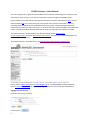
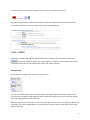
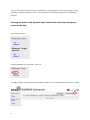
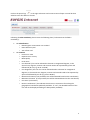
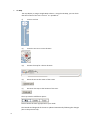
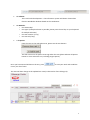
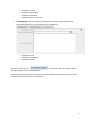
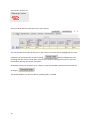
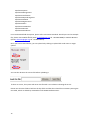
on the top‐right corner. Nearby the flag of your country, you will see two buttons: The green one will close the session (exit) while the other one (pencil logo) will allow you to edit your profile. Please press the pencil logo and you will see the following: Change the password and add your personal information (name and email address), then press: . Please remember to update your email address as needed so that you will receive news and further information on the information system and related activities. Getting started On the left‐side navigation bar you will see a grey menu: The menu will allow you to view and upload data on the dynamic gene conservation units in your country and to navigate through different tables. There two sections; one for the units and another one for the target species within each unit. When you log into the intranet for the first time, the tables in both sections are empty by default. AS a first step, you have to upload data on a unit and then you will be able to enter data on the target species in the unit. 3