1
Chapter 5. Application Functions and Settings
Configure rule sets
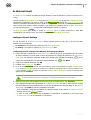
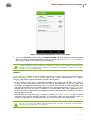
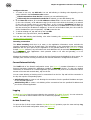
1. To create a new rule, tap Add rule. You can add allowing or blocking rules depending on the
option selected in the Connection rules section:
If Block connections from the list is selected, you can add blocking rule.
If Allow only the connections from the list is selected, you can add allowing rule.
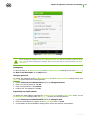
2. In the New rule window, fill in the IP address and Port fields. You can enter a valid IP address
(in the a.b.c.d format), an IP addresses range (in the a1.b1.c1.d1-a2.b2.c2.d2 format) or a network
(in the a.b.c.0/n format, where n is a number from 1 to 32) or leave the IP address field blank (in
this case entering the port is obligatory). Enter the valid port in the Port field or leave it blank (in
this case entering the IP address is obligatory). In case one of the fields is blank, the rule is valid for
all the IP addresses or ports respectively. Tap OK to save the rule.
3. To edit an existing rule, tap and hold it, then tap Edit.
4. To delete a rule, tap and hold it, then tap Delete.
You can also add allowing and blocking rules when browsing the applications logs or the list of
current Internet connections.
Incoming connections
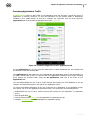
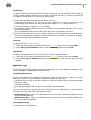
The Allow incoming check box in th menu on the application information screen excludes the
incoming connections from the firewall check. The information on the connections from any external
addresses with the port opened by the application is only partially added to the application log and
firewall statistics. Moreover, any connections with such addresses may be excluded from the processing
by firewall for all other applications. Such operation mode is not safe and generally, it is not
recommended to use it.
Allowing the incoming connections is useful in case the firewall cannot be disabled by other means, for
example, when a server receiving connections from external networks is configured on the device.
Current Internet Activity
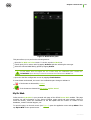
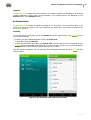
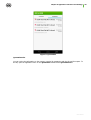
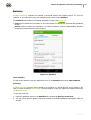
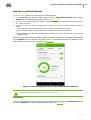
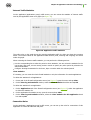
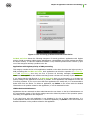
The Traffic tab of the firewall configuration screen (see Figure 13) contains information on current
Internet connections initiated by applications installed on the mobile device. To open the detailed
information on connections of a certain application (IP addresses and ports of the connections and the
amount of the sent and received data), tap it in the list.
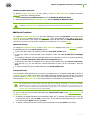
You can create allowing or blocking rules for connections from the list. Tap and hold the connection in
the list, then tap the corresponding option:
Add allowing rule to create a rule allowing the connections from the specified IP address and port
for the selected application.
Add blocking rule to create a rule blocking all the connections from the specified IP address and
port for the selected application.
Logging
Dr.Web anti-virus logs the events related to the operation of Dr.Web Firewall. You can review the
full log or the lists of events related to the use of Internet by separate applications.
Dr.Web Firewall Log
To open the list of all the events related to Dr.Web Firewall operation, open the menu and tap Log
on any tab of the firewall configuration screen (see Figure 13).
User Manual
43