1
Drake Software User’s Manual
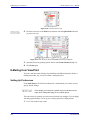
Setting up Your Document Manager
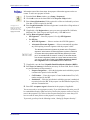
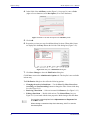
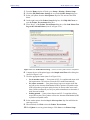
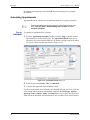
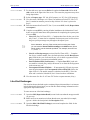
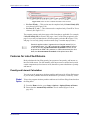
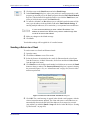
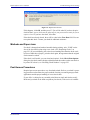
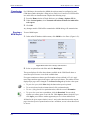
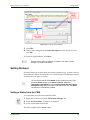
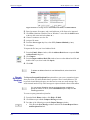
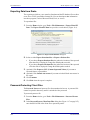
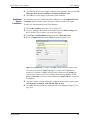
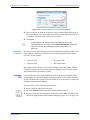
4. When the process is complete, click Close.
NOTE
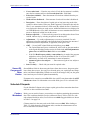
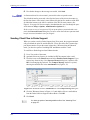
Other Tasks
If you open the DDM from within a return, only that client’s file will be
offered for transfer to the Archive Cabinet.
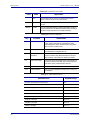
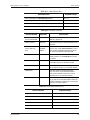
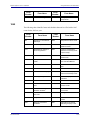
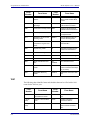
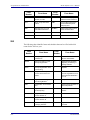
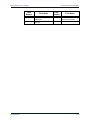
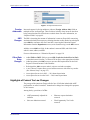
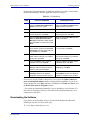
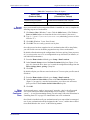
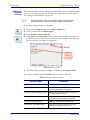
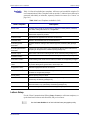
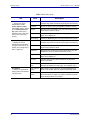
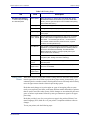
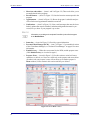
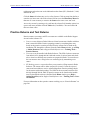
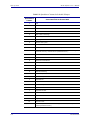
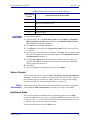
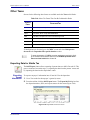
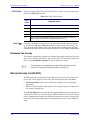
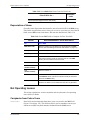
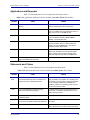
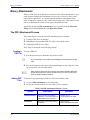
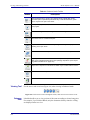
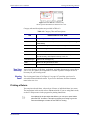
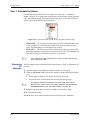
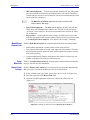
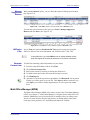
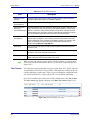
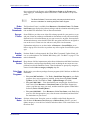
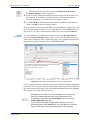
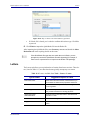
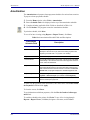
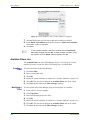
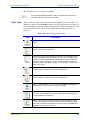
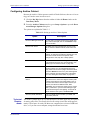
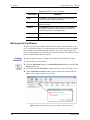
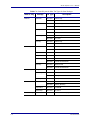
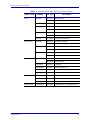
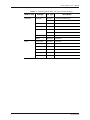
Other tasks that can be performed in the Document Manager are listed in Table 13-2.
With the exception of the GruntWorx button, the following buttons are available on
both the Working Cabinet and Archive Cabinet toolbars. Other buttons and their functions are explained in the section “Working With Document Manager Files” on
page 348.
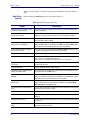
Table 13-2: Other Working Cabinet Tasks
Task
Description
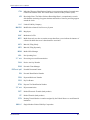
(Working Cabinet only): Open GruntWorx. See “GruntWorx” on page 357 for
details.
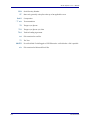
Click the File button and select Open, Rename, or Delete in order to open,
rename, or delete a file, respectively.
Select a file in the Document Manager document list, and click Copy. Choose
to copy to the clipboard, copy to a location, or copy to a CD. If copying to the
clipboard, use the Document Manager’s Paste button to paste the document
into another folder. If copying to a location, choose a location for storing the
copied file, and then click Save. If copying to a CD, follow the instructions provided on your screen.
Use the Cut and Paste buttons to move documents from one folder to another.
To copy a folder to another document, use the Copy button.
Use the Cut and Paste buttons to move documents from one folder to another.
To copy a folder to another document, use the Copy button.
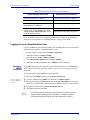
Access your SecureFileProTM portal and options to Upload or Download files
to the portal. See “SecureFilePro” on page 362 for details.
Select a file in the DDM document list (or select multiple files using the SHIFT or
CTRL keys), and click E-mail. Your default e-mail program is opened with the
document added as an attachment.
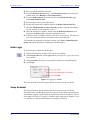
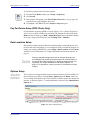
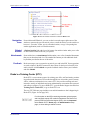
Activate “drag-and-drop” navigation, which allows cabinets, drawers, folders,
and files to be “dragged” and “dropped” within the Document Manager. Rightclick an item and drag the selected item to the new location. Click Drag On or
Drag Off to turn this feature off and on
Tax Year 2012
337