1
Drake Software User’s Manual
E-filing a Return
Step 2: Prepare the Transmission File
TIP
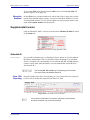
To bypass this step, select the return directly from the Calculation
Results screen. (See Figure 8-3 on page 232.)
To prepare the transmission file:
Shortcut: CTRL+S
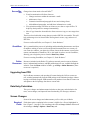
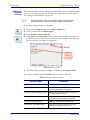
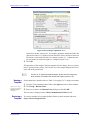
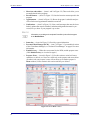
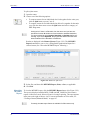
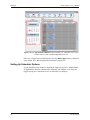
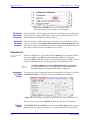
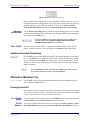
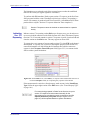
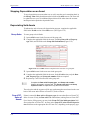
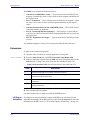
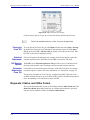
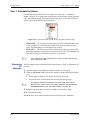
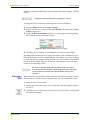
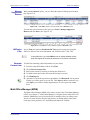
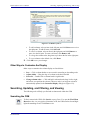
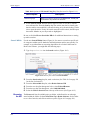
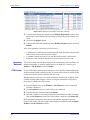
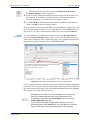
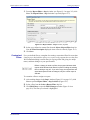
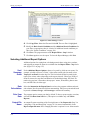
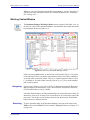
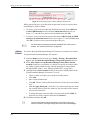
1. From the Drake Home window, select EF > Select Returns for EF. The EF
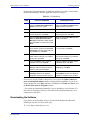
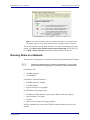
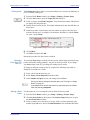
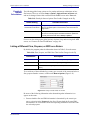
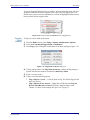
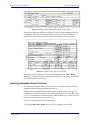
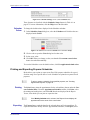
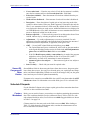
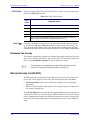
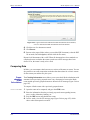
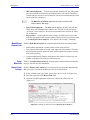
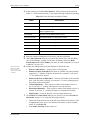
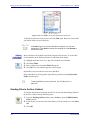
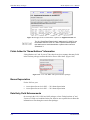
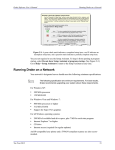
Return Selector displays a list of recently calculated returns. Those eligible for efile are indicated by a check box (Figure 8-2).
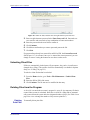
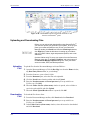
Figure 8-2: Eligible returns are indicated by boxes
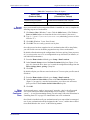
2. Select the boxes of the returns to transmit. Use the Select All or Unselect All buttons as needed.
TIP
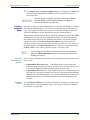
Click column headers to sort returns by column.
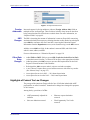
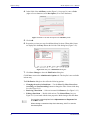
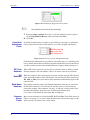
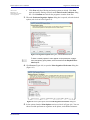
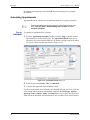
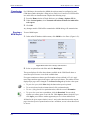
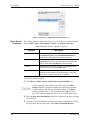
3. (optional) Double-click a return to open an EF Transmission Detail box for the
return. This box displays the client name, ID number, EF status, and federal and
state forms to be filed and allows you to finalize the specific returns (1040, 4868,
1120, etc.) to be transmitted. Click Save to retain any changes you make.
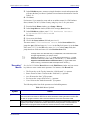
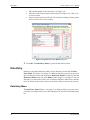
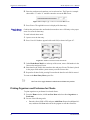
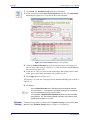
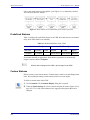
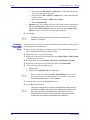
4. Click Continue. The Report Viewer shows the EF Selection Report, which lists
all returns that are awaiting transmission. See “Report Viewer” on page 293 for
details on Report Viewer features.
5. Click Exit to close the Report Viewer.
The selected returns are now in the “send” queue and are ready for transmission.
EF Select
Button
Tax Year 2012
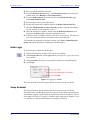
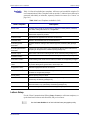
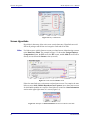
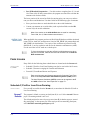
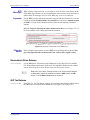
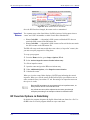
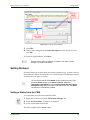
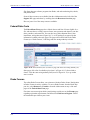
The EF Select button is available in all packages and is located at the bottom of the
Calculation Results window. By default, the button is activated if the calculated
return is eligible for e-file (Figure 8-3 on page 232).
231