1
38
FaxTalk FaxCenter Pro 8
Choosing what information to display
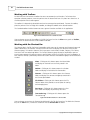
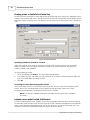
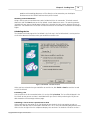
You can control what information is displayed in the List View by selecting which column headers you
want to include in a folder. If you want to reduce the amount of information provided with each entry,
you can choose to remove any unneeded column headers. To remove column headers, right-click on the
column header and then click the column header names you want to remove.
Selecting items
You can select items in the List View by clicking on the item. In addition, you can select multiple items at a
time by using the following methods:
·
To select adjacent items, click the first item, and then hold down SHIFT and click the last item.
·
To select nonadjacent items, click the first item, and then hold down CTRL and click additional items.
·
You can use the Select All command on the Edit menu to select all of the files in the list at once.
Using drag and drop
Drag and drop is a feature that enables you to use your mouse to select and drag an item from one folder
and then drop it into another folder of the same type. For instance, moving a received fax from the Inbox
to the File Cabinet.
To move an item using drag and drop:
1. Make sure the Folder List is displayed.
2. In the List View, select the item.
3. Press and hold down the left mouse button to drag the file from the List View to the destination
folder in the Folder List.
4. Release the mouse button.
To copy an item using drag and drop:
Make sure the Folder List is displayed.
In the List View, select the item.
Press and hold down the CTRL key.
Press and hold down the left mouse button to drag the file from the List View to the destination
folder in the Folder List.
5. Release the mouse button.
6. Release the CTRL key.
1.
2.
3.
4.
NOTE: If the mouse cursor changes to a circle with a diagonal line when you drag an
item over the destination folder, the folder cannot store the type of item you selected.
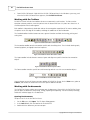
Working with the Preview Pane
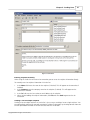
The Preview Pane provides the ability to view faxes in a folder without having to open the fax directly in
the FaxTalk Fax Viewer. When you select a fax in a folder with the Preview pane enabled the fax is
displayed directly in the Preview Pane window. When you enable the Preview Pane you can have the
Preview Pane displayed at the bottom of the List View or to the right of the List View.
To display the Preview Pane in FaxTalk FaxCenter Pro:
1. Open the FaxTalk FaxCenter Pro application.
2. Click the View menu, then click Preview Pane. To display the Preview Pane at the bottom of the List
View select Bottom. To display the Preview Pane to the right of the List View select Right.
Copyright © 2010 Thought Communications