1
18
FaxTalk FaxCenter Pro 8
NOTE: FaxTalk FaxCenter Pro uses the selected email client to actually send the
generated email messages. Please refer to the documentation for your email client
regarding configuration of the email client for sending email. You may need to have the
email client running in the background for email messages to be sent.
Selecting the attachment file format for faxes send by email
When sending fax documents to email addresses you can choose to have FaxTalk FaxCenter Pro convert
the fax documents into Adobe Acrobat PDF or TIF formatted files for easier access. The Adobe Acrobat
Reader (used for viewing Adobe Acrobat PDF files) is free from Adobe and is commonly installed by
default on most new machines.
To select the file format to be used when attaching faxes to an email:
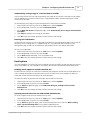
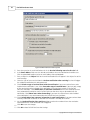
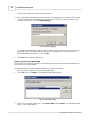
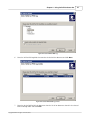
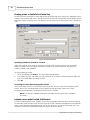
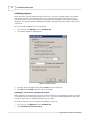
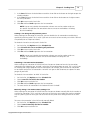
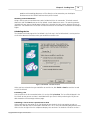
1. From FaxTalk FaxCenter Pro, click on the Tools menu, and click Options.
2. In the configuration list on the left, click on Email.
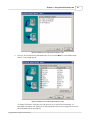
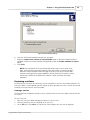
3. On the Email configuration page, select the desired file format for converting documents sent by
email from the When sending faxes by email use list.
4. Click OK to save the changes and close FaxTalk FaxCenter Pro Settings.
Using notification rules
FaxTalk FaxCenter Pro includes support for notification rules that can notify by fax, pager or email when
new items are received. You can configure multiple notification rules to suit your needs. For example, you
may choose to create a fax notification rule to have received faxes forwarded to a fax machine and an
email notification rule to have received faxes sent to an email address.
Creating fax notification rules
A fax notification rule provides a way to have a fax sent to a defined number when new items are
received. The fax provides information regarding the number of new items in the FaxTalk FaxCenter Pro
Inbox. You can also have the fax notification transaction include a copy of the received fax.
To create a fax notification rule:
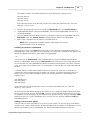
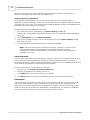
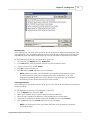
1.
2.
3.
4.
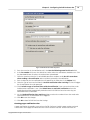
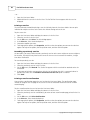
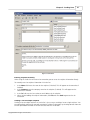
From FaxTalk FaxCenter Pro, click on the Tools menu, and click Options.
In the configuration list on the left, click on Notification.
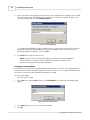
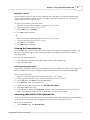
On the Notification configuration page, click New.
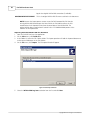
From the list of available notification rule types, select Notification by Fax and click OK.
Copyright © 2010 Thought Communications