1
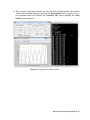
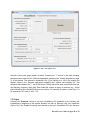
2) After the WaveAR window(s) appear, the user loads data by clicking the “Get Data”
button. This opens a standard file browser. The user simply selects the appropriate
comma separated value (.csv) file to process, and clicks the “Open” button to load and
process the file (Figure 3).
Figure 3. File browser dialog to select the .csv file for processing.
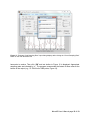
3) Once the data file is loaded successfully, the “WaveAR data fitting” window appears
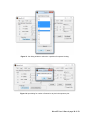
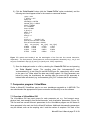
(Figure 4) and the main WaveAR GUI now has “First Harmonic Parameters”, “Free
Second Harmonic Parameters”, and “Probe Data” button panels (Figure 5).
WaveAR User’s Manual page 5 of 19