1
13
ProDoc Software Manual
the installation to your needs.
·
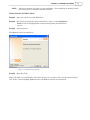
Logging In. The program will ask you to enter login initials or name. Type your initials or login
name (depending on your preferred method) in the field provided. Your initials or login name can
be up to 20 characters long. Since this is the first time these initials have been used, a message
box will appear stating that you have not logged in with these initials before and asks if you want
to log on. Click OK to use the initials. Click OK again and ProDoc will activate.
·
The first user who logs in is designated as the Supervisor. Supervisors will see a Customize
menu item called Manage Users Login and can designate other users as Supervisors or Users.
This function is fully discussed in the Manage Users Login 13 section.
(If available)
·
·
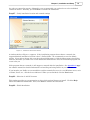
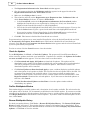
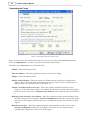
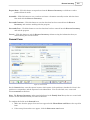
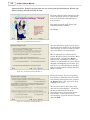
The Options and Settings window will appear, displaying the Firm Information box. It will
display your Firm Name differently depending on whether or not you have registered your
software. Please note that you cannot change the Firm Name at this window.
§
If you have not yet registered, the Firm Name will appear as Unregistered User. When
you register, you will designate your firm name.
§
If you have already registered, your firm name will appear as you entered it during
registration. If you need to change your firm name in the future, click Tools ®
Registration ® Change Firm Name.
§
Enter your firm's information in the appropriate fields. The required entries are Firm Name
(completed for you), the first Address field, City, State, Zip Code and Phone. We
recommend that you also complete any other fields which apply to your firm. The information
you enter will appear on many of your documents.
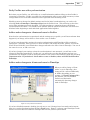
Another window appears offering to install a toolbar in your word processor. We recommend you
click the OK button. This will make it much easier to work with documents in both ProDoc and in
your word processor. You can remove it or reinstall it later in the Customize ® Options menu.
If you choose to install the toolbar, simply follow the prompts in succeeding windows.
Manage Users Login
The first person to sign on and run ProDoc will be added to the Staff file as the only supervisor.
Supervisors are able to view and use a menu choice under the Customize menu titled Manage Users
Login. From this menu, the supervisor can add, change or delete user records and specify default
settings for new users.
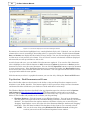
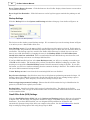
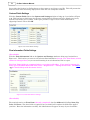
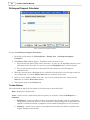
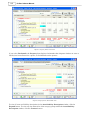
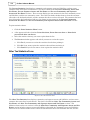
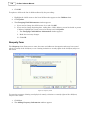
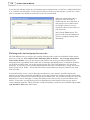
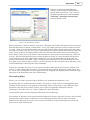
Click Customize ® Manage Users Login to display the Browse Users Records window (Figure 1-6).
Figure 1-6, Browse Users Records Window