1
10
Illustration showing Mini Navigation radio
Song/Artist/Playlist
displayed here
11
Controlling the MediaBridge iPod source
Press DIAL to store SIRIUS station presets (SIRIUS source
mode; see page 24).
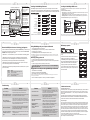
The MediaBridge integration kit features content browsing. After connecting the iPod, select the desired
browsing mode by selecting the appropriate DISC. Press the SEEK button or turn the TUNE dial repeatedly to
browse contents. 1 second after releasing the button, your selection is executed. The browsing function below
Text Mode (RND enabled): Displays text from the MediaBridge
such as Song/Artist/Playlist titles.
Press the MODE button
to access the MediaBridge as
the audio source
Press and hold the TRACK buttons
to RW or FFW. On some older BMW
radios the m button must be engaged to perform the same action.
DISC 1
song name1
PLAYLIST MODE -
DISC 2
PLAYLIST1
DISC 3
artist1
ALBUM MODE* -
DISC 4
album1
PODCAST MODE* -
DISC 5
podcast1
AUDIOBOOK MODE* -
DISC 6
audiobook1
ARTIST MODE* (within the
selected Playlist)
(within the selected
Artist in the selected Playlist)
Use DISC buttons 1-6 to change
between DISC modes and to recall and
store SIRIUS stations (SIRIUS
source mode).
Selected source indicator: AM/FM/CD/CDC
SONG MODE -
SEEK
TRACK
SEEK
TRACK
or
song name2
or
PLAYLIST6
Used to store stations to Presets 1-5.
To recall a memorized channel: Simply press the desired DISC (preset 1-6).
SEEK
TRACK
artist3
or
SEEK
TRACK
or
album7
SEEK
TRACK
or
podcast9
or
audiobook4
SEEK
TRACK
To store stations
to buttons 1-6
Mini Navigation radios
Press DIAL
14
Bluetooth & MAT (Music Announcer Technology) configuration
To alter voice announcement and Bluetooth pairing settings select Bluetooth as your audio source, press
the preset button that corresponds to the feature you want to configure, and then use track or channel
UP/DOWN to browse through configuration options:
• PRESET/DISC 1, 2 or 3 should be selected if you want to control Bluetooth audio streaming playback.
• PRESET/DISC 4 controls the Autoconnect feature. Available options are Enable and Disable.
This controls whether or not the MediaBridge will reconnect automatically when phone becomes
disconnected. Only the most recently paired device will be reconnected automatically.
• PRESET/DISC 5 controls the paired devices memory. There is only one option. Tune or change
tracks to clear the listing of paired devices with the MediaBridge.
• PRESET/DISC 6 controls MAT setting. Available options are Default, Extended, Phone only, and Off
(refer to the chart below).
Options
Default
Extended
Phone only
Off
Function
Reset MAT back to factory default configuration
Turn on ALL MAT feature
Turn on the phone relative MAT only
Turn off MAT completely
Press DISC button 1-6 within
5 seconds
Press DIAL to store station
NOTES: If a SIRIUS CONNECT compatible tuner is not detected, then a “No Tuner” vehicle message is displayed.
Go to Channel 000 to view the SIRIUS Tuner ID for activation. The 12 digit SID display format is shown in two parts as SID “123456-” followed by “-789ABC”.
*Only available when iPod is locked. When iPod is unlocked the radio will only display song titles.
15
The MediaBridge integration kit features SIRIUS connectivity. Use the TRACK buttons or jog DIAL to browse between
subscribed channels.
To store a subscribed channel to memory:
• Single line radio: Tune to desired station. Press RANDOM button and select which DISC button (preset 1-6) to save to.
Press RANDOM button once more to store the station.
• Navigation radios: Tune to desired station. Press and hold the desired DISC button (preset 1-6) to save as preset.
• Mini navigation radio: Tune to desired station. Press jog DIAL, press desired DISC button (1-6), press DIAL to save.
Non-Navigation radios
Menu Mode (RND disabled):
Displays the default navigation
and vehicle menu screens.
Press the TRACK buttons to go
to the next/previous song, playlist, artist or album (depending on
which DISC number is selected).
Controlling the MediaBridge SIRIUS source
Turn DIAL for next/previous track.
On Mini navigation radios, the
RND button is used to toggle between Menu and Text modes.
12
13
USB memory operation
Pairing MediaBridge with your cell phone via Bluetooth
1. Turn on the Bluetooth feature on your cell phone
2. Select MediaBridge as your audio source from your radio, then select Bluetooth mode
3. Search device from your cell phone
4. Select MediaBridge from device list and enter password “0000” to connect
Icon Legend
press button
Note: MediaBridge is only discoverable for first 60 seconds after selecting MediaBridge as your radio’s audio soure. Bluetooth devices remain paired
30 seconds after exiting MediaBridge mode, within this time active audio streams and phone calls aren't audible on the phone but can be resumed by
re-entering MediaBridge mode
Answering / making a phone call
• To answer an incoming call, press the button that tunes to the next track or channel
• To reject an incoming call or terminate an active call, press the button that tunes to the previous track or
channel
• To make an outgoing call, dial on the phone like you would normally
Phone calls interrupt any music / audio that is currently playing on the radio while MediaBridge is
the selected audio source.
Playing music from a cell phone through MediaBridge via Bluetooth
1. Enter Bluetooth mode on MediaBridge
2. Make sure your cell phone is paired with MediaBridge
3. Select and play a song from your cell phone’s music player
press button
repeatedly
press & hold
button
• Select DISC 1, then use the track buttons to change from song
to song.
• Select DISC 2-6 to browse Folders and use the track buttons to
navigate through the folders on your USB flash drive.
• The MediaBridge unit will recognize the first 8 levels of folders,
with up to 200 accessible folders within each folder. Only the first
1000 files will be read in each folder, the rest will be ignored.
• Songs play in the order they were added to the flash drive.
• Use the Random feature on radio to shuffle all songs on the
flash drive. This may take a long time to complete if the flash
drive is more than 4GB.
USB memory mode
change songs
DISC1
TRACK
change folder
DISC2
TRACK
change folder
DISC3
TRACK
change folder
DISC4
TRACK
change folder
DISC5
TRACK
change folder
DISC6
Note: Some cell phones require you to manually select the option to play music via (A2DP) Bluetooth Streaming. Song information is shown on the
radio display if your phone has AVRCP1.3.
TRACK
4. Use Track UP/DOWN to skip tracks / FF / RW songs on the AVRCP compatible phone.
16
17
Troubleshooting
Problem
Solution
Problem
Solution
iPod does not charge.
Check all connections. See if iPod charges while connected to
computer or wall charger. You may need to reset the iPod.
No audio from iPod source.
Reset the iPod. Verify proper connection to iPod/interface. Check
for compatibility. Older iPod models don’t support USB audio. Hold
switch must be on for 5th generation iPod video.
Music is distorted or sound level
is too low with iPod connected.
Make sure all EQ and BASS boost options are turned off on your iPod.
You can set audio base level in DISC 3, see page 6.
Cannot select the interface.
Verify unit is trying to be accessed as the CD-changer source.
With ignition off, disconnect vehicle harness from module for a
minute, verify connections and reconnect.
Why is the interface not
controlling the iPod/USB drive?
Please make sure that the USB connection is not loose. Make sure
that an iPod case is not preventing the dock connector from being fully
seated. Disconnect and reconnect the device. If iPod is not responding
please try resetting it. USB device must also be FAT16/32 format and
contain supported MP3, WMA or AAC content.
Radio/ steering wheel controls do not
operate iPod.
Reset iPod and make sure the most recent iPod firmware is
installed. Check vehicle user manual on how steering wheel
controls work, long presses may toggle alternate function.
Why does category read
“PRESELCTD”?
Playback of content selected on the iPod before connected to
the interface continues until new content is selected.
What size of USB flash drive
should I use?
Large capacities are supported, however up to 4GB is
recommended for optimal user experience.
Why does the message “iPod
UNLOCKED” display on screen?
When the MediaBridge is playing iPod music in UNLOCKED mode,
browsing mode information isn’t available so the “iPod
UNLOCKED” notification is shown. To view song information return
to Song mode (Preset 1). To view information associated with
browsing modes, ensure the iPod’s hold button is set before
connecting it to MediaBridge.
Sirius tuner can’t be selected.
Check for proper connection to the mini DIN 8 receptacle. Make sure
that the connector pins are not bent. Make sure to select SIRIUS in
Audio Source Selection (refer to page 6).
Why does the radio display show
“EMPTY/STOP” and no music
plays?
USB iPod: the end of a playlist or selection has been reached. Select
a new playlist from DISC2.
USB Memory: There are no supported audio files on the flash drive.
Disclaimer and warranty
Important disclaimer, please read!
Unauthorized reproduction or reverse engineering is strictly prohibited! Intellectual property included is distributed
under specific license agreement with respective owners and is licensed only, not sold. No warranty, explicit or
implied, is stated. Neither DICE Electronics, LLC., nor any of its agents, distributors, dealers or vendors shall be
liable for damages.
IN NO EVENT SHALL DICE ELECTRONICS' LIABILITY EXCEED THE PRICE PAID FOR THE PRODUCT
FROM DIRECT, INDIRECT, SPECIAL, INCIDENTAL, OR CONSEQUENTIAL DAMAGES RESULTING FROM
THE USE OF THE PRODUCT, ITS ACCOMPANYING SOFTWARE OR ITS DOCUMENTATION.
Warranty and Support
Products carry a 90 day limited warranty that protects you from defects in material and workmanship of products
sold by DICE Electronics, or its authorized agents, distributors and dealers. The warranty period begins the day a
product is purchased by the end user. Products found to be defective during the warranty period will either be
repaired or replaced by DICE Electronics at no charge unless warranty is void. Unauthorized attempt of repair or
alteration of the product in any way immediately voids this warranty. Warranty does not extend to cosmetics or
finish. A DICE product specialist must determine that defect is present in the product and issue an RMA. Be sure
that all wiring is connected as described in the user manual and all related equipment is functioning properly.
DICE Electronics disclaims any liability for other incurred damages resulting from product defects. Any expenses
in the removal and reinstallation of products are not covered by this warranty.
If experience any problems or need help, please contact your local dealer or call 888-342-3999, or visit our
support site at http://www.diceelectronics.com/support.