1
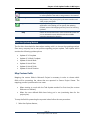
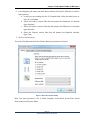
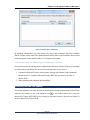
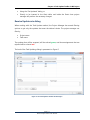
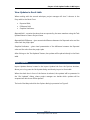
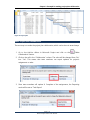
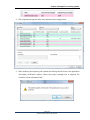
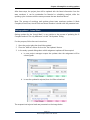
Chapter 2: Task Update Toolbar in MS Project Make your project Collaborative First step that you need to do is to enable collaboration on your project file stored in shared folder. To do that, open your file with Microsoft® Project that has previously installed Seavus Add-in for Microsoft® Project with Task Update options and simply click on the Enable Collaboration icon in the toolbar in case for Microsoft® Project 2007 or Make Collaborative feature in the Add-Ins ribbon in case for Microsoft® Project 2010, as it is presented on Figure 2. Figure 2. Before making the project plan collaborative, project manager can select the updating method, i.e. which project categories will be updated: Tasks Assignments The updating method can be selected in the lower part of the “Make Project Collaborative” dialog, as it is presented on Figure 3. For that purpose, perform the following steps: 1. Select the project plan that will be 2. From the Collaborative column select the “Yes” for introducing the project plan into collaborative mode. 3. From the Reporting mode column select the Page | 8 Seavus Project Viewer User Manual