1
9 INVESTIGATION AND CONFIRMATION
MELSOFT
9.8 Operation Analysis
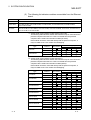
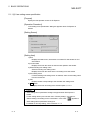
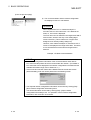
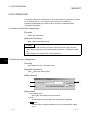
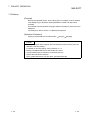
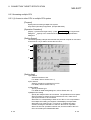
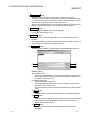
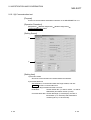
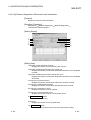
[Purpose]
Analyze the PLC CPU operation.
Each item in "Analysis setting" dialog box must be set in advance.
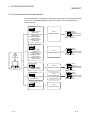
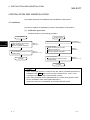
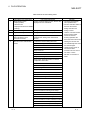
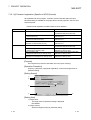
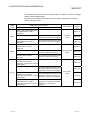
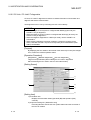
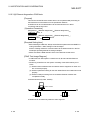
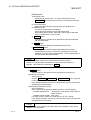
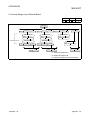
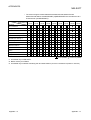
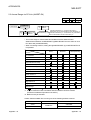
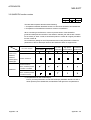
Operation Analysis can be selected from "Order check", "Count check",
"Normal/Fault pattern check", "High/Low limit value check".
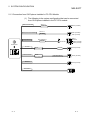
This function compares the program of the specified target name with the set
condition, detects the error position (if any) as error or warning and displays the
results.
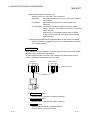
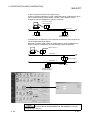
When an operation analysis name is set to each of settings, the analysis can be
executed based on the same settings by selecting the operation analysis name
without the necessity to set the condition for each time.
Multiple operation analysis dialog boxes can be simultaneously started.
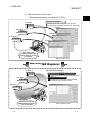
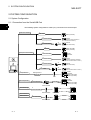
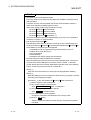
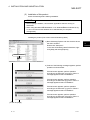
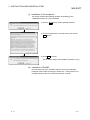
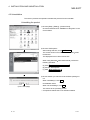
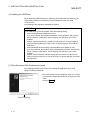
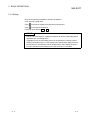
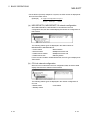
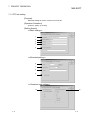
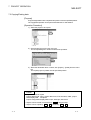
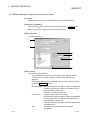
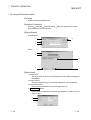
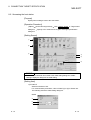
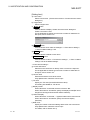
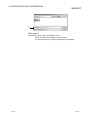
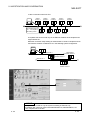
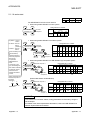
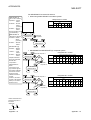
[Operation Procedure]
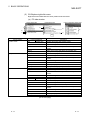
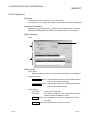
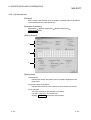
[Diagnostics]
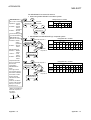
[Operation analysis]
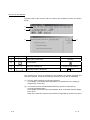
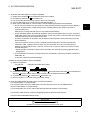
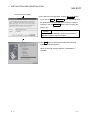
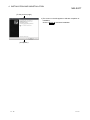
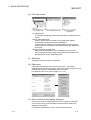
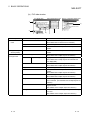
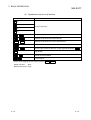
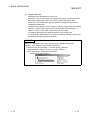
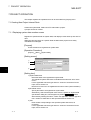
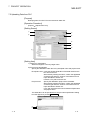
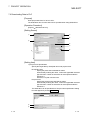
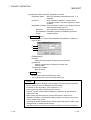
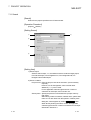
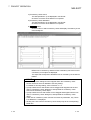
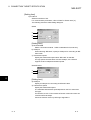
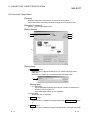
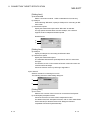
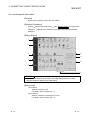
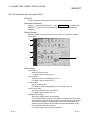
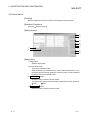
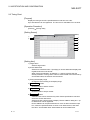
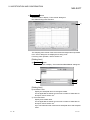
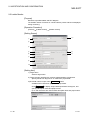
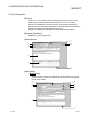
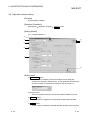
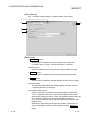
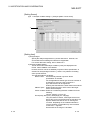
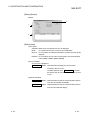
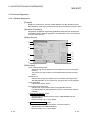
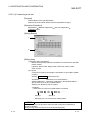
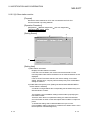
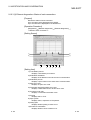
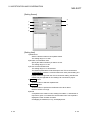
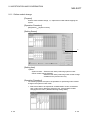
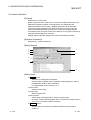
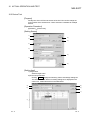
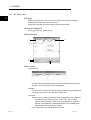
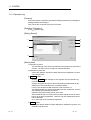
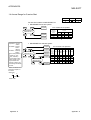
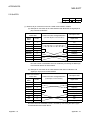
[Setting Screen]
2)
1)
3)
5)
4)
6)
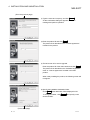
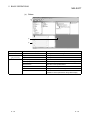
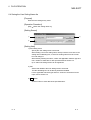
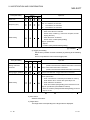
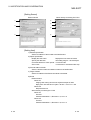
[Setting Item]
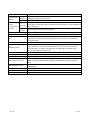
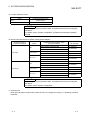
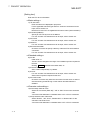
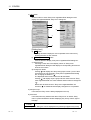
1) Setting button
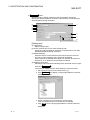
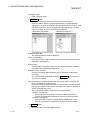
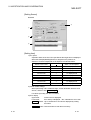
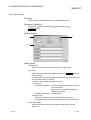
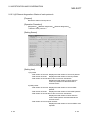
Click the button to display "Analysis setting" dialog box. Enter an operation
analysis name and set the analysis condition. For details, refer to Section
9.8.1.
2) Analysis name
Select the operation analysis name to be executed.
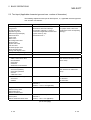
3) Target name
Set the target name to be analyzed.
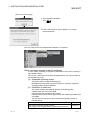
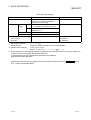
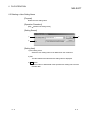
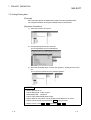
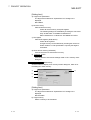
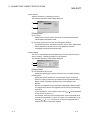
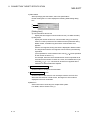
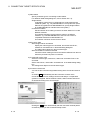
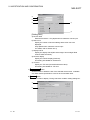
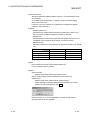
4) Analysis execution status
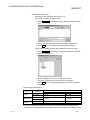
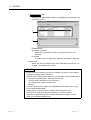
Select "Analysis start" or "Analysis stop". Click Execute to execute the
selected operation.
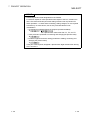
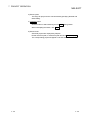
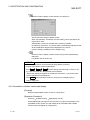
By checking "Continue analysis after error and warning. ", the analysis can
be continued if an error or warning occurs. (Except "Normal/Fault pattern
check")
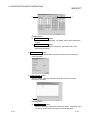
To stop the operation, select "Analysis stop" and click Execute .
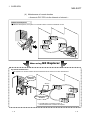
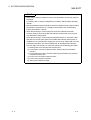
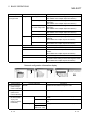
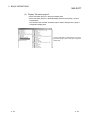
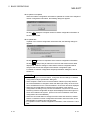
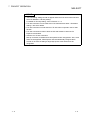
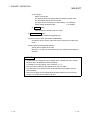
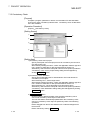
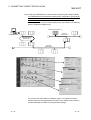
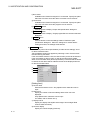
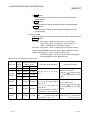
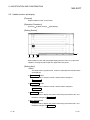
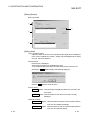
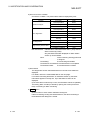
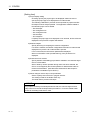
5) Analysis result
The analysis result is displayed by color. The corresponding position is
shown as "Warning" or "Error".
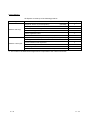
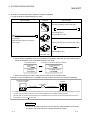
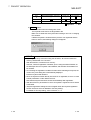
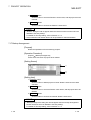
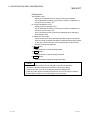
Green: Normal operation (as well during diagnostics).
Yellow: Warning occurrence.
Red: Error occurrence.
9 - 33
9 - 33