1
T ROUBLESHOOTING
.....
................................ .
7
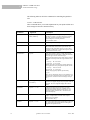
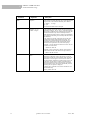
Problems with the QuadView Plus’s operation may result from inappropriate
system connections and settings. In the event of difficulty or anomalous results,
first check cable connections, the video format associated with each input, the
monitor timing selected, and any system options currently in effect. Some of
these are discussed in Table 6. Please note that the QuadView Plus’s hardware
should only be modified or repaired by RGB Spectrum’s technicians.
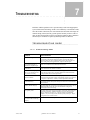
TROUBLESHOOTING GUIDE
................................................
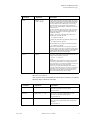
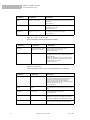
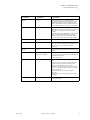
TABLE 6. Tr oubl esho oti ng G u ide
June 6, 2002
Symptom
Recommendations
No Power or Lights
Check that the QuadView Plus is plugged in and powered on. Check the
fuse located in the line filter. Remove the fuse cover from the power
connector panel. The unit is supplied with two fuses; the second one is a
spare. If the primary fuse appears blown, replace it with the spare.
No Signal/Poor Signal on
Monitor for Computer Input
Make sure a suitable host is loaded from the Host List.
No Windows
Ensure that at least one window is enabled.
Windows have wrong aspect
ratio (i.e., are stretched) or are
not positioned correctly
Use the HostInteractive command to adjust timing parameter values.
Verify that the window source rectangle (WSR) and window destination
rectangle (WDR) have the same aspect ratio.
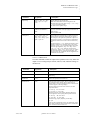
Blank Video Window
(window is black)
Ensure that the window’s video source is properly connected to the system,
powered on and generating a signal. Ensure that the correct type is selected
(Composite, Component, or S-Video) with the INputTYPE command.
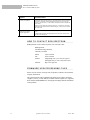
Frozen Window(s)
If a window is frozen after system start-up, turn freeze off. Use the FreeZe
OFF command.
Missing Window Imagery
Check the WSR value to ensure the entire image is being processed. Check
WSR and WDR to ensure the source and destination rectangles are
delivering the entire video image.
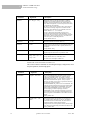
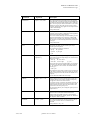
Poor Quality Video
Check the video source for proper operation. Ensure that video sources are
not doubly terminated. (Double termination can occur when one video
source is split into two using a “T” connector instead of a distribution
amplifier.) If you are using a VCR, check the quality of the tape. Adjust
the brightness and contrast controls.
Motion Blur on Frozen or
Live Video with Fast Moving
Imagery
Turn the motion filter on using the MotionFilter serial command.
QuadView Plus User Manual
31