1
Rivers Database Version 3 (2007)
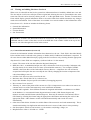
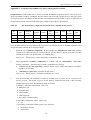
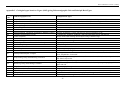
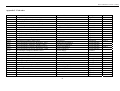
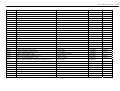
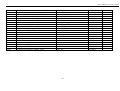
SASS data can be imported. Check on your Rivers Client for the correct Site Code. Use the
“Reference” spreadsheet to check details.
• Once all data has been captured, it is necessary to delete the blank lines, i.e. where no abundance in
given. To do this add a temporary column called “Order” and number it sequentially, 1, 2, 3, etc.
(Hint: Type 1, 2, 3 then highlight numbers and drag right-hand corner of block to end of column to
auto-number entire column). Select the entire block of data and using the menu, Select “Data: Sort”,
sort on abundance. Then delete all the records that have no abundance. Reselect block of data and sort
on Order. Check your data to ensure that it is correct. Then delete the “Order” column.
• Check the data format (e.g. 12-Jan-2007): Highlight the Sampling Date Column and select Format:
Cells, select Custom from Category and scroll to “dd-mmm-yy” under Type. Add an extra yy so that it
reads: dd-mmm-yyyy.
• Save your file in an appropriate directory as a .csv file
using the File: Save As and selecting Save as Type CSV
NB: Limit the number of rows to
(Comma delimited). Hint: to check that date format is
1000, to speed up the import process
correct, open the file using “Notepad” which returns it as
a text file.
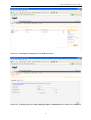
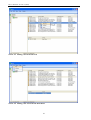
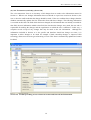
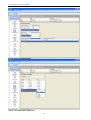
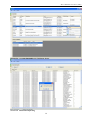
• Click on Tools : SASS Import
• Browse to the SASS file required to be imported into the database.
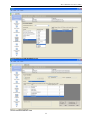
• Once the file has been located, click on Import. Note this needs to be .csv file, which can be created
and saved in Microsoft Excel.
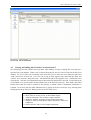
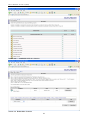
• The results of the import will be shown on the screen.
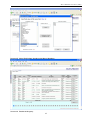
• If errors are reported, check using the “Reference” button. This opens an excel spreadsheet with
Owner, Assessor, SASS Biotope, Taxon Name and Abundance information. The user needs to check
that the reference information matches the data in their import file as it is critical that all the fields
match exactly or the import will fail. The Column headers on the import form should also match those
in the user spreadsheet exactly.
• Note: the owner of the site visit is derived from the logged in user.
• Please be patient when importing a large amount of data as the import takes some time.
NB: It is critical to specify the date format in Excel as Day-Month-Year, i.e. 01-Jan-2007. This
ensures that the imported date is correct in the Rivers application. To change the date format,
highlight the column, select Format/Cells, scroll to Custom from the category and type: dd-mmmyyyy in the “Type” field.
37