1
Posting Purchase Requests
Printing Purchase Orders
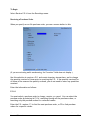
Select Post from the Purchase requests menu.
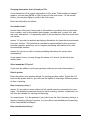
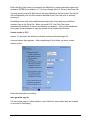
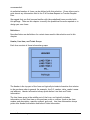
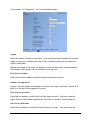
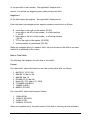
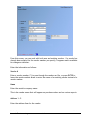
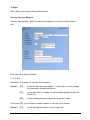
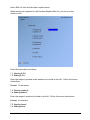
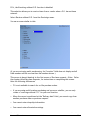
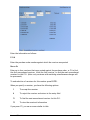
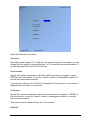
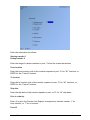
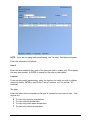
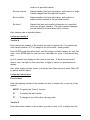
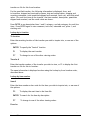
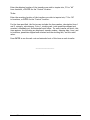
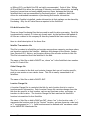
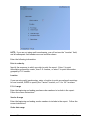
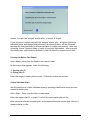
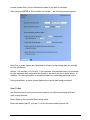
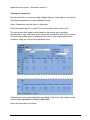
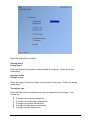
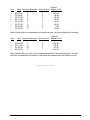
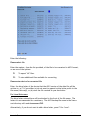
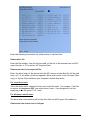
After you specify posting information, you see a screen similar to this:
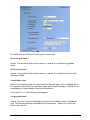
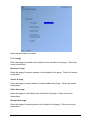
Enter the information as follows:
? 1. Starting P.O.#
? 2. Ending P.O. #
Enter the range of P.O. numbers that are to be posted. Follow the screen
instructions.
Format: 15 characters
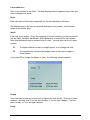
? 3. Form ID
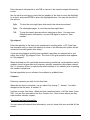
Enter the ID of the form to be used to print the order (a "Print P.O." form type) or to
create a text file (an "Export P.O." form type), or use one of the options:
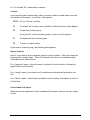
Options:
ENTER
to default to the form ID specified in the P/A Control file
[F1]
To scan through the forms in the Form file
[F2]
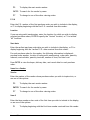
For "None" if the order information is not to be printed or
exported
Format: 5 characters
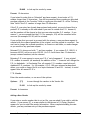
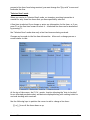
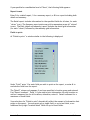
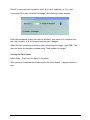
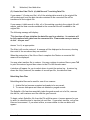
If you specified a "Print P.O." type form ID, you then see "Please mount P.O. forms on
printer. Type [Done] when ready". Insert the forms on the printer and type [Done]
when ready.
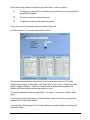
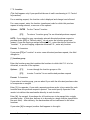
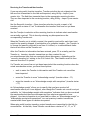
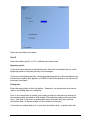
You are then asked "Print alignment ?". Answer Y to print a test alignment form filled
out with X's and 9's. Answer N when the form alignment is correct, or if you do not
wish to print an alignment form.
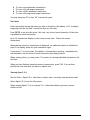
If you have defined multiple printers, select the printer on which the forms are
mounted. The purchase orders are then printed.
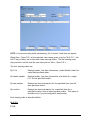
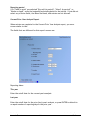
When the purchase orders have been printed, you are asked "Are P.O. forms just
printed OK ?". Answer Y if the printed forms are acceptable to proceed with posting.
Answer N if the printed forms are not acceptable or if you wish to prevent posting. If
you answer N, you are then asked if you wish to reprint the forms. Answer Y to
reprint the forms or N to exit the function.
Purchasing
Samco Power Accounting
Purchase Requests
12.18